
Learn how to add a re-post or take down task in Ad Manager Connect with these straightforward steps.
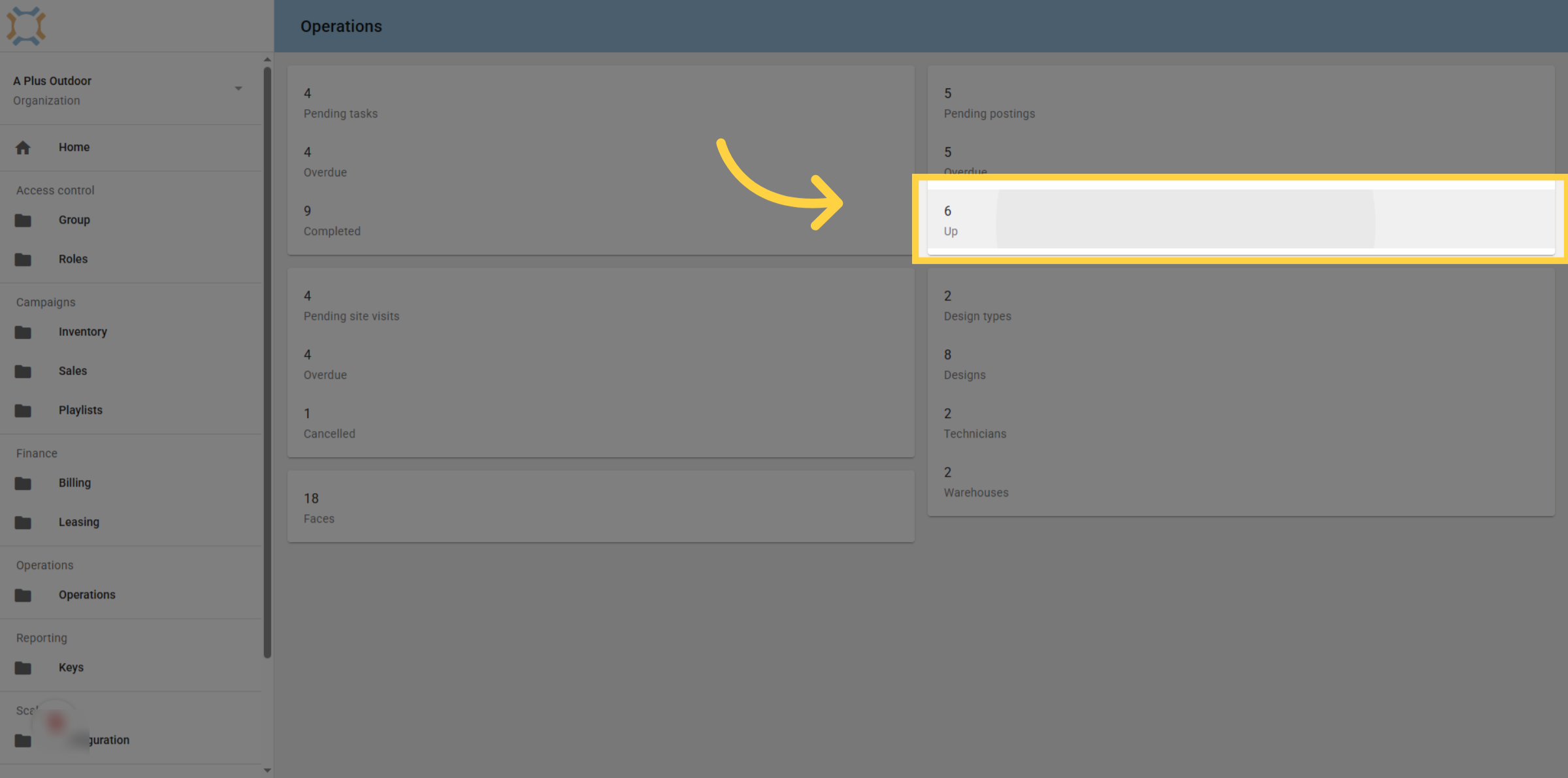
1. Click "Up"
From the Operations page, click on Up to access a list of postings that have been posted.
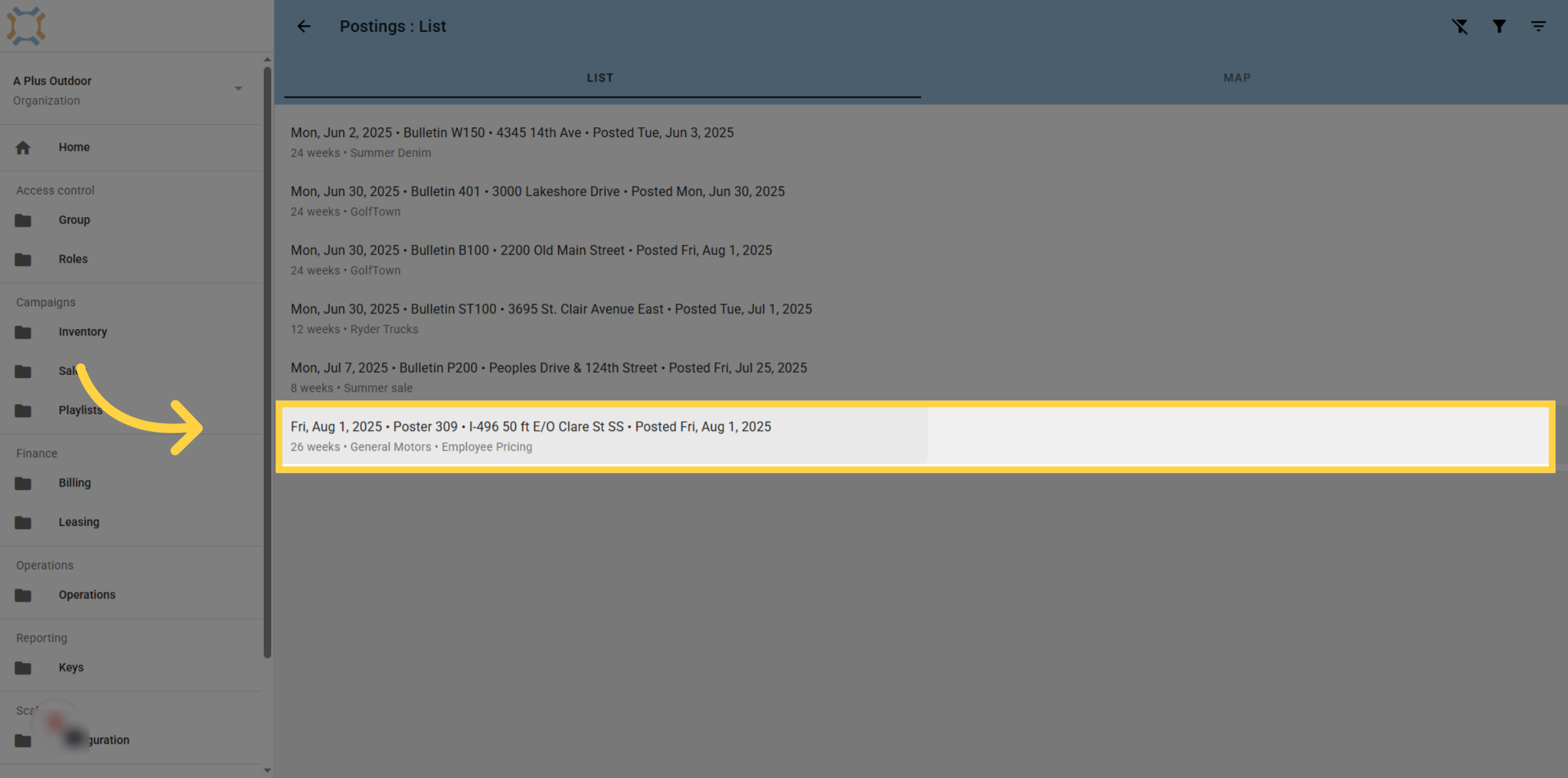
2. Find Posting to assign new task to
Using the Finder or narrow down features, find the posting you wish to create the new task for and click on it.
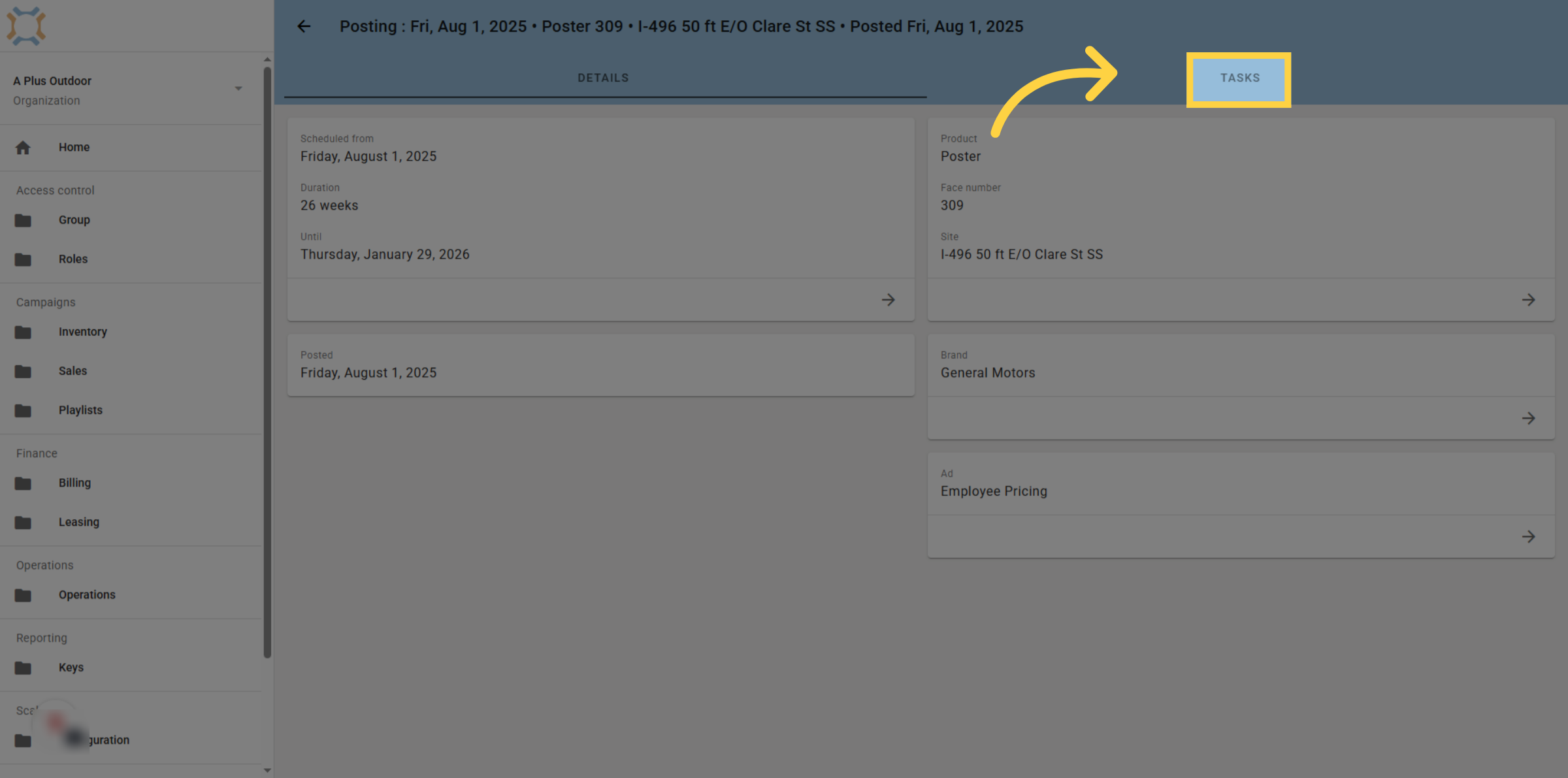
3. Click "tasks"
Click on tasks to access all tasks associated with this posting
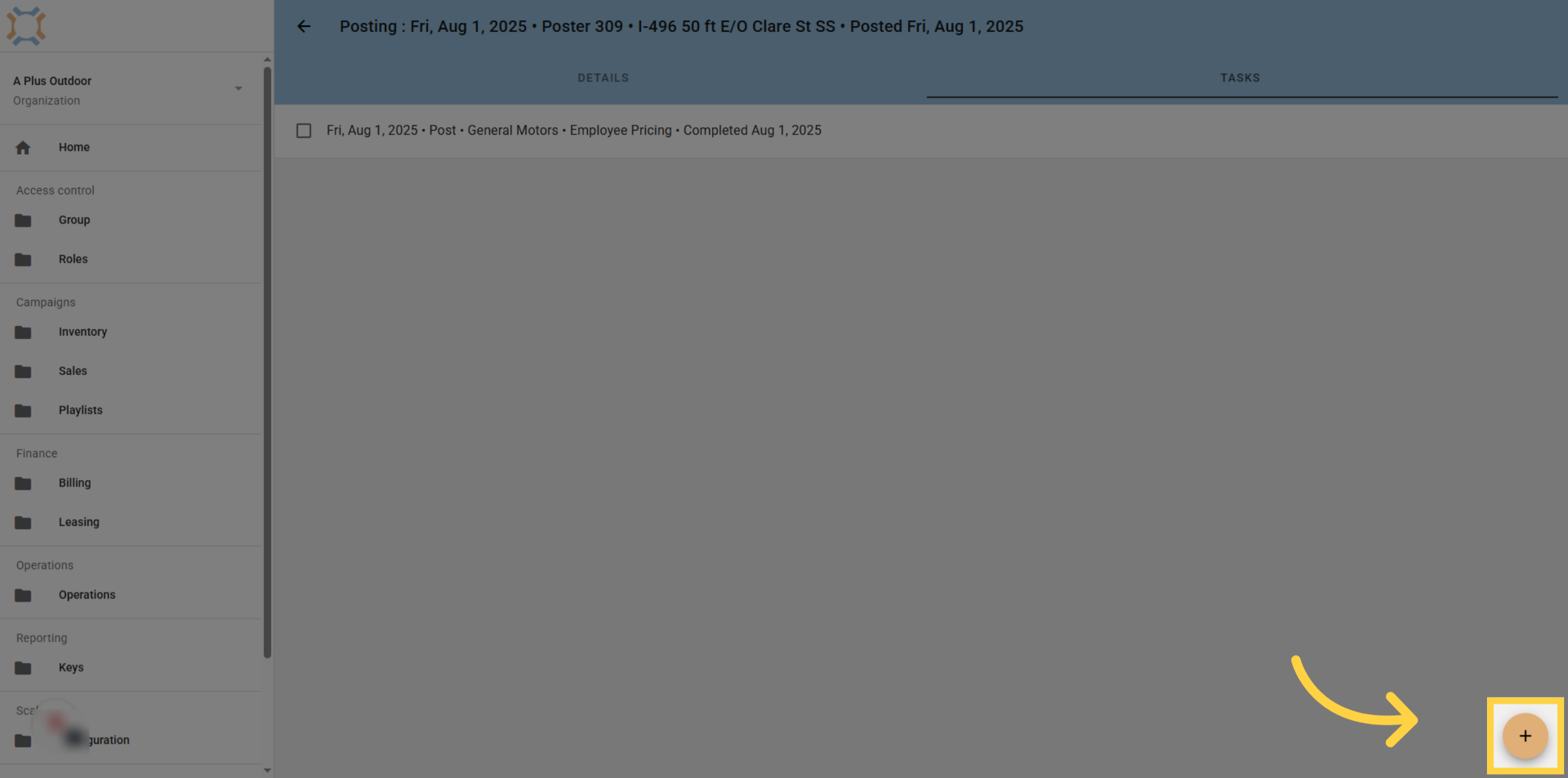
4. Click "add"
Click "add" to create a new task related to this posting.
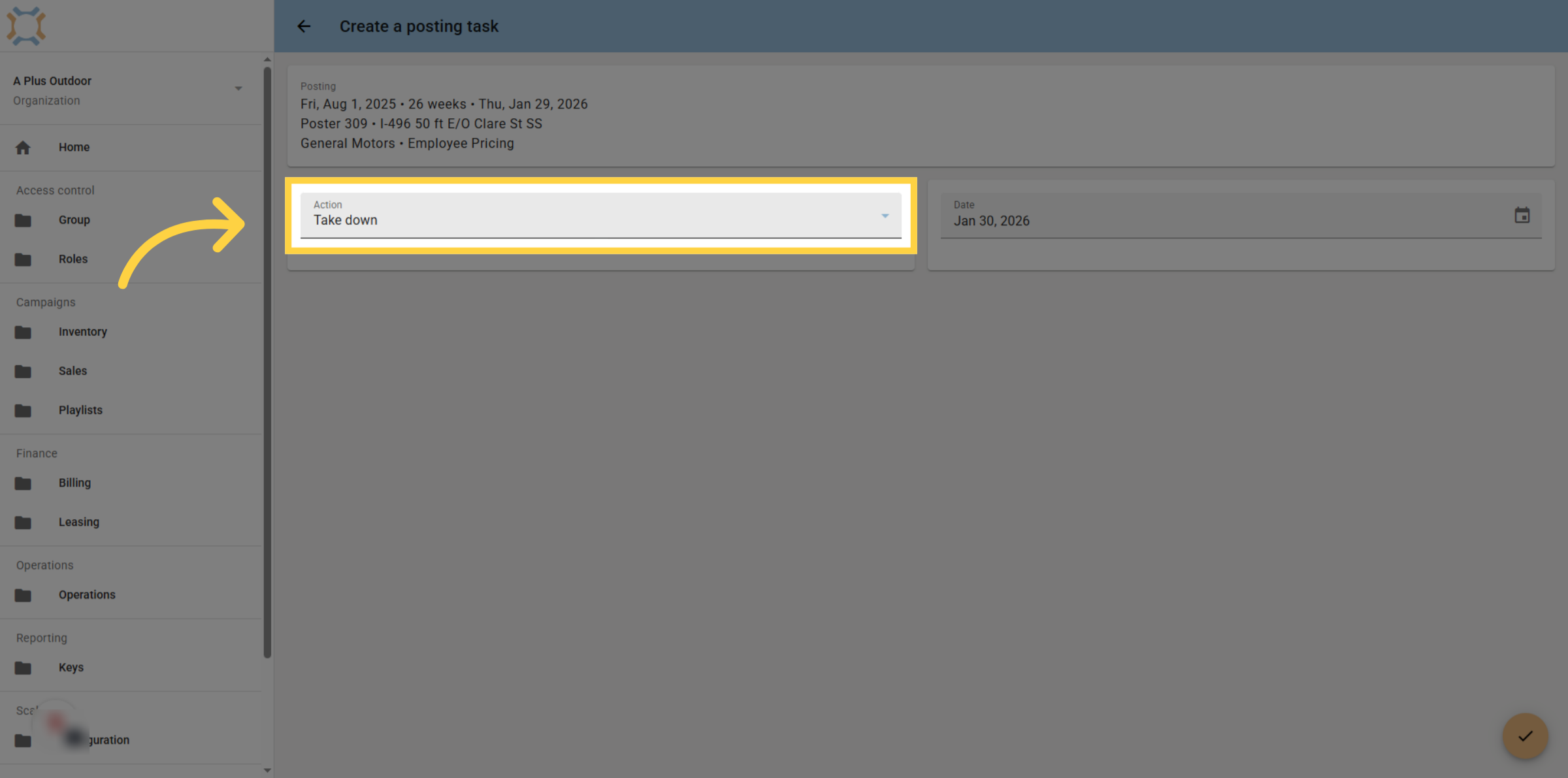
5. Click "Take down"
If you wish to add a re-post task for this posting, click the dropdown list. If you are adding a take down task, skip this step.
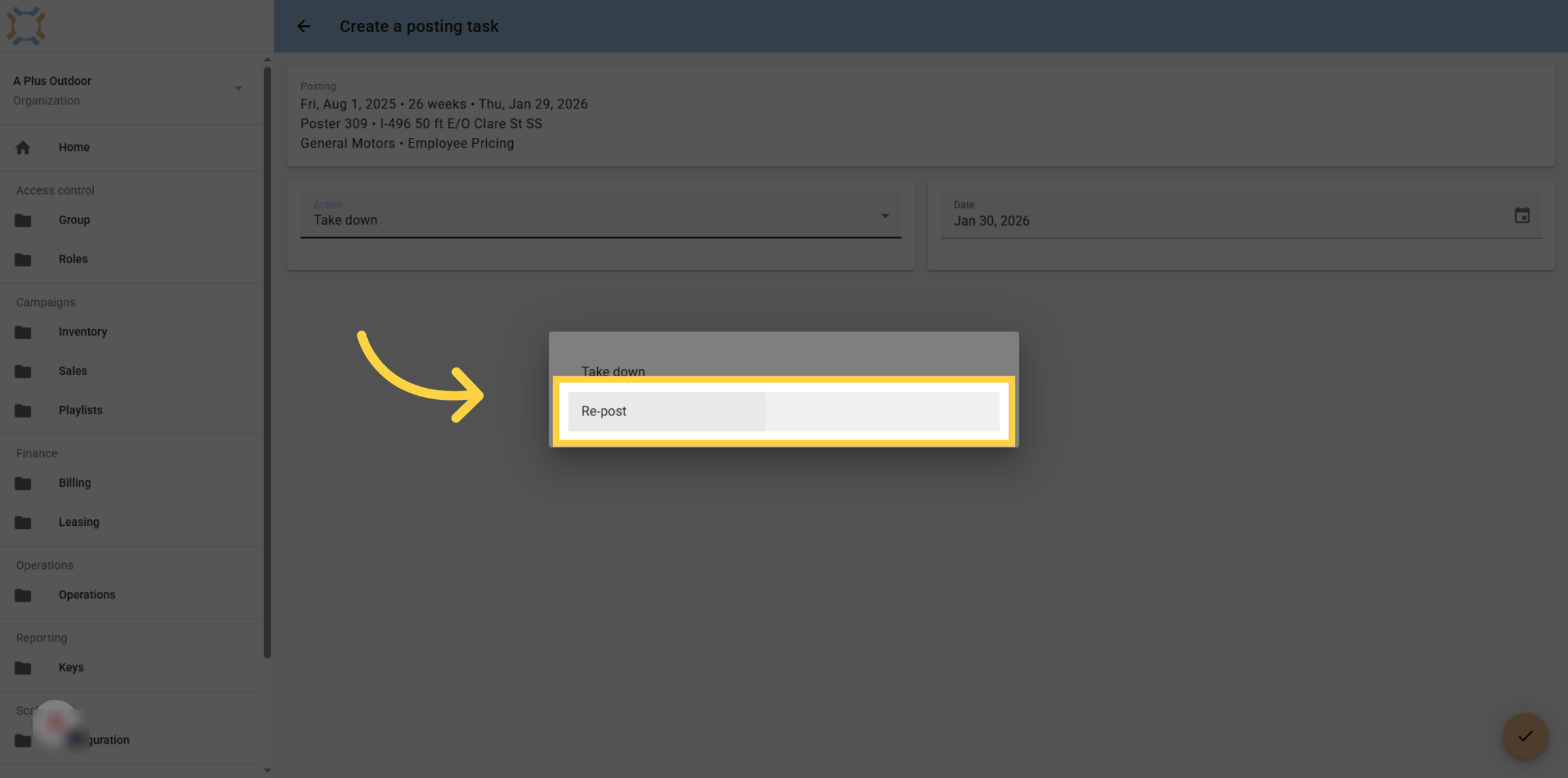
6. Click "Re-post"
Click "Re-post" to switch the task type to re-posting the item.
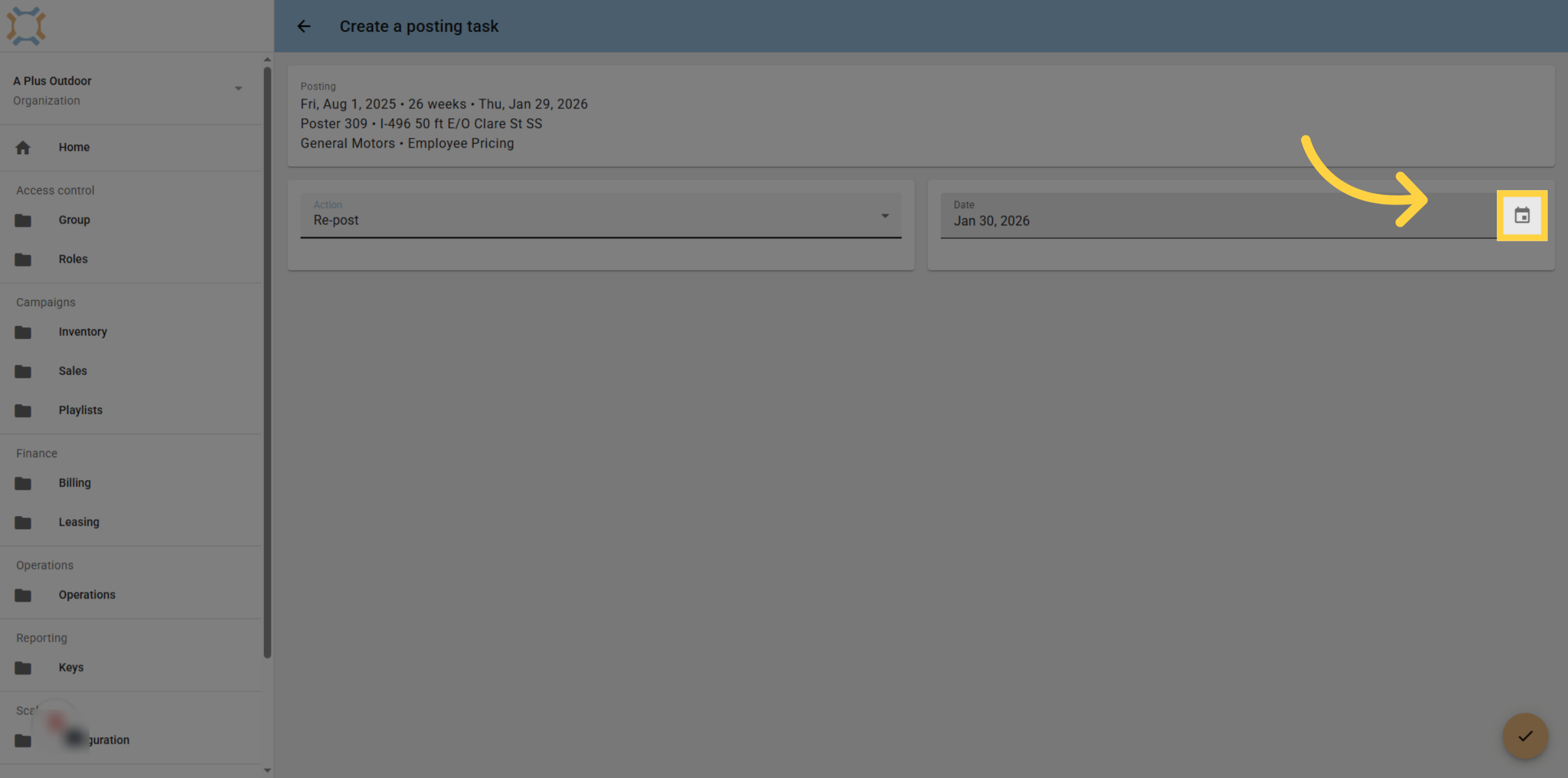
7. Click "date"
Enter the date of the re-post or take down task or select the date from a calendar
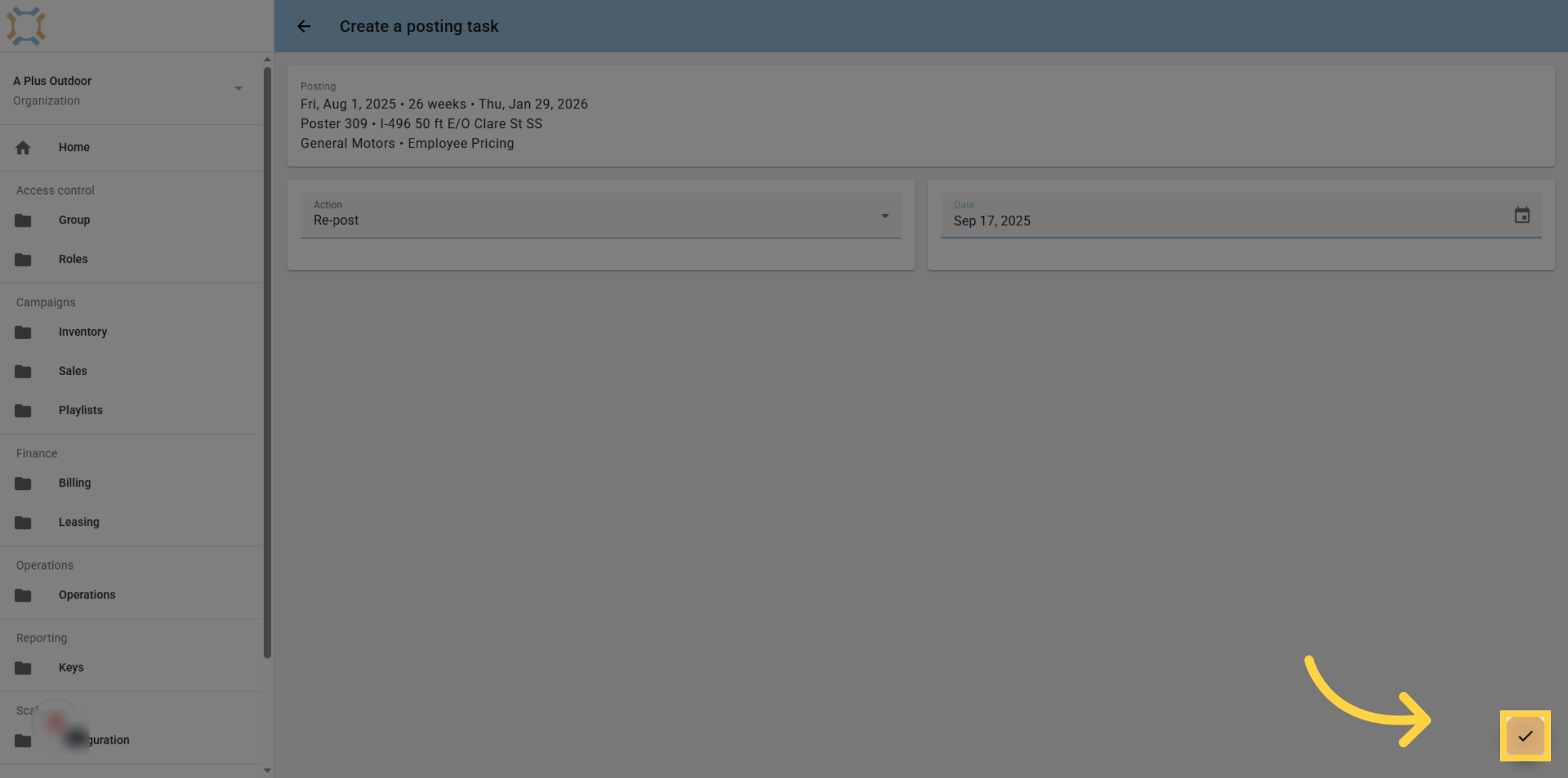
8. Click "done"
After you have selected the task type and entered the date, click Done.
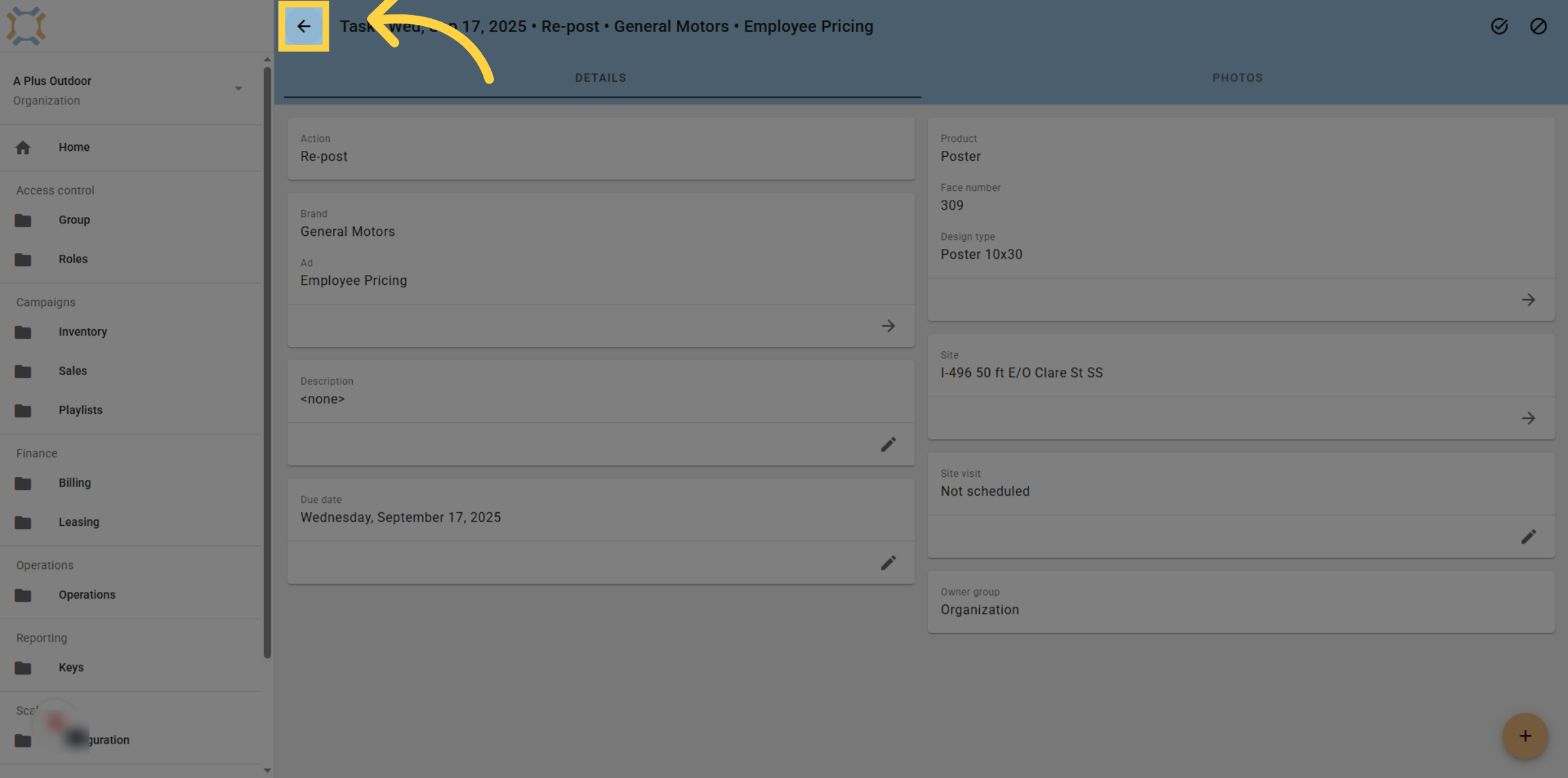
9. Click "arrow back"
If you wish to see the task for the posting, click the arrow back button.
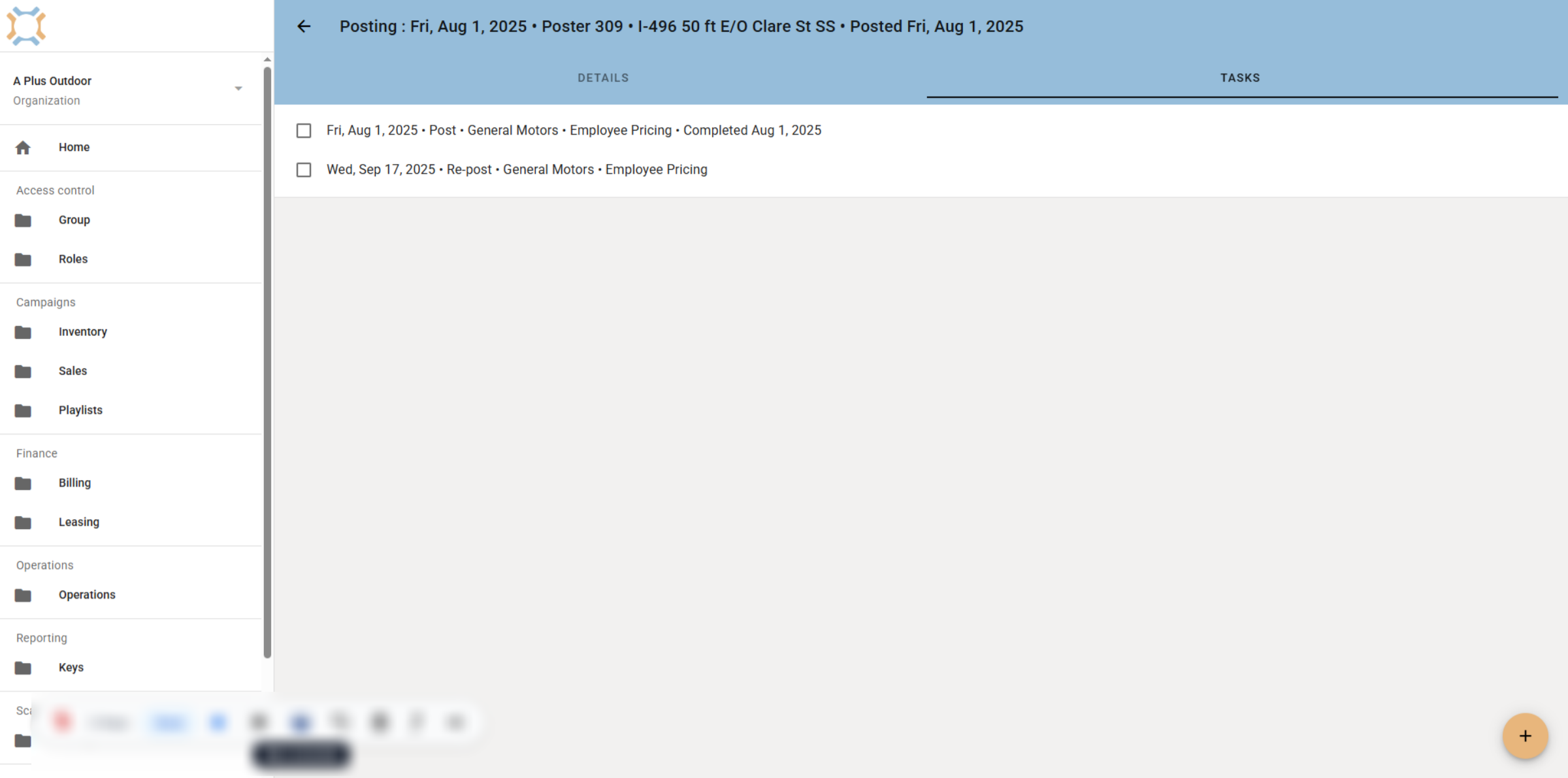
10. Review list of posting tasks
The new task will be listed on the posting.
If you have any additional questions, please contact Dot2Dot for assistance.
Comments
0 comments
Please sign in to leave a comment.