
1. Introduction
Assigning design types to faces allows you to be able to track the number of each design type required for each campaign, based on the assigned bookings.
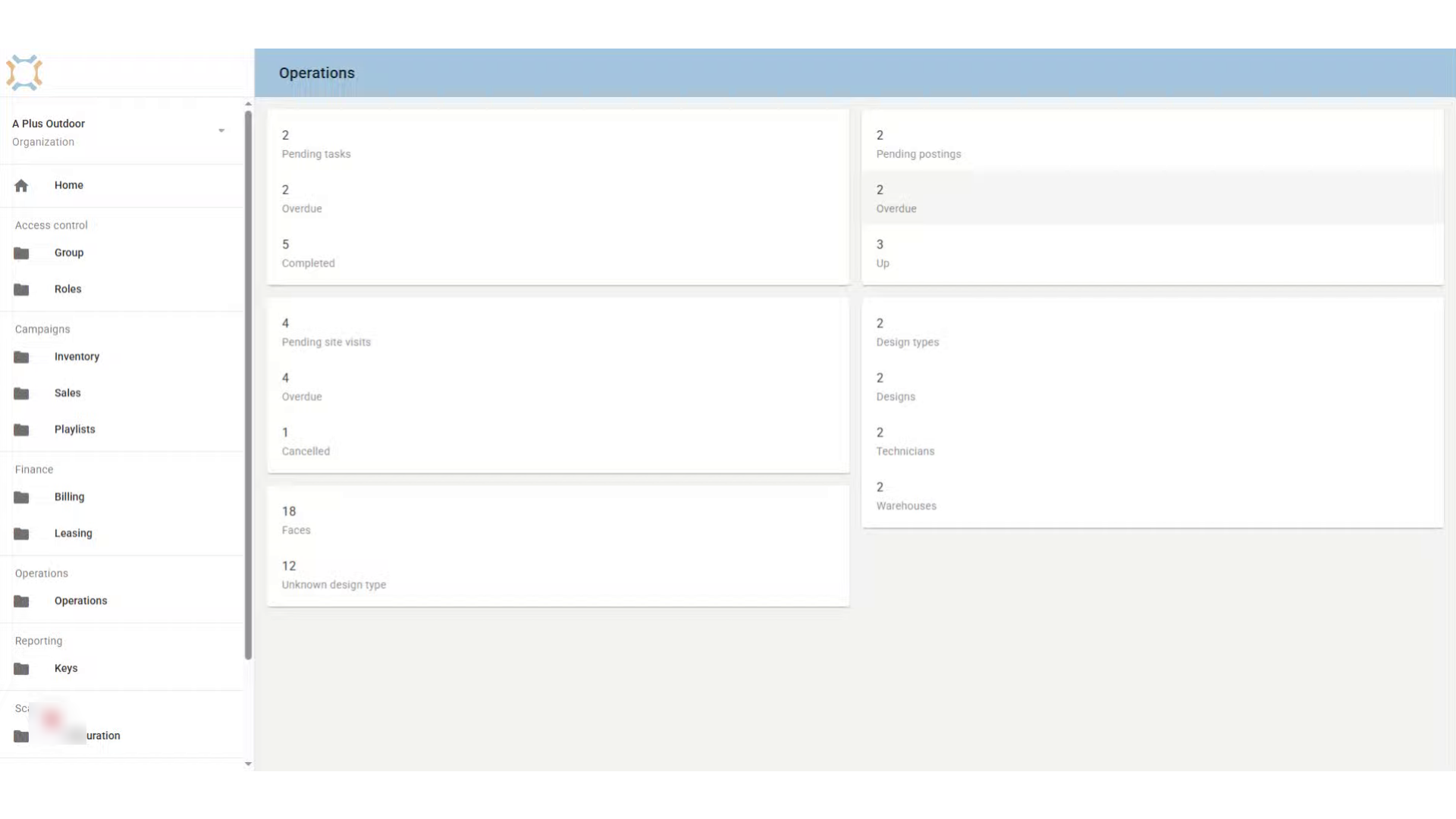
2. Click "Unknown design type"
Click on Unknown design type to find a list of faces that have not yet been assigned a design type.
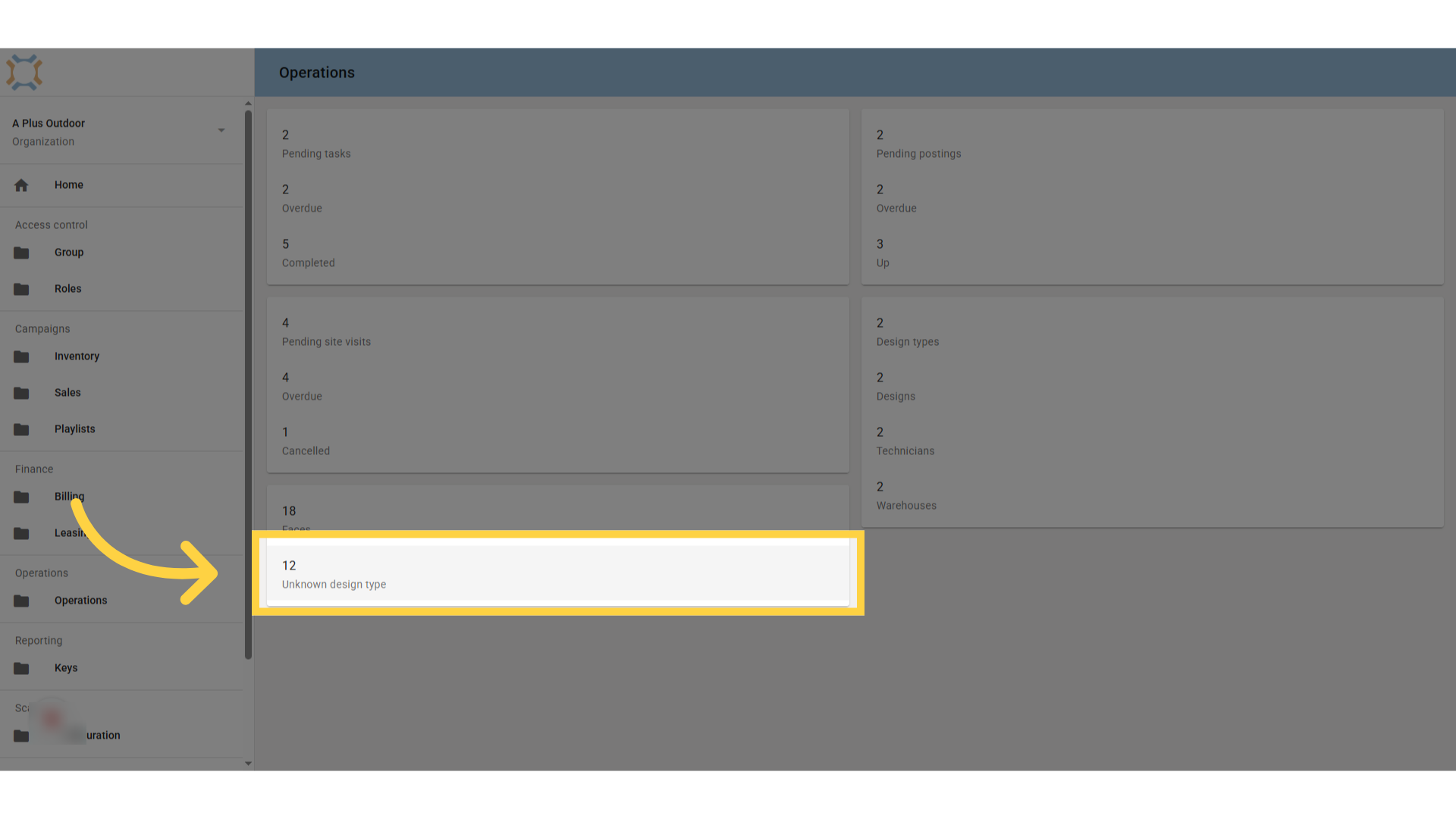
3. Click on a single face
If you wish to change the design type for a single face, click on the face in the list.
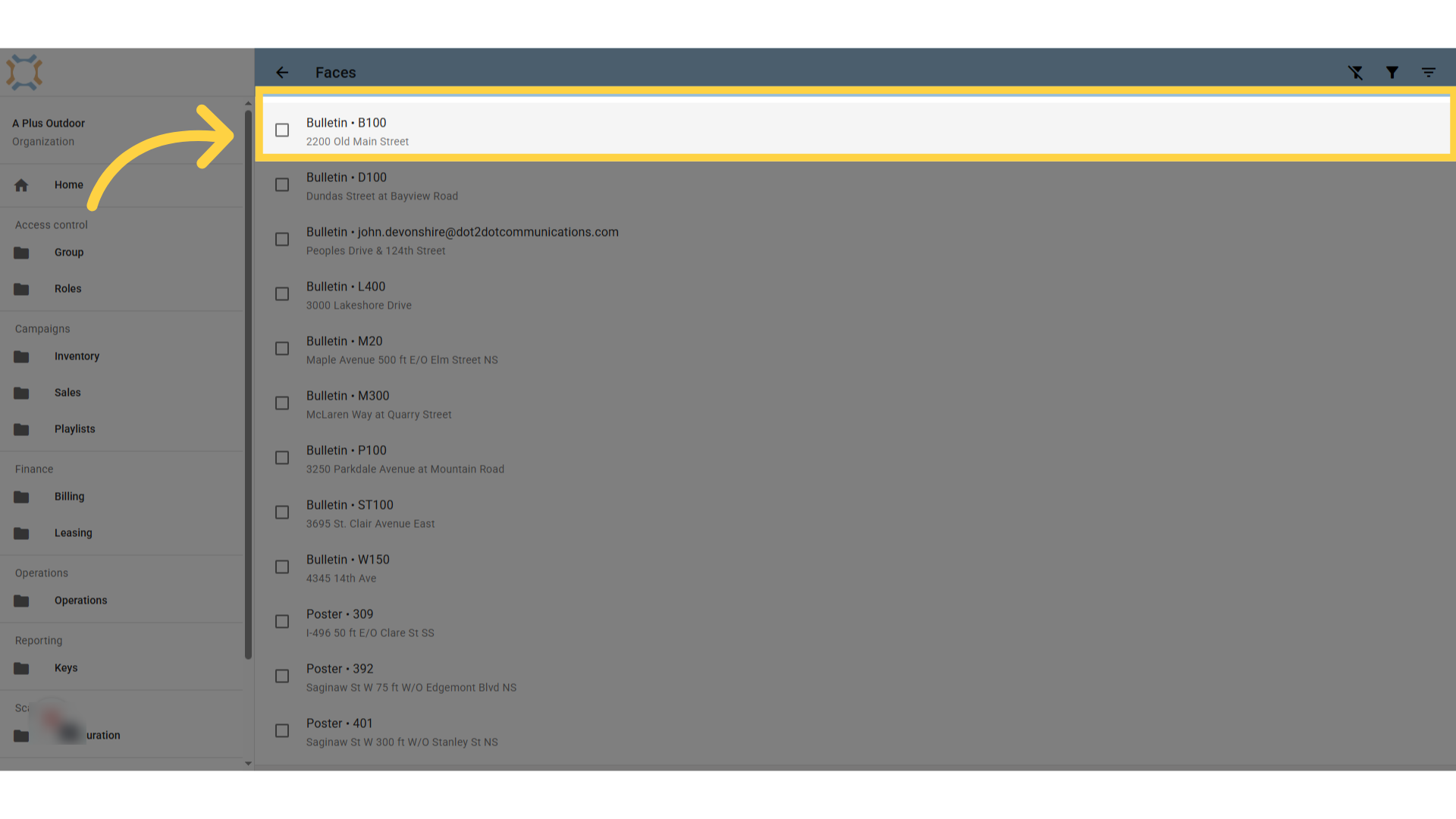
4. Click "Design Types"
To select the design type, click on the Design Types tab.
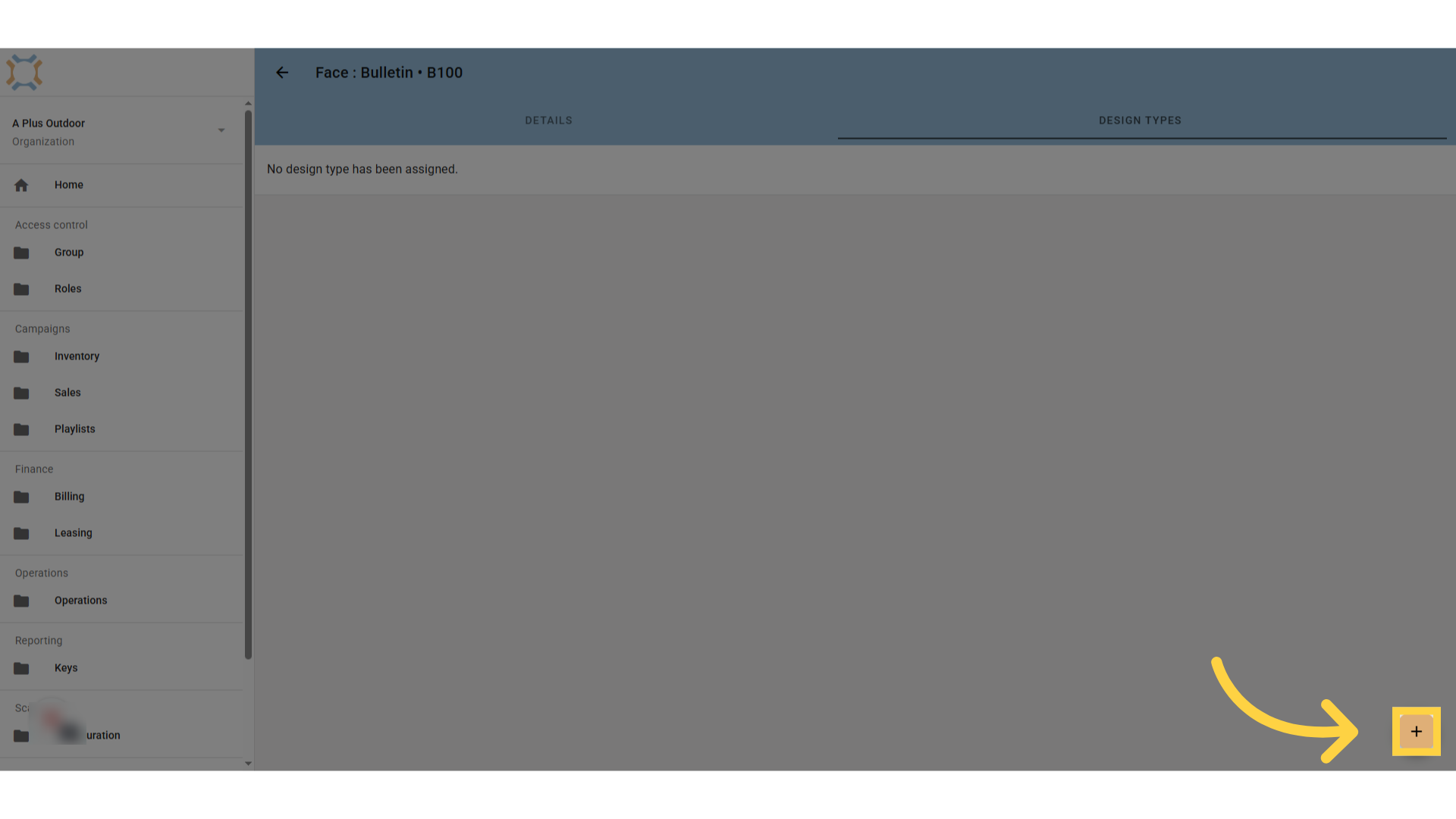
5. Click "add"
Click Add to add a design type for this face.
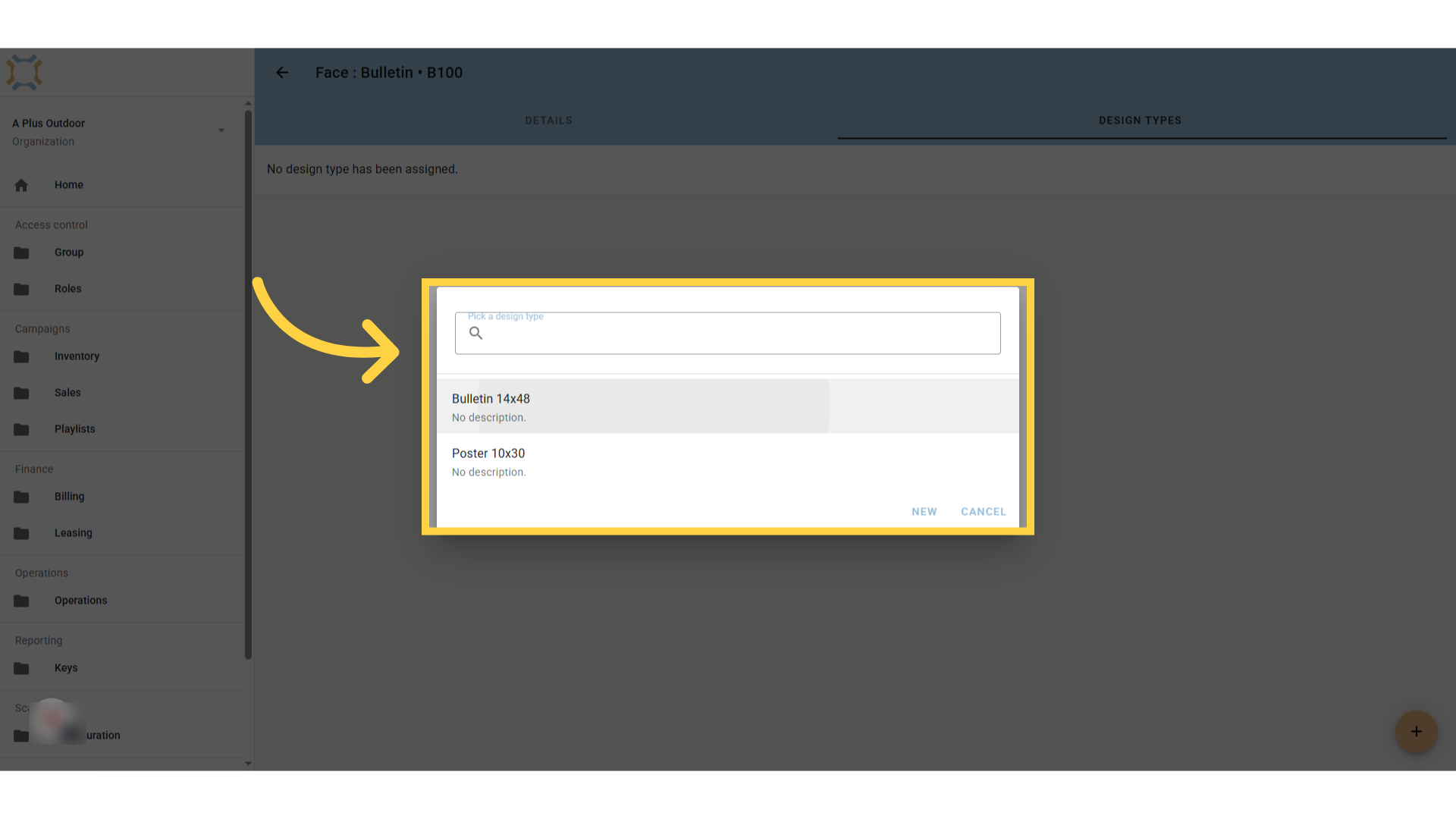
6. Select Design Type
Select the design type to use, or click New to create a new design type
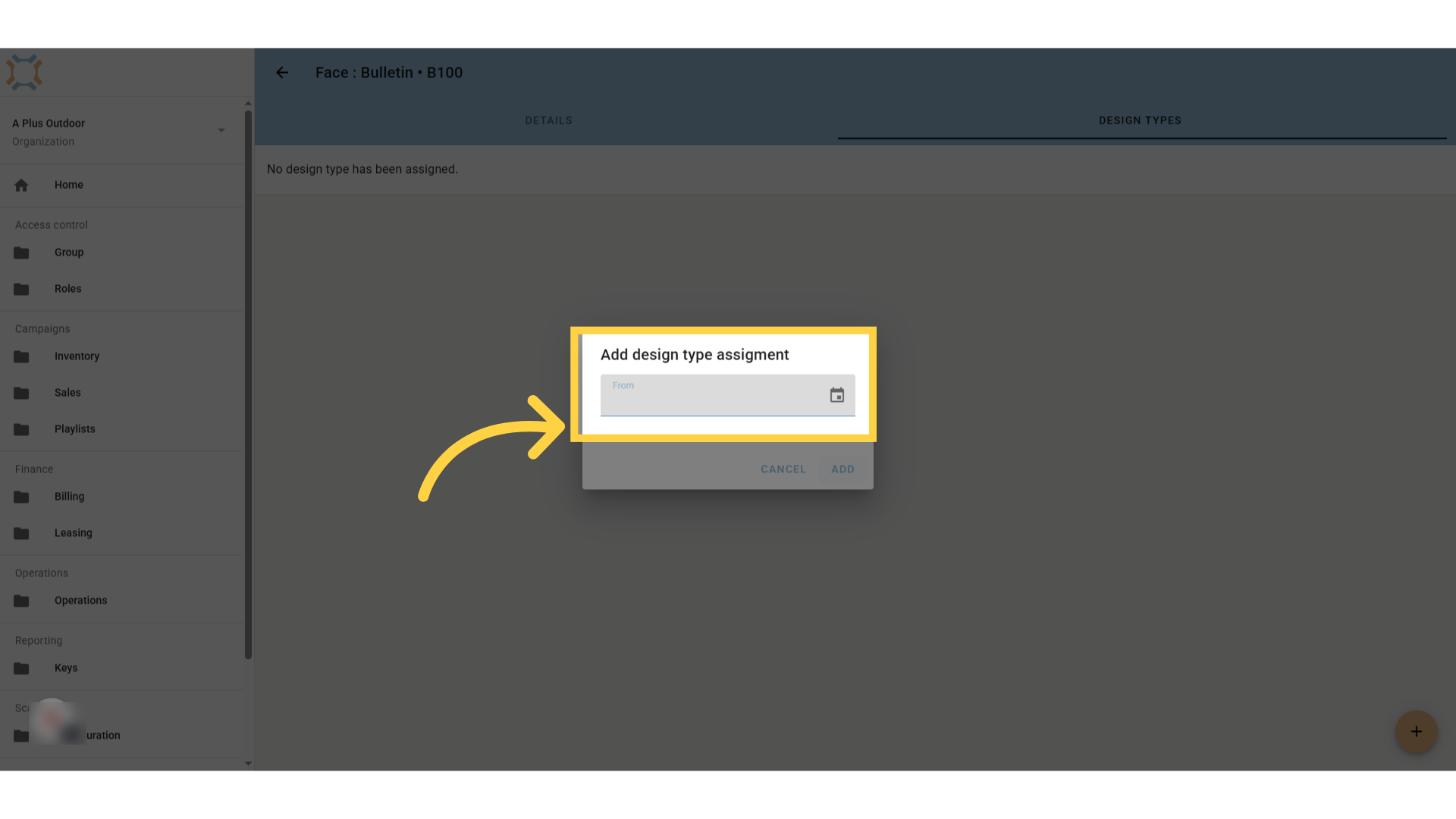
7. Enter effective date
Enter the date this design type comes into effect on this face. If this is the initial value, you can leave this blank.
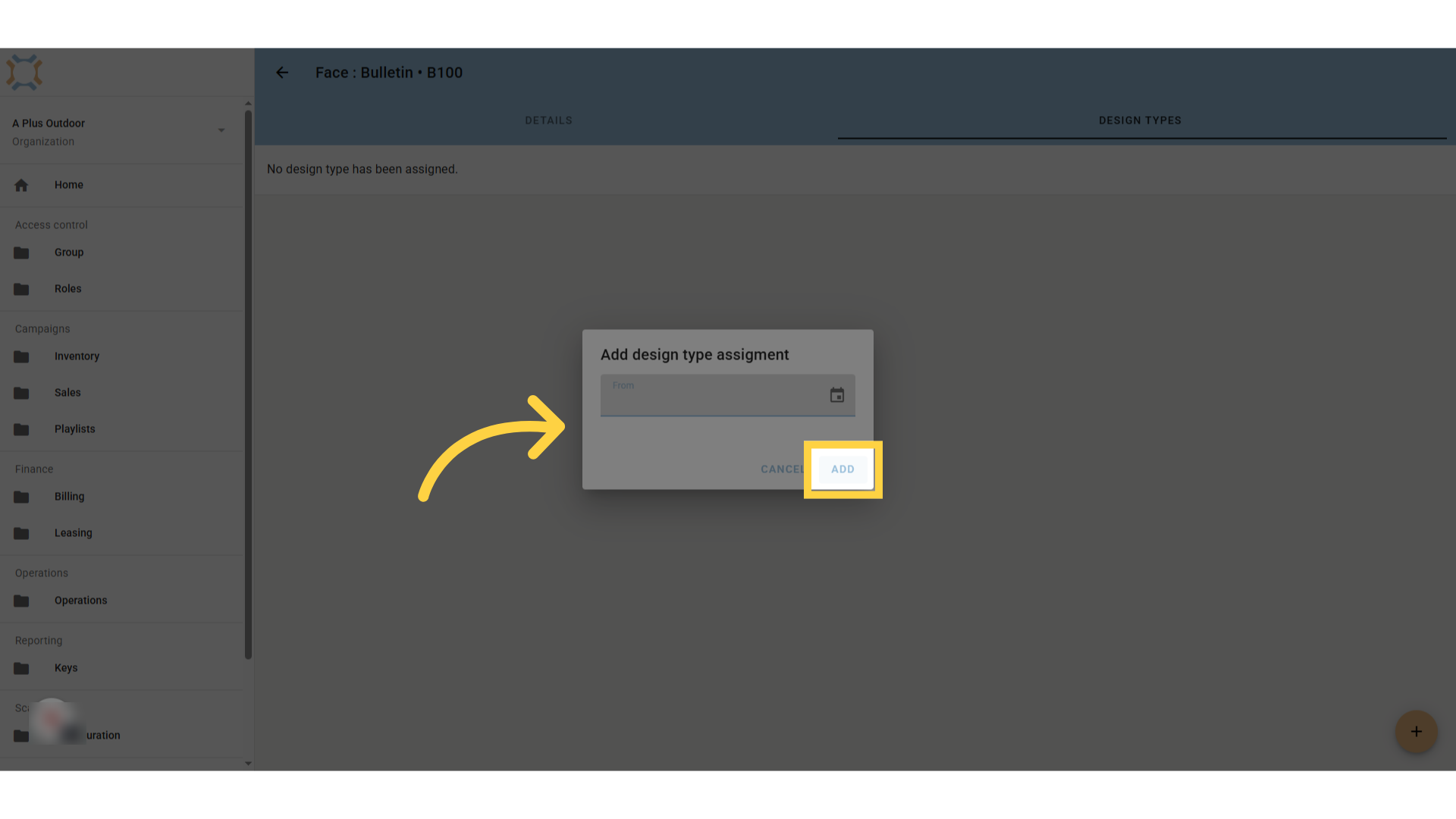
8. Click "add"
Click Add to save the design type to the face.
9. Select Multiple Locations
If you wish to update multiple locations at the same time, you can either select them manually or you can create a filter to allow you to select all meeting the design type criteria. If you wish to create a filter, click the Filter button
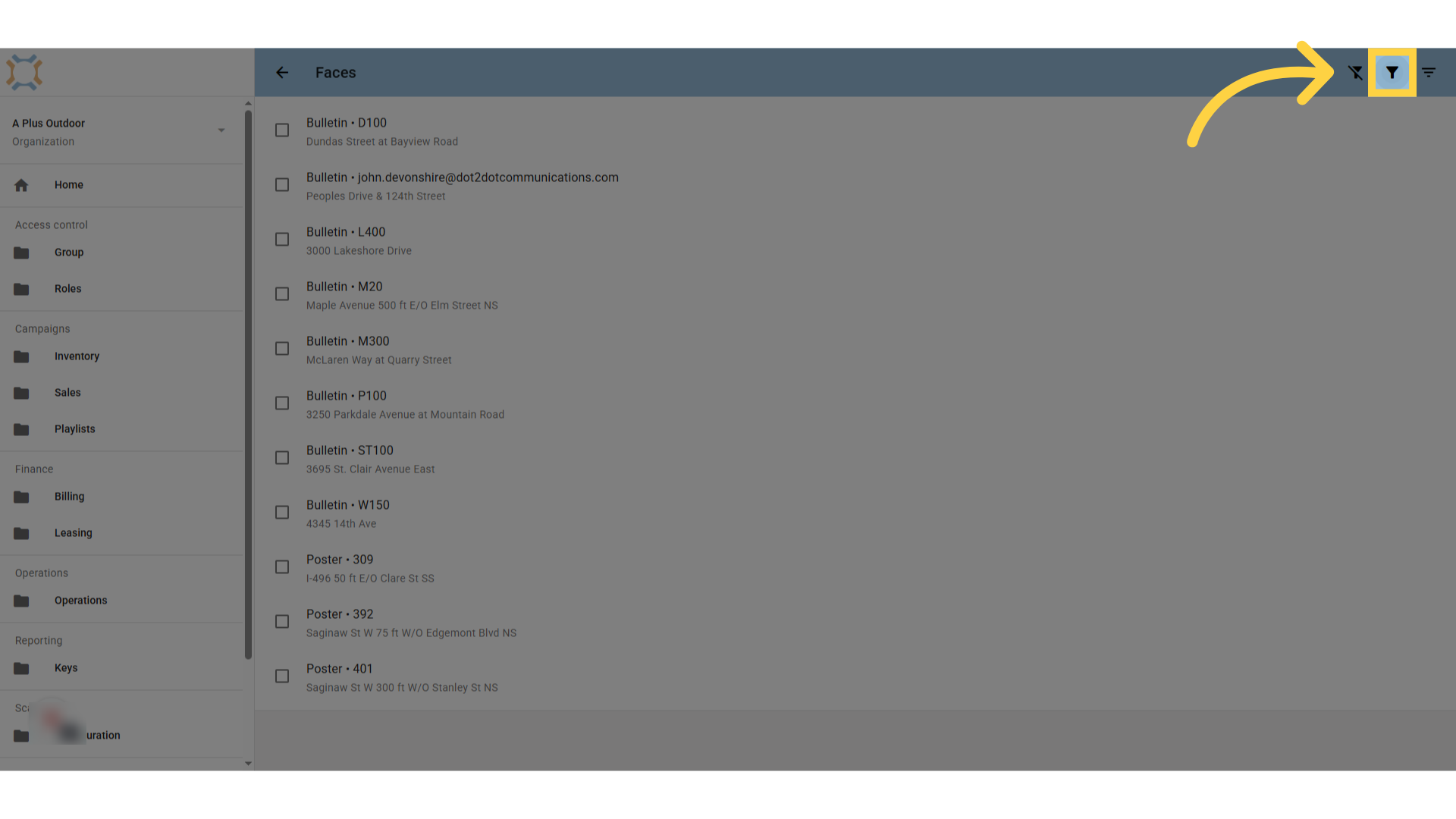
10. Click Add Filter
Click on Add filter to select your filter criteria.
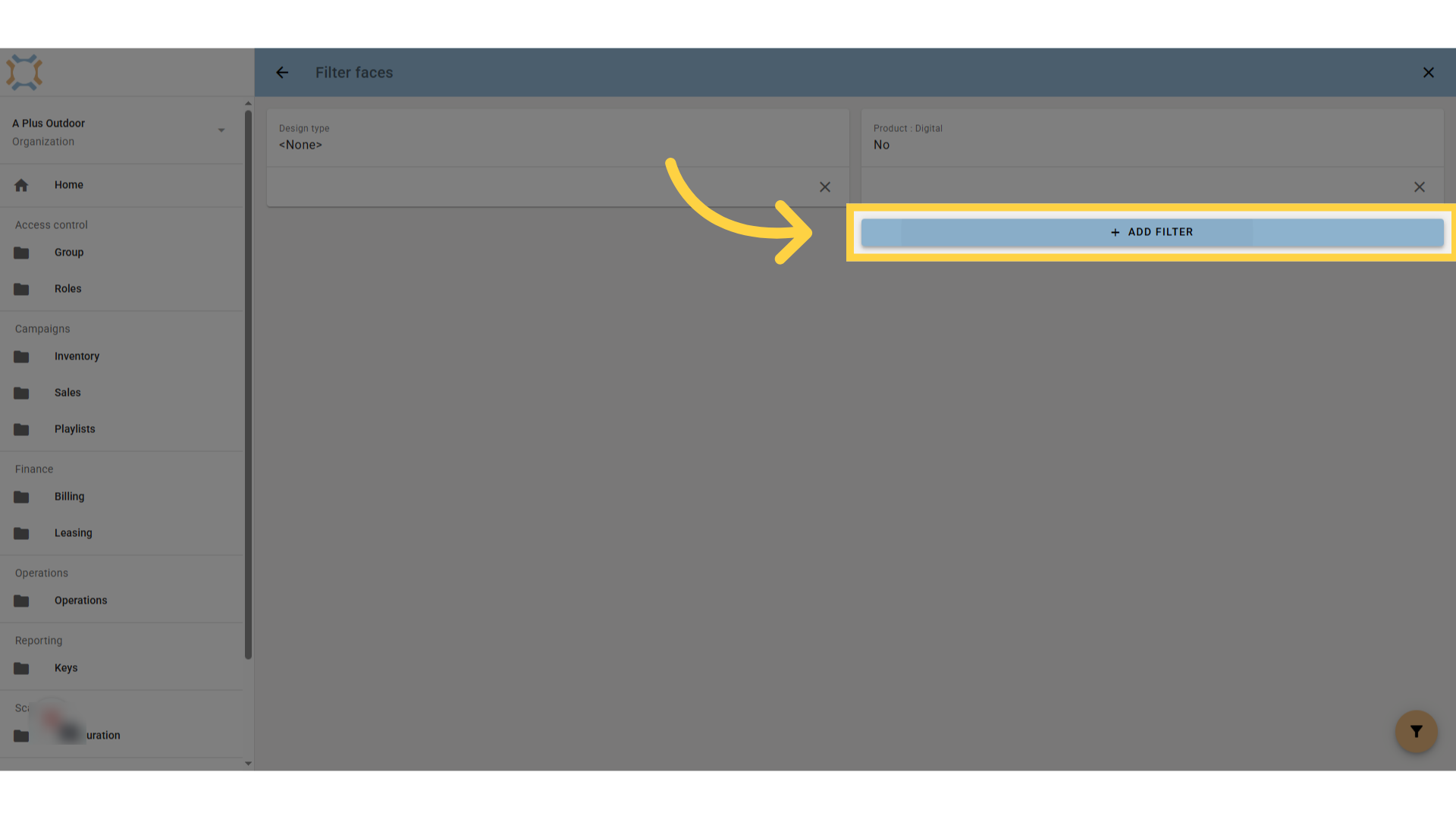
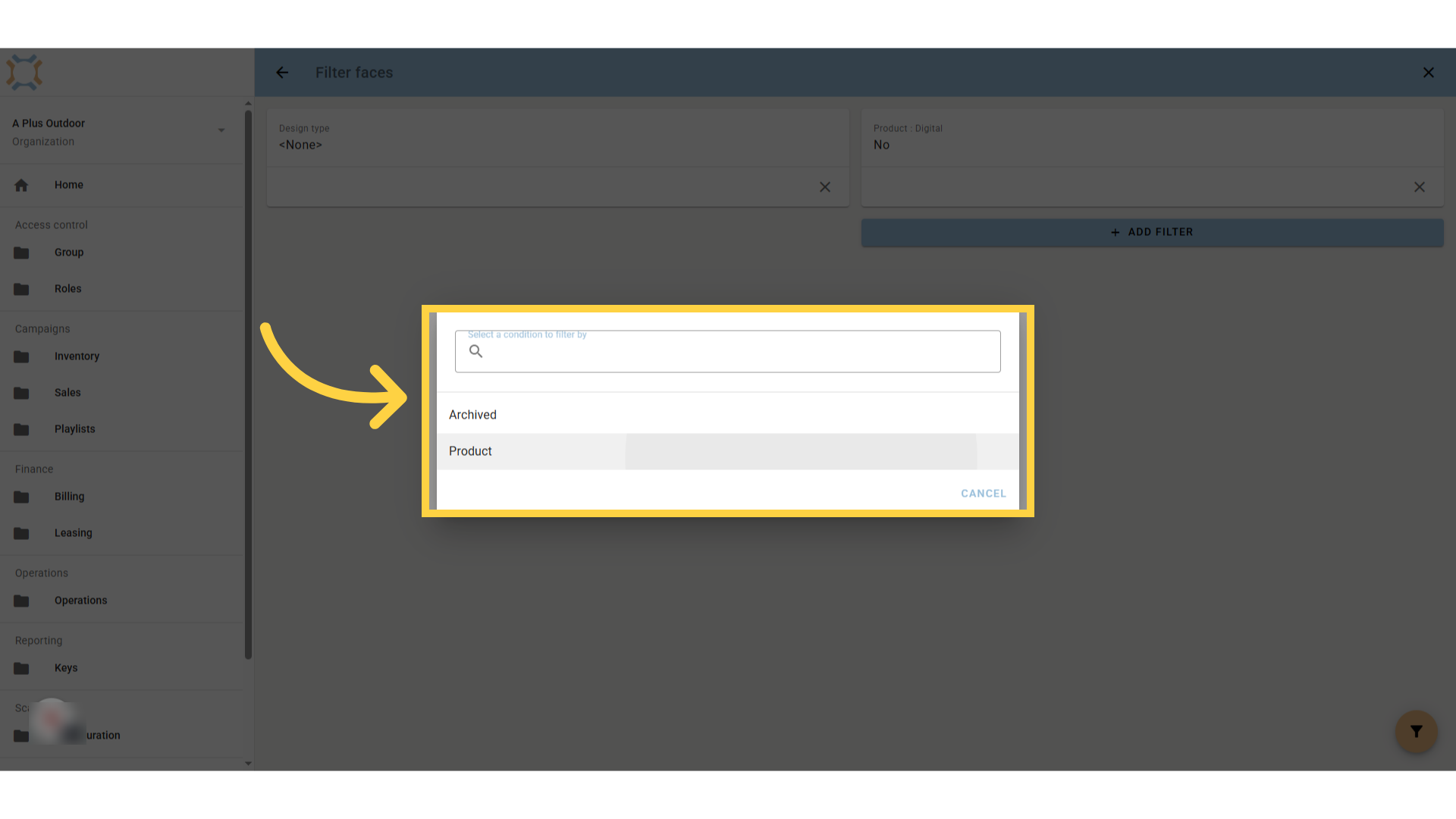
11. Select criteria
choose the criteria you wish to filter by
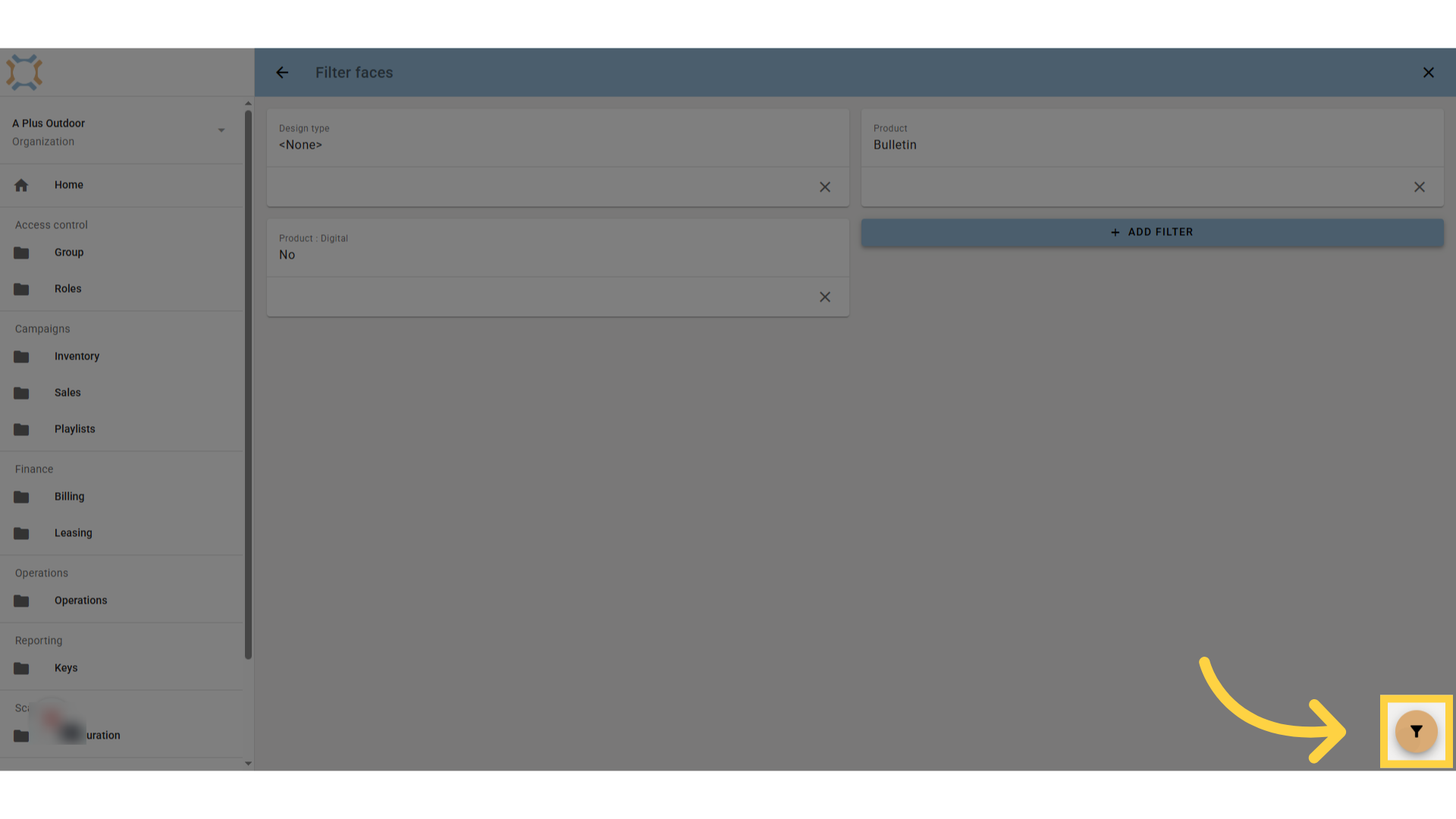
12. Click "filter"
Click Filter to see a list of faces matching your criteria.
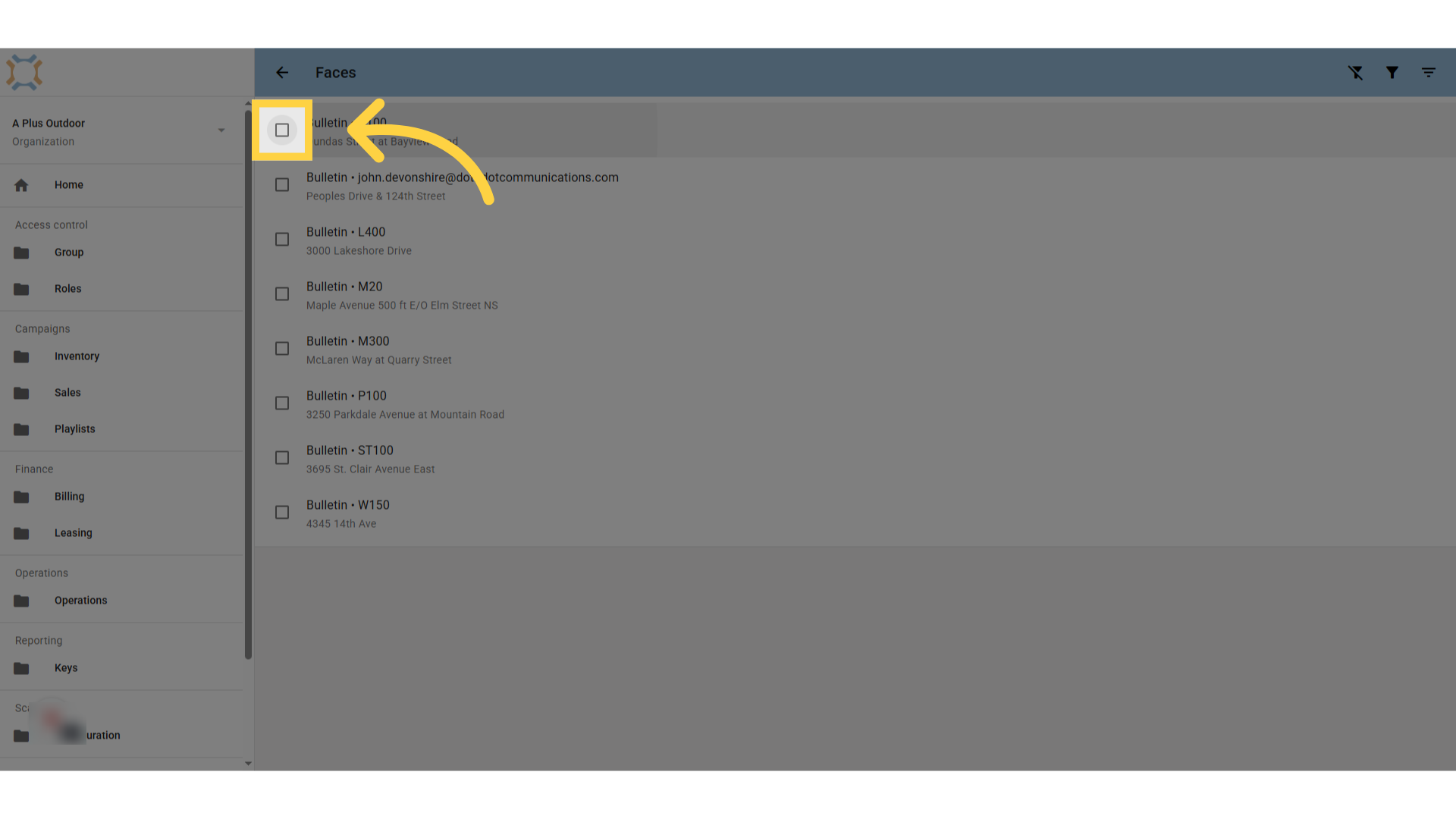
13. Click check box
To select all faces in the list, first click on one of the check boxes.
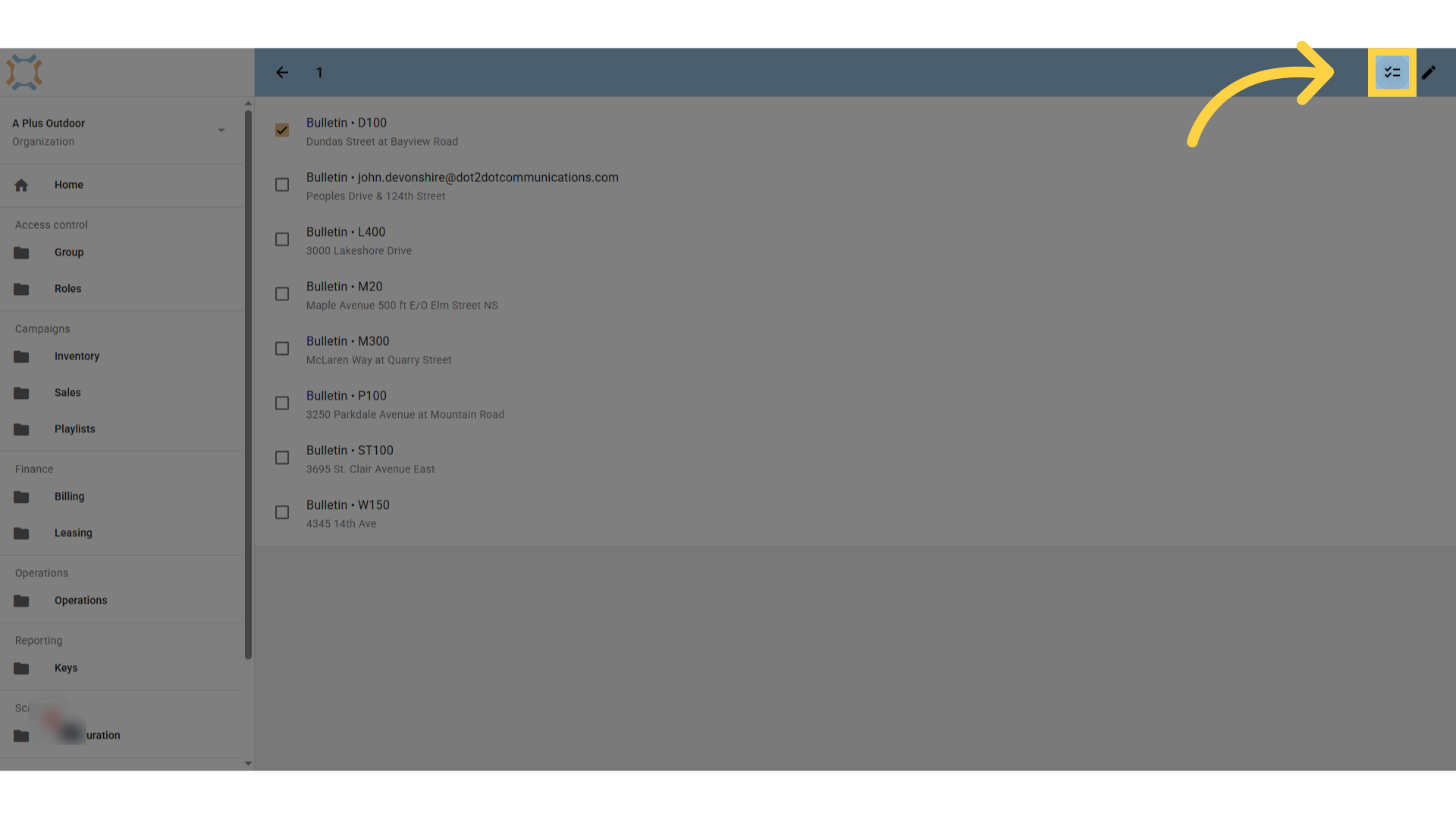
14. Click Select All
Click on Select All to select the remaining items on the list. You can uncheck items as appropriate if you do not want every item in the list to be updated.
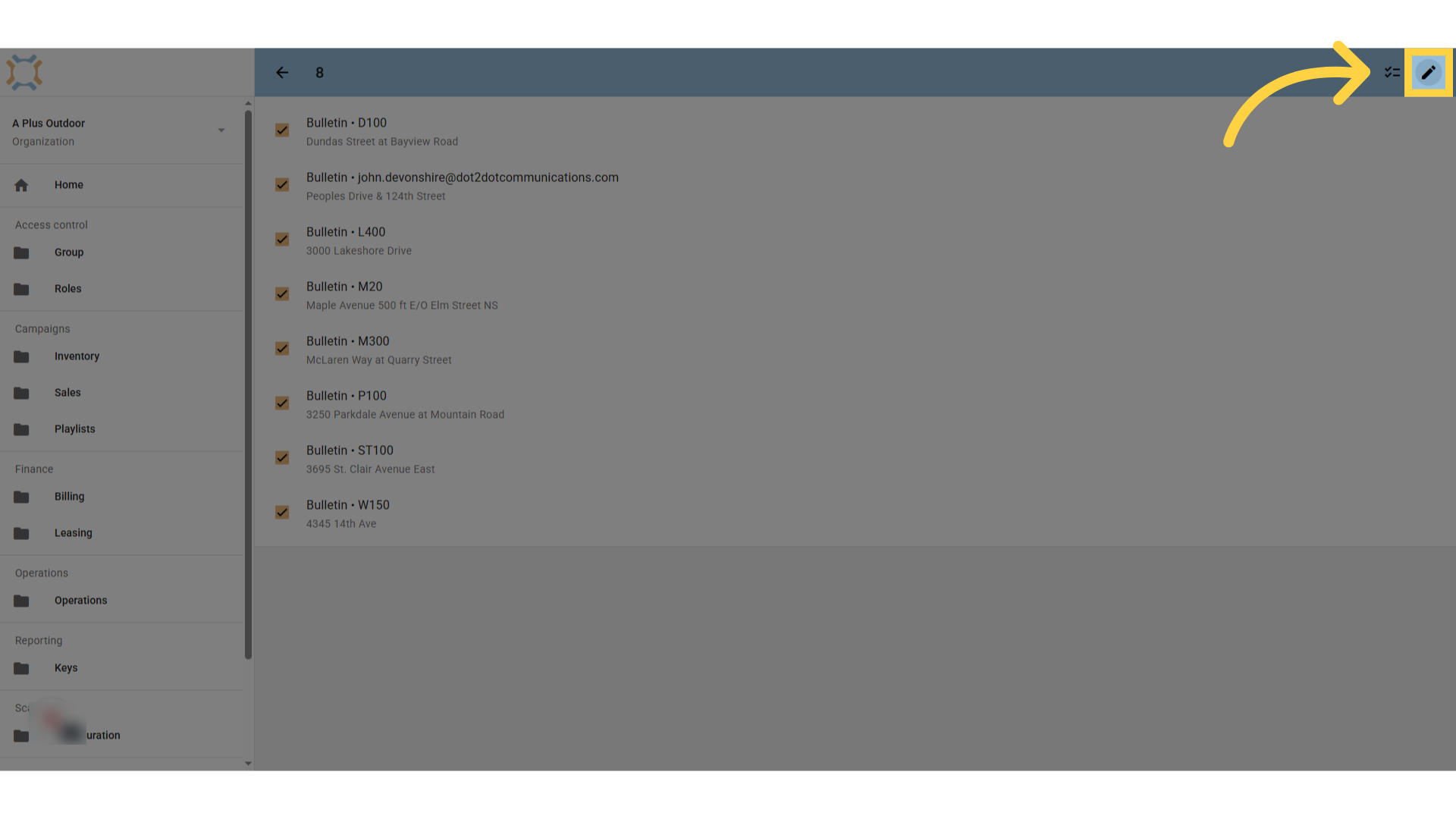
15. Click "edit"
Click on the "edit" button
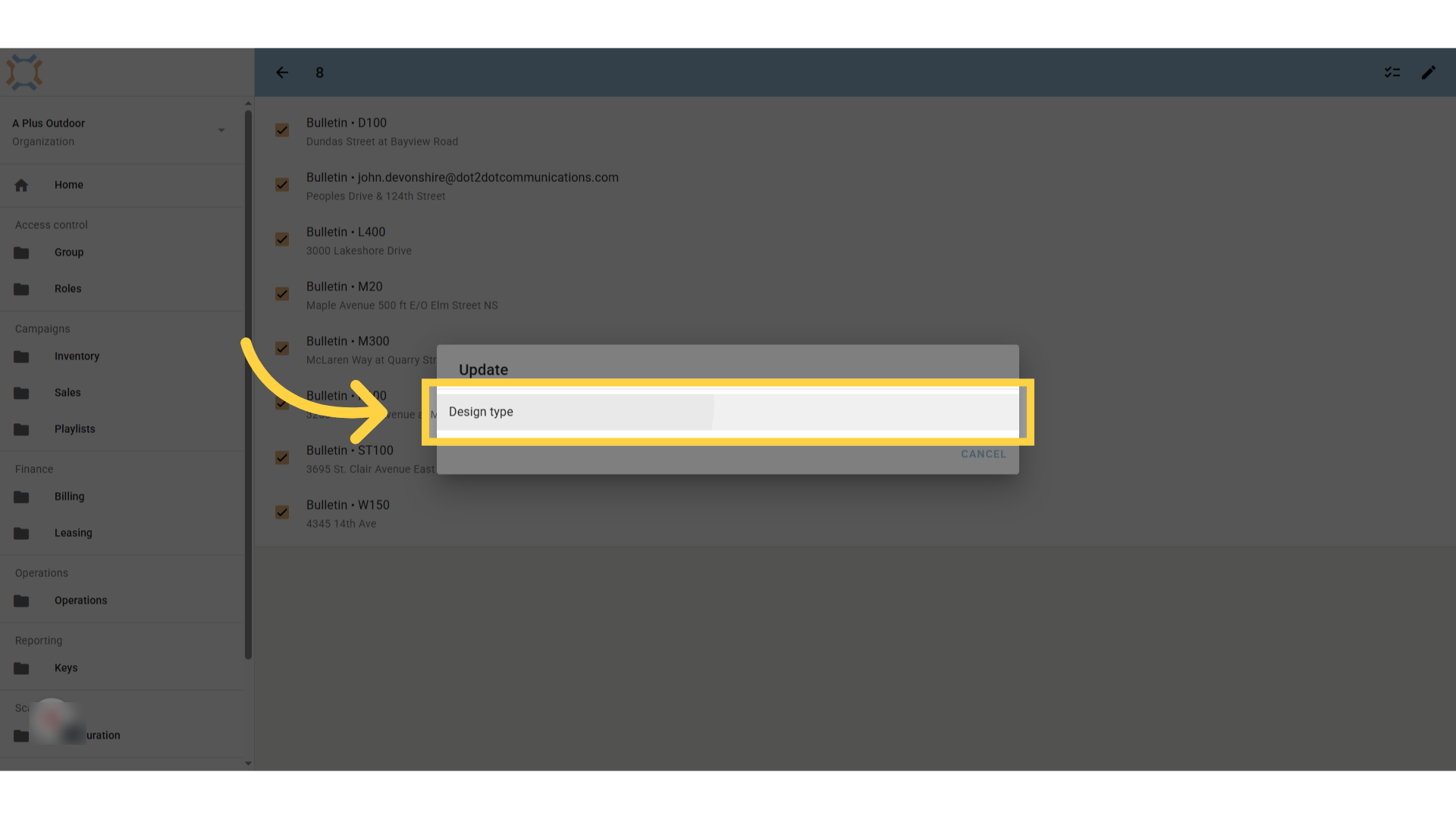
16. Click "Design type"
Select the option "Design type"
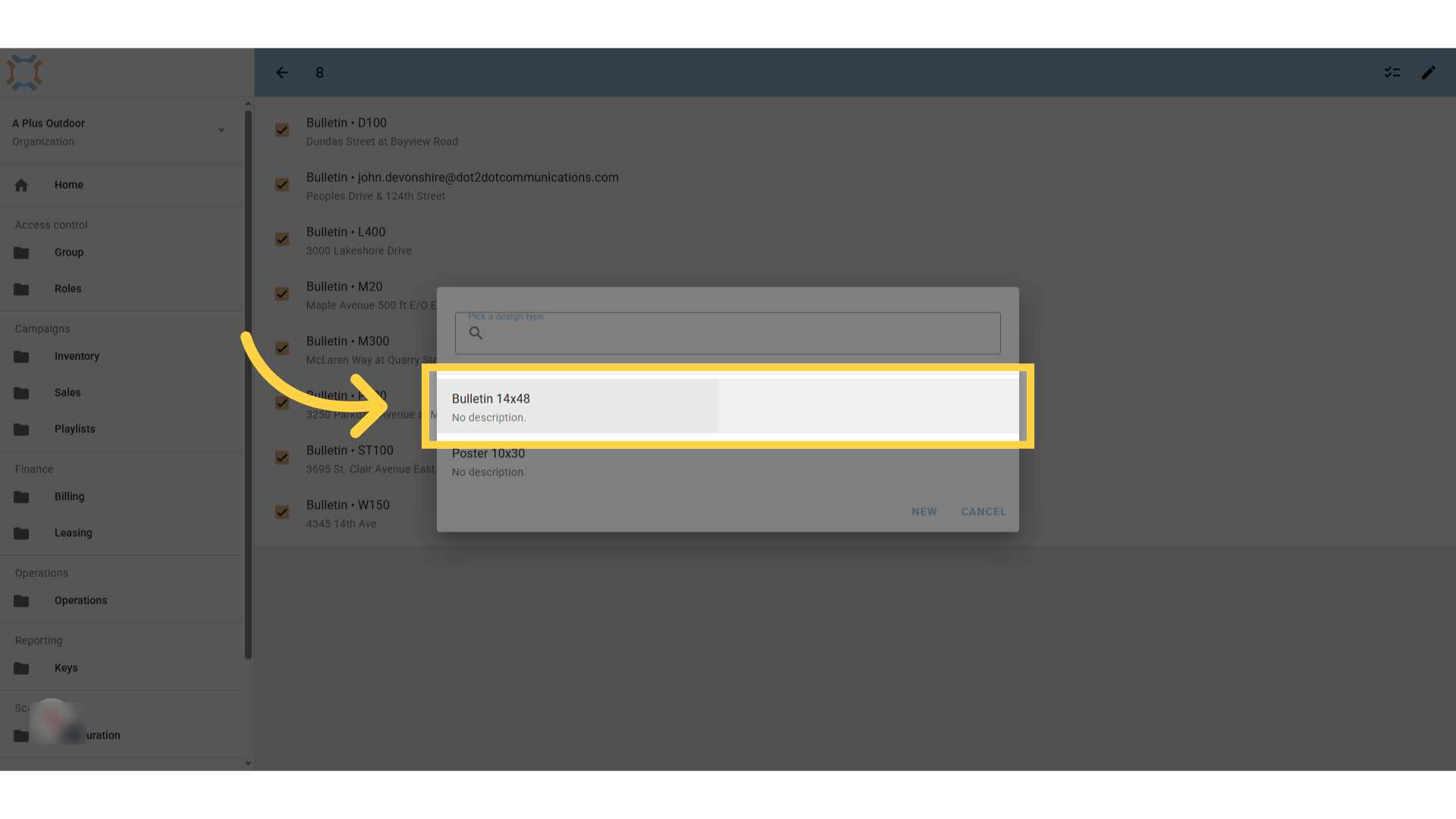
17. Select the design type
Select the design type you wish to assign to all the locations you selected.
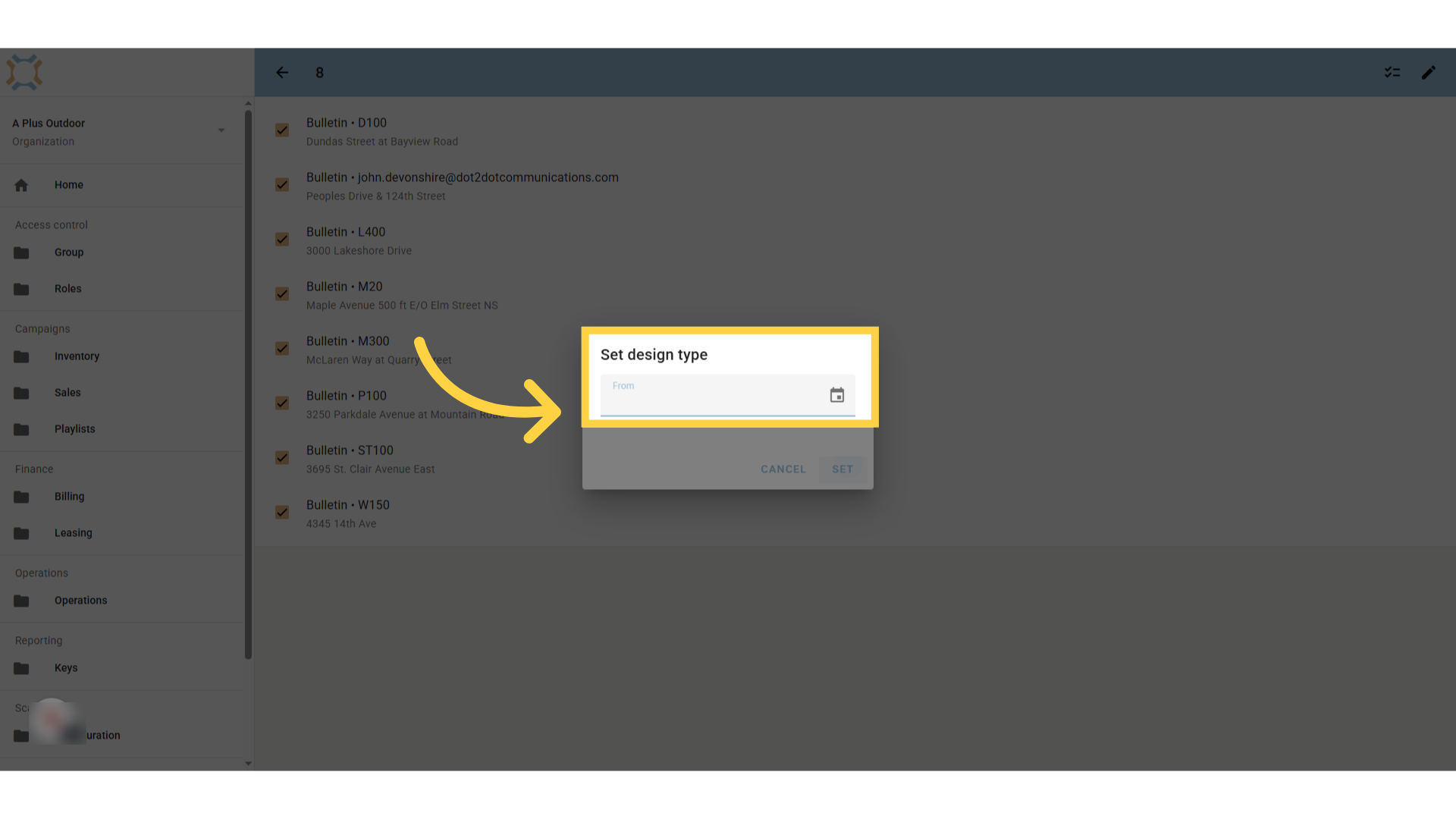
18. Enter effective date
Enter the date this design type comes into effect on this face. If this is the initial value, you can leave this blank.
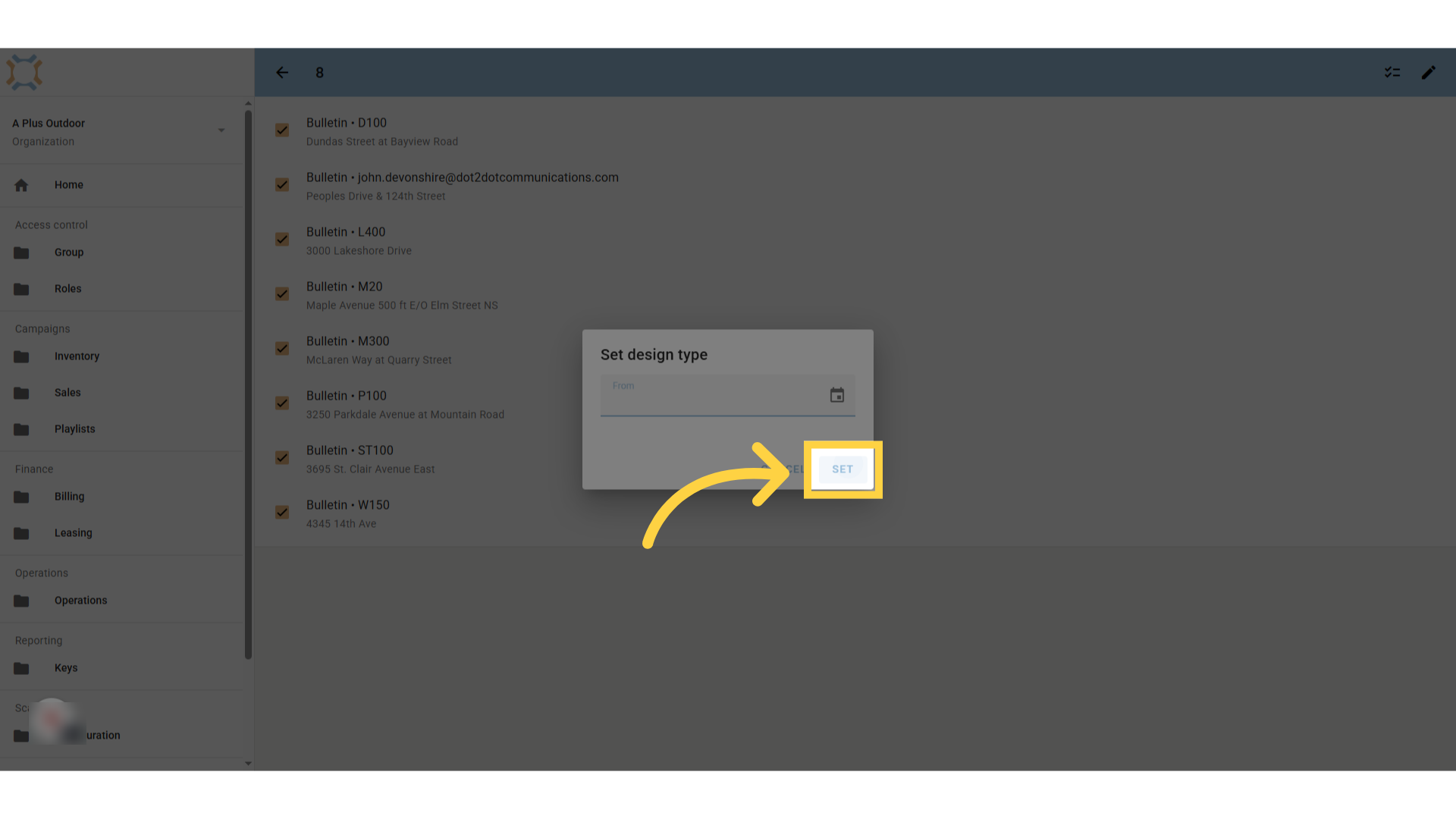
19. Click "add"
Click "add" to update the design type for the selected faces.
If you have any additional questions, please contact Dot2Dot for assistance.
Comments
0 comments
Please sign in to leave a comment.