
1. Introduction
Ad Manager Connect allows you to assign static media ads to campaigns, and assign the ads to bookings as appropriate.
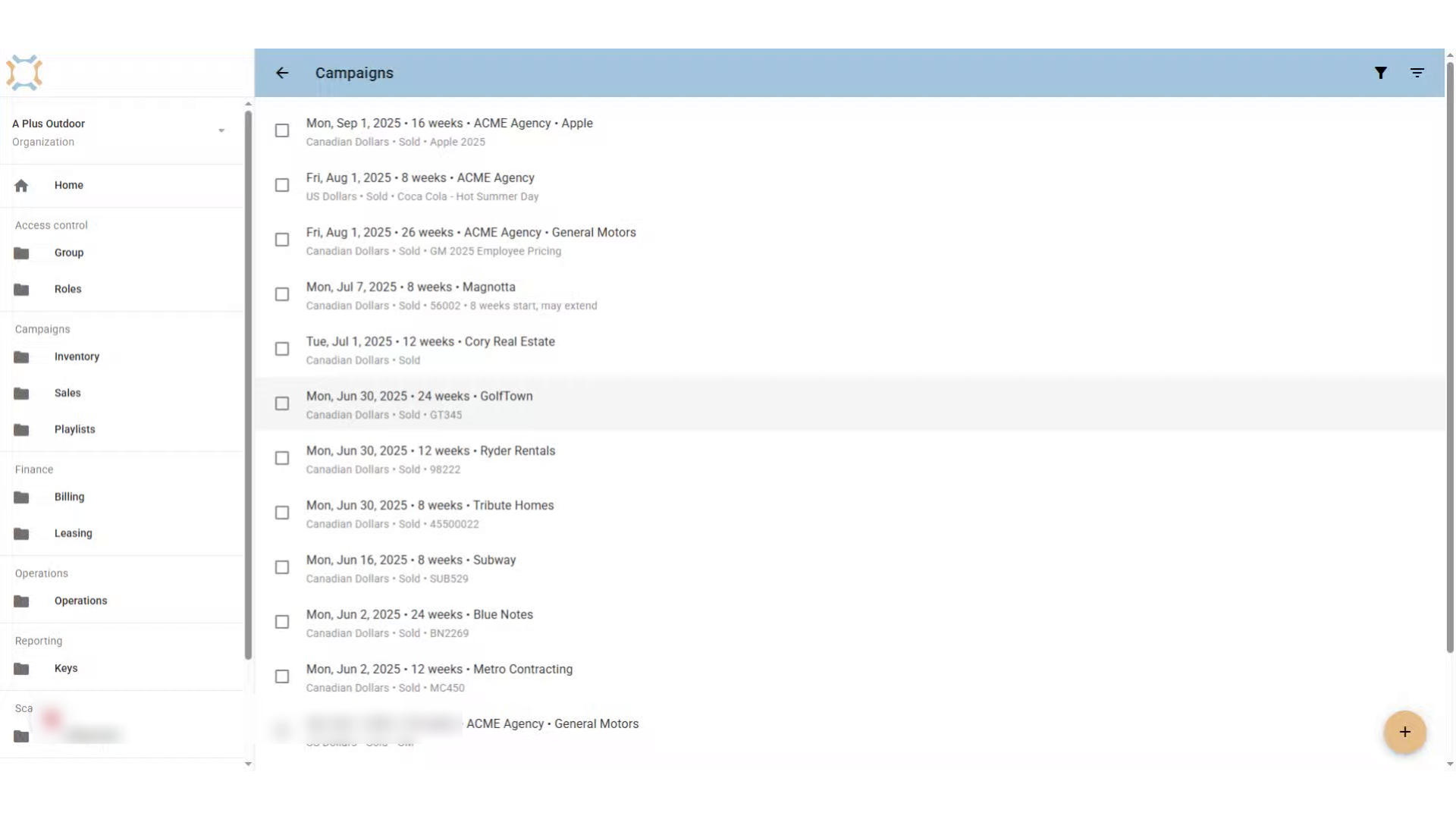
2. Go to Campaign
Go to the campaign you wish to add static media ads for.
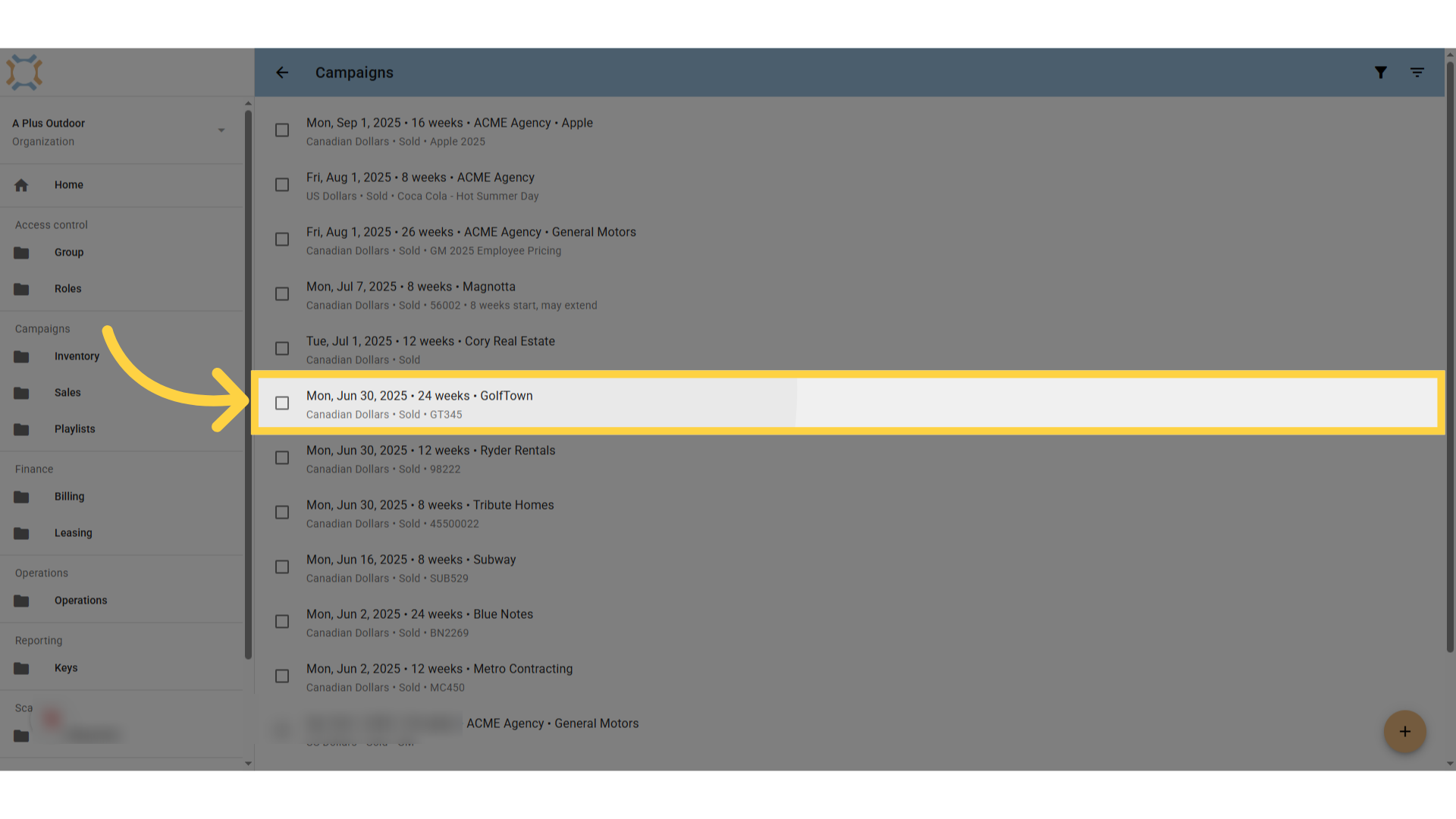
3. Click "menu"
From the Campaign, click on the menu
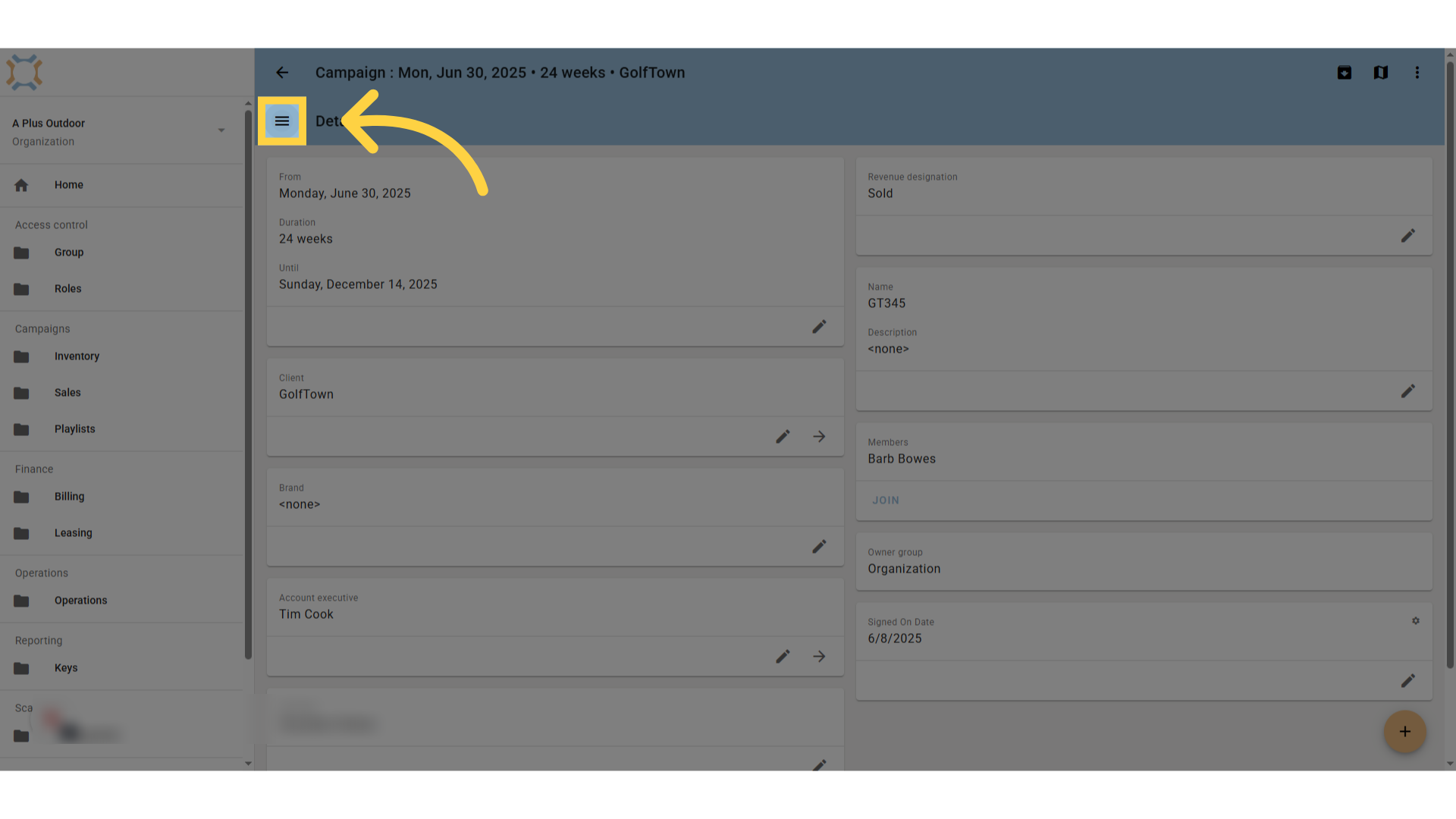
4. Click "Ads"
then choose Ads.
5. Click "add"
Click the Add button to assign a static media ad to this campaign
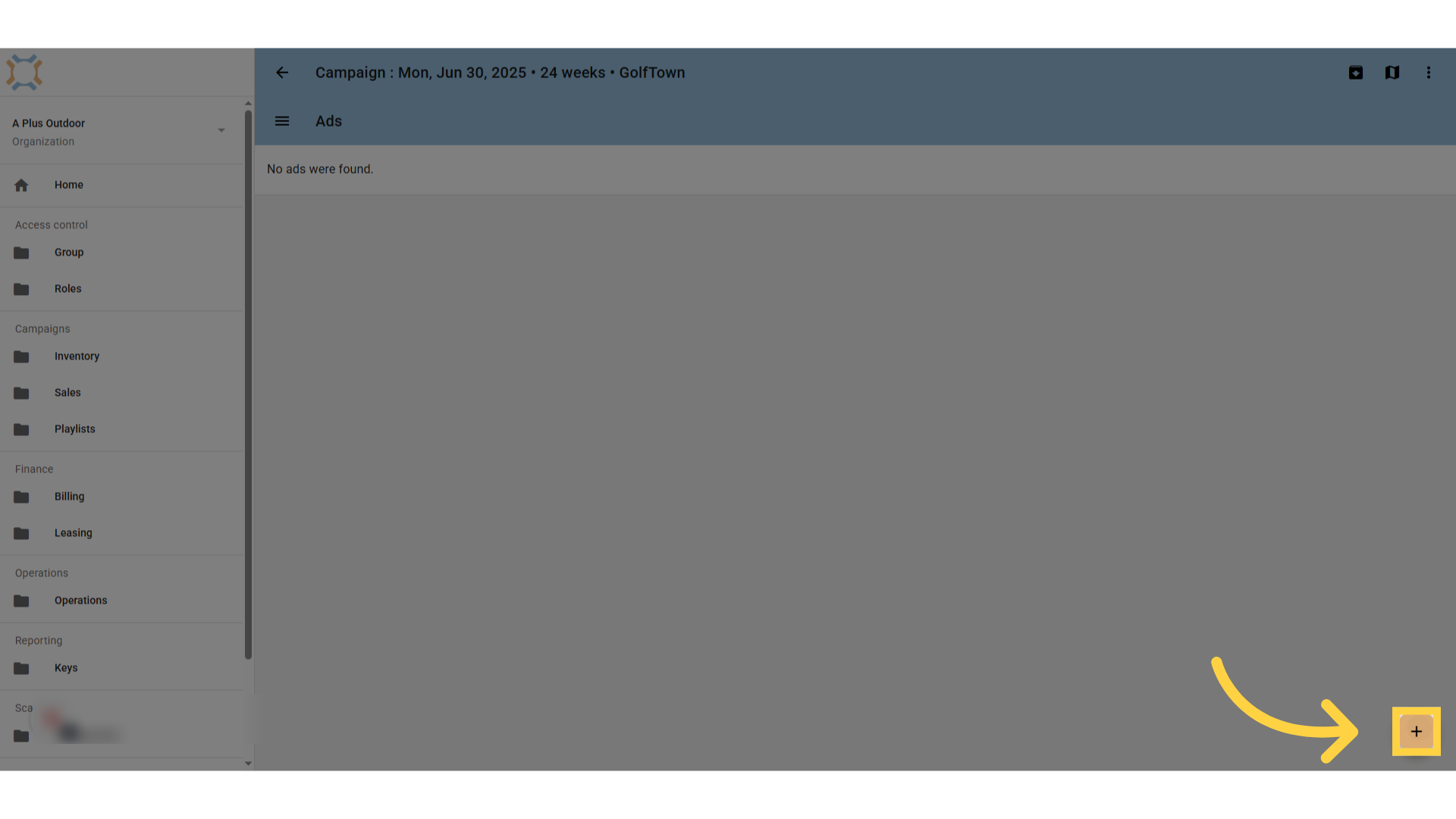
6. Enter Ad name
Enter a name for the Ad
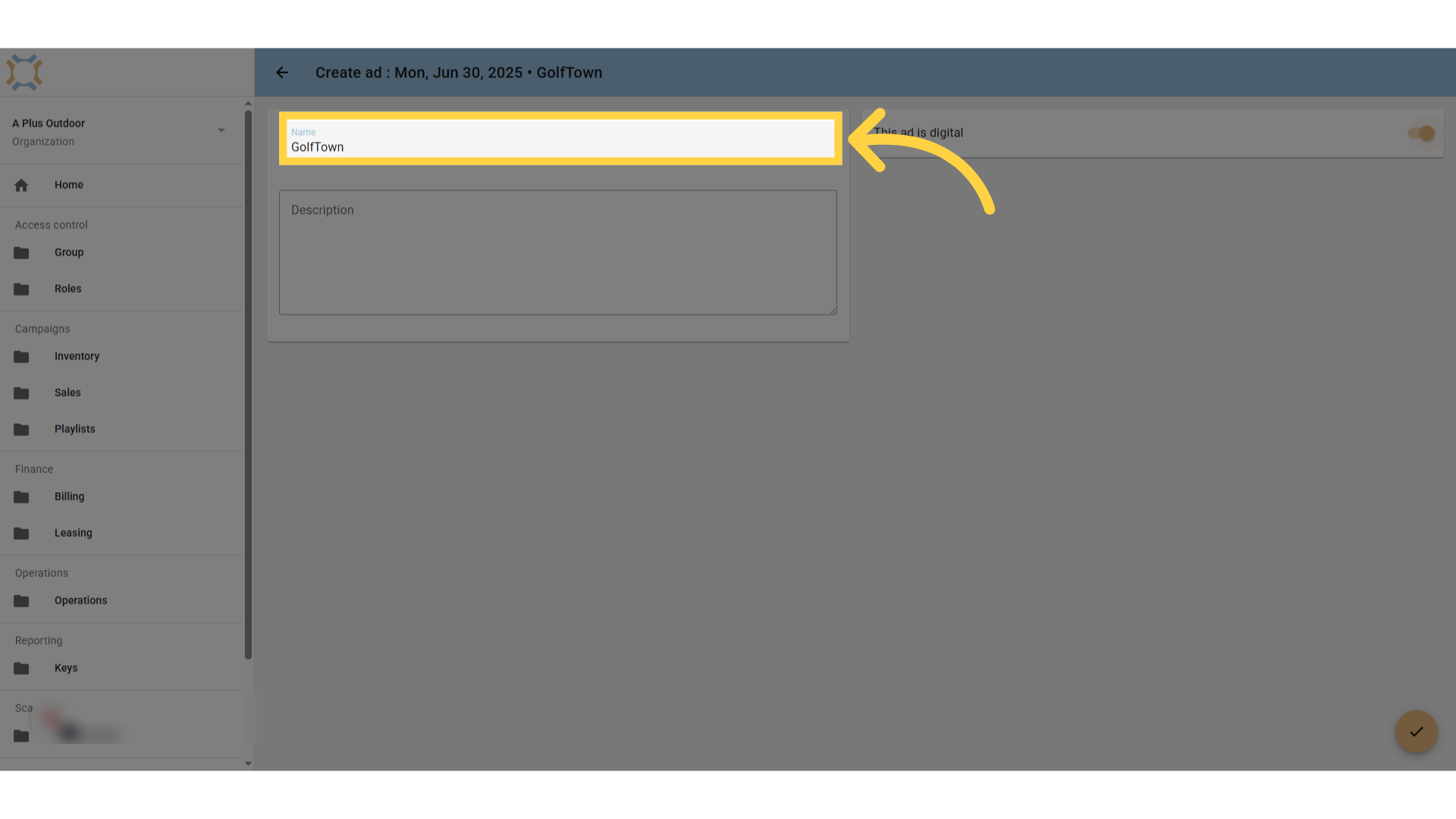
7. Click "off"
Switch the ad is digital button to off. If you do not, you will not be able to assign it to static media bookings.
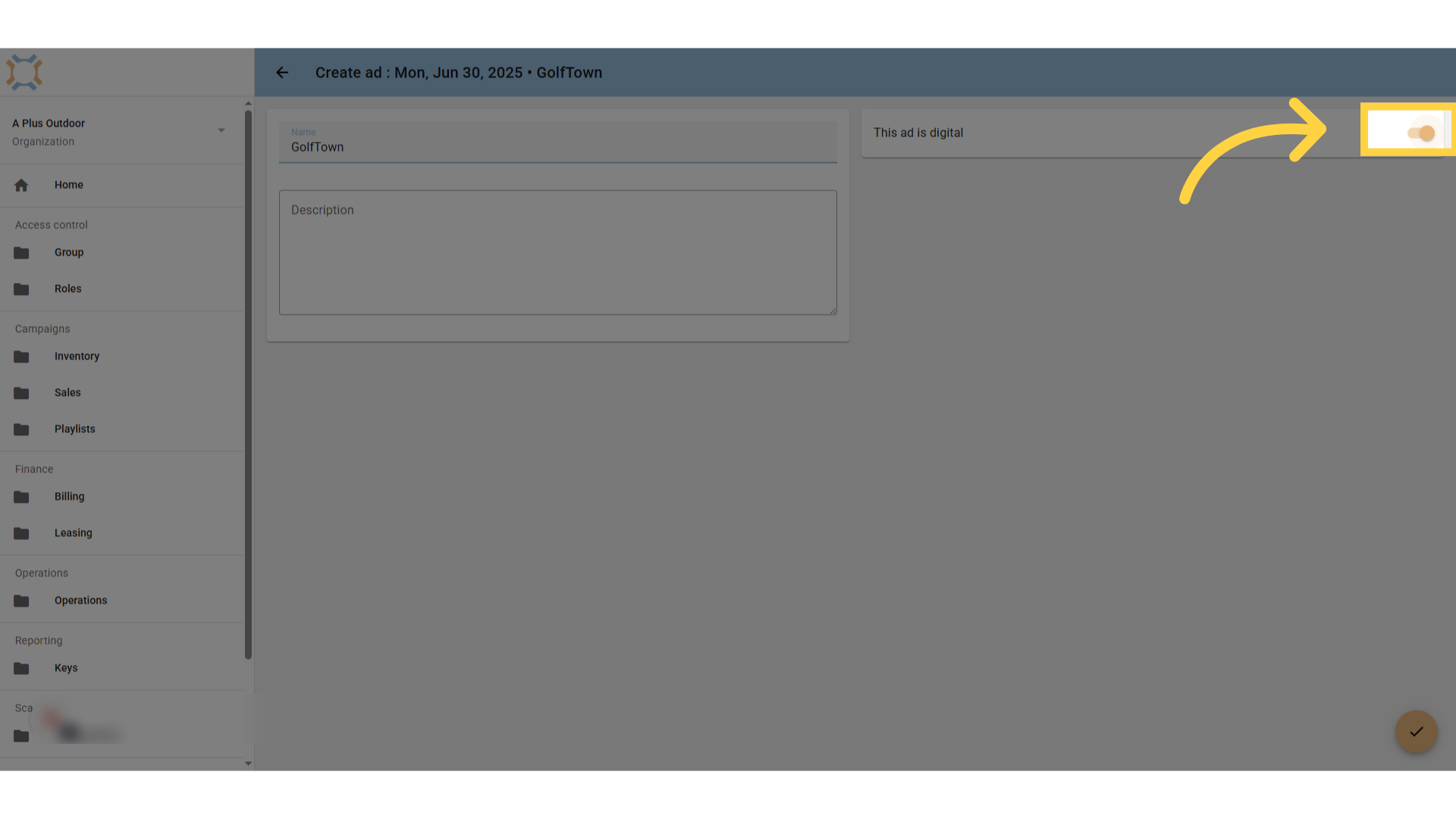
8. Click "done"
When you have finished entering the ad information, click done.
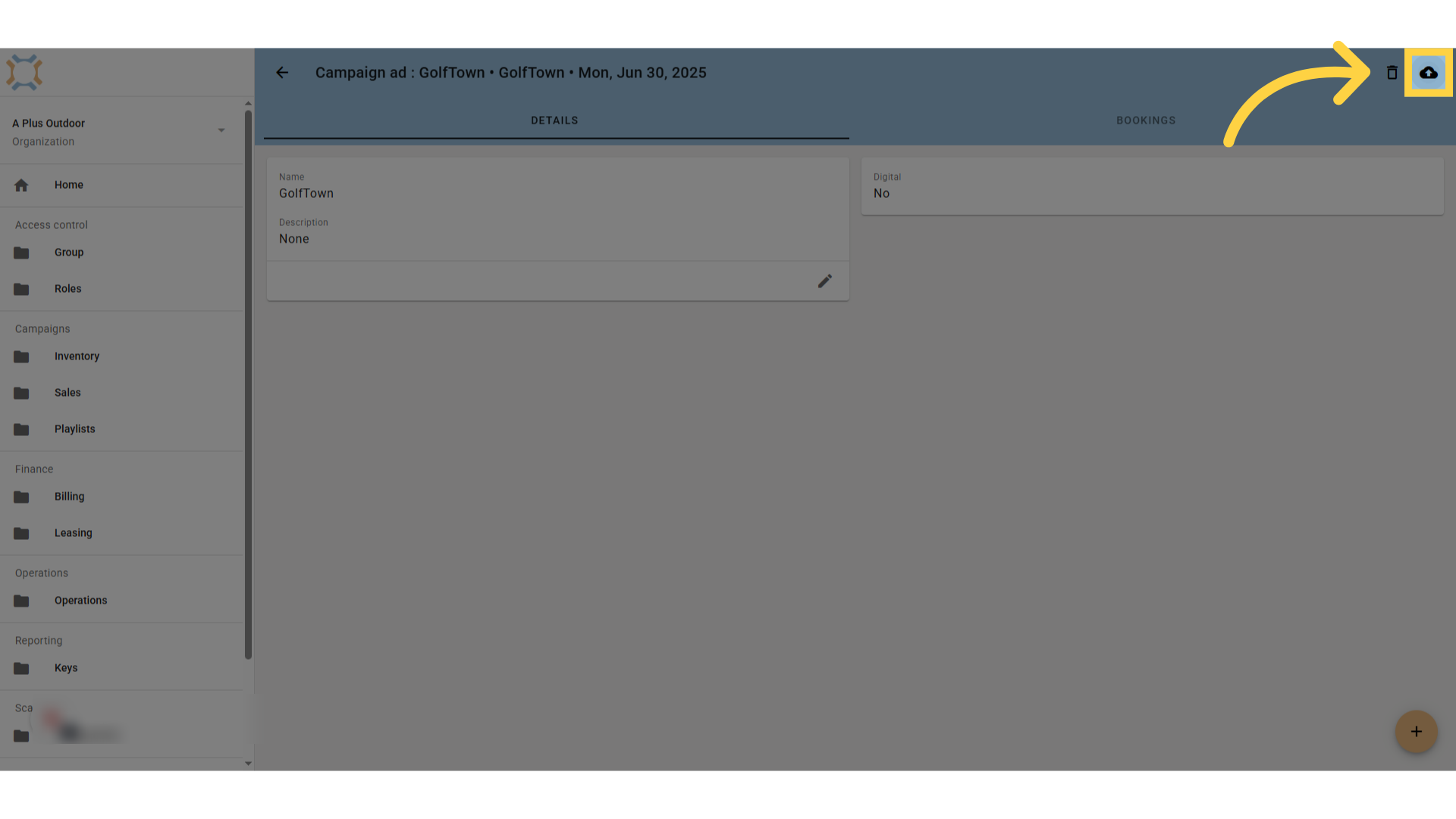
9. Upload image
You can upload an image of the ad by dragging and dropping it onto Ad Manager Connect, or by clicking on the upload button and selecting it from your computer.
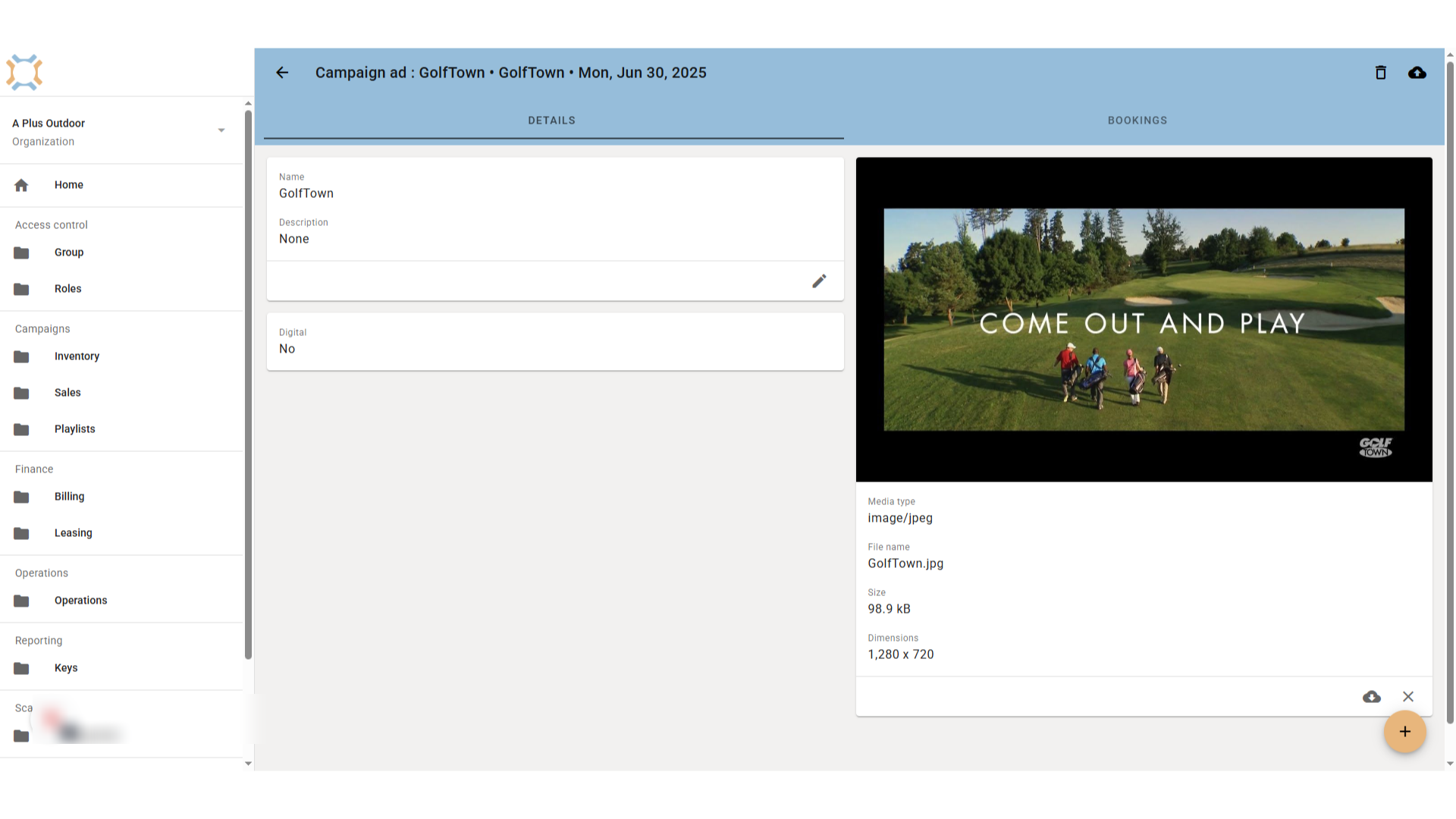
10. Image is uploaded
The image you have uploaded will appear and now be assigned to this ad
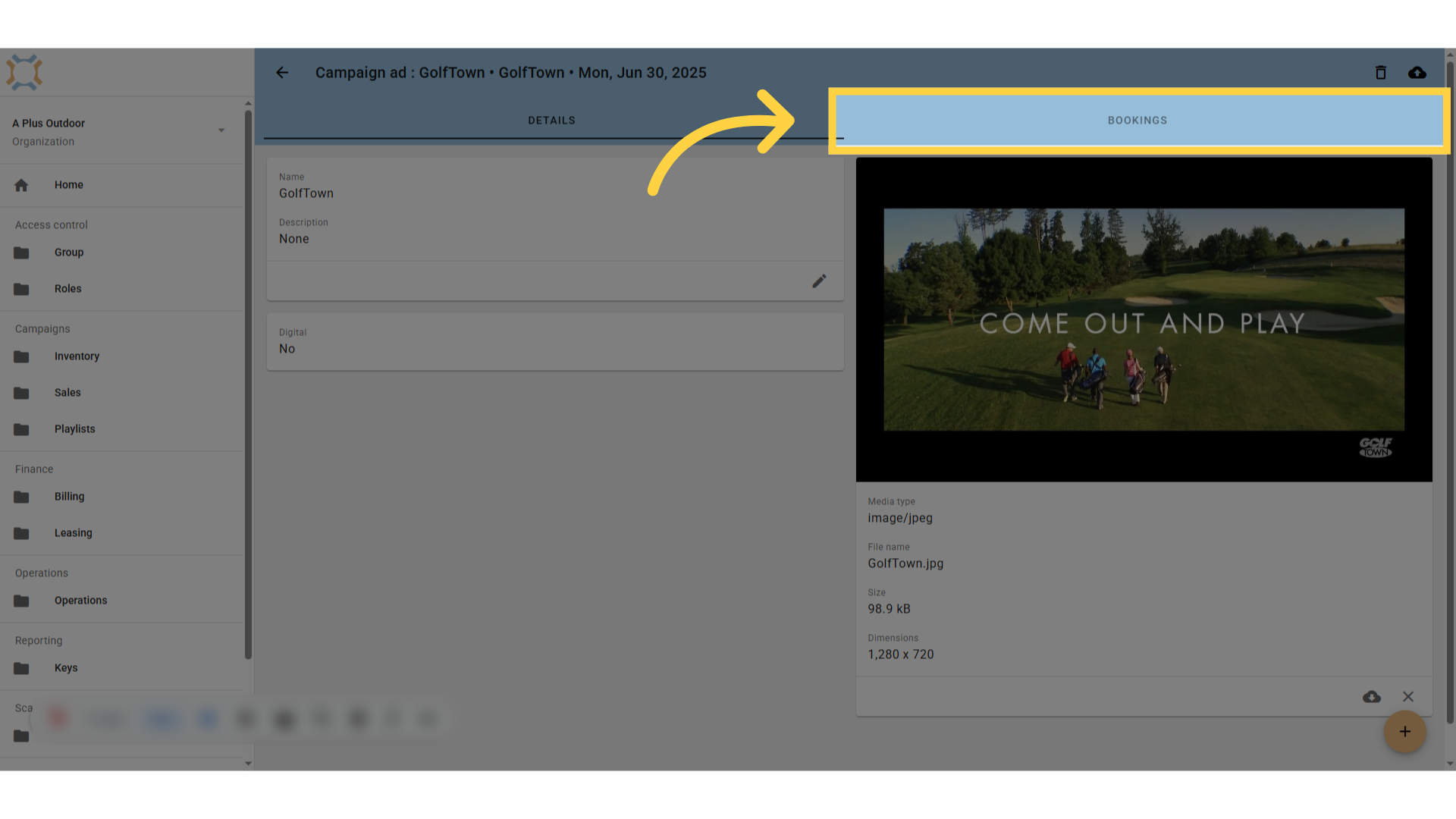
11. Click "bookings"
To assign this ad to bookings, click on the bookings tab.
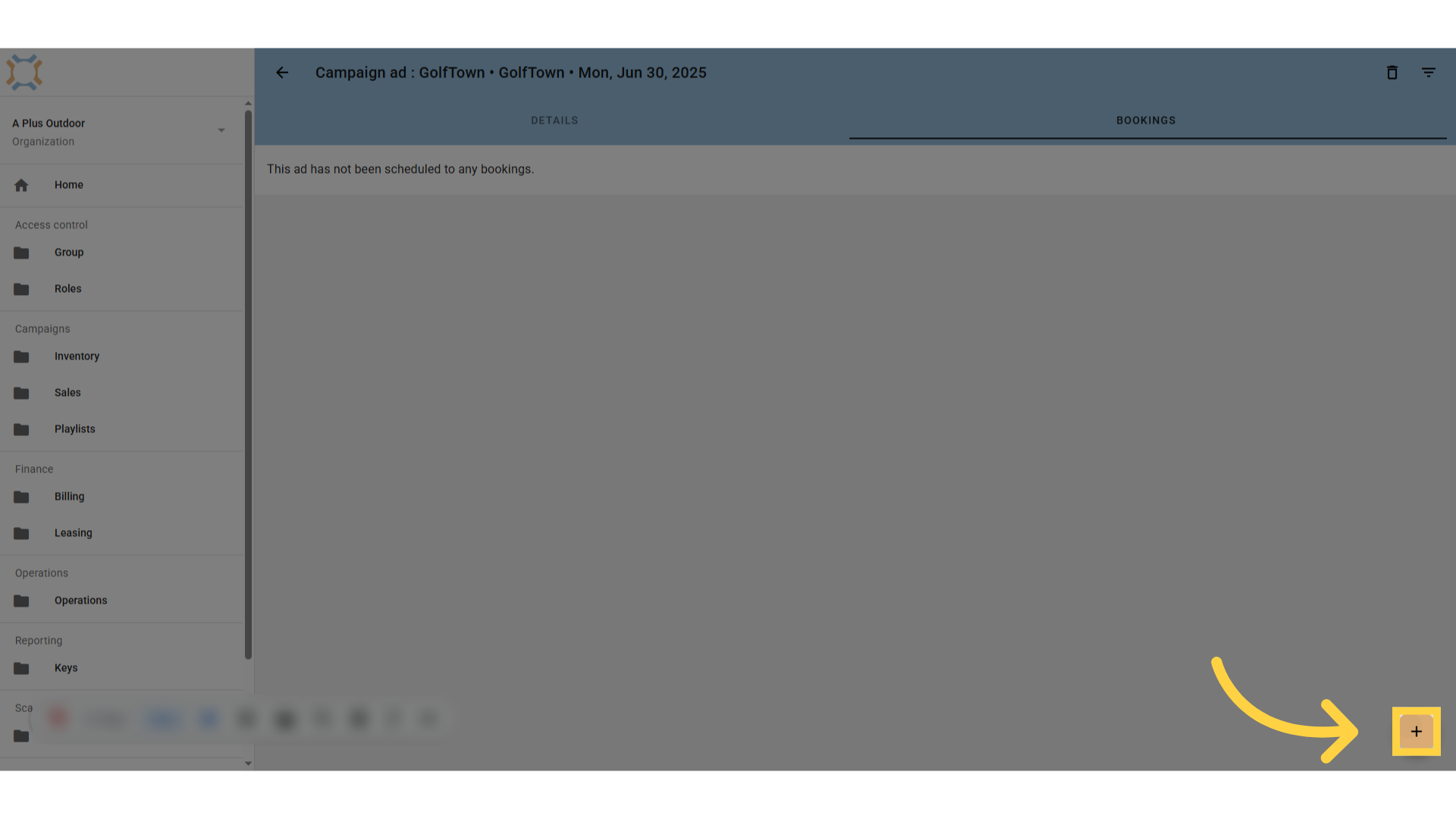
12. Click "add"
To see a list of bookings you can assign to this ad, click the add button.
13. Select the bookings to add
Click on the check box to select a booking you wish to assign to the ad.
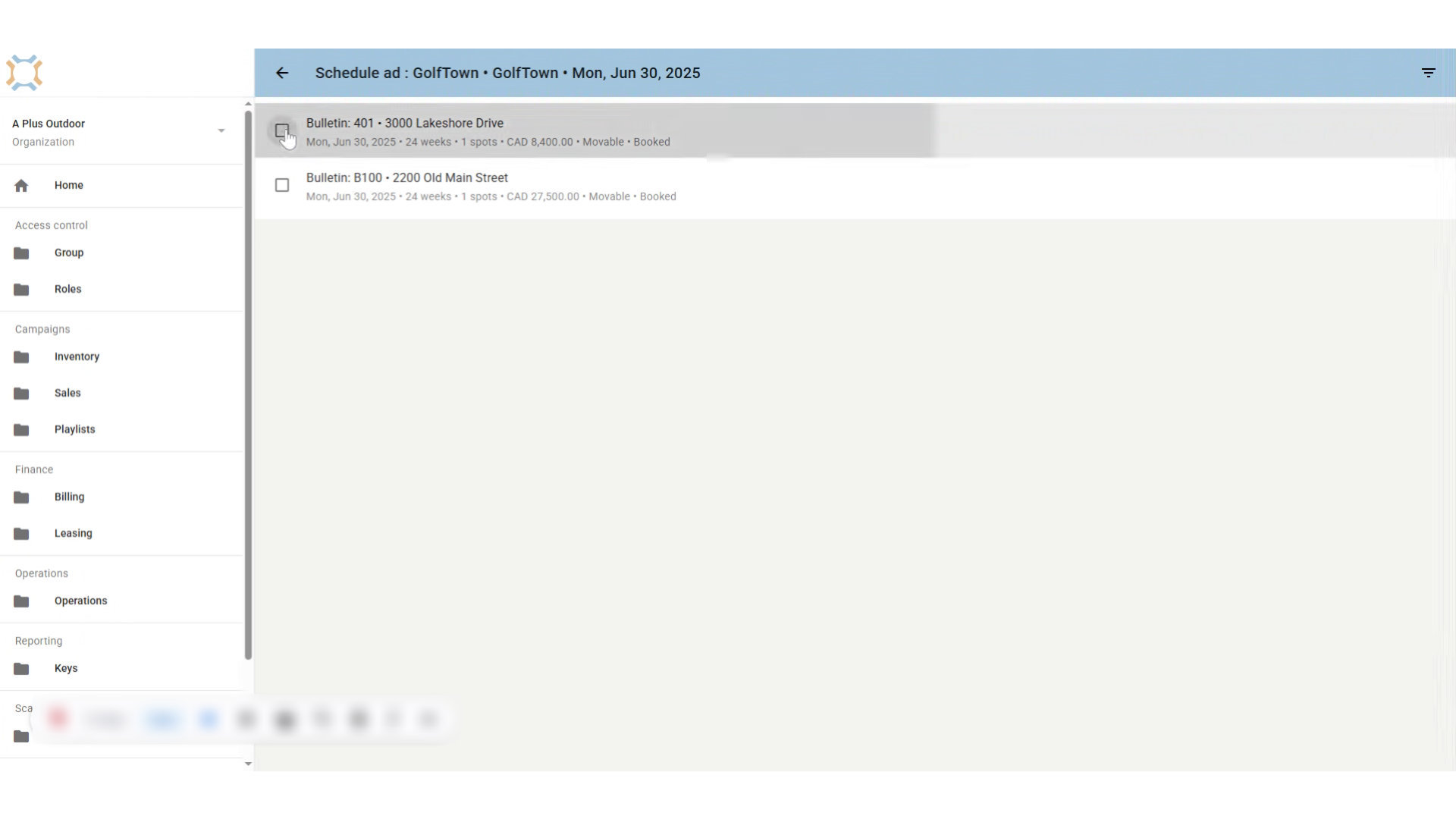
14. Click "done"
After you have selected the bookings to assign this ad to, click Done.
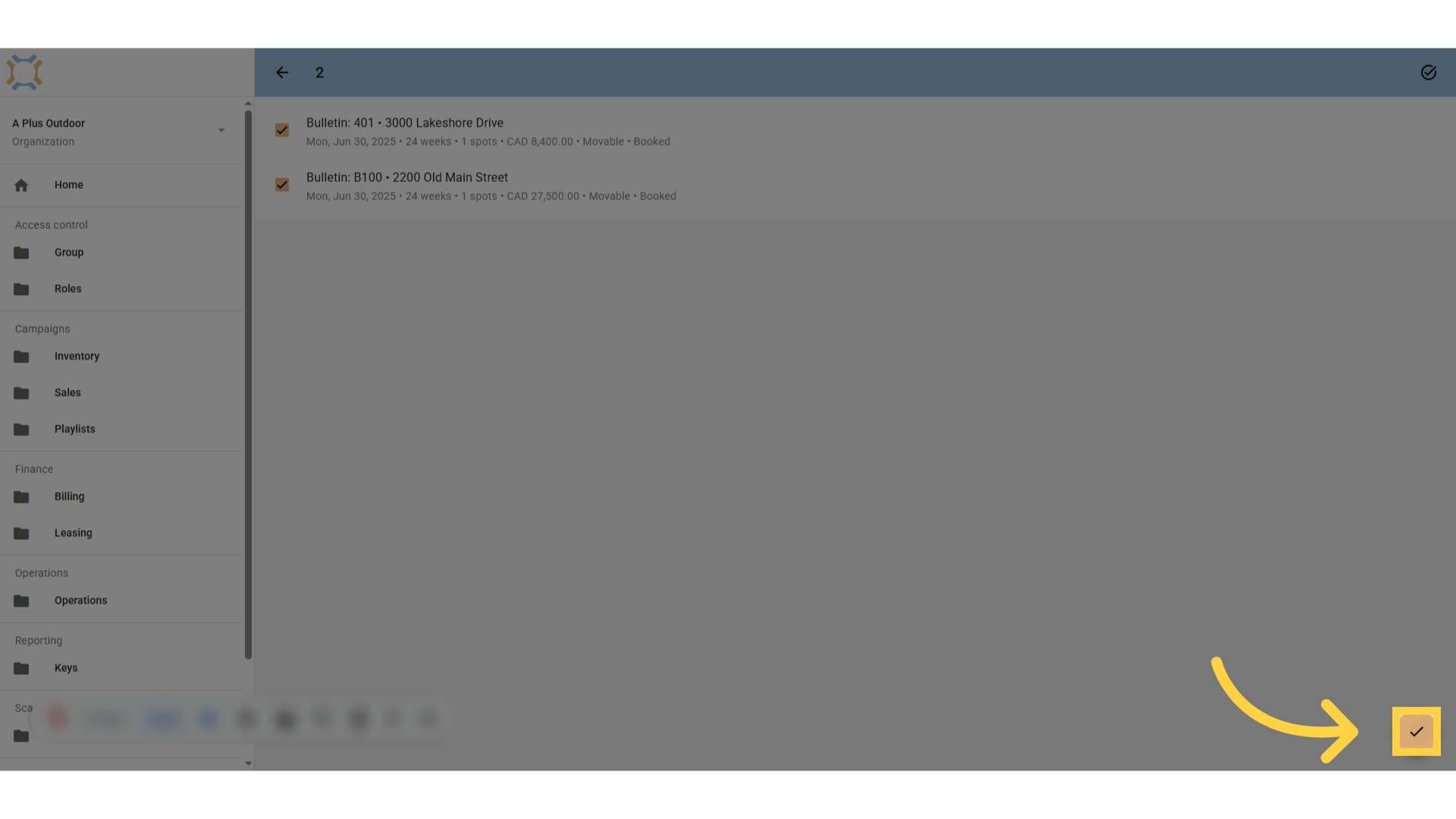
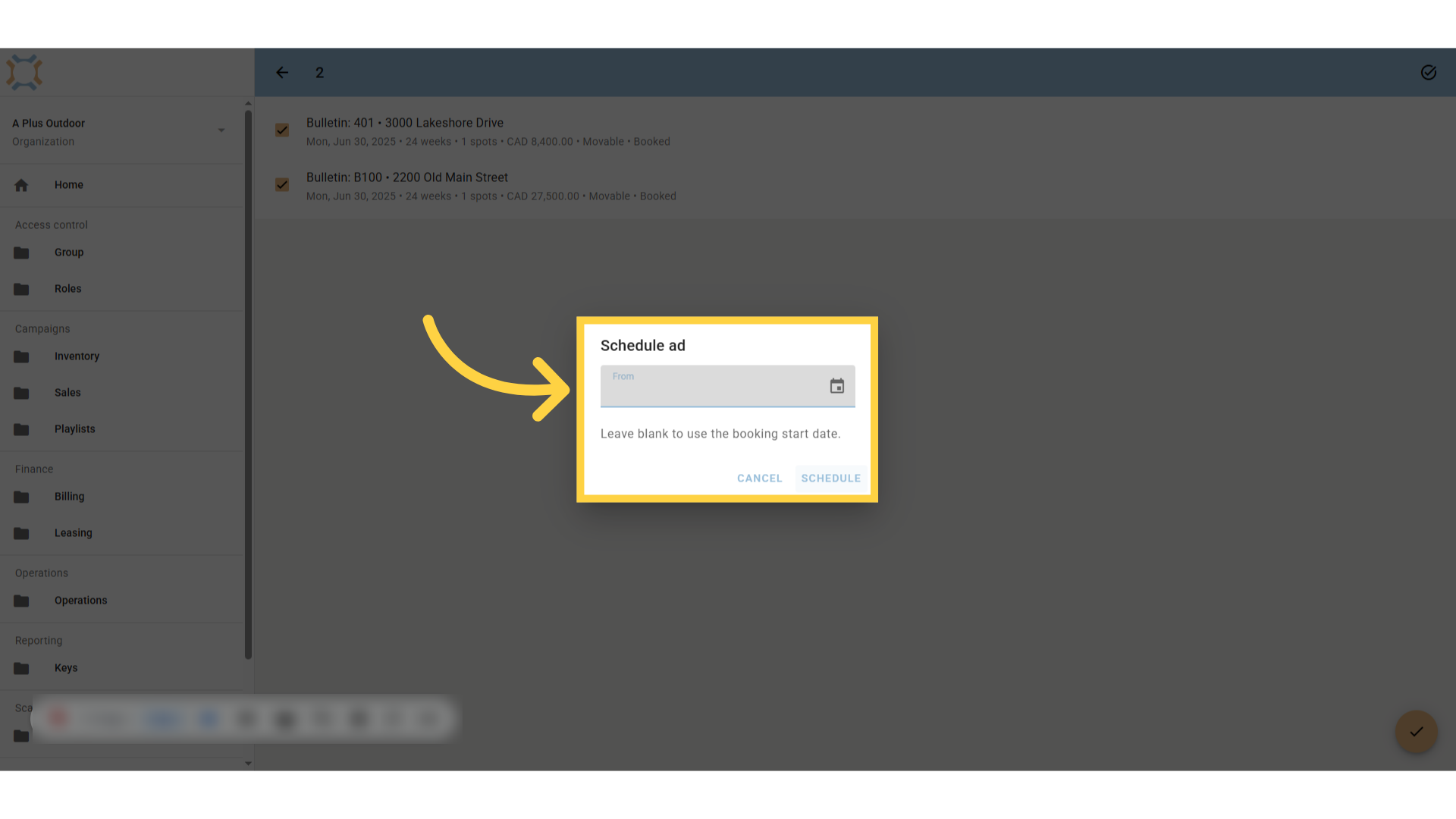
15. Choose Ad start date
You can choose the date that this ad is to start on these bookings. If the start date is the date the booking begins, you can just leave it blank. When you have chosen the date to have this ad start on these bookings, click Schedule.
If you have any additional questions, please contact Dot2Dot for assistance.
Comments
0 comments
Please sign in to leave a comment.