
1. Invoicing Other Charges
Ad Manager Connect allows you to invoice other charges, in addition to Booking charges, while providing you with the ability to control when to invoice them
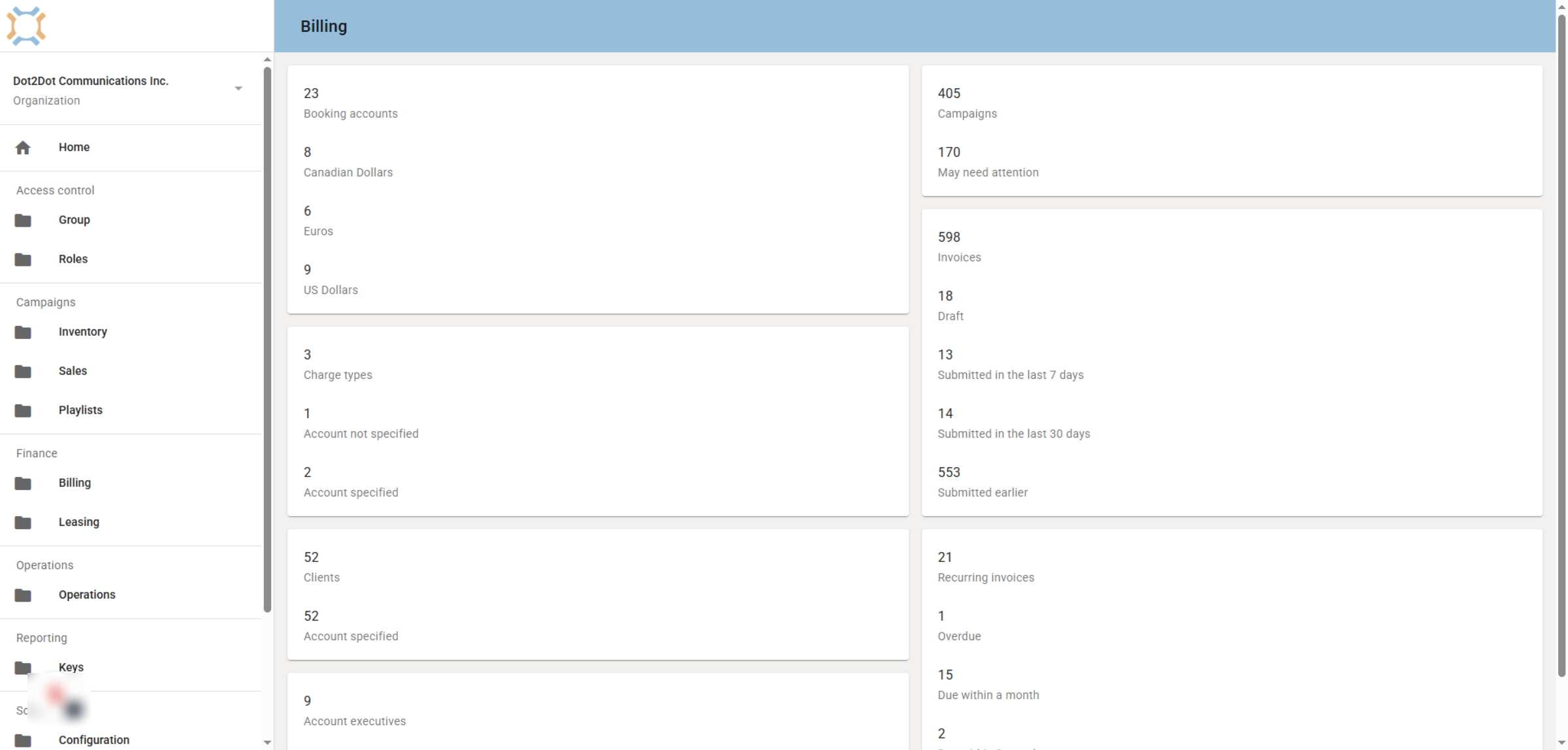
2. Assigning GL Codes
After you have created Other Charges in the Campaign module, you will need to assign the GL Code for this charge type before you can invoice it.
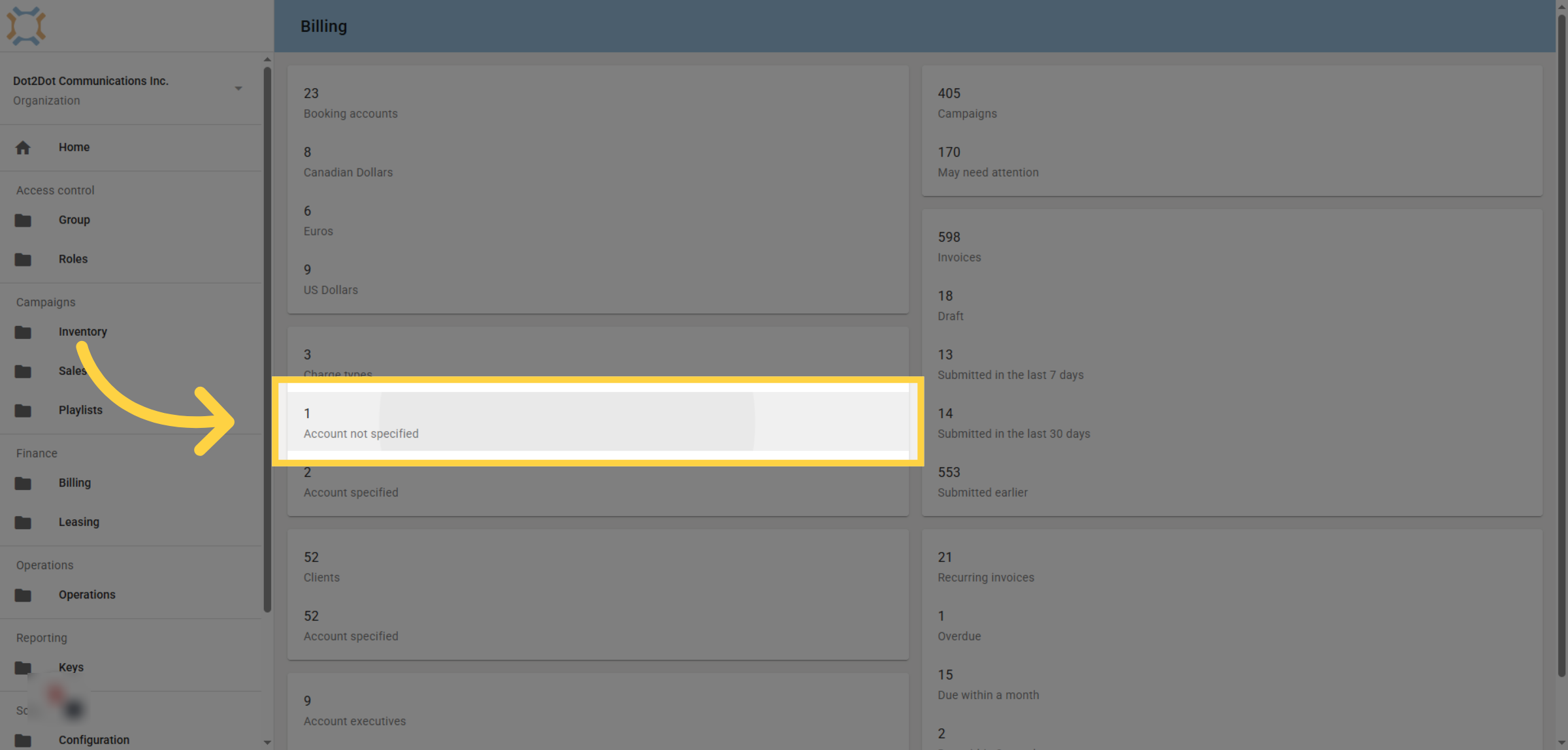
3. Select Illumination Account
Click the account to add the GL code for from the list.
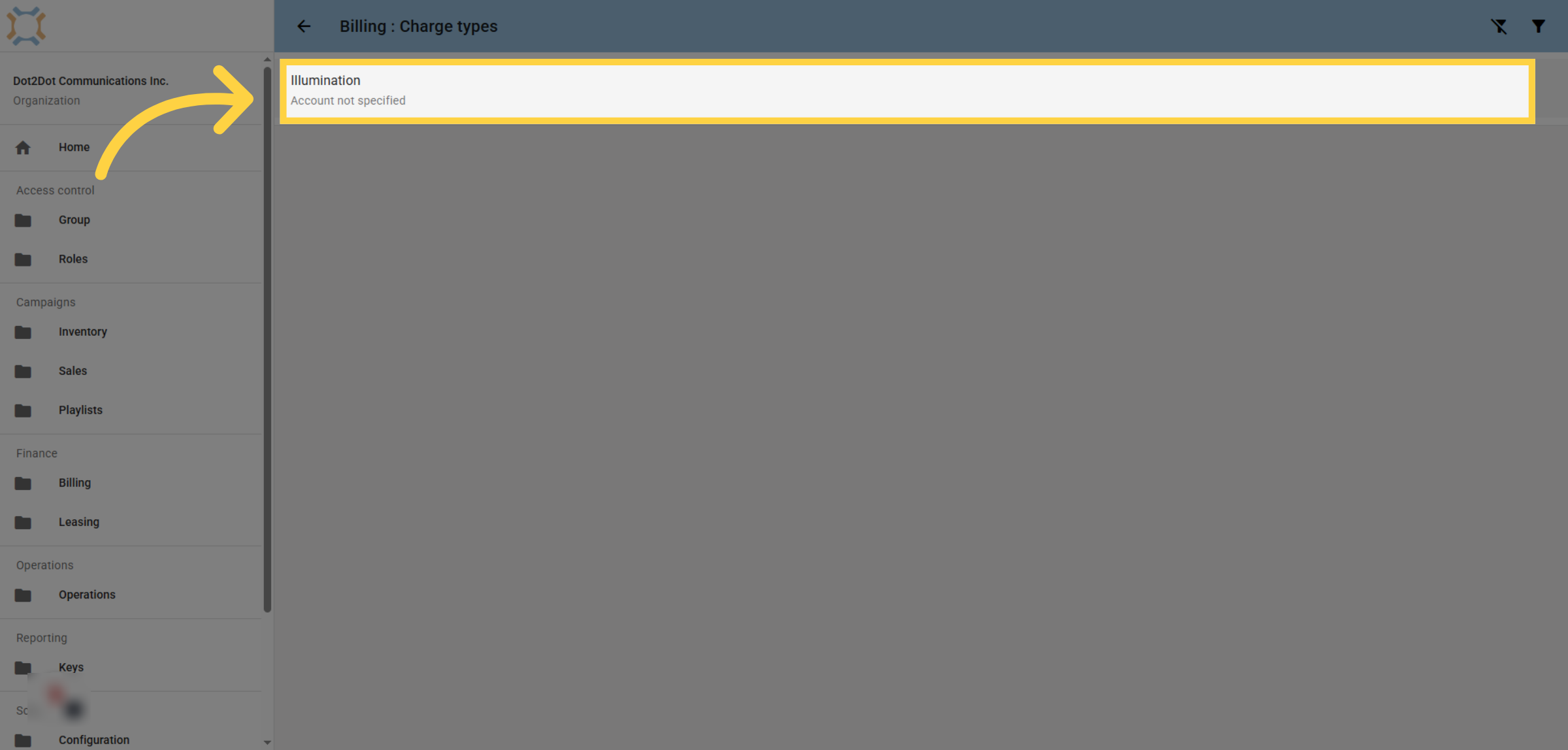
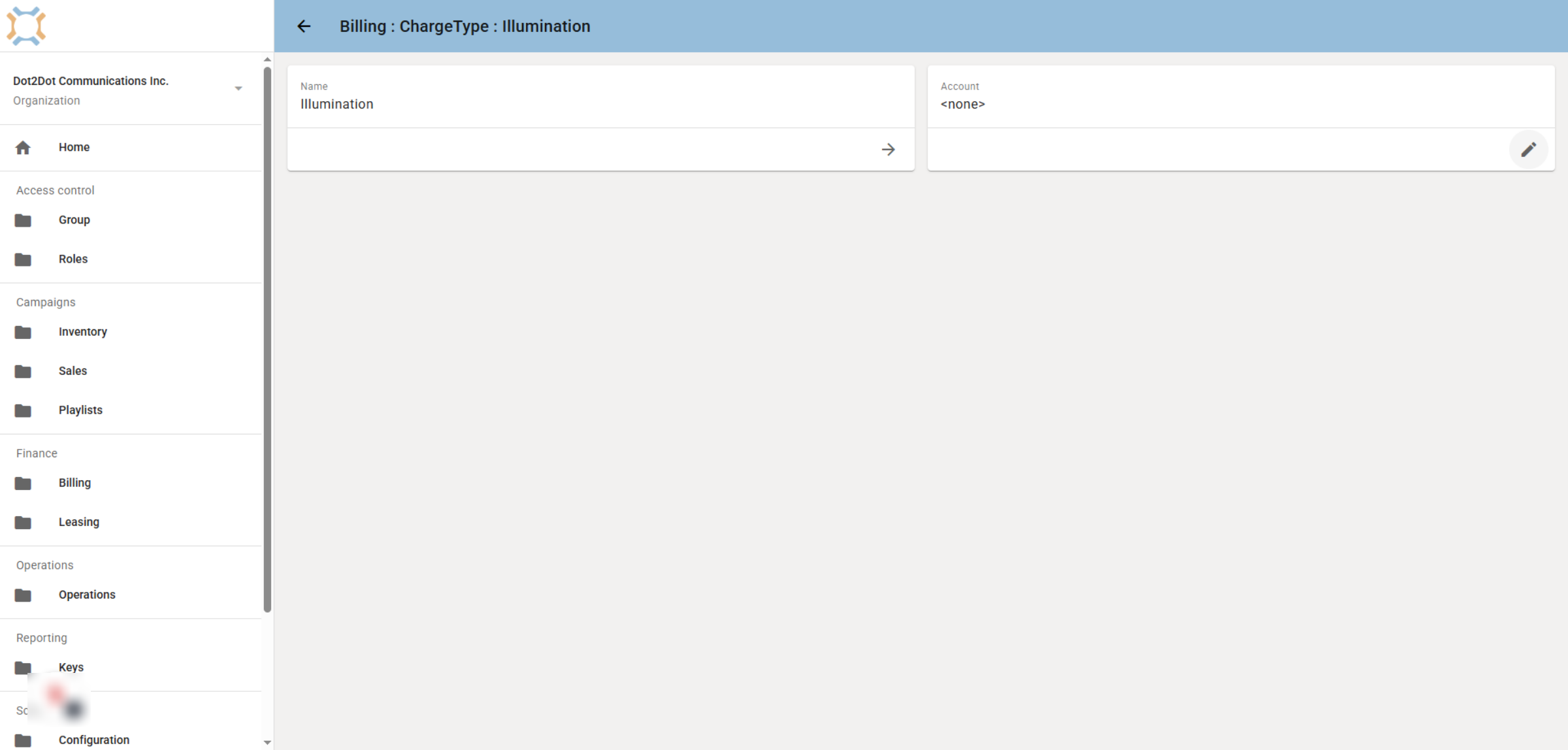
4. Charge Type Details
From this screen you can add or update the GL Code to use.
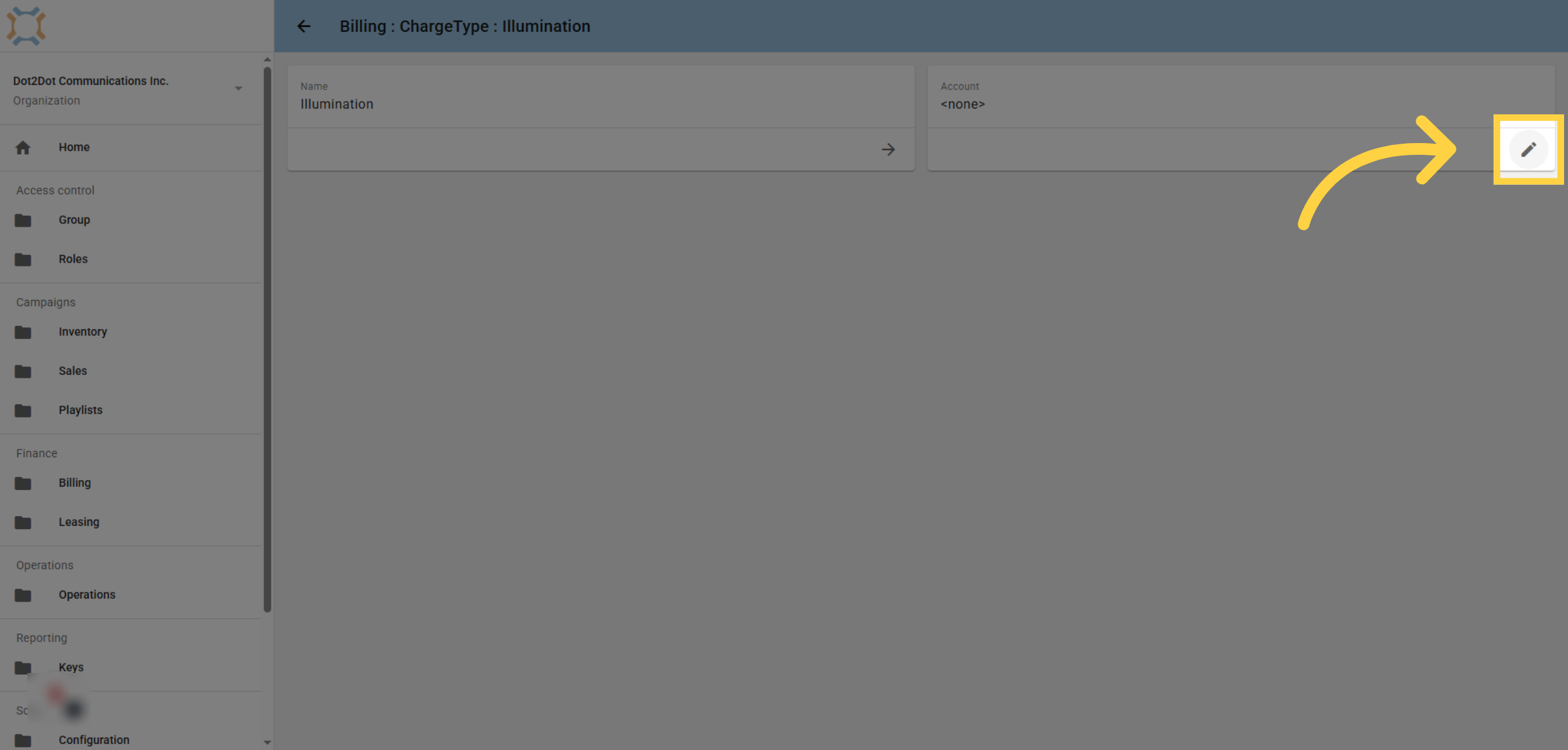
5. Edit Charge Type Details
Click "edit" to modify the account for this charge type.
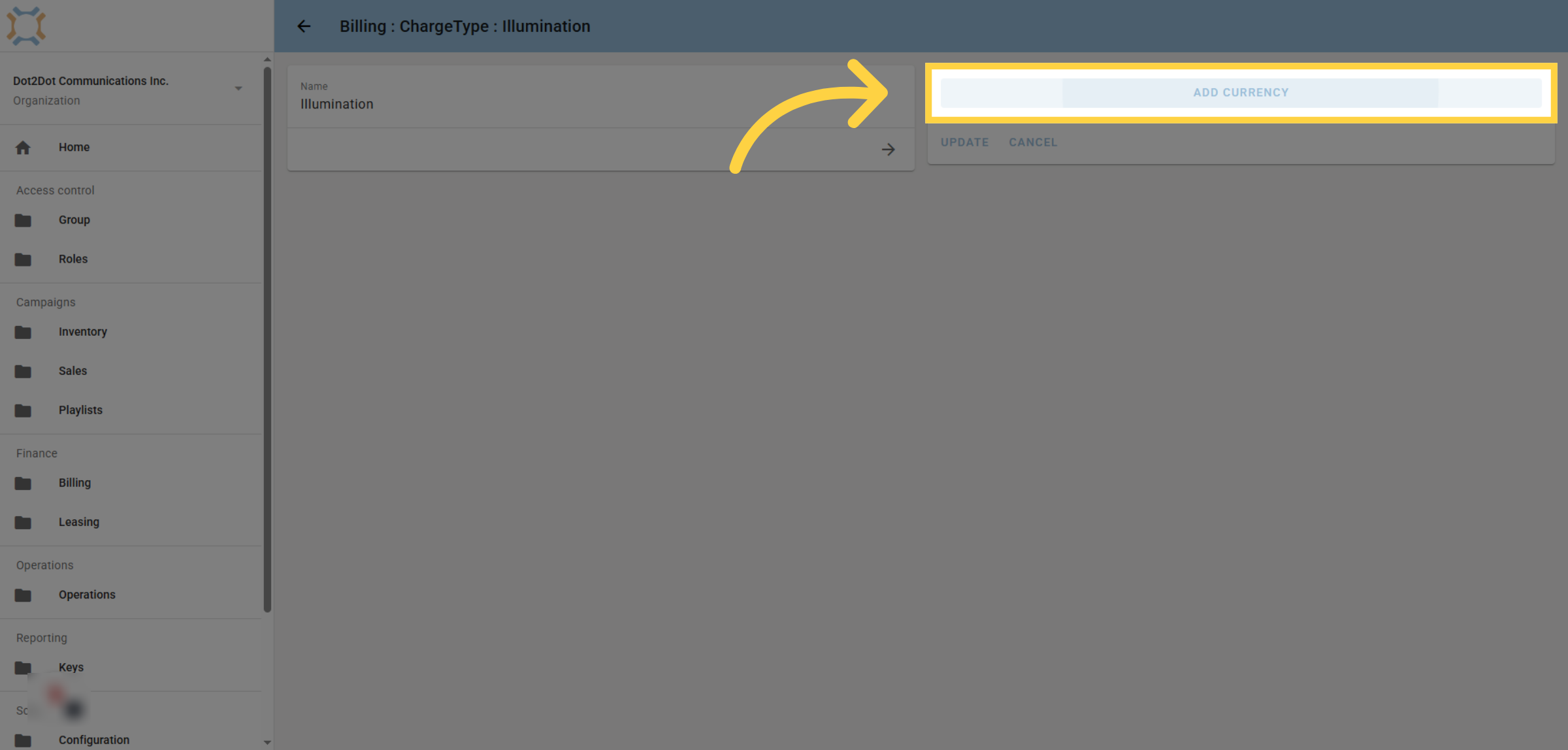
6. Select Currency
Select currency if necessary.
7. Input Account Number
Enter the GL Account that this charge type is to be applied to
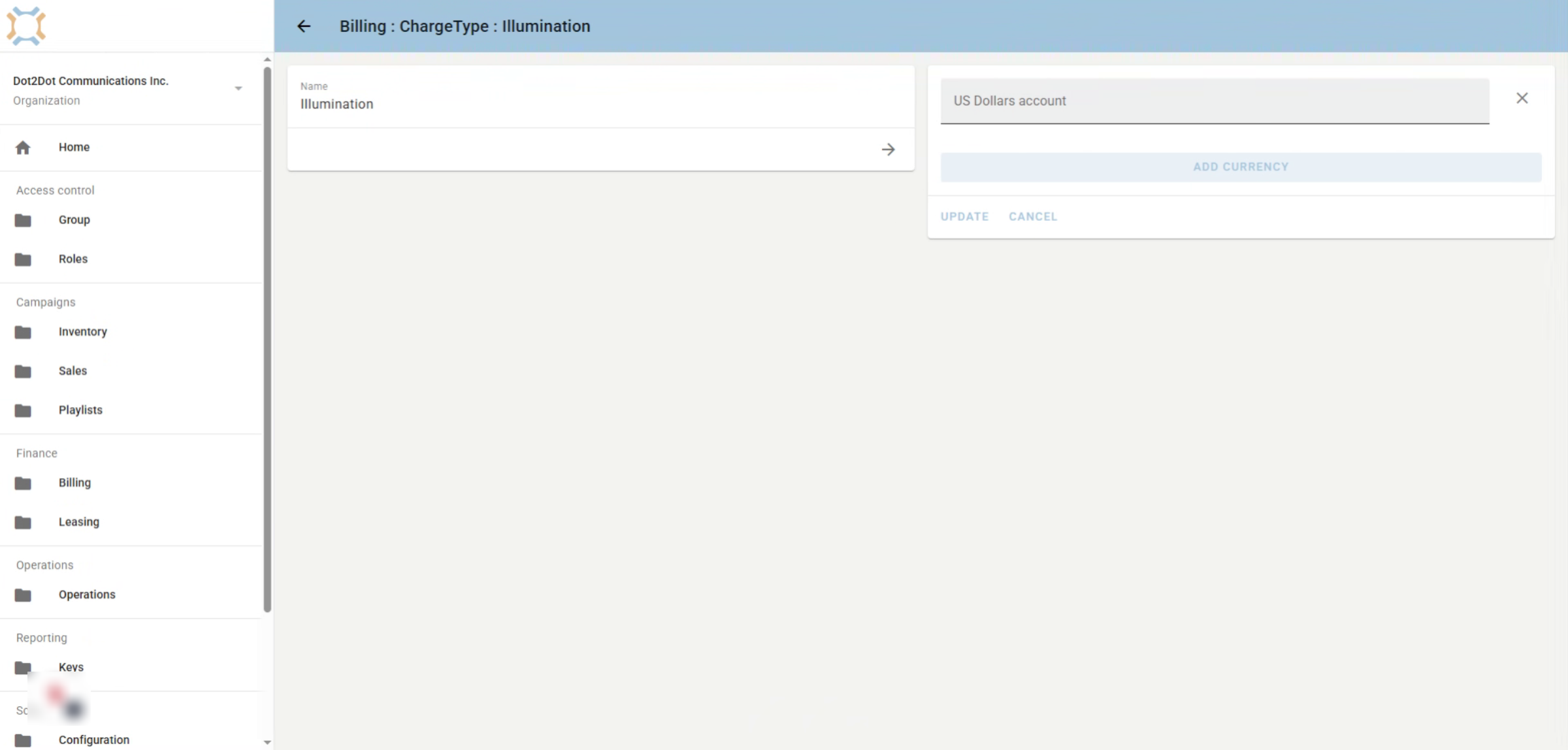
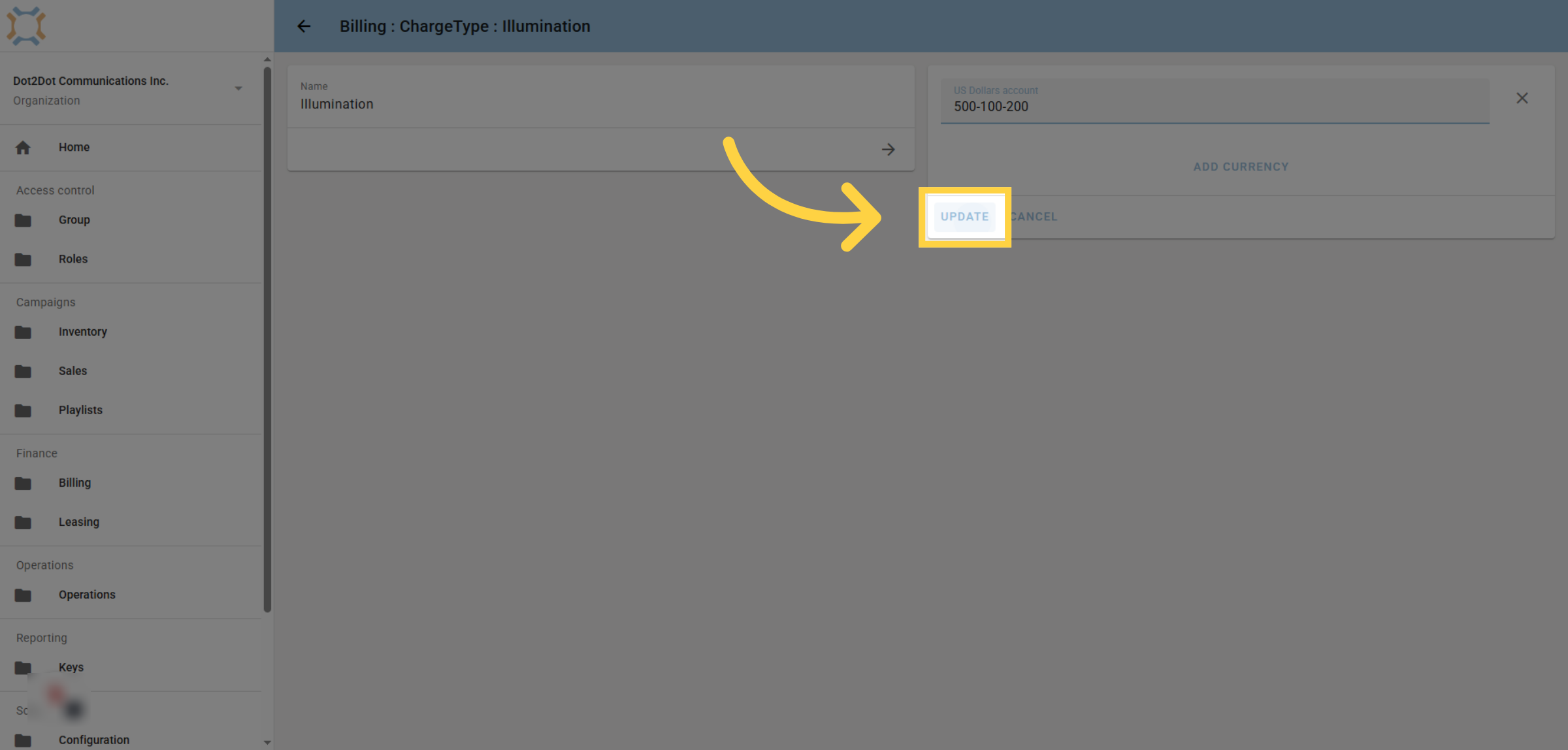
8. Click Update
After you have entered your account number, click Update.
9. Working on the Invoice
When working on an invoice, you have the ability to choose whether to include some or all of the charges.
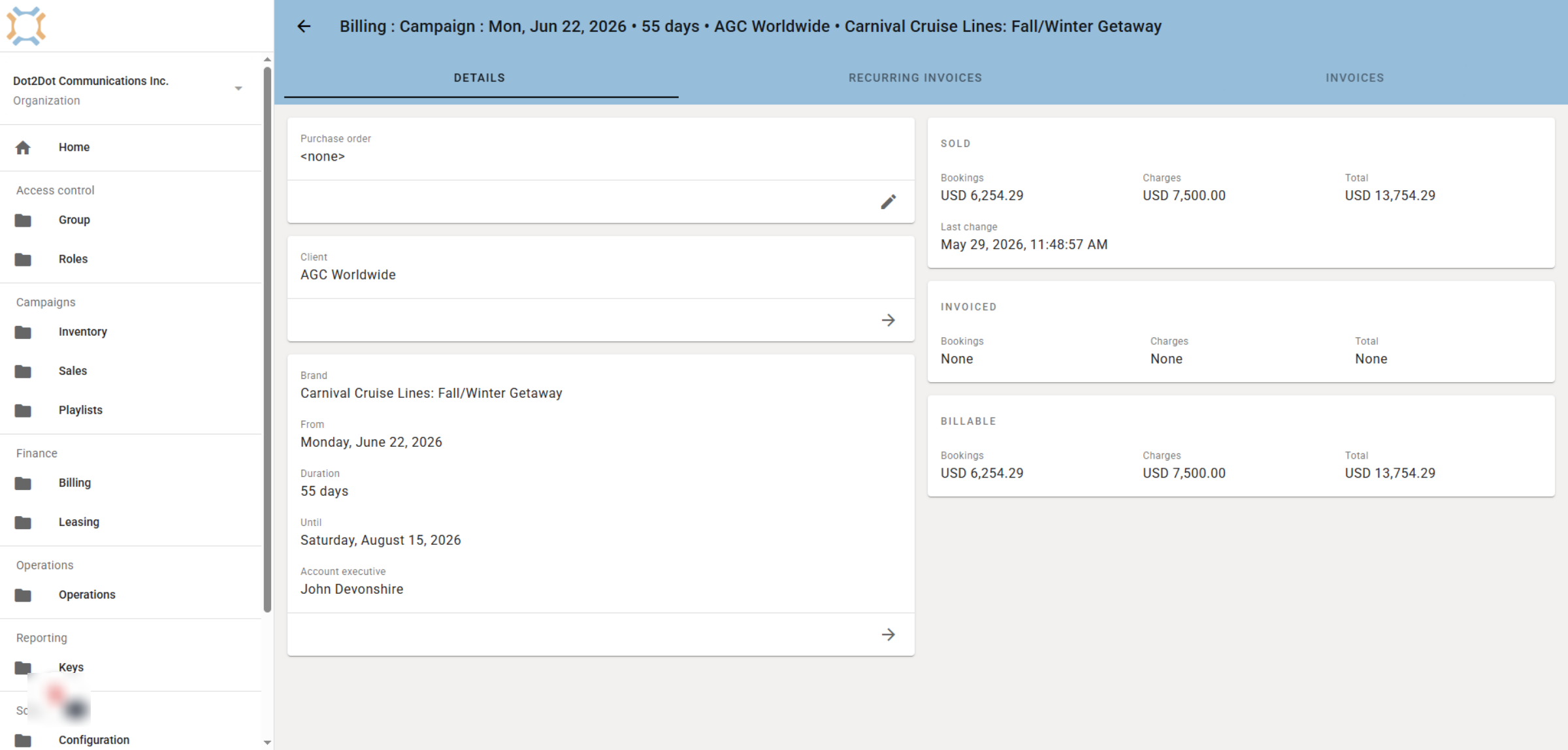
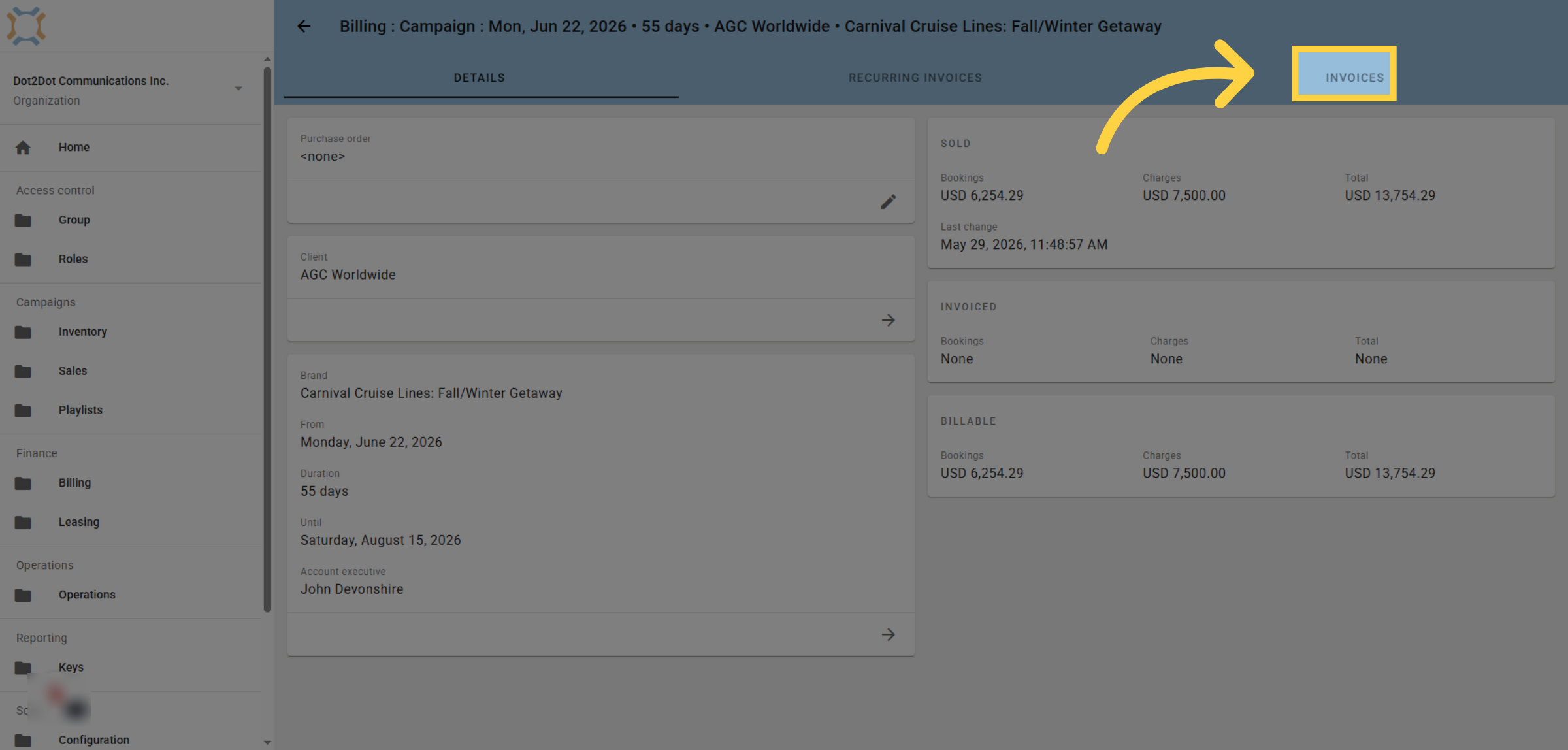
10. Click Invoice
Click on either Recurring Invoices or Invoices to create your invoices.
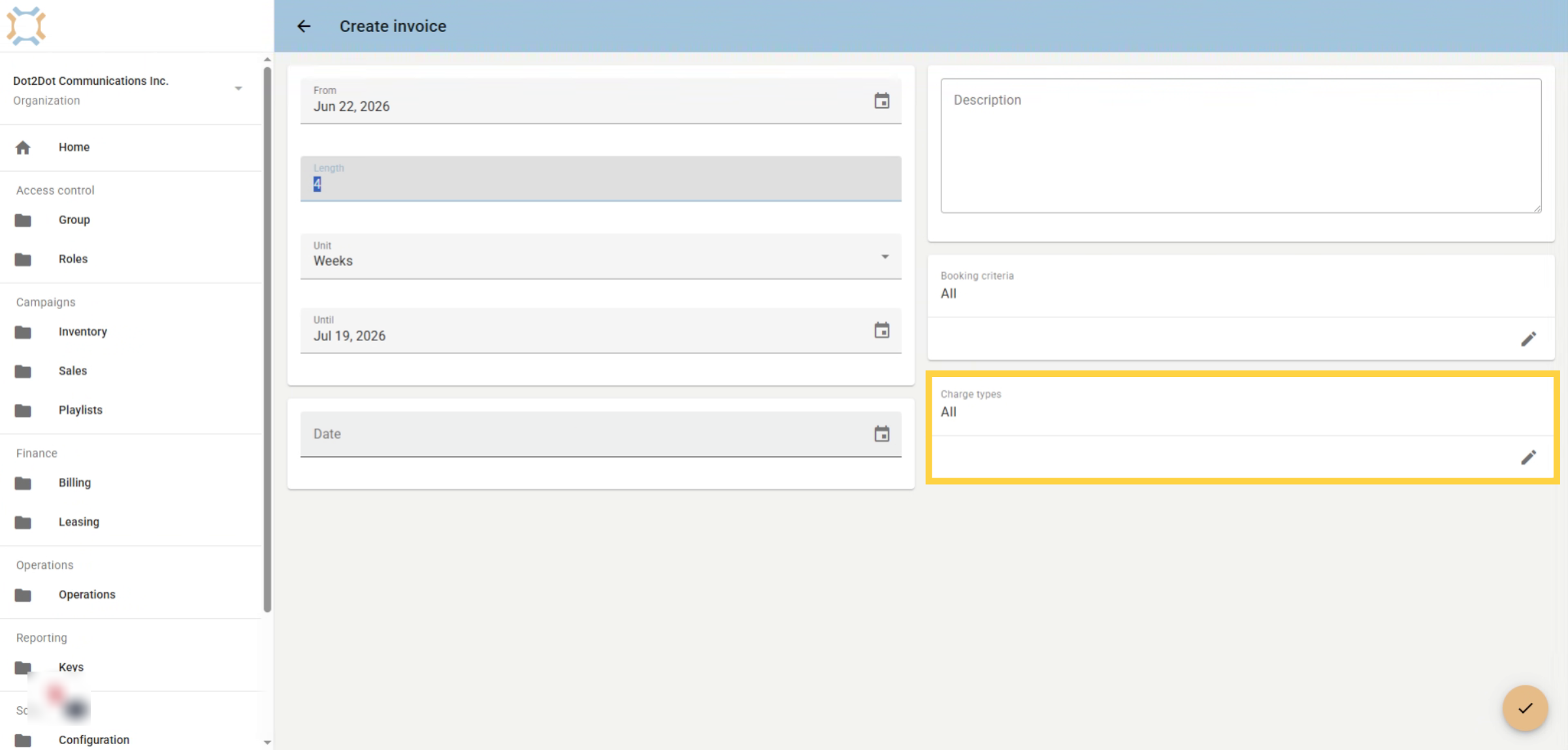
11. Charge Types
When creating invoices, you will see a Charge Types card. By default charge types are included on the invoice. This means any un-invoiced charges will be put on this invoice.
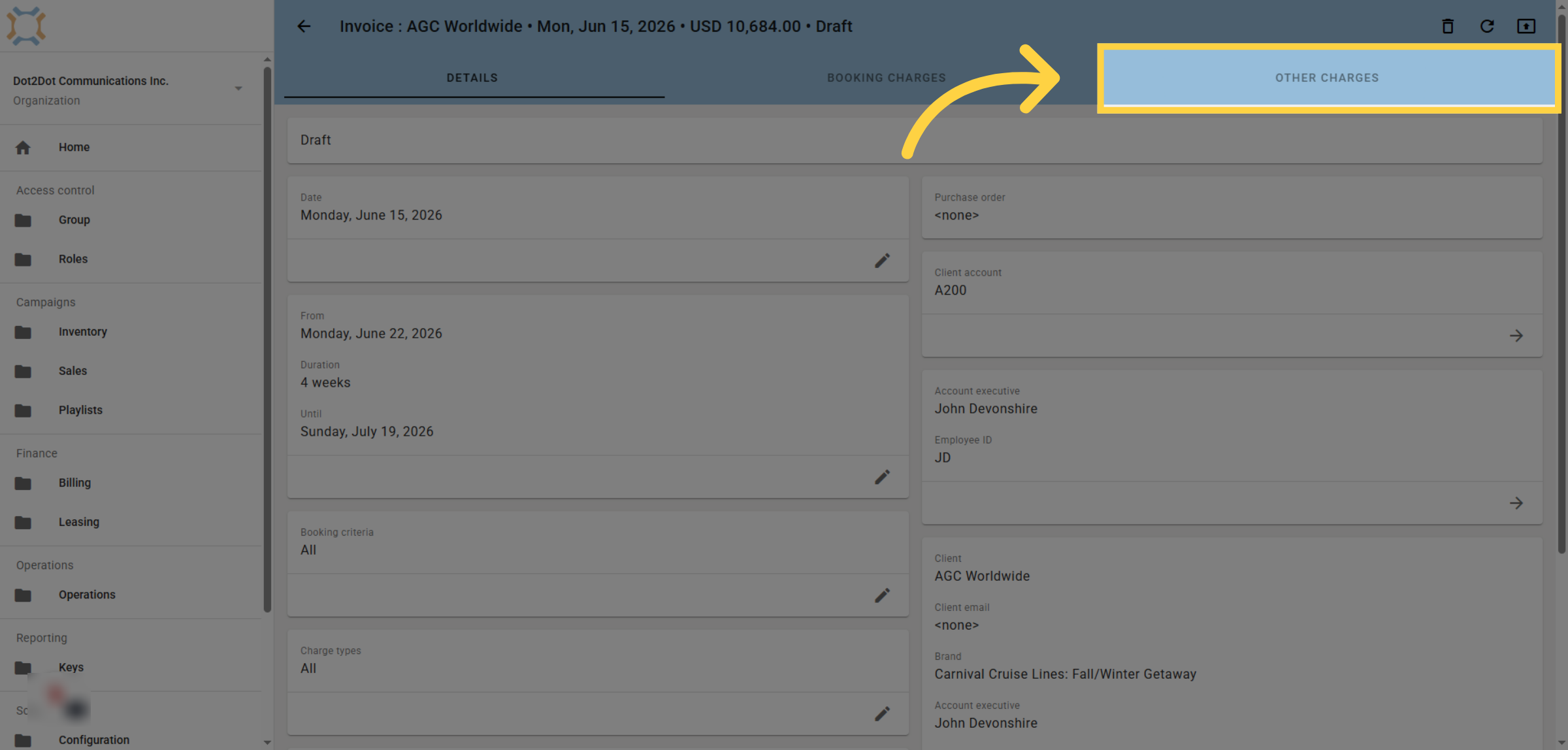
12. Viewing Other Charges
If you leave the Charge Types as "All", then click on Other Charges to see the Charges that will be included on this invoice.
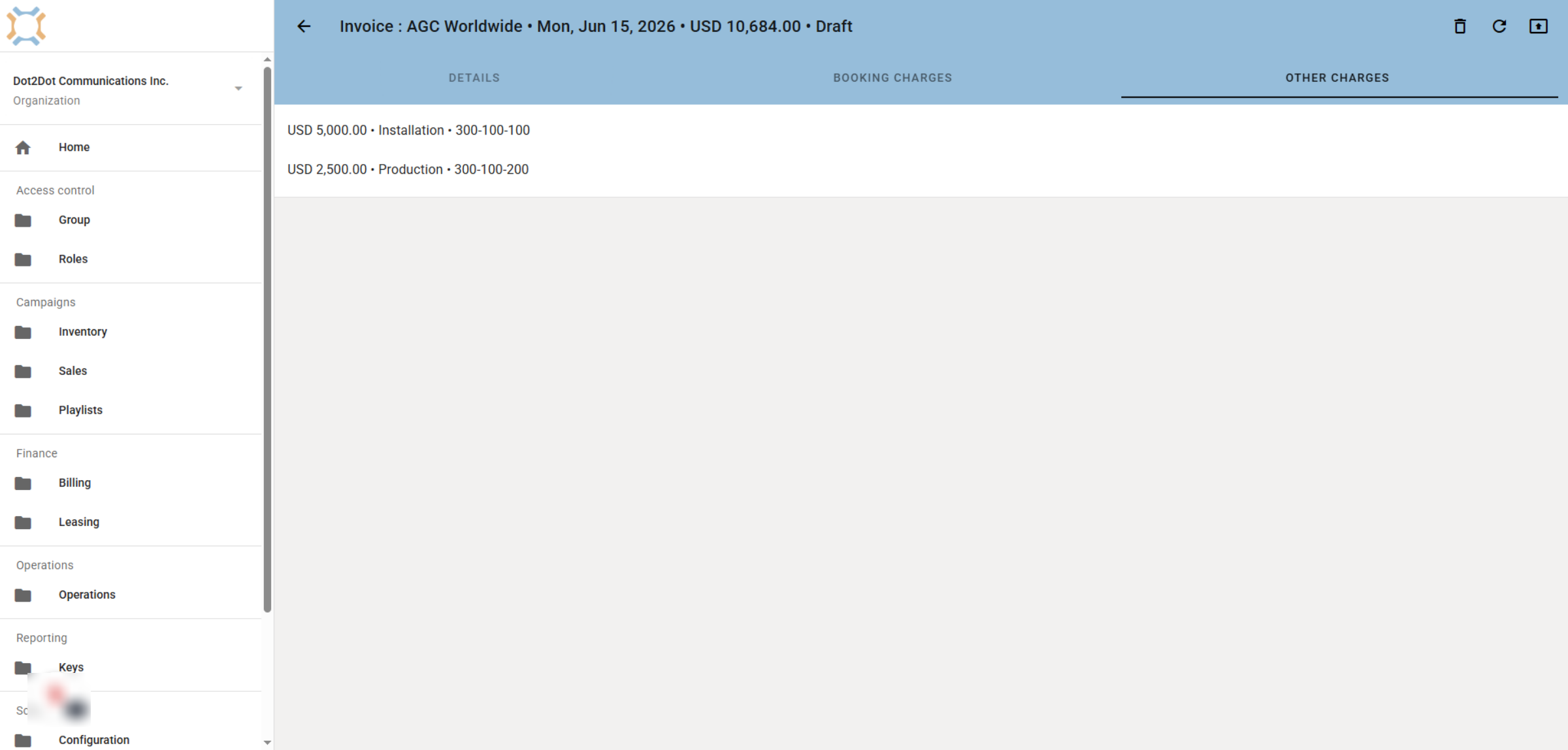
13. Other Charges
In this example, both Production and Installation are to be included on this invoice.
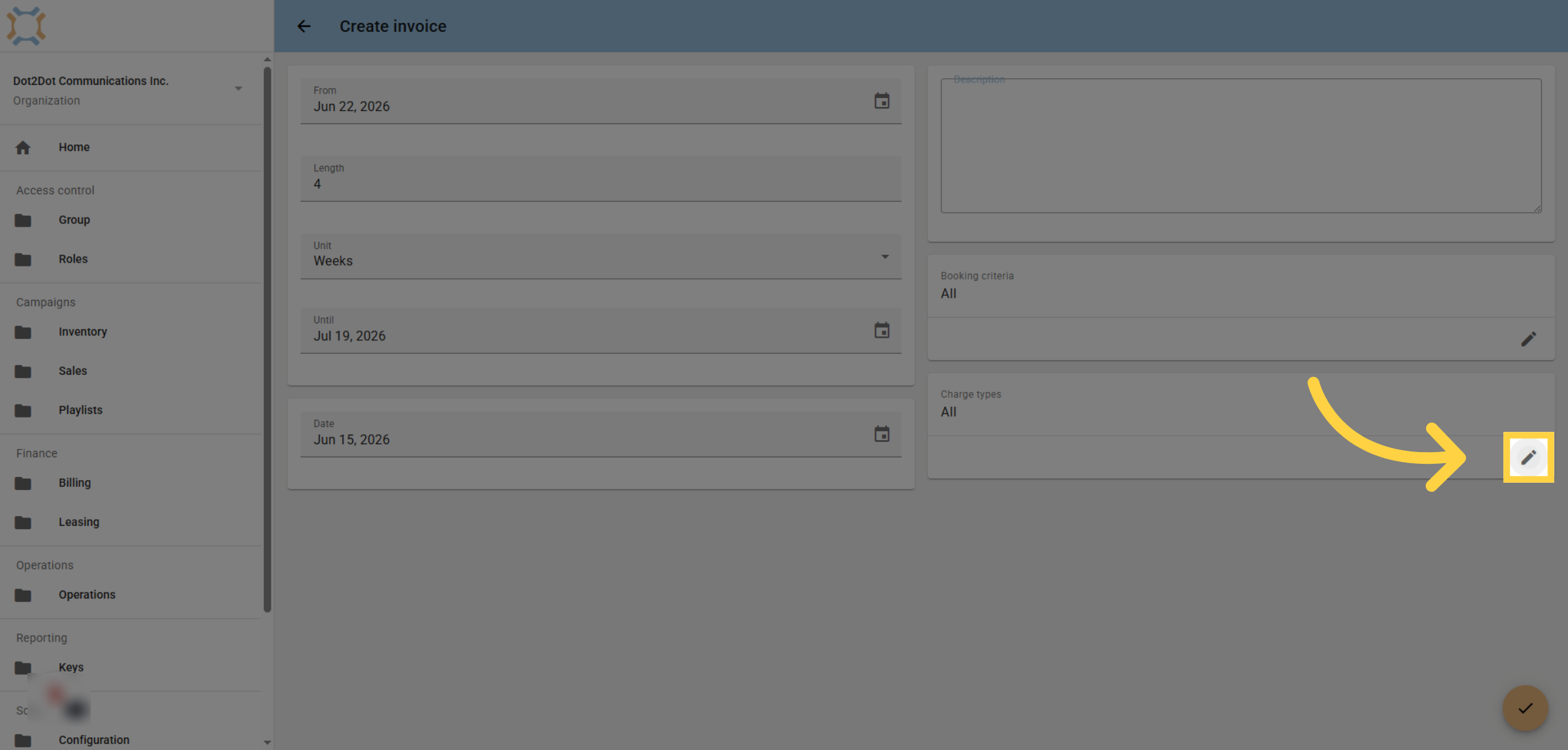
14. Click Edit
If you wish to select which, if any, charge types are to be included on the invoice, click Edit
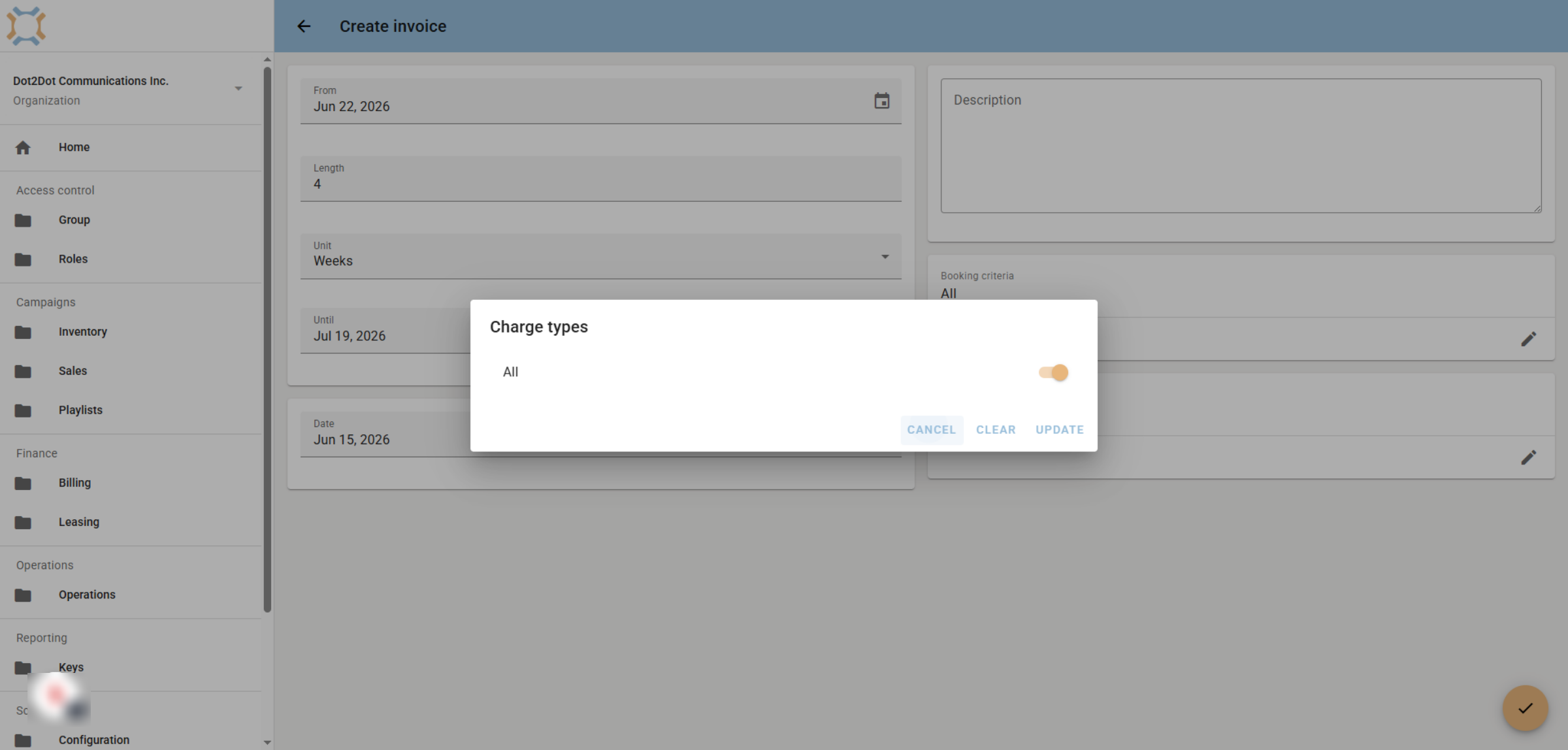
15. Select Charge types to include
If you wish to have all charge types included, make sure the All option is turned on.
16. Turn off All
If you wish to have no charges included on the invoice, turn off the All charge types. A list of all possible charges will appear showing as being off, or excluded from the invoice. Click Update if this is what you want.
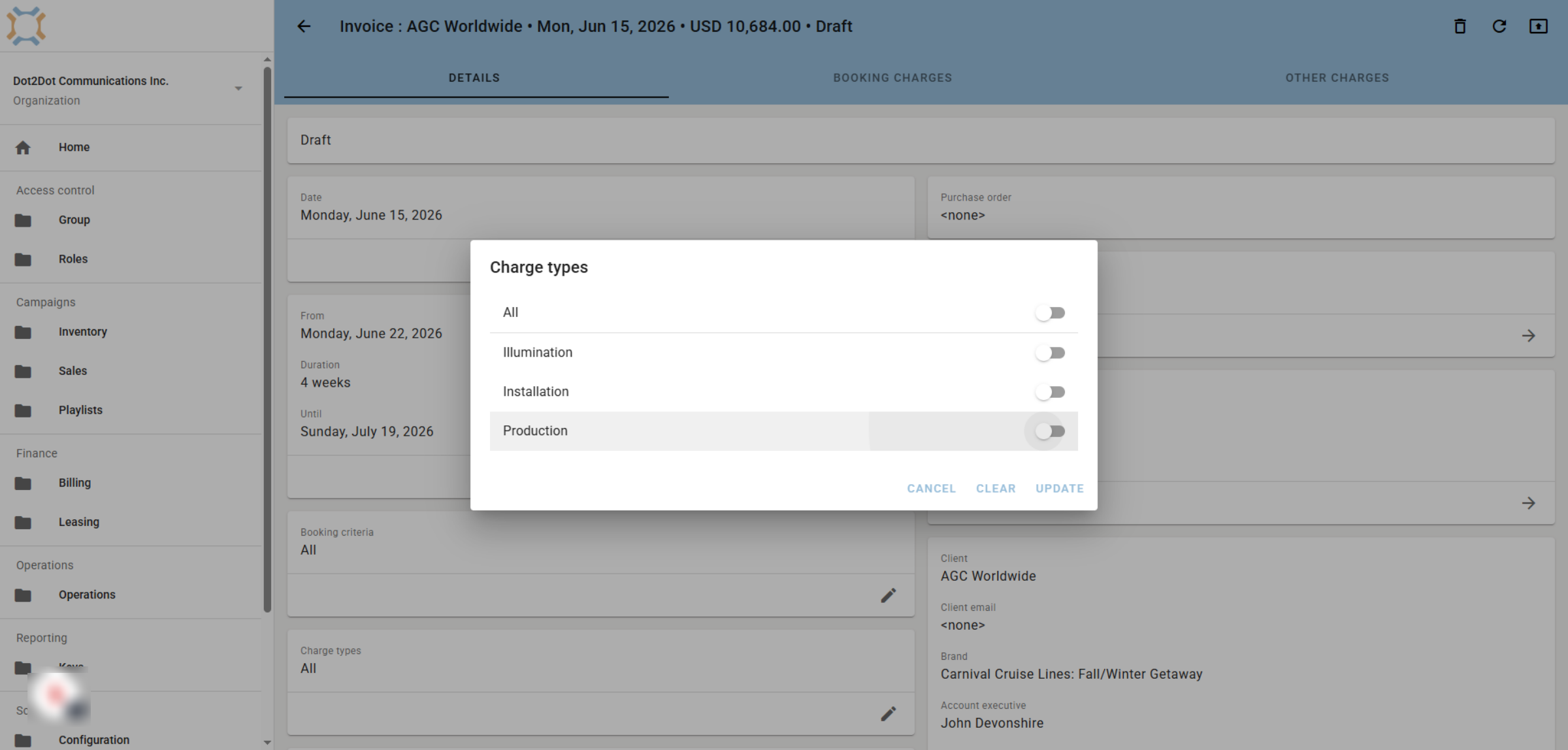
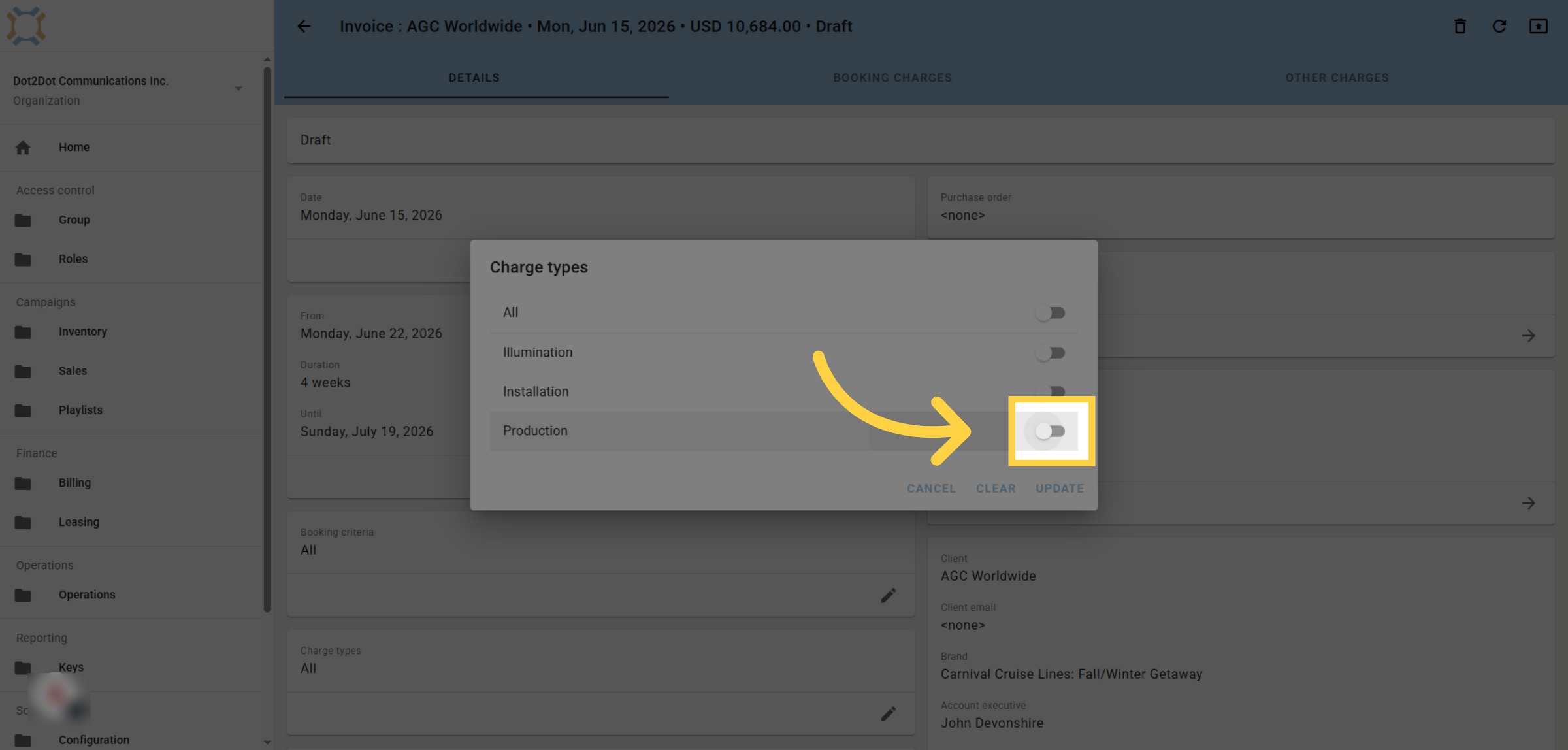
17. Include Specific Charges
If you wish to have specific charges on this invoice, click the charge on.
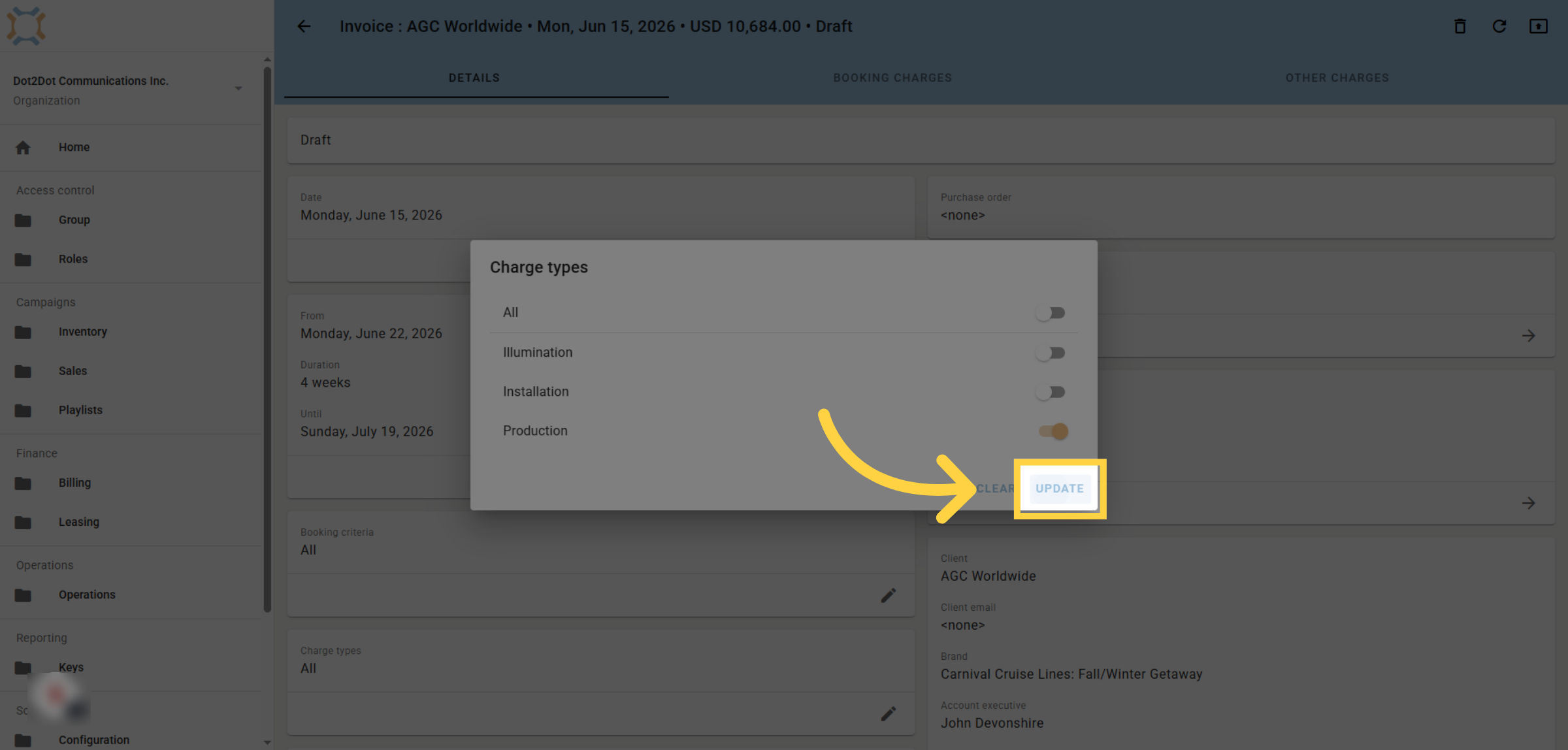
18. Click Update
After you have selected the specific charges you want, click Update.
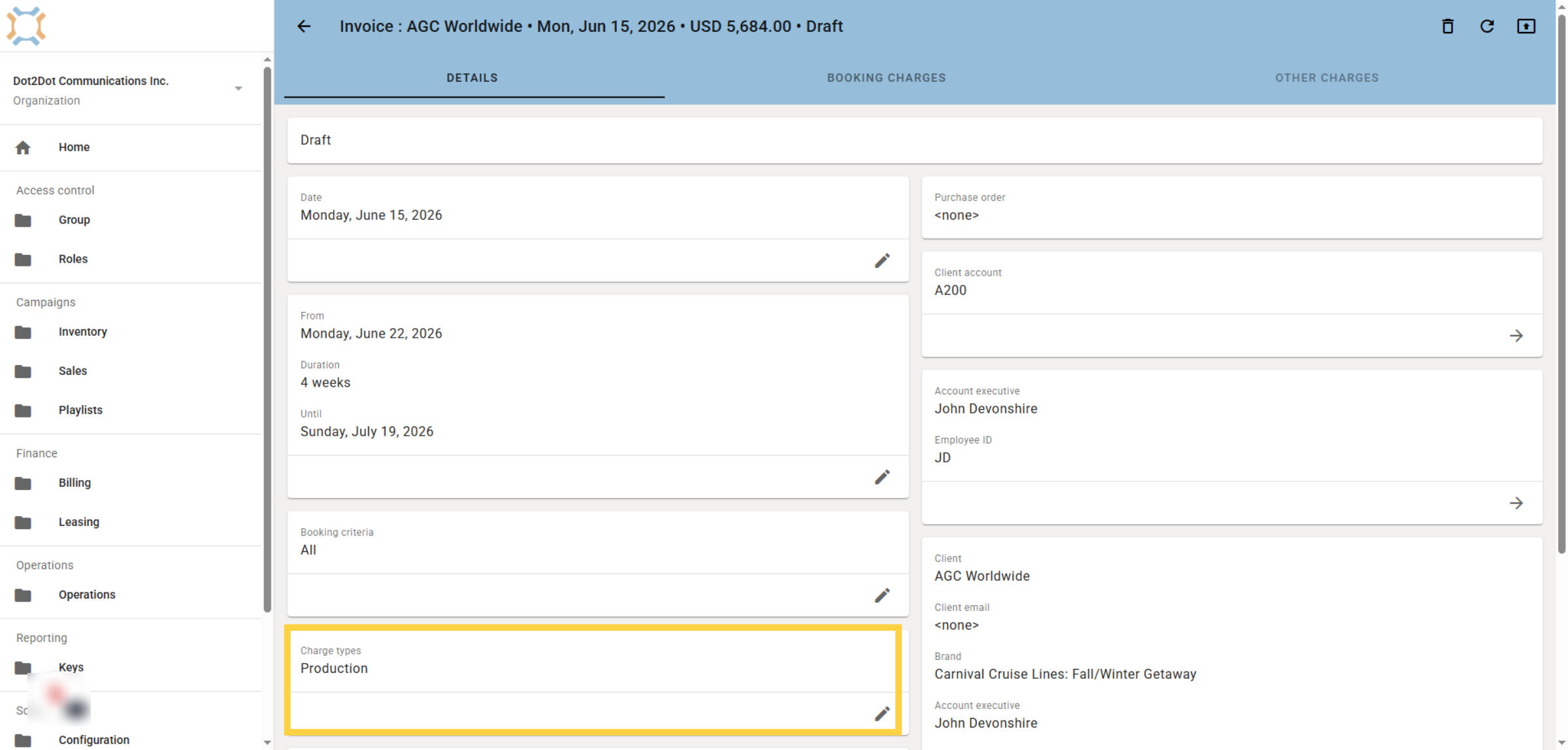
19. Charge Type display
The revised list of charge types will appear for the invoice after you make your changes.
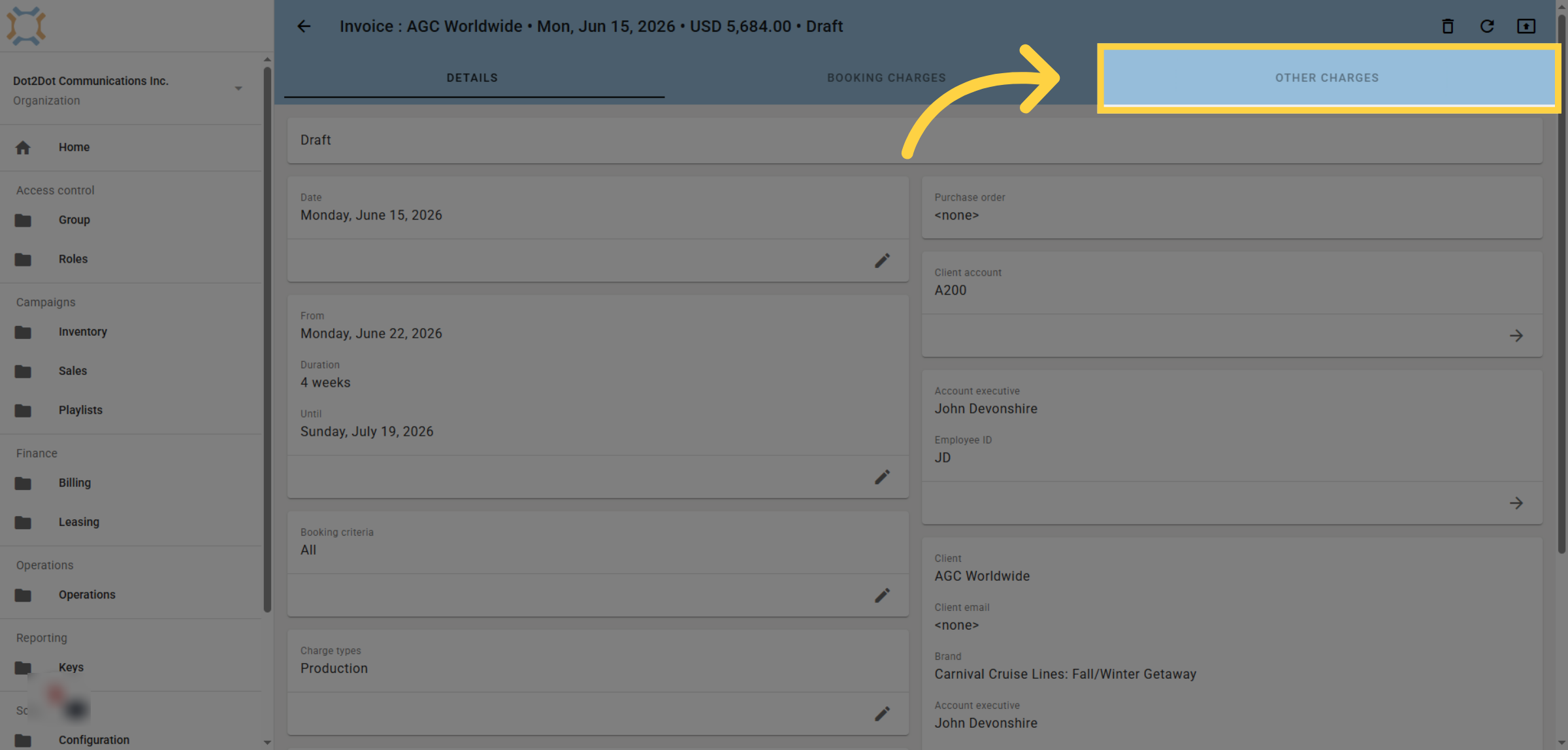
20. View Other Charges
When we click Other Charges this time
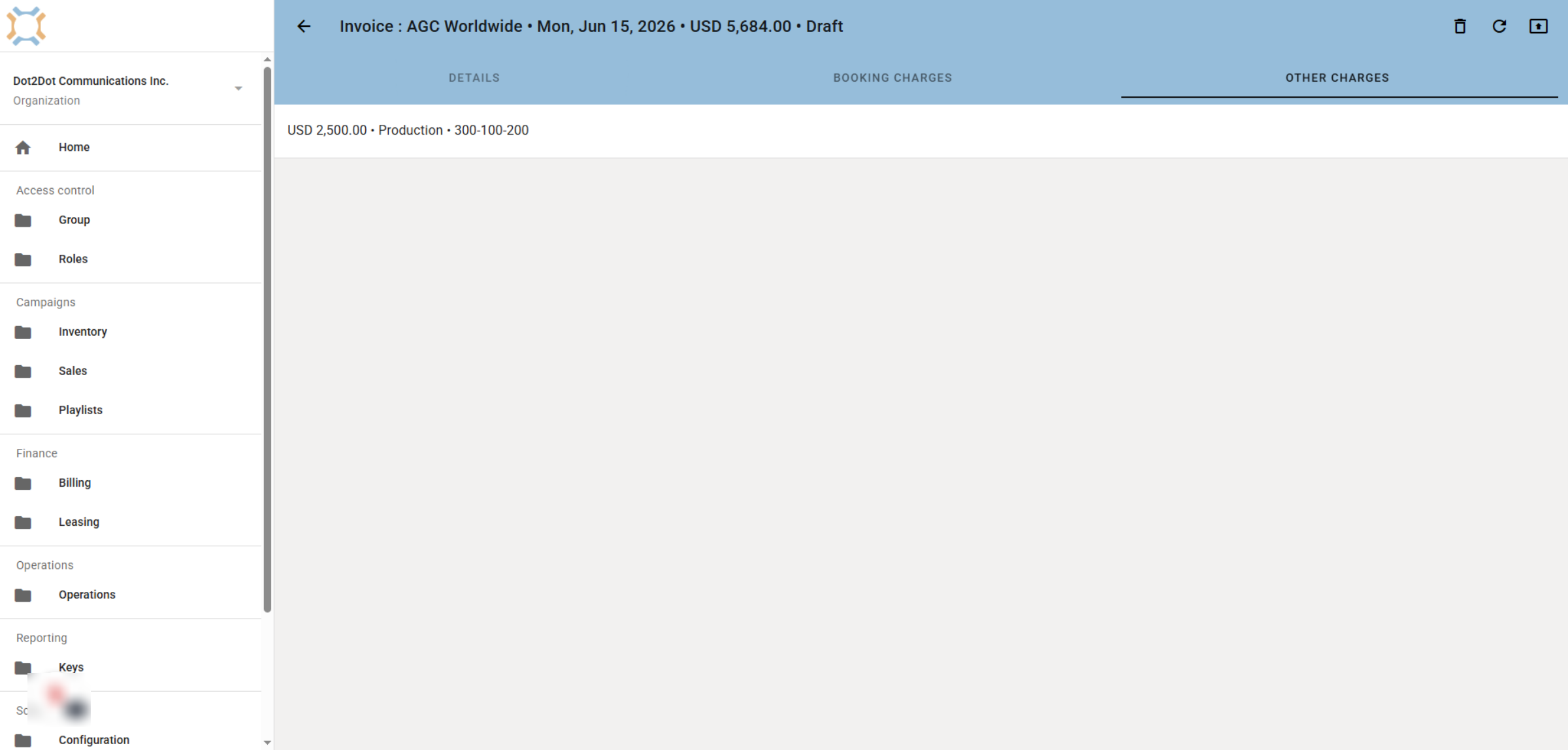
21. Other Charges Displayed
We can see only the selected charges appear.
If you have any additional questions, please contact Dot2Dot for assistance.
Comments
0 comments
Article is closed for comments.