
Learn how to add invoices in Ad Manager Connect with these straightforward steps.
1. Introduction
Adding invoices in Ad Manager Connect can be done through the Billing menu item
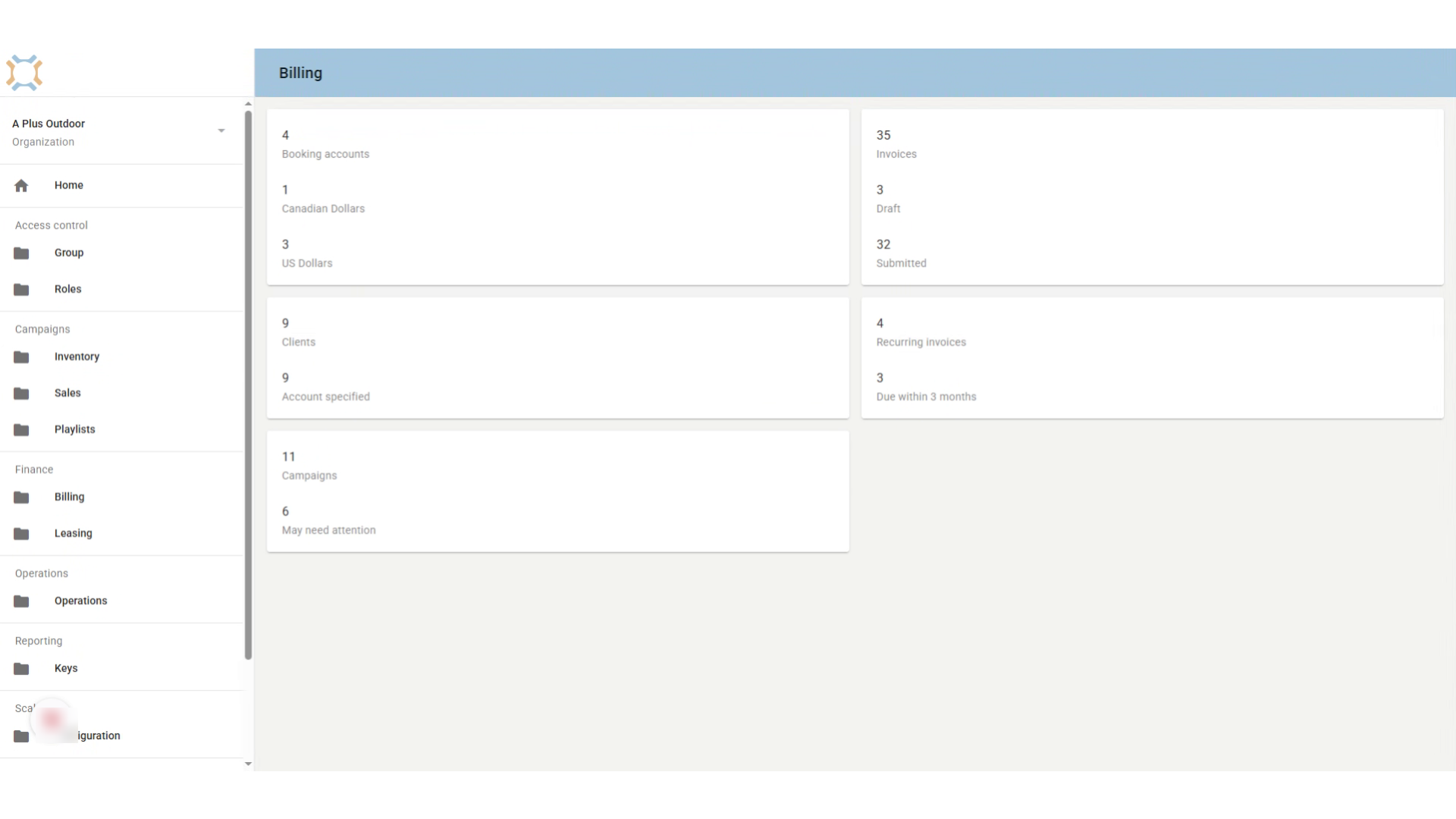
2. Select campaign list
From the billing page you can click on the desired campaign list to choose the campaign you wish to add invoices to
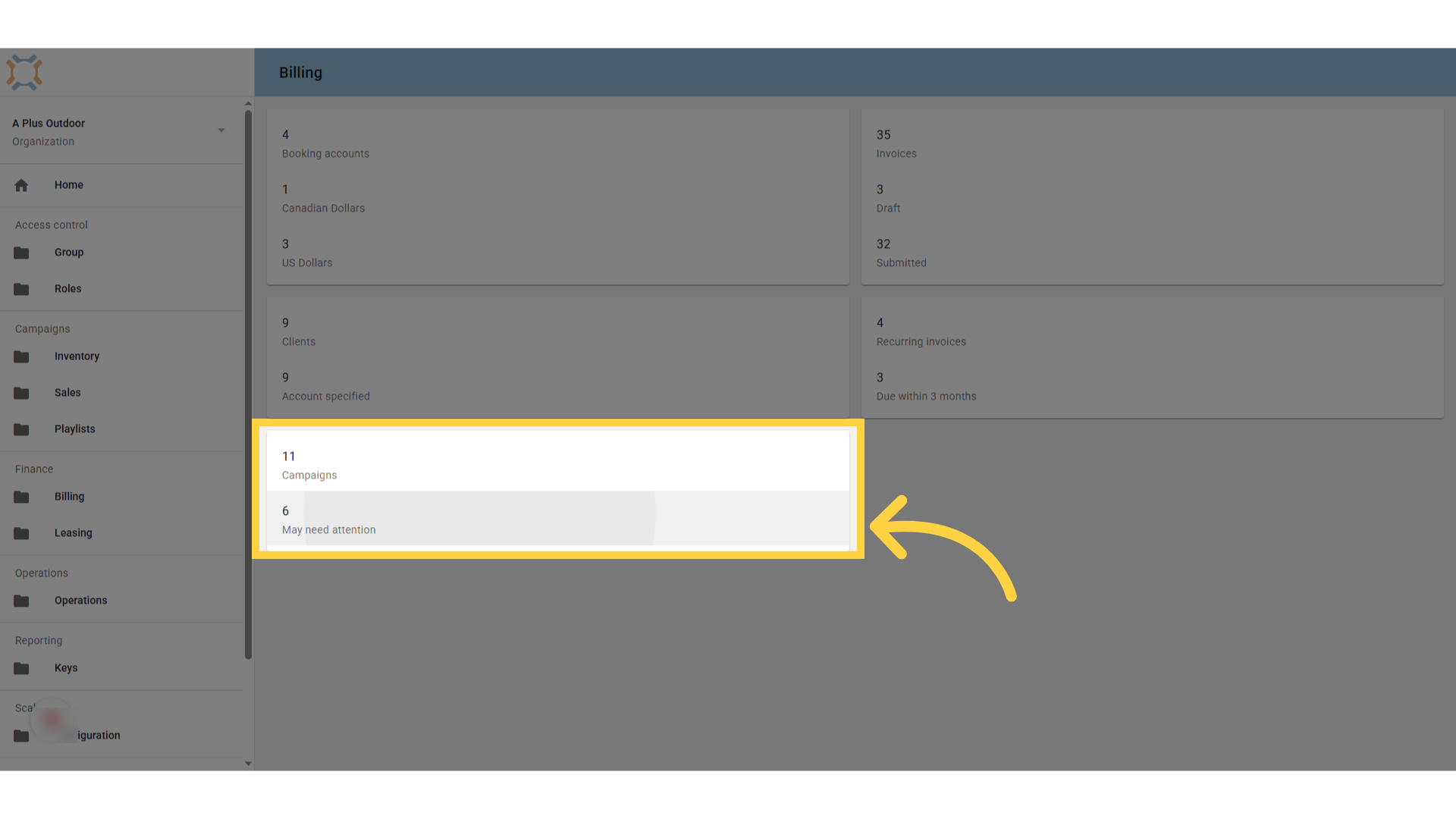
3. Select Campaign
Select the campaign you wish to add invoices to.
How would you like to continue?
Add a PO Number
Add Recurring Invoice
Add a Single Invoice
Exit this Video
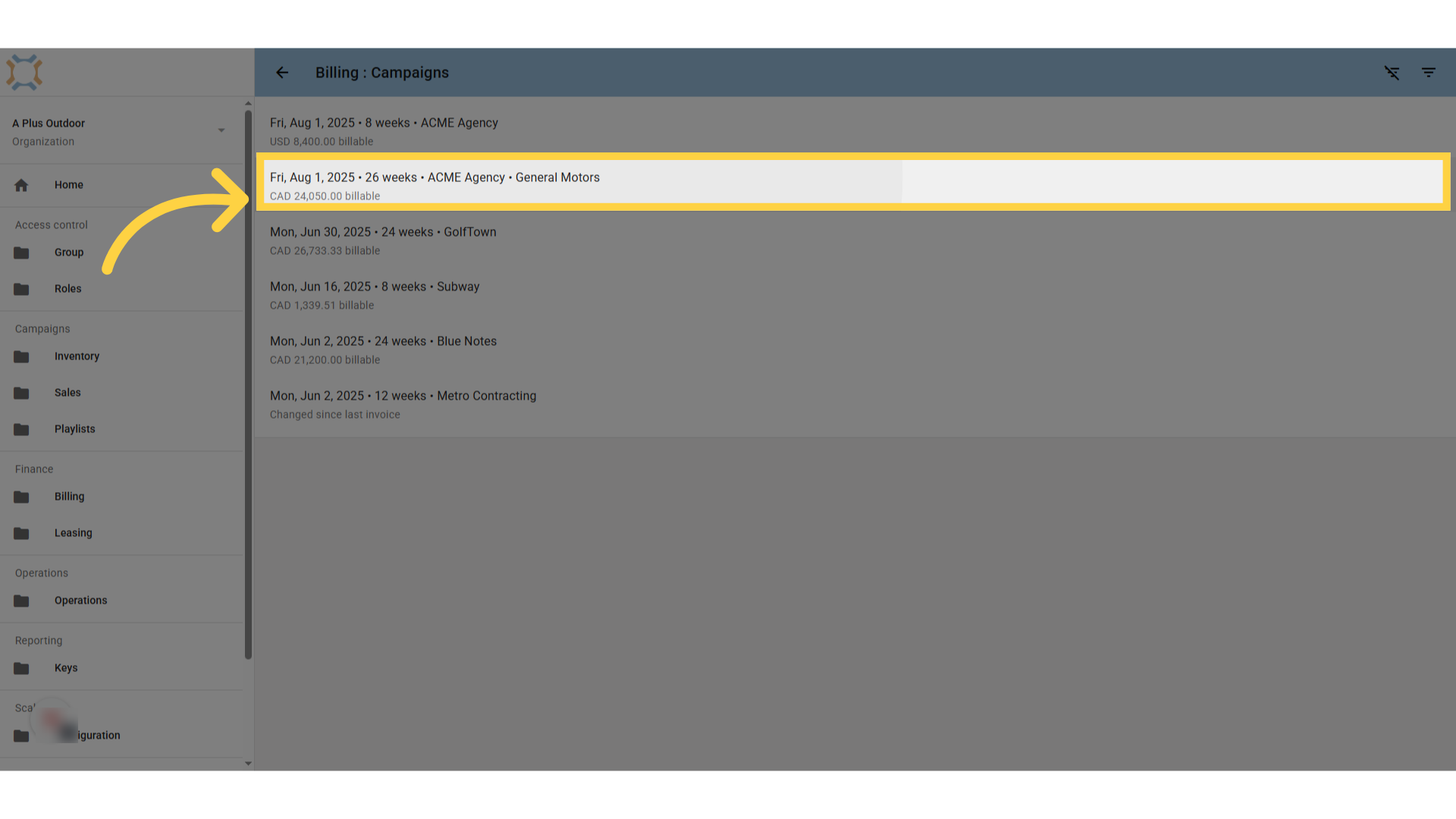
4. Add Purchase Order
Click on the Purchas Order edit button to add a Purchase Order.
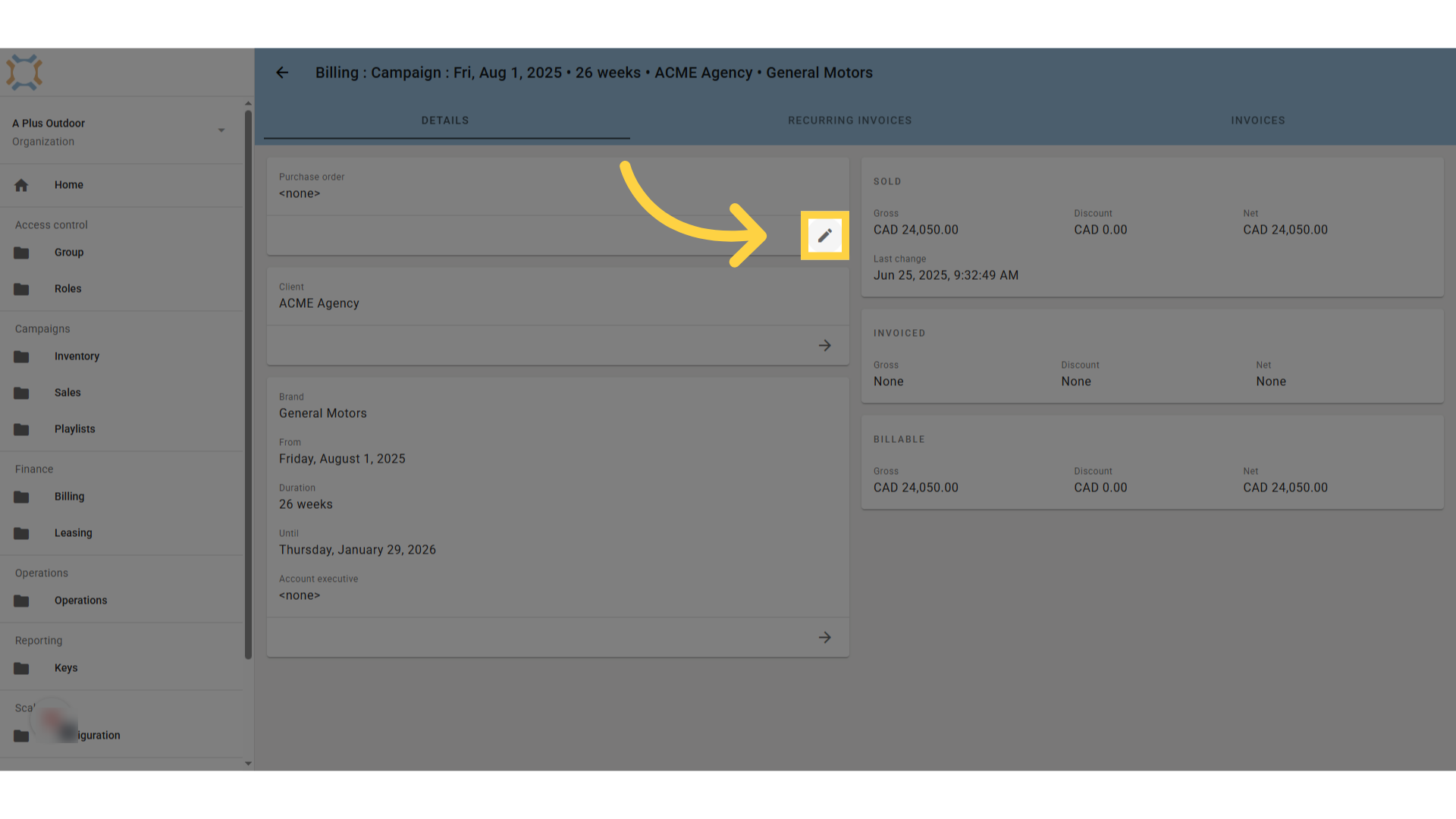
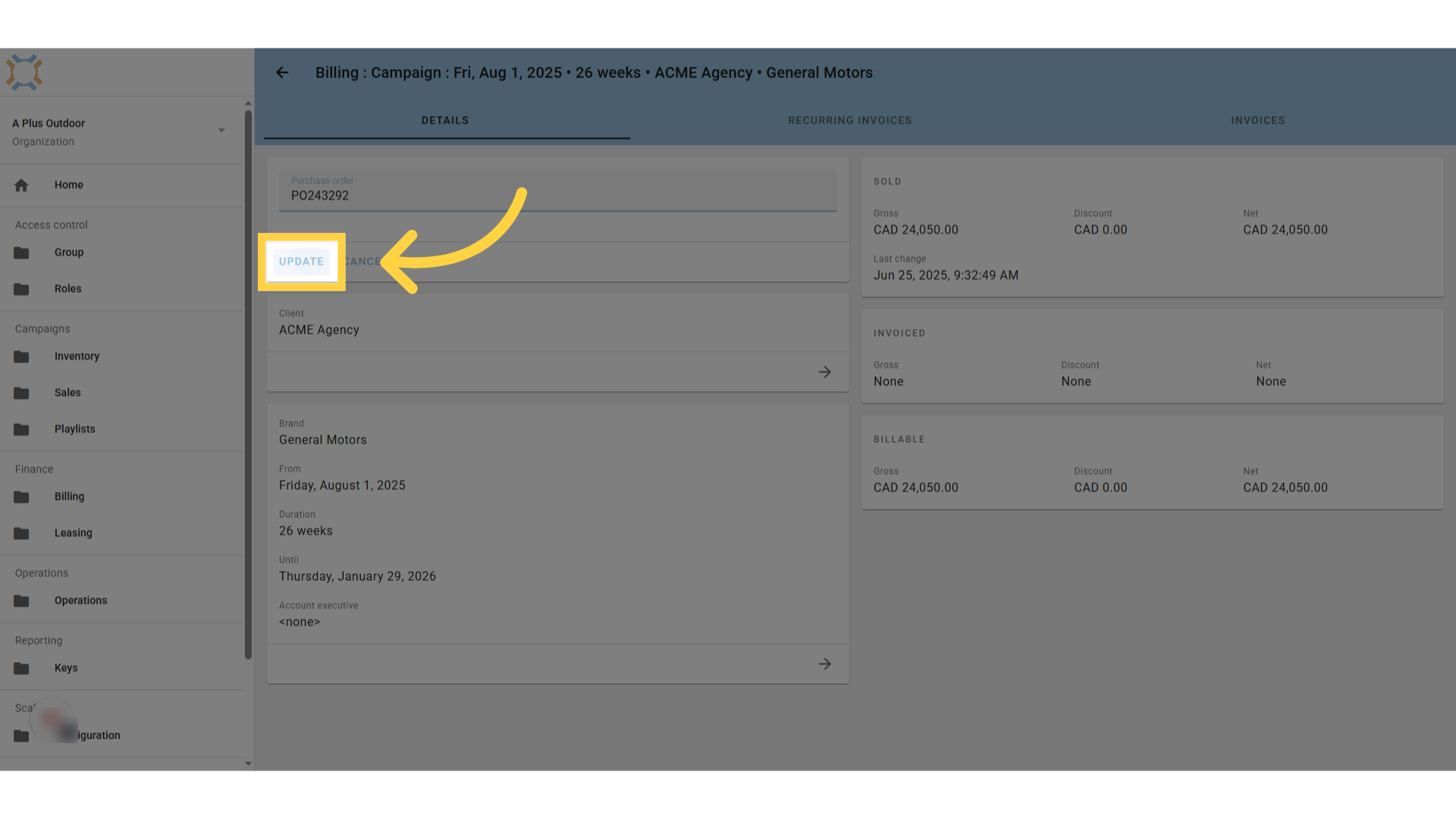
5. Click Update
Click Update to save the Purchase Order number.
How would you like to continue?
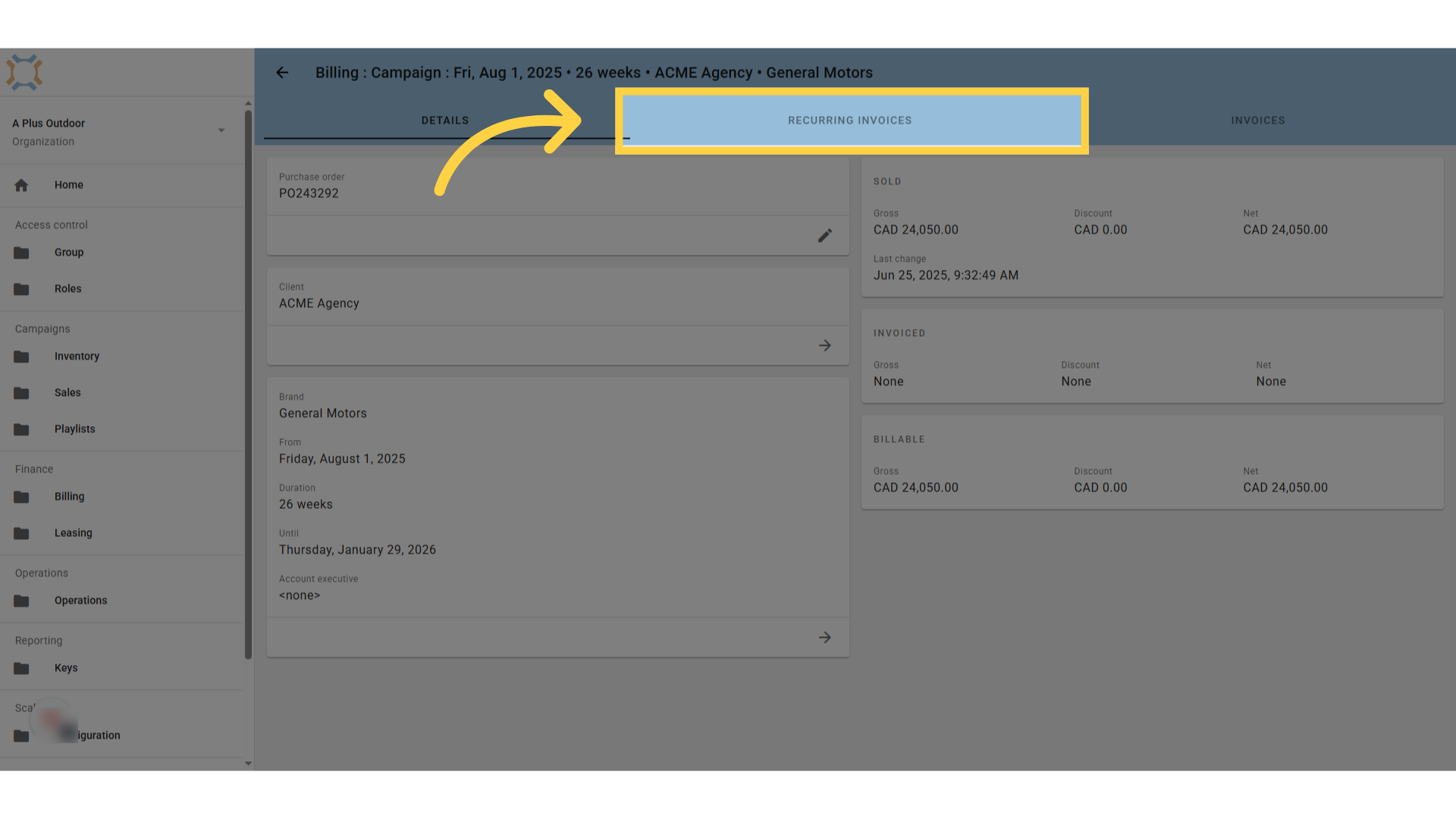
6. Add recurring invoices
click on Recurring invoices to add a series of invoices.
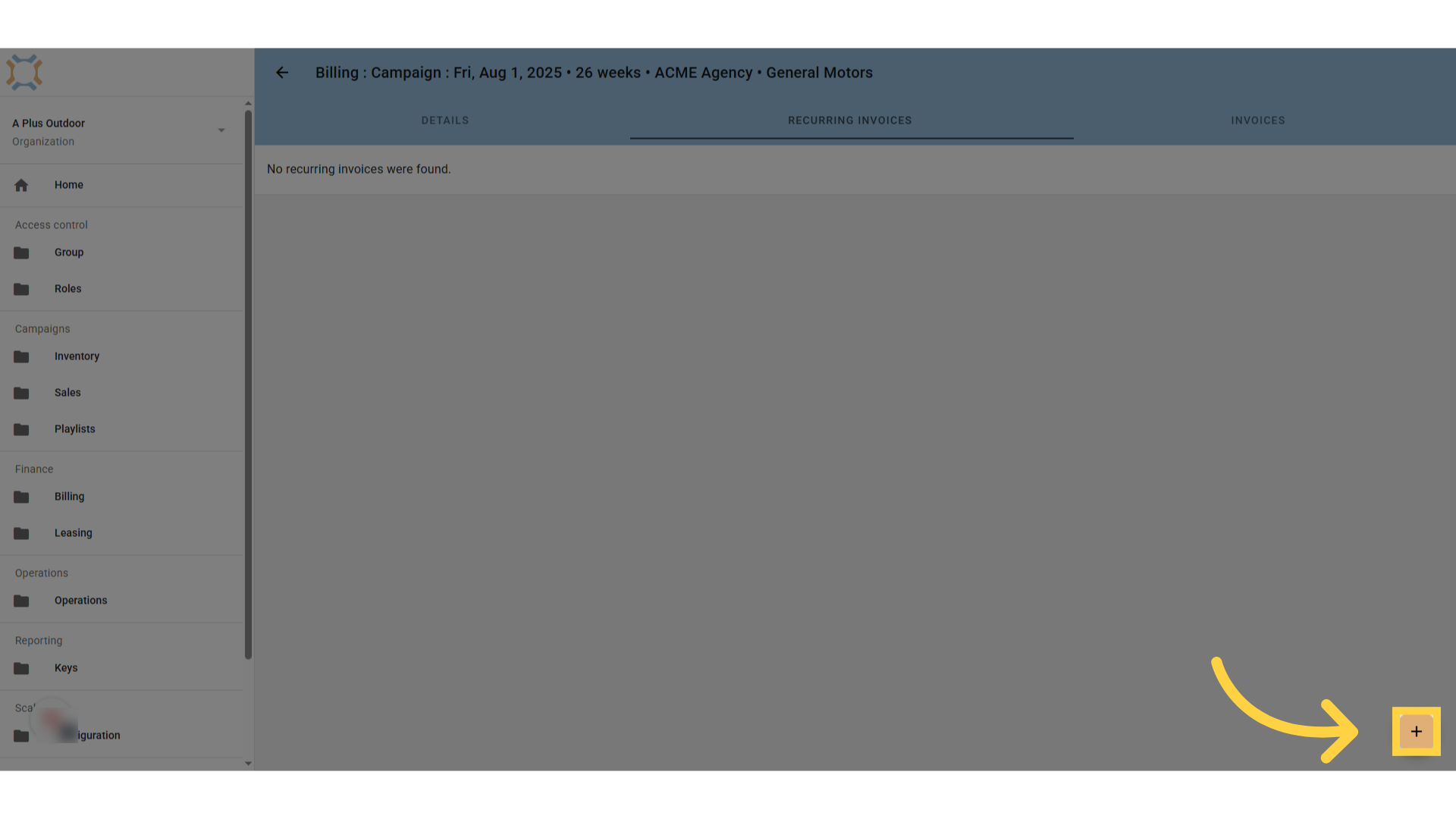
7. Click "add"
Click on Add to create a new series of recurring invoices.
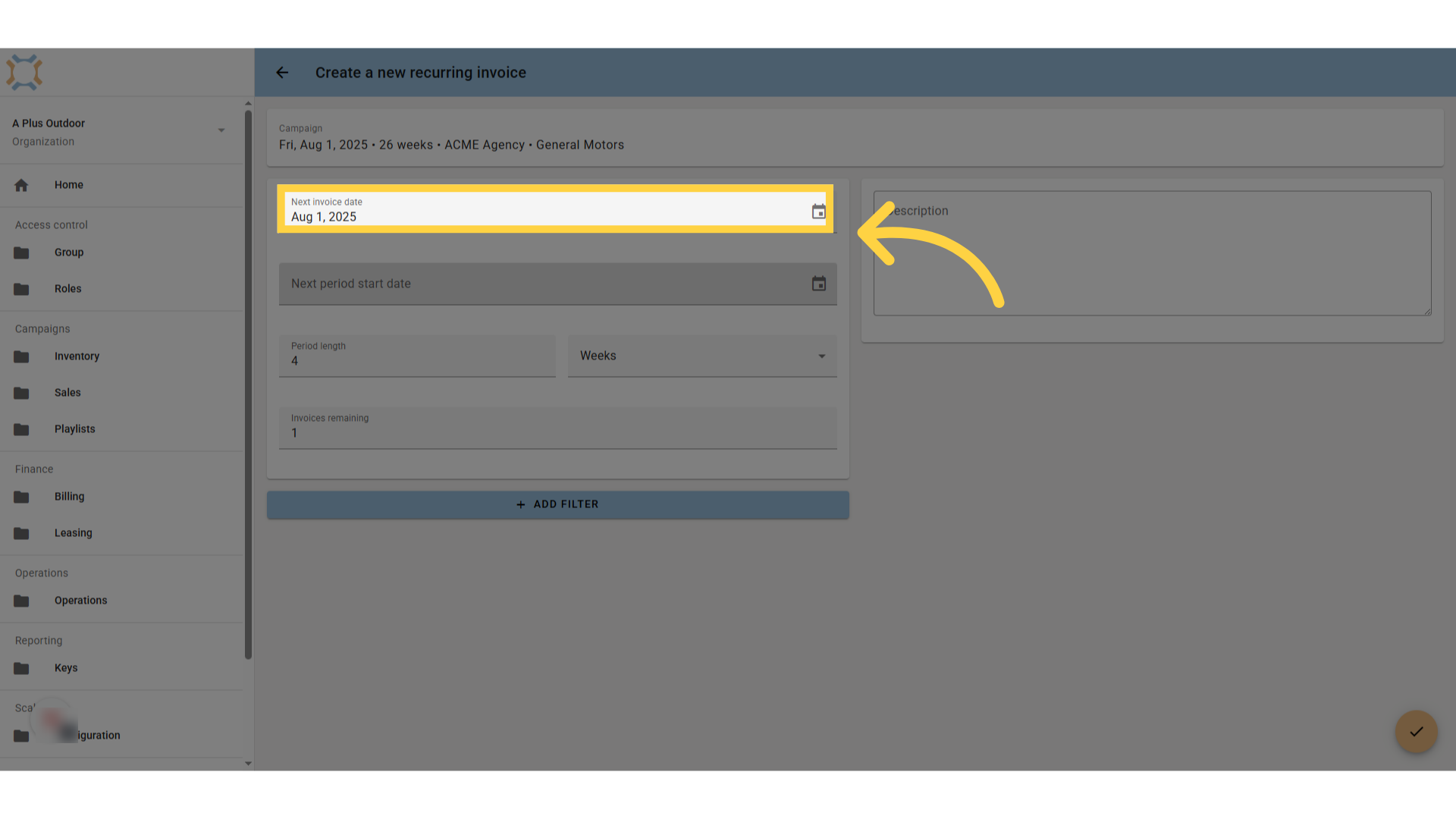
8. Enter the next invoice date
Enter the date that the next invoice for this recurrence patter is to be sent
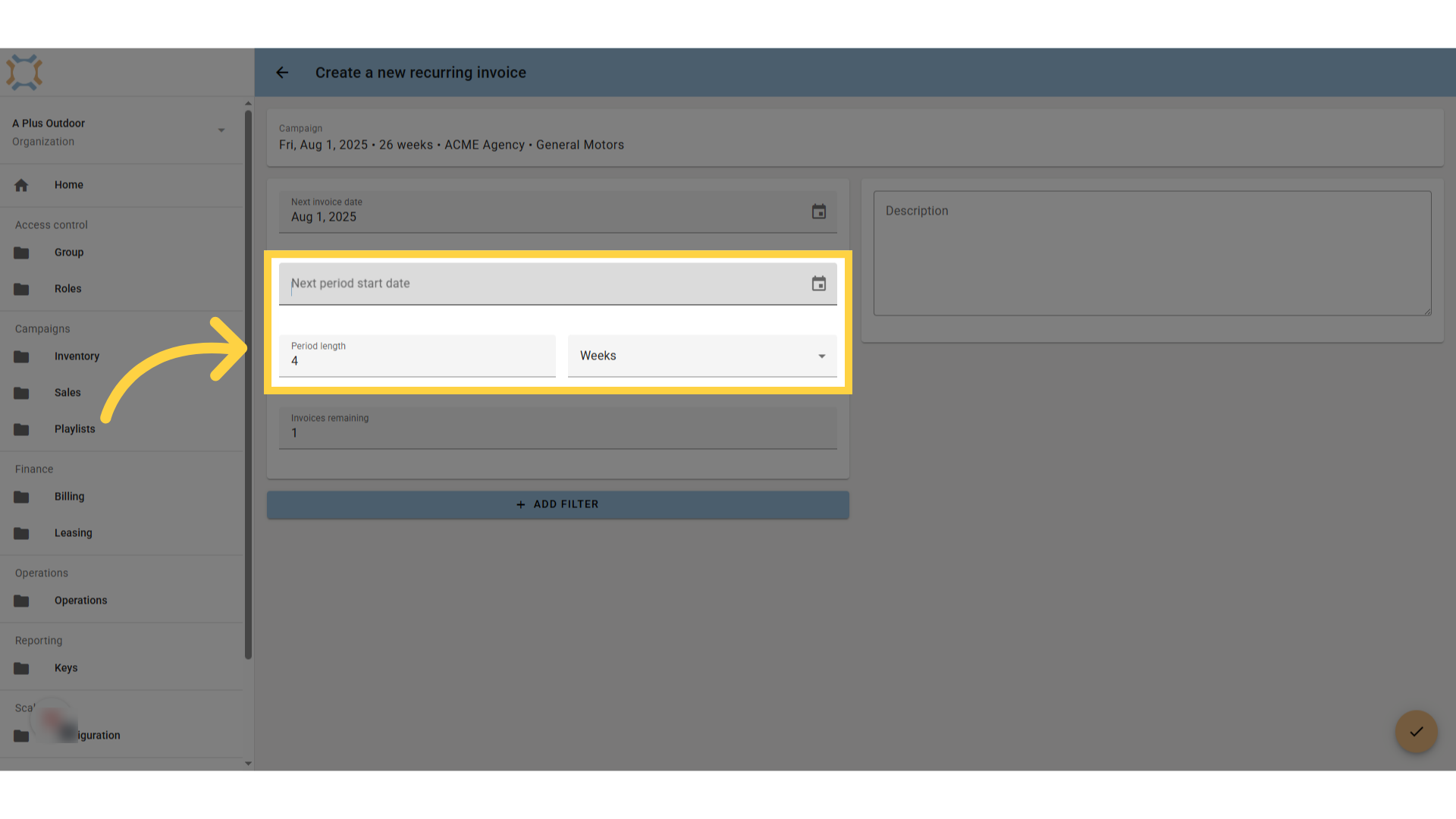
9. Enter Period length
Specify the start date for the upcoming billing period and the length of the period the invoice is for.
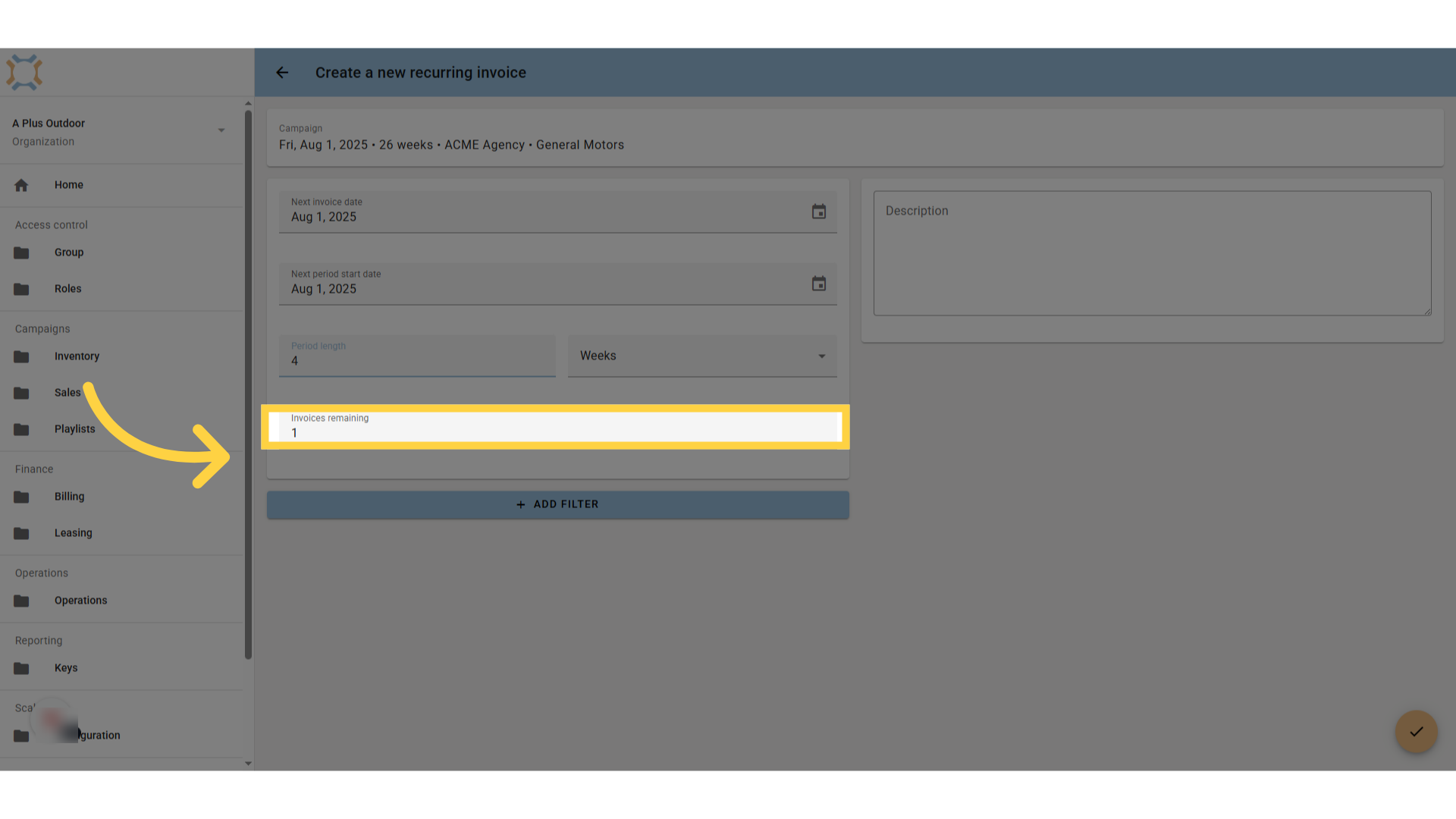
10. Enter the number of remaining invoices
Enter the number of invoices remaining for this recurrence pattern
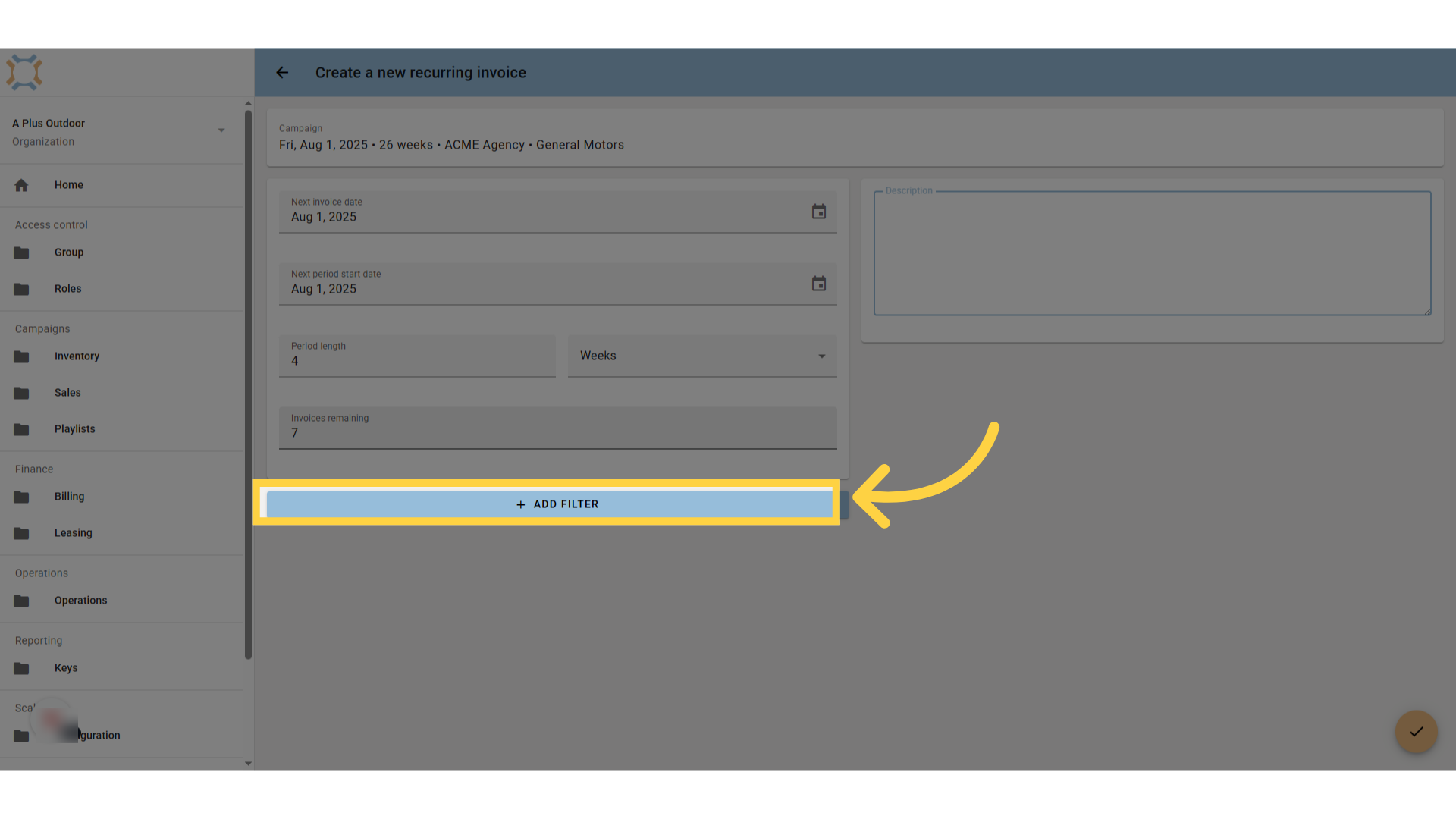
11. Add filters
If this set of invoices is for a specific set of bookings, you can click Add Filter to select the appropriate criteria
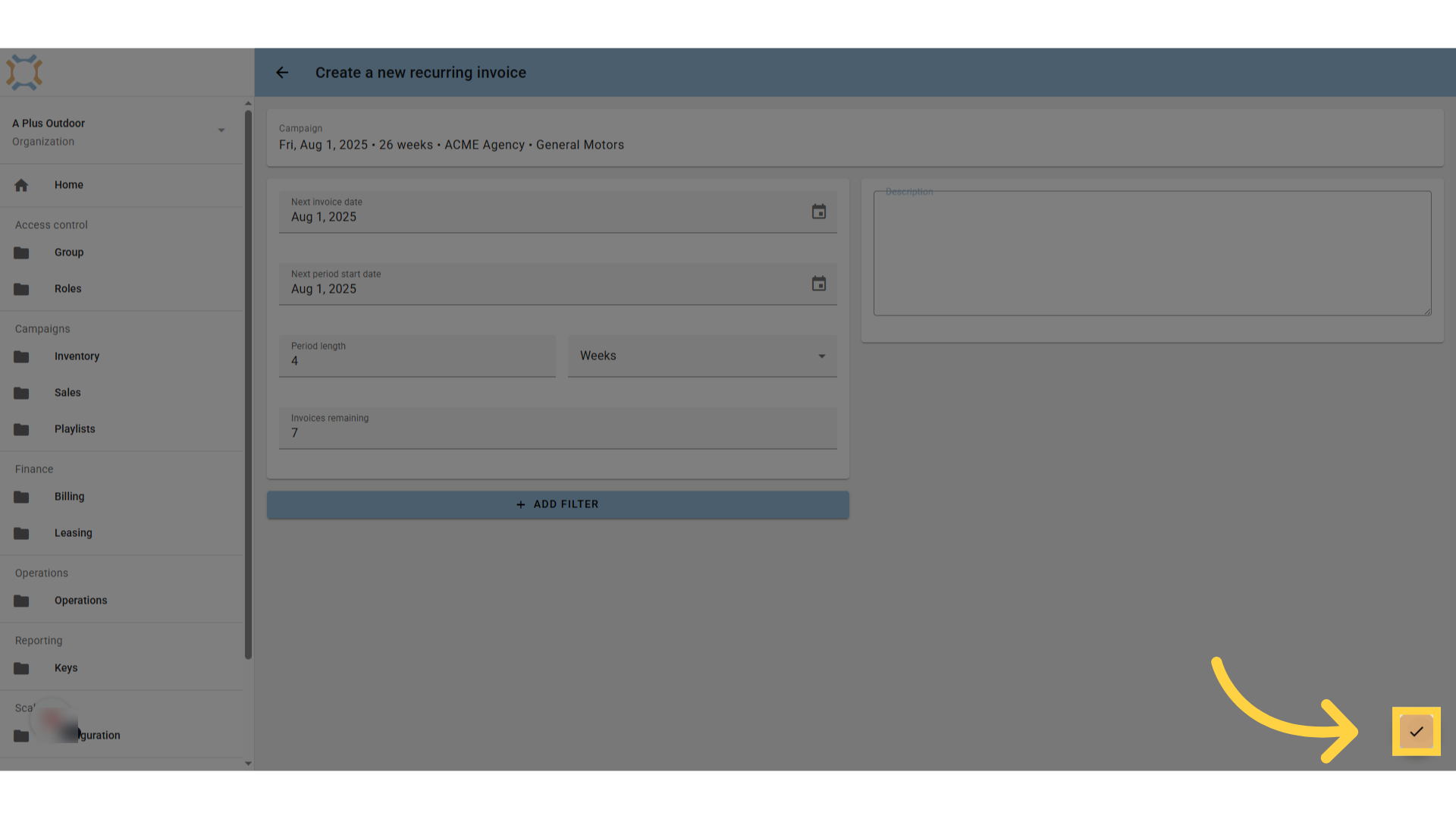
12. Click "done"
After setting up the recurring invoice information, click Done to create the invoices.
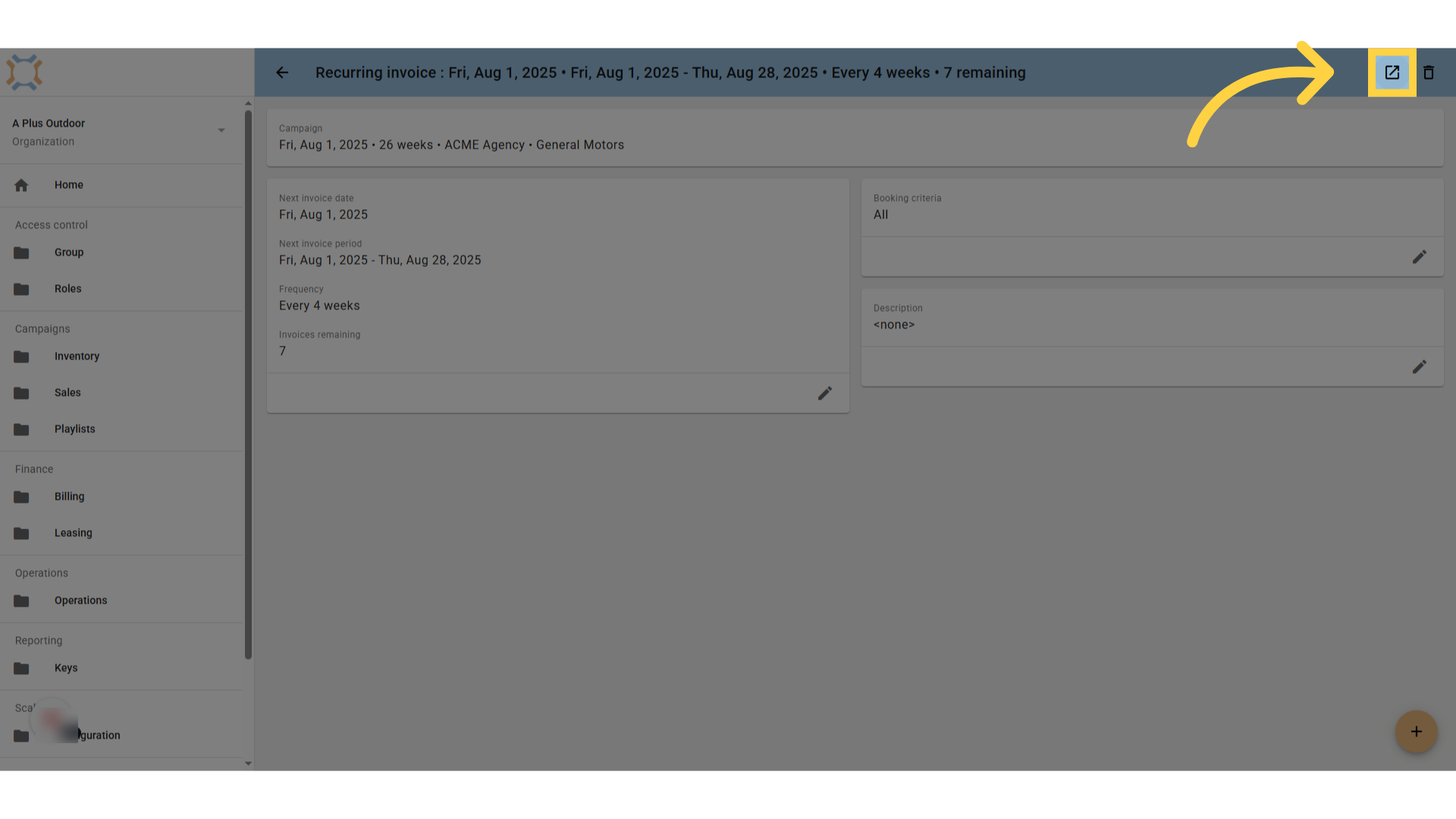
13. Click "Open Invoice"
If you wish to open the next invoice to be sent for this recurrence, you can click Open invoice from the top of the screen.
How would you like to continue?
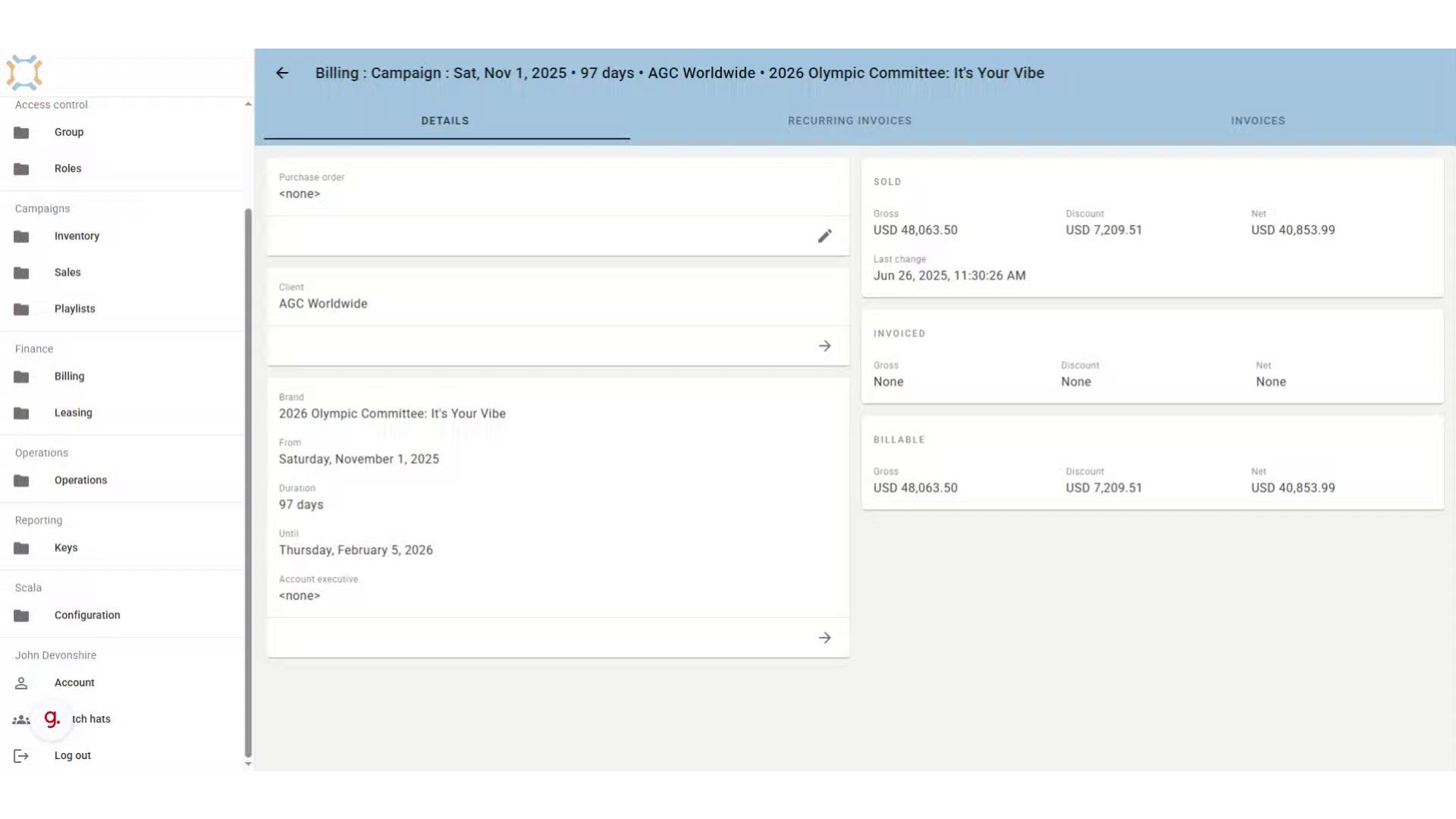
14. Create a single invoice
To create a single invoice, open the campaign in the billing section of Ad Manager Connect.
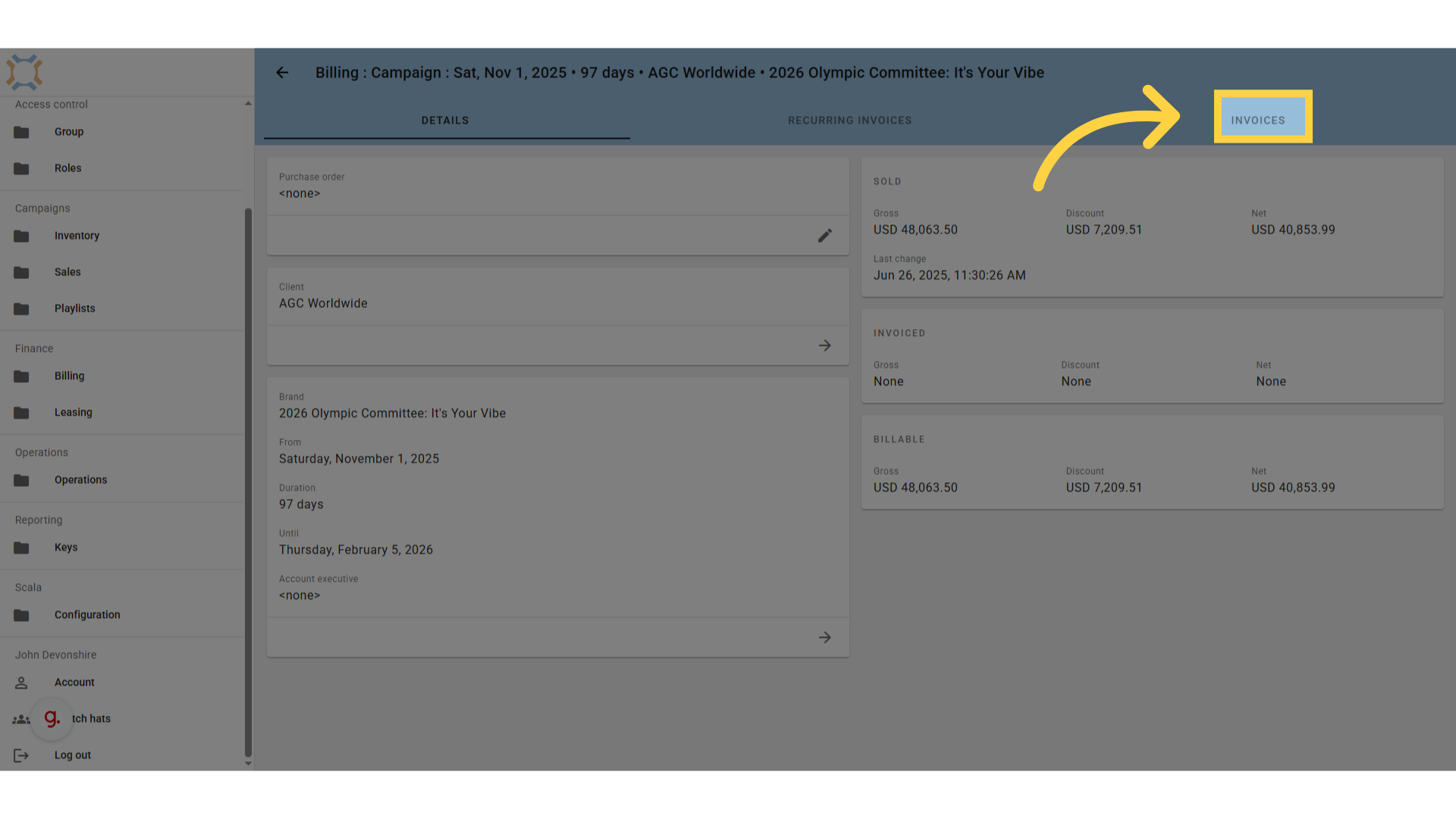
15. Click Invoices
Click on Invoices to add the invoice
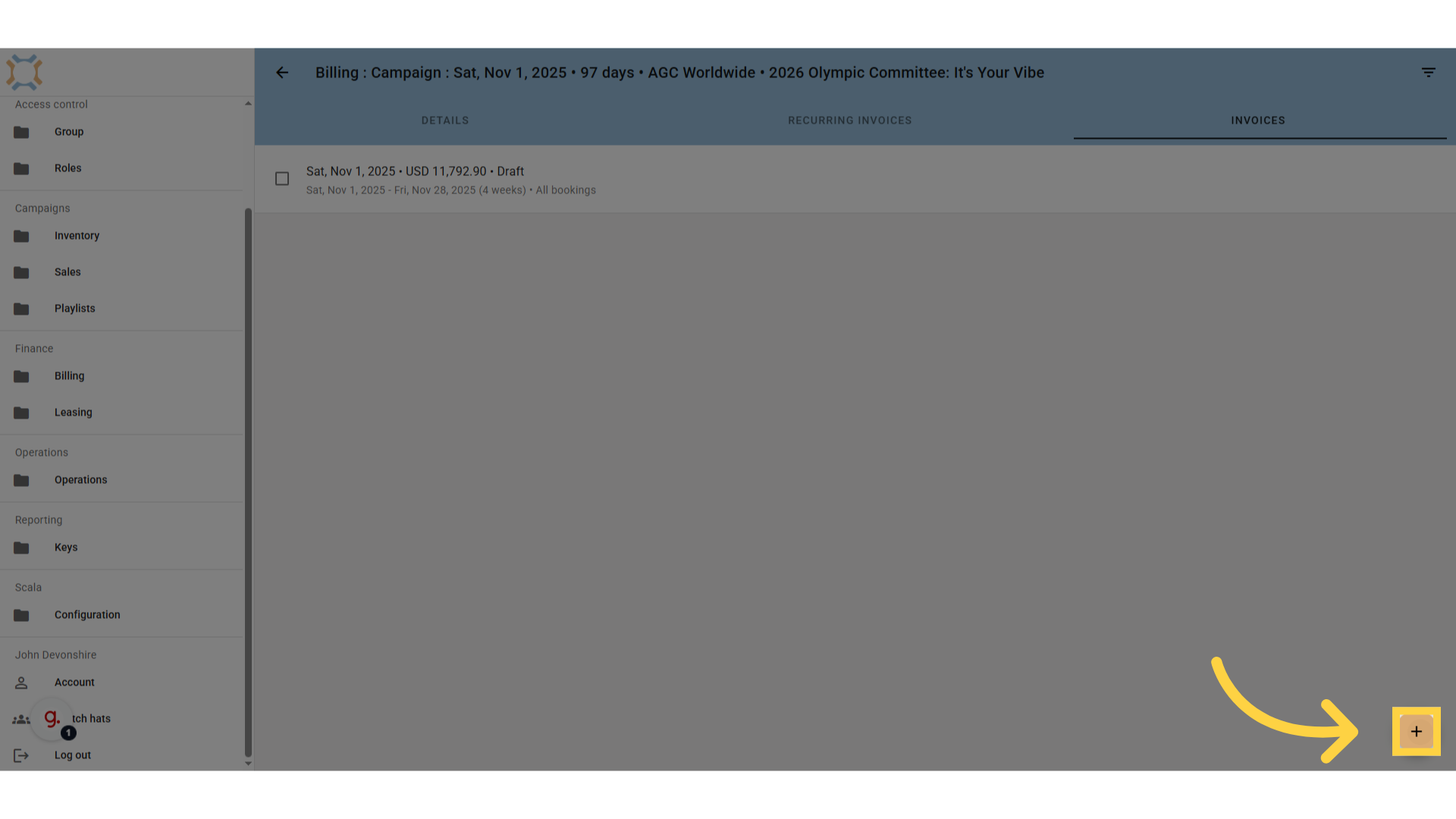
16. Click "add"
Click on Add to add a new invoice
17. Enter invoice details
Enter the details for this invoice.
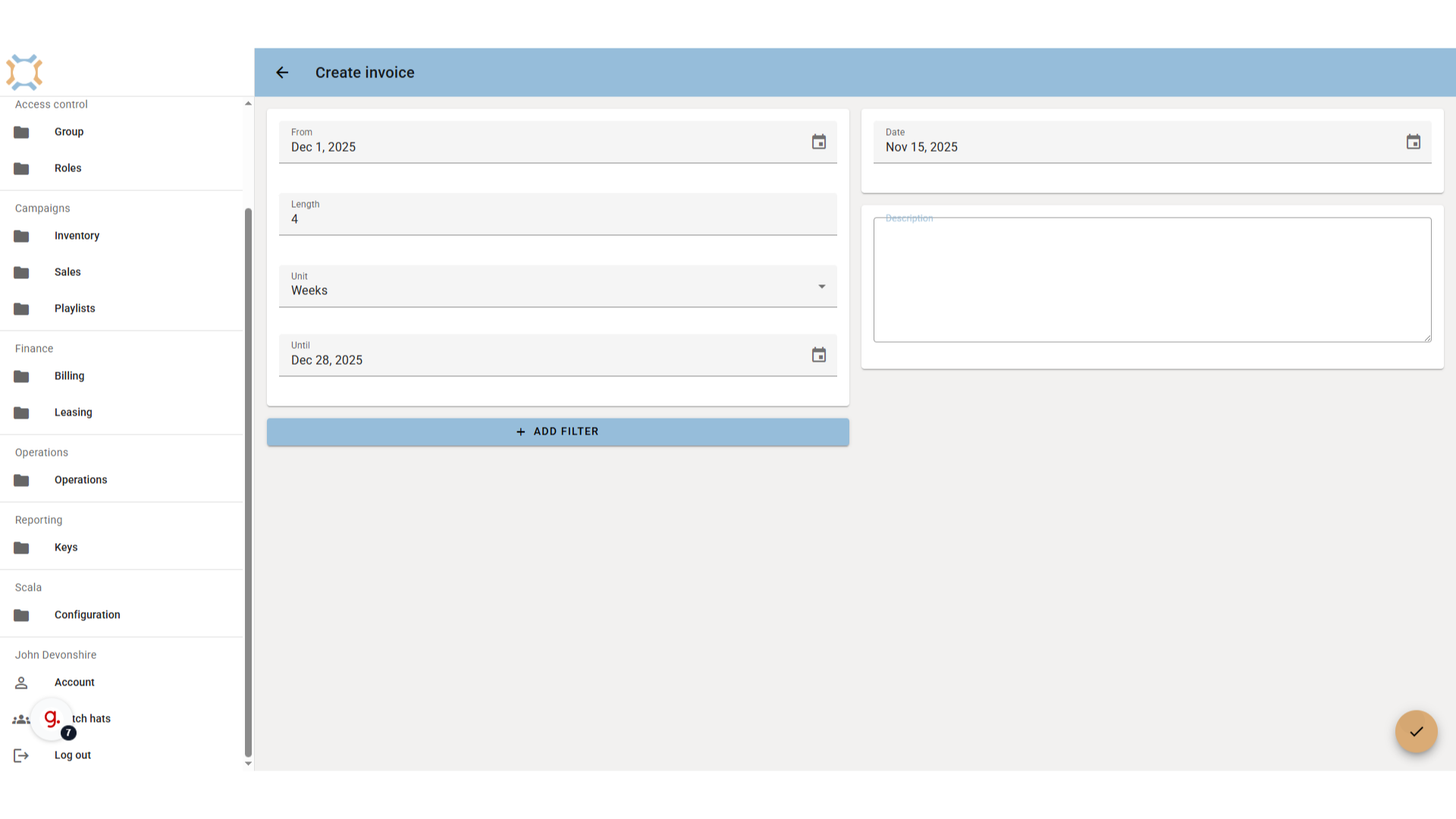
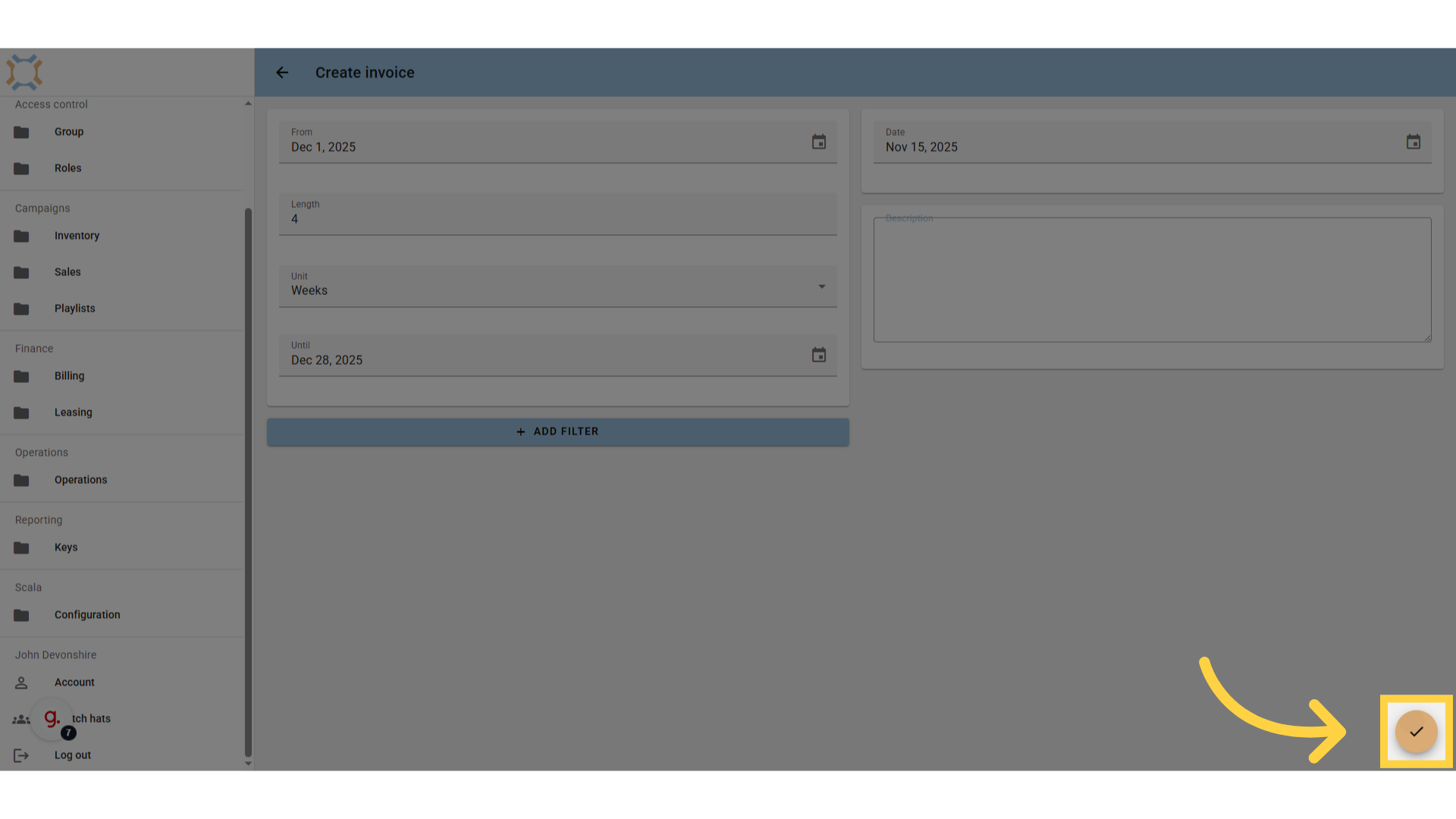
18. Click "done"
When you have finished entering this information, click "Done". You will then be taken to the Invoice details screen for further action
How would you like to continue?
If you have any additional questions, please contact Dot2Dot for assistance.
Comments
0 comments
Article is closed for comments.