
This tutorial guides you through how to reverse (or cancel) an invoice.
1. Introduction
Ad Manager Connect allows you to reverse or cancel previously submitted invoices.
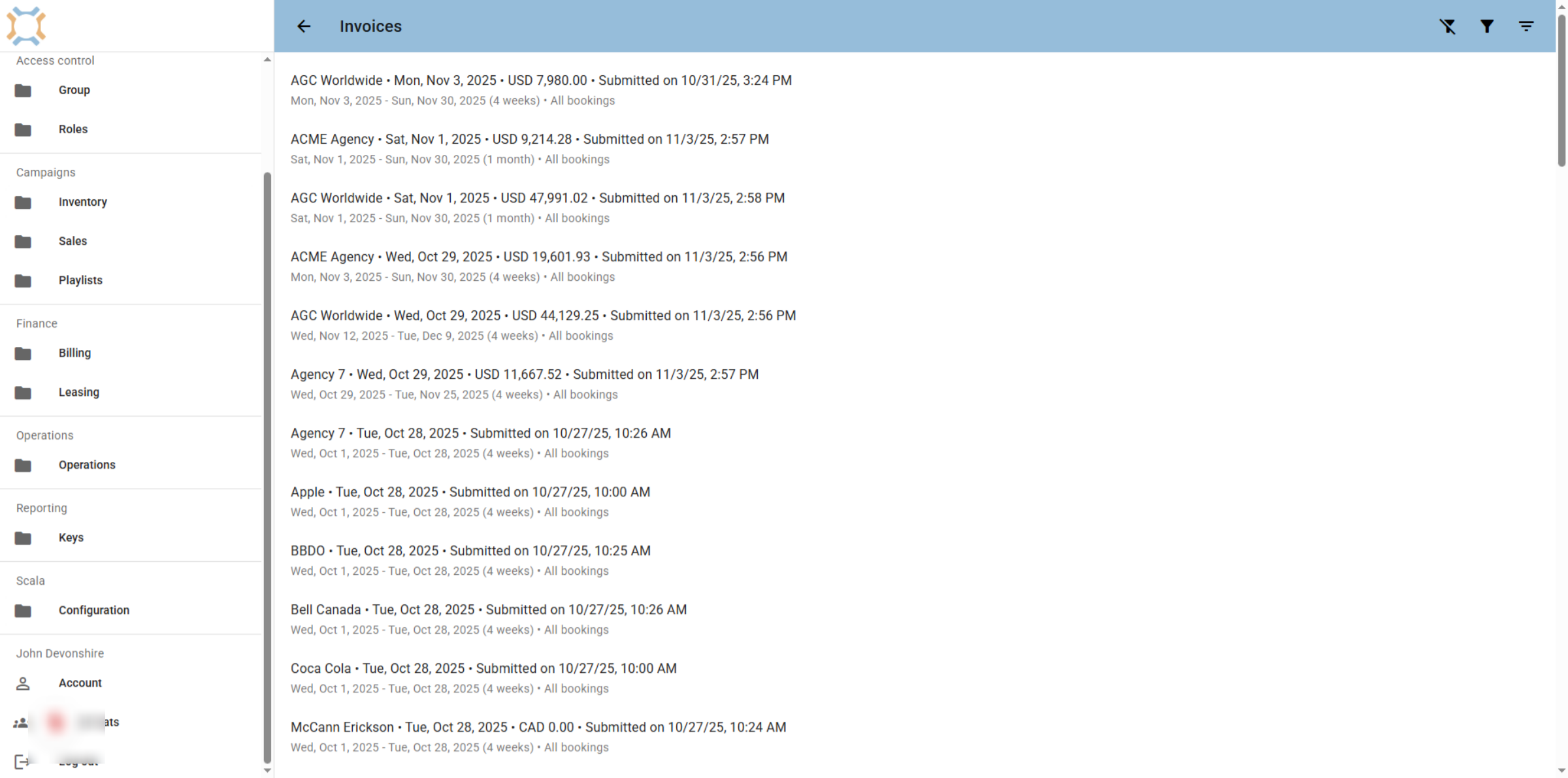
2. Select Desired Invoice
Select the invoice you wish to reverse.
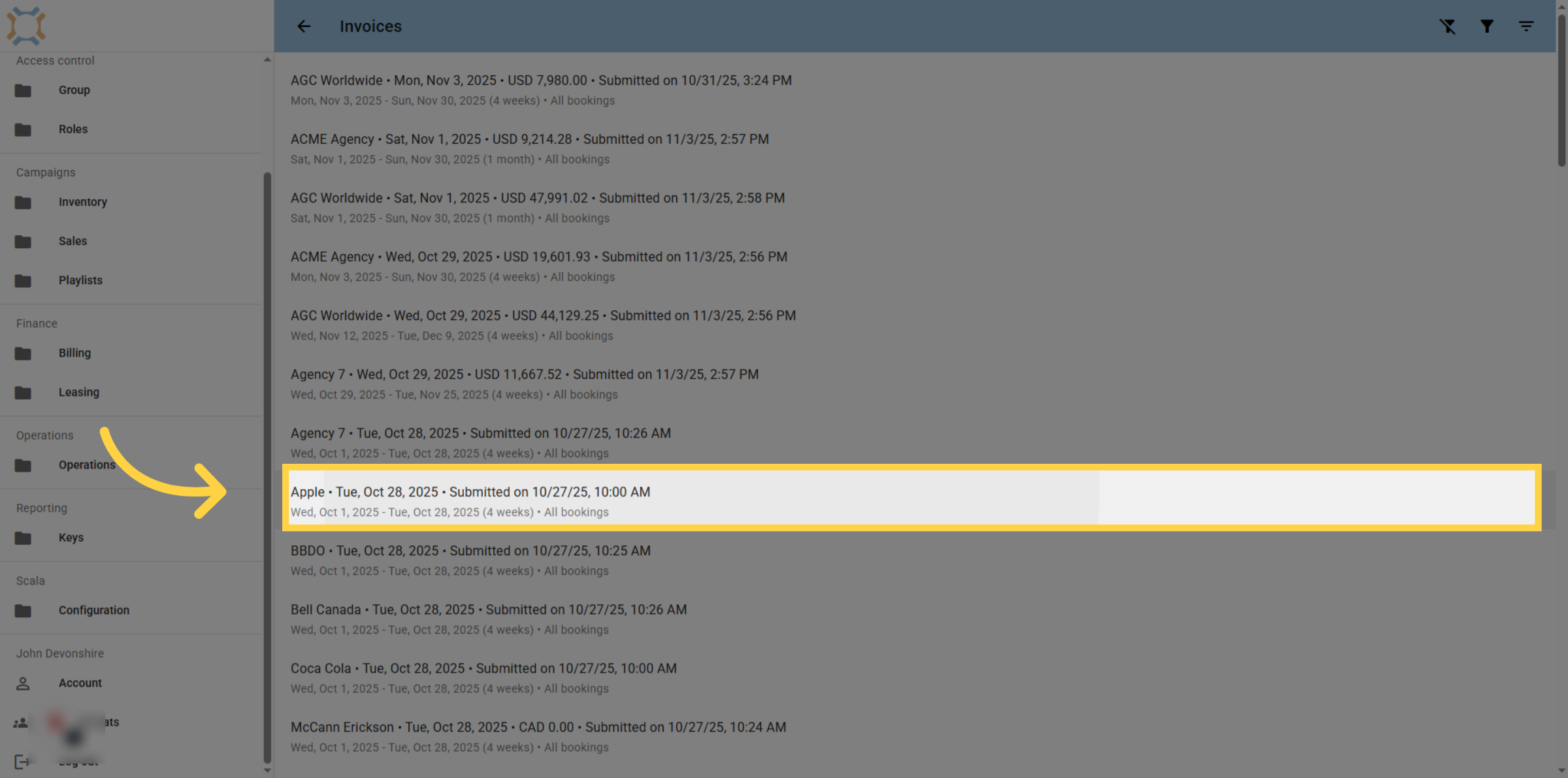
3. Click Reverse
If this is the invoice you wish to reverse, click on the Reverse icon
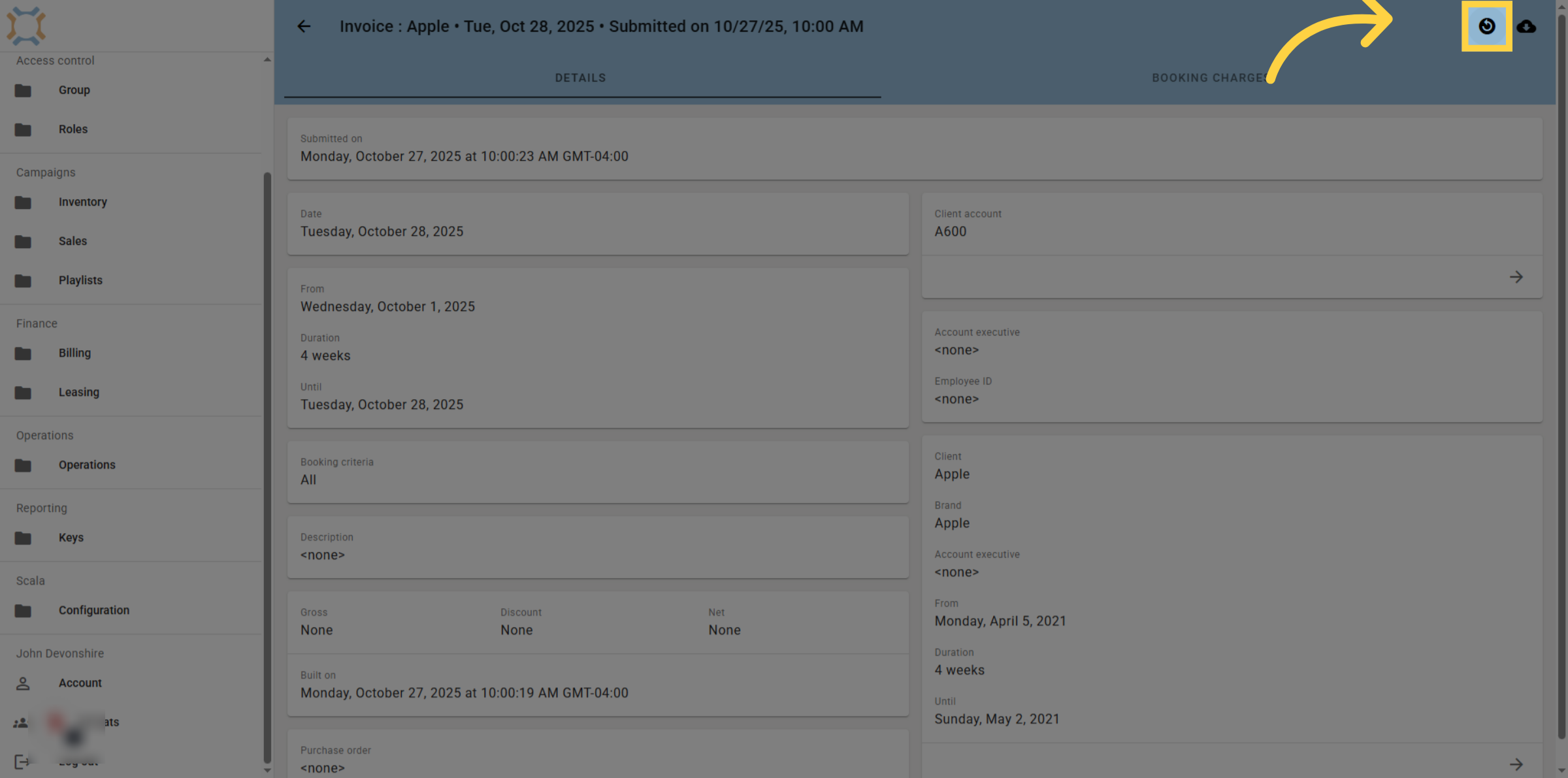
4. Review reversal invoice
The reversal invoice will appear. Note that this reversal invoice is still in draft and will not have any impact on the originating invoice until it is submitted.
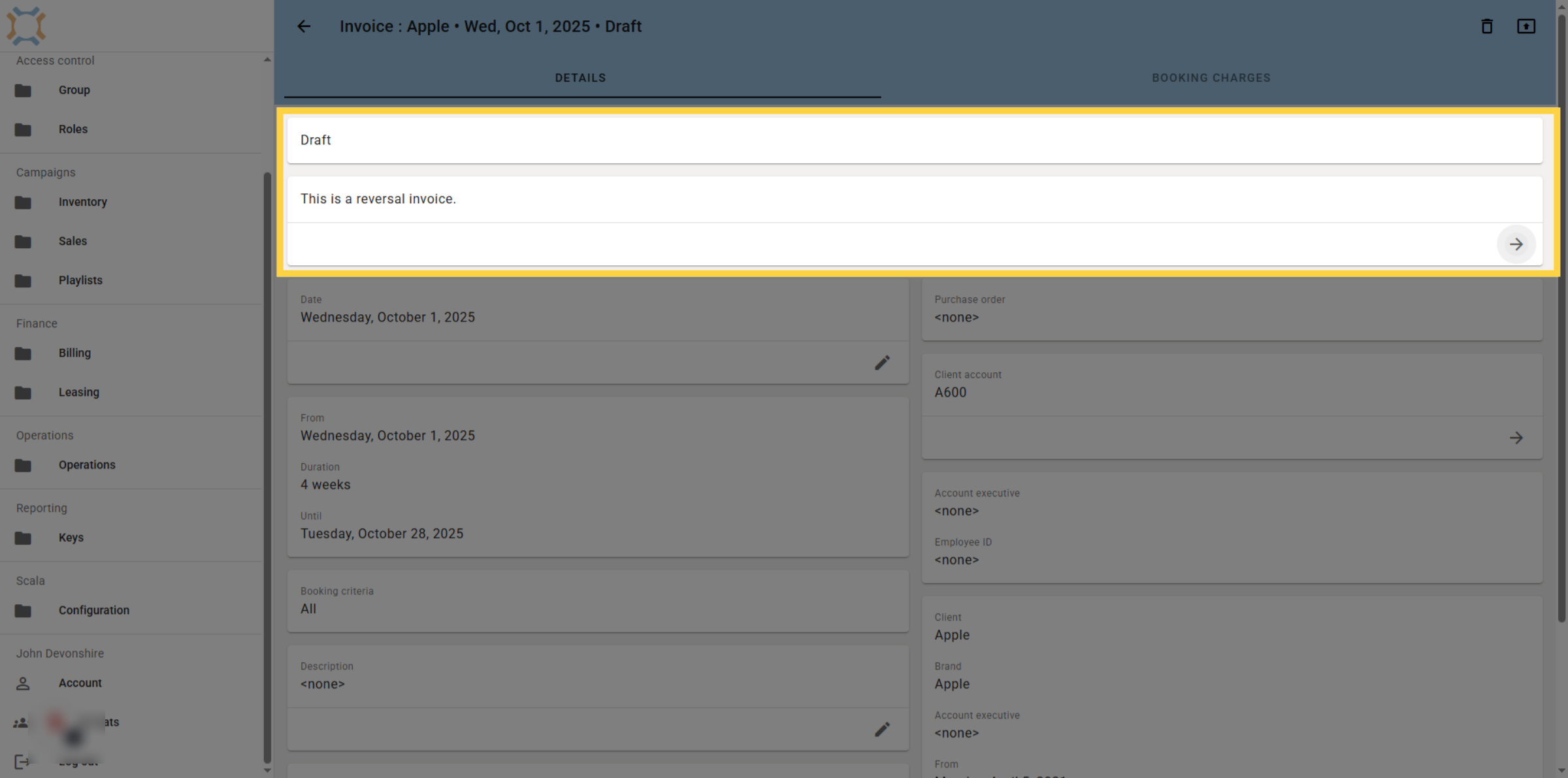
5. View the original invoice
If you wish to review the originating invoice for a reversal invoice, click the arrow in the reversal invoice card.
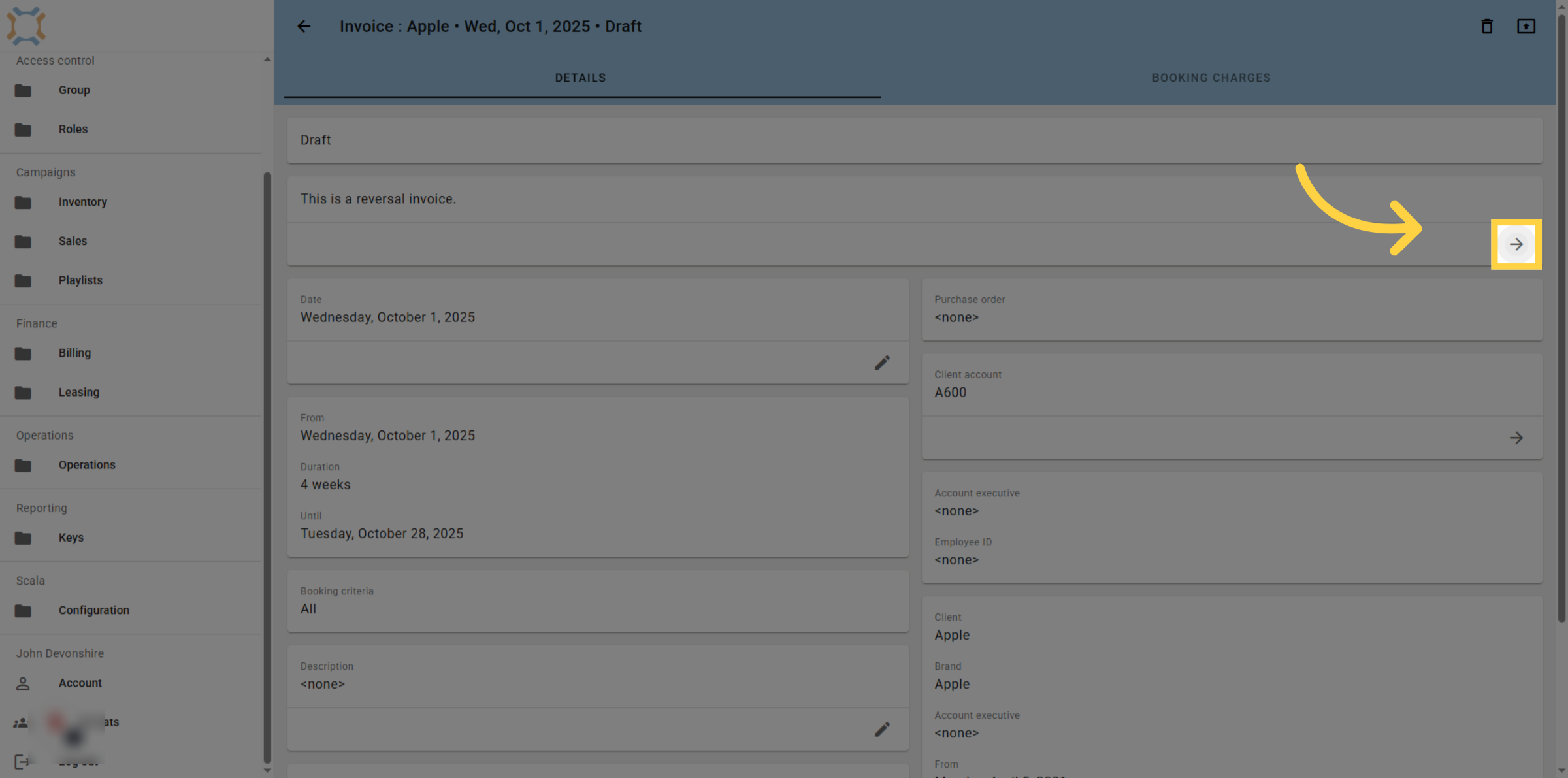
6. View orginating invoice
Any invoice that has a reversal will display this information on the invoice.
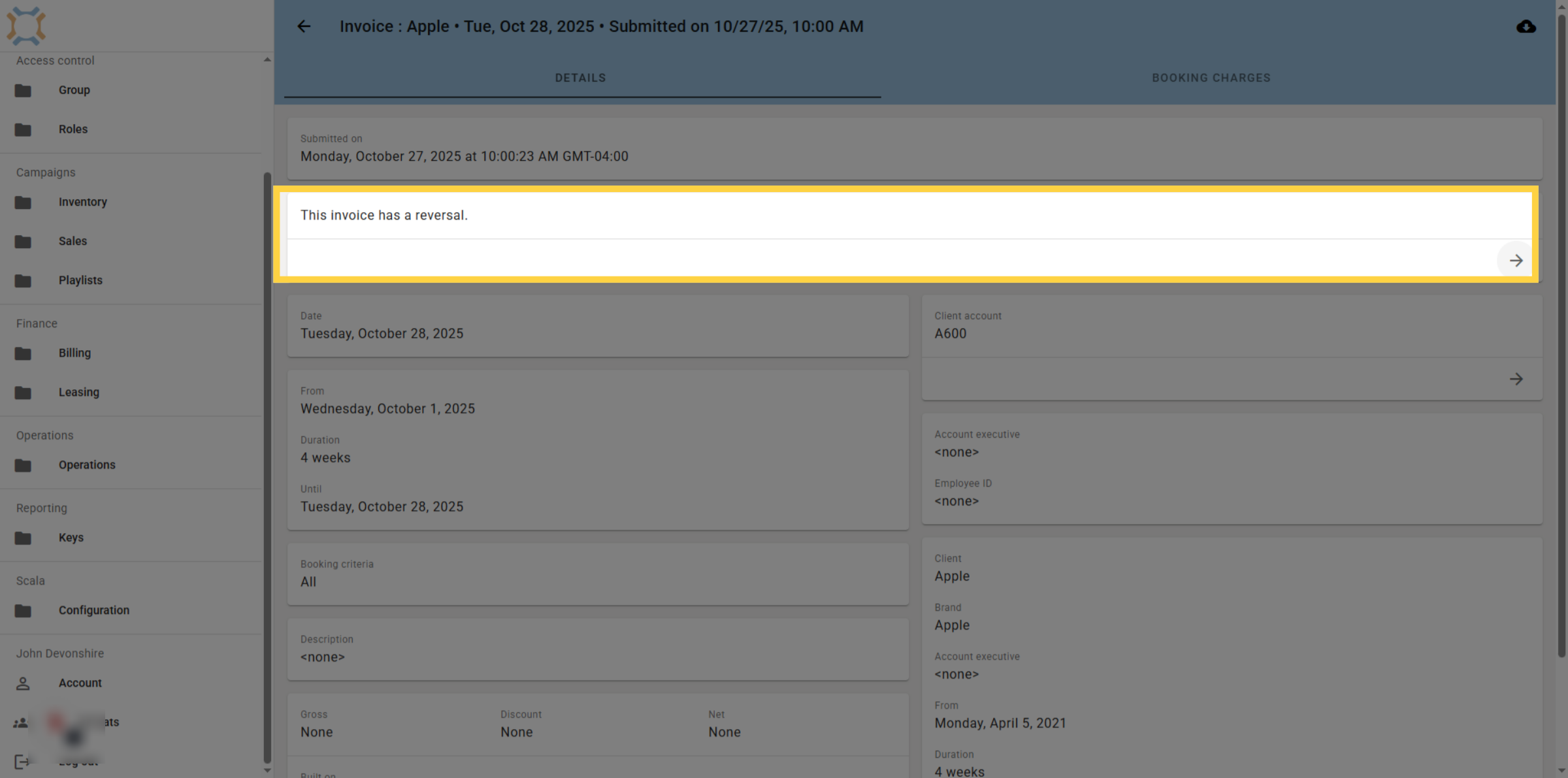
7. Go to a reversal invoice
If you are on an invoice and wish to go to the reversal invoice, click on the arrow in the reversal invoice card.
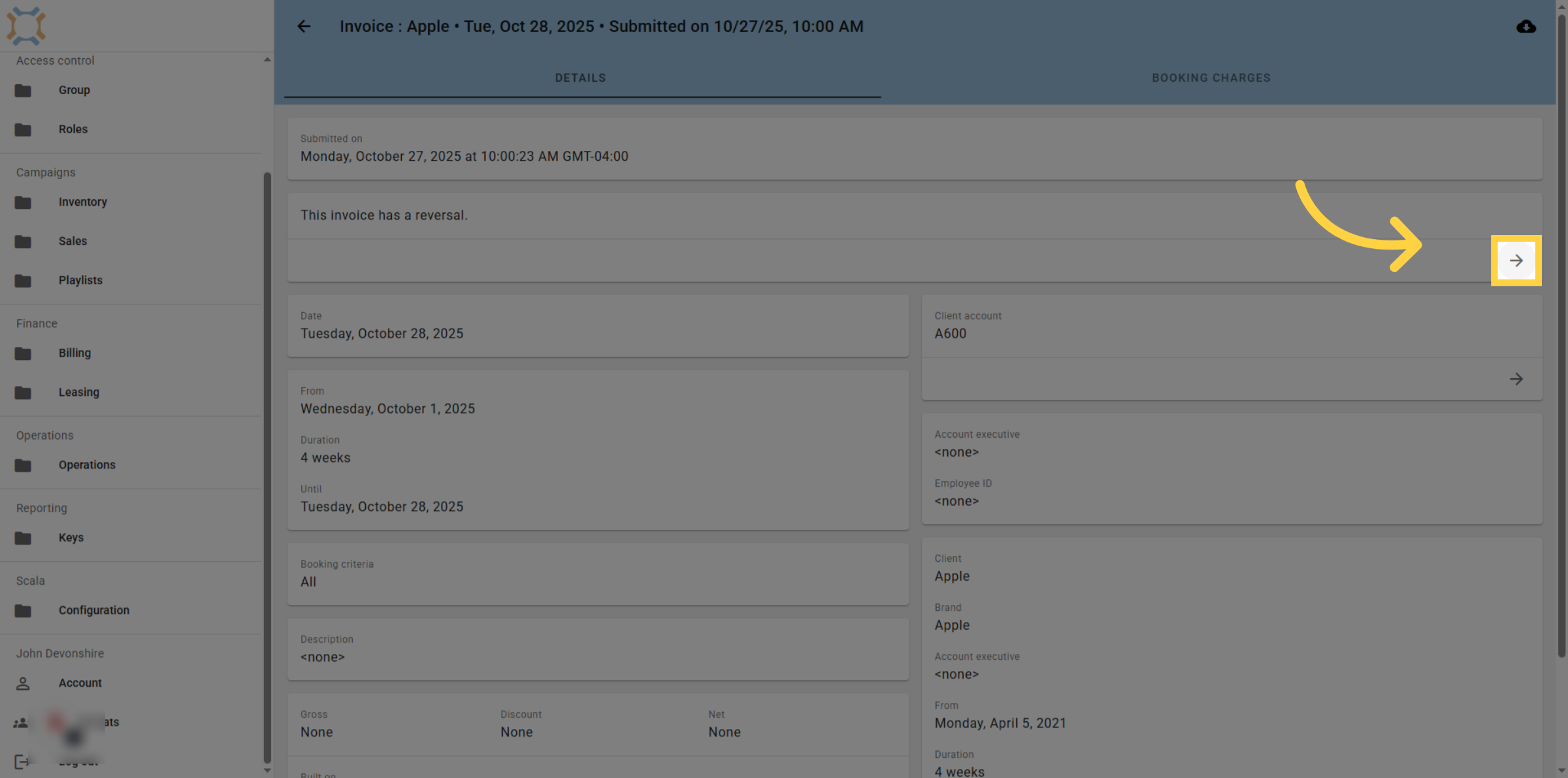
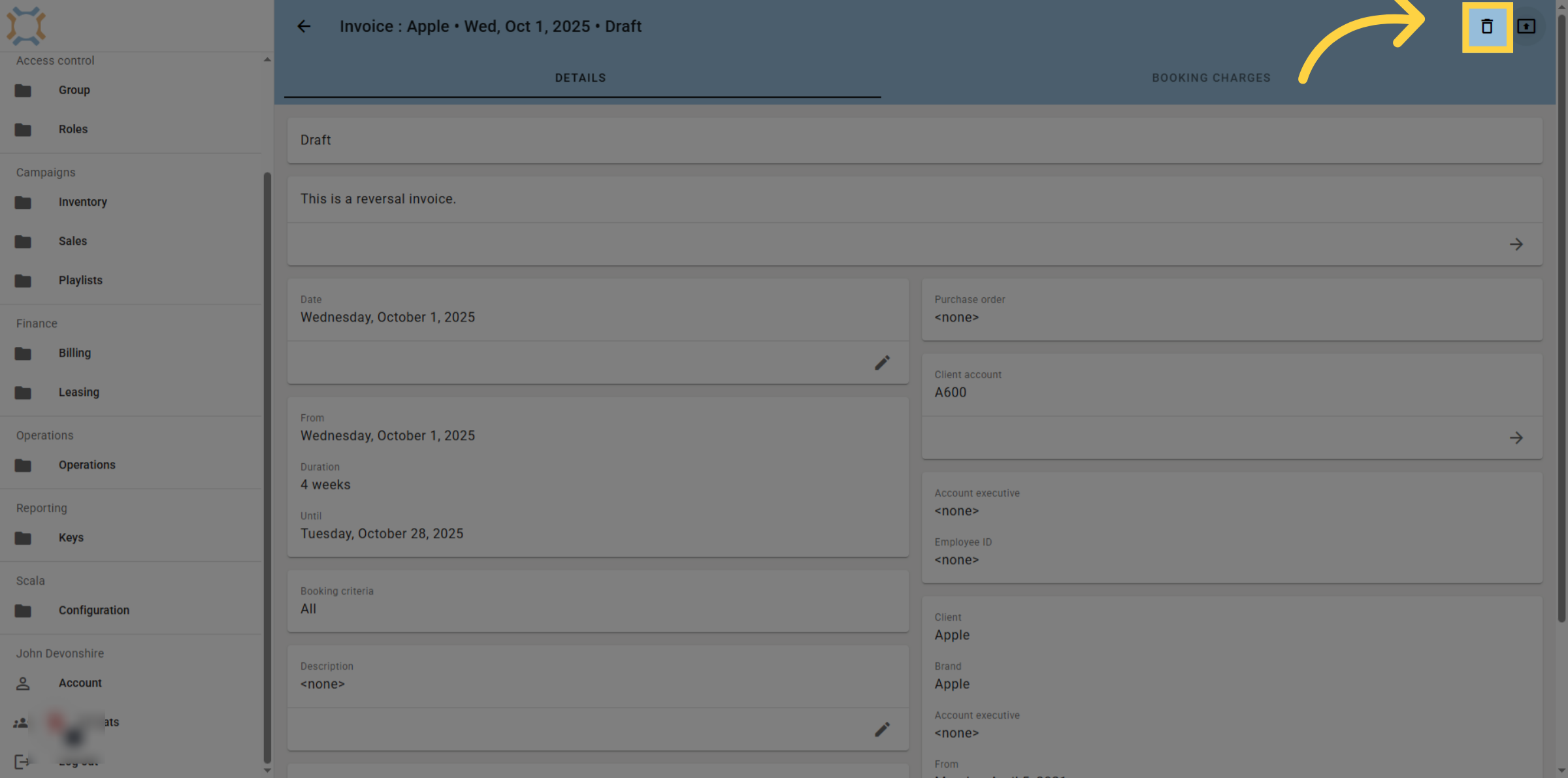
8. Delete reversal invoice
If you have not submitted the reversal invoice, you can delete it. This will remove this draft reversal invoice.
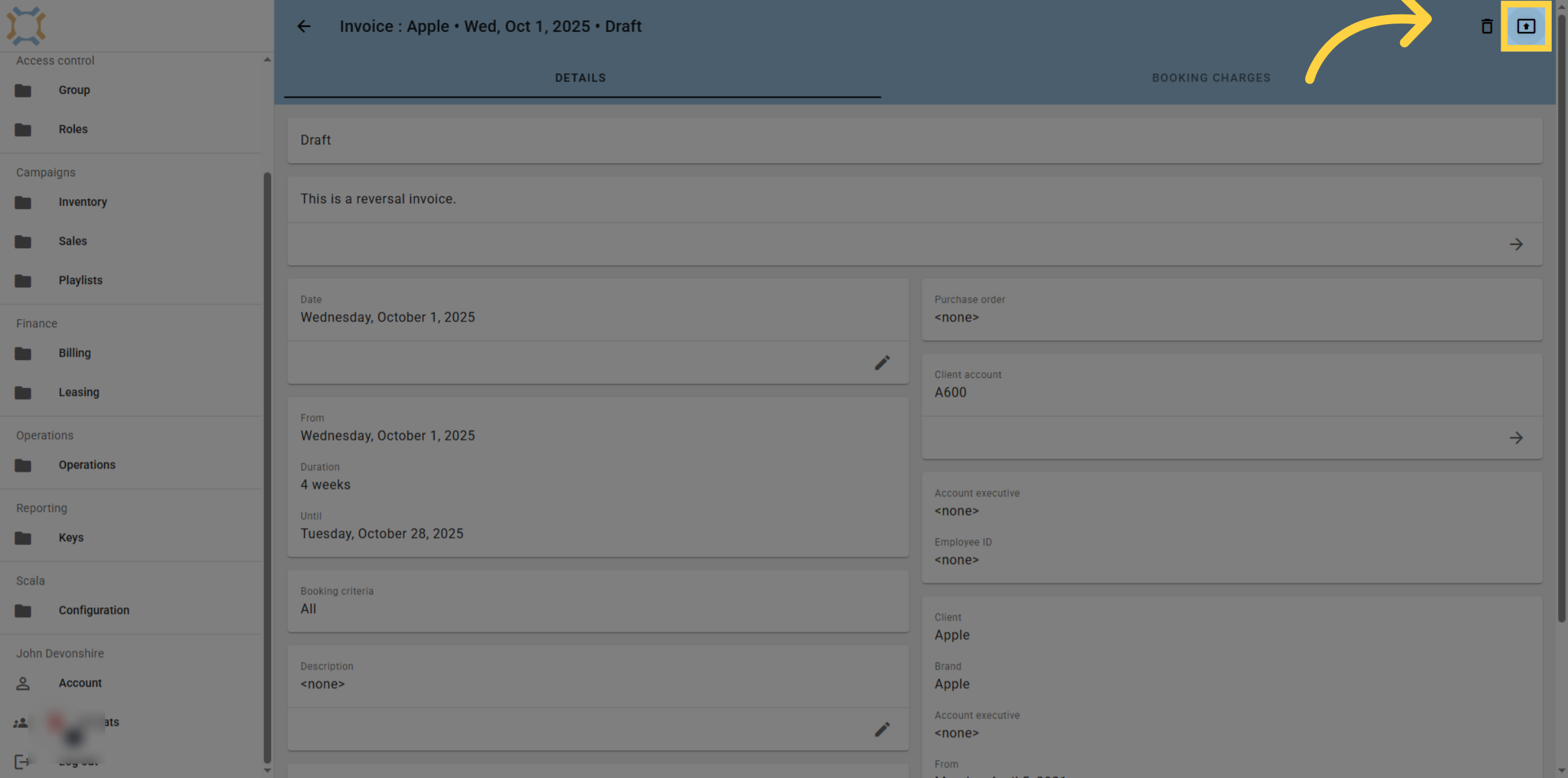
9. Submit reversal invoice
If you wish to submit the reversal, click the Submit button. This will make the change in Ad Manager Connect and return the booking values to the amounts eligible for invoicing. You can then export the reversal to your accounting system
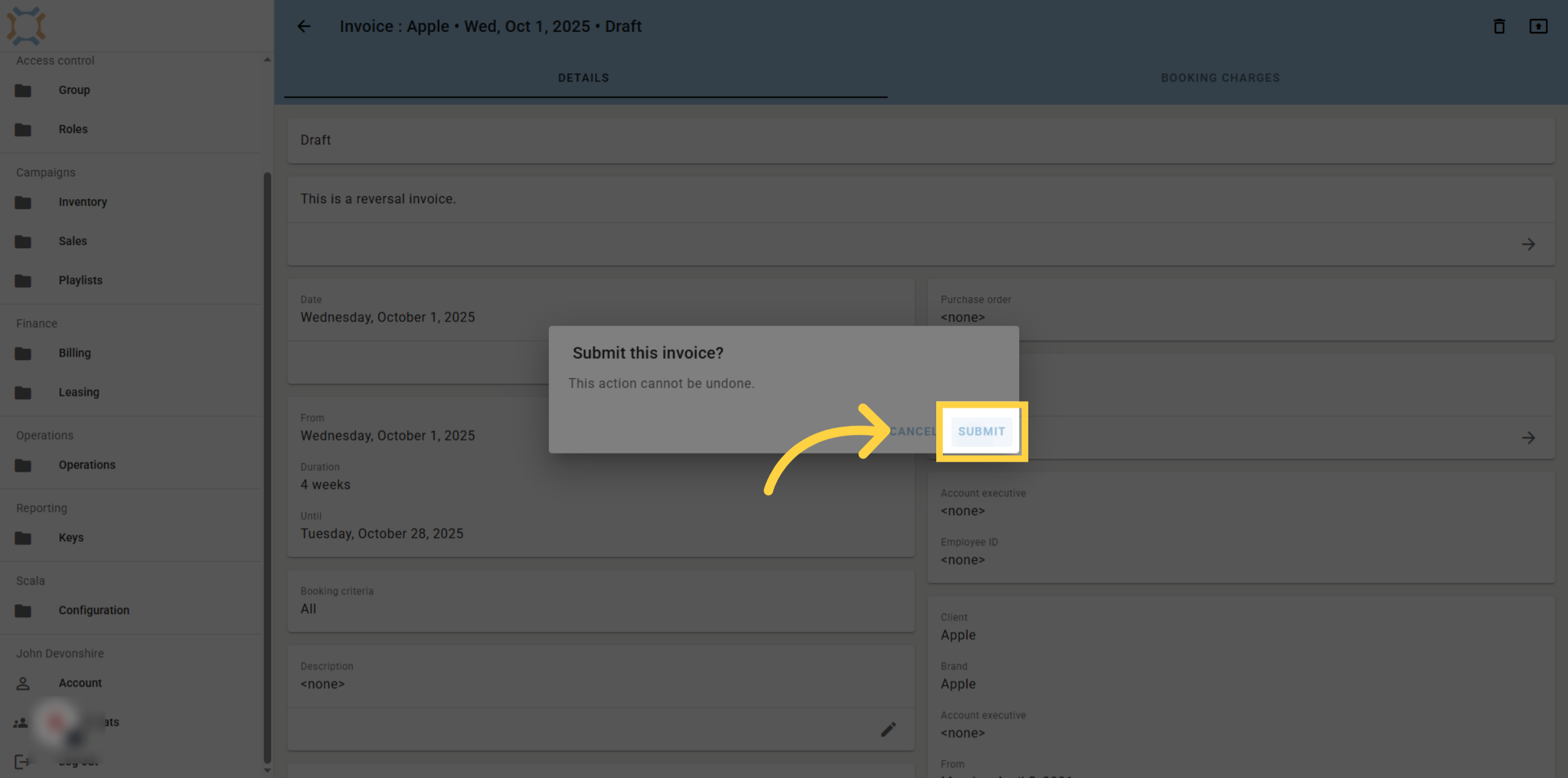
10. Confirm Submission
Click Submit to finalize and complete the invoice reversal, ensuring the changes are saved and applied.
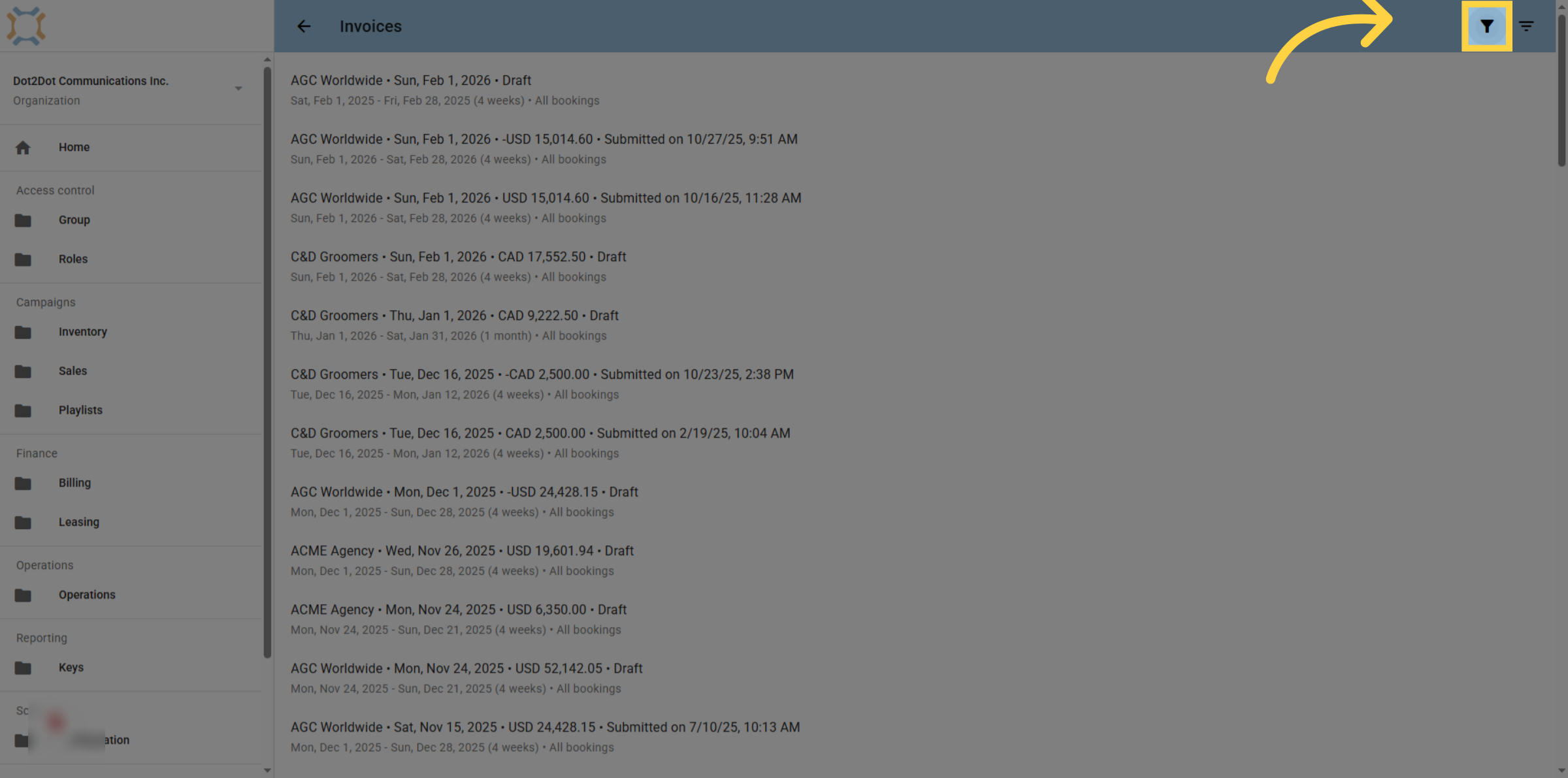
11. Finding Invoices with reversals
If you wish to find invoices that you have created reversals for, click on the Filter icon
12. Access Filter Options
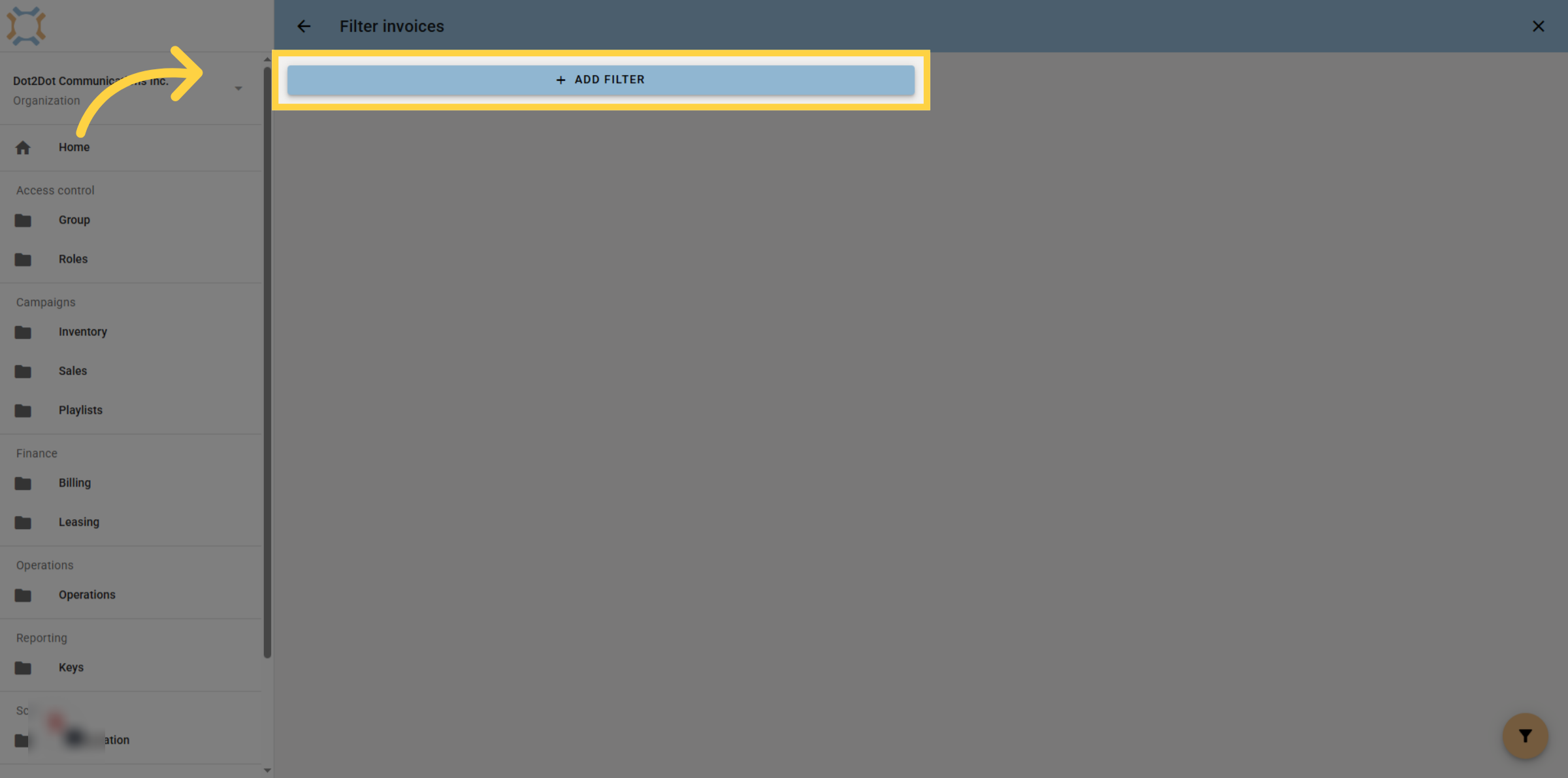
Click Add Filter to select your invoice filtering criteria.
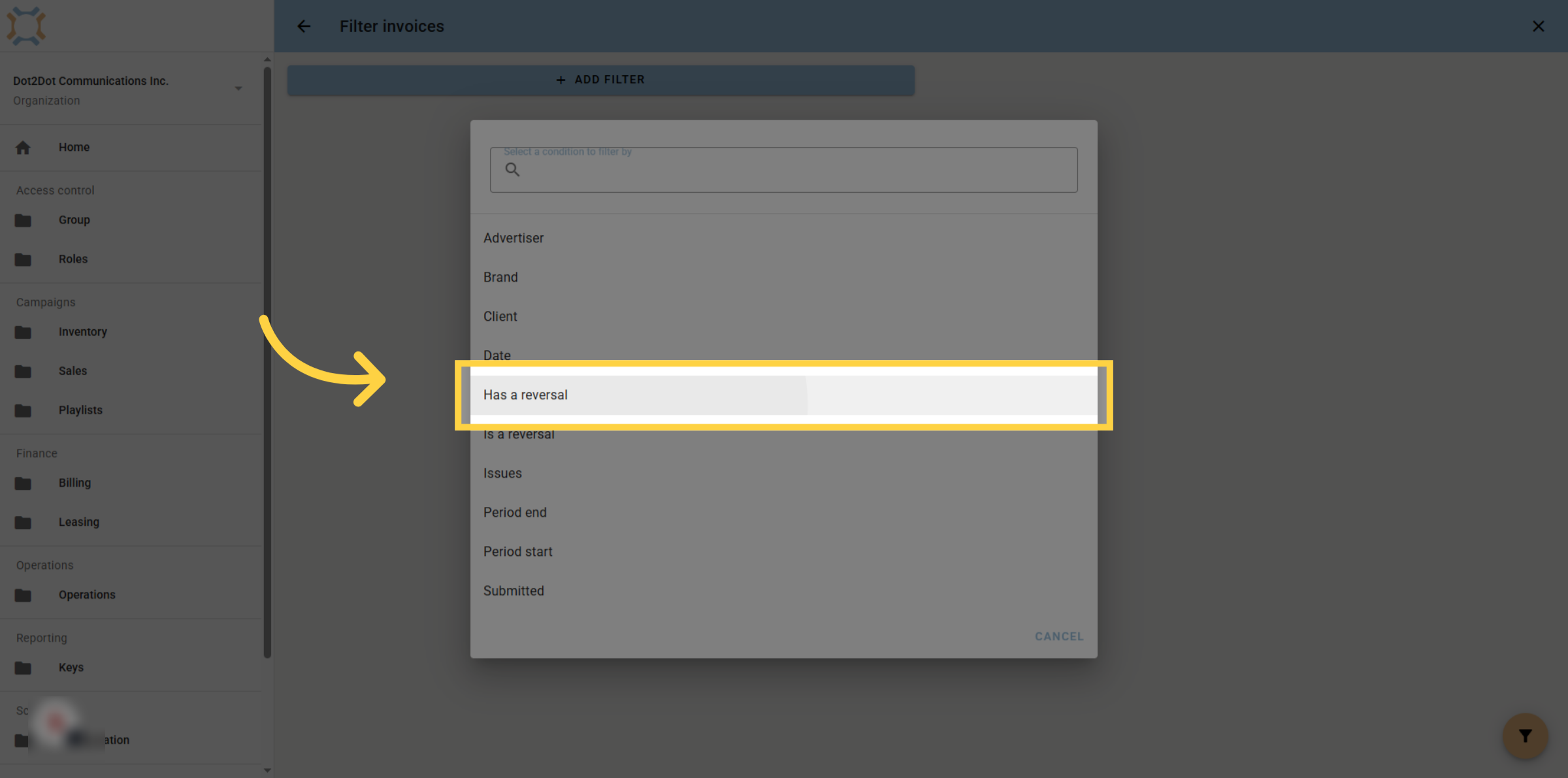
13. Select Has Reversal Filter
Click "Has a reversal" to filter invoices by their reversal invoice stat.
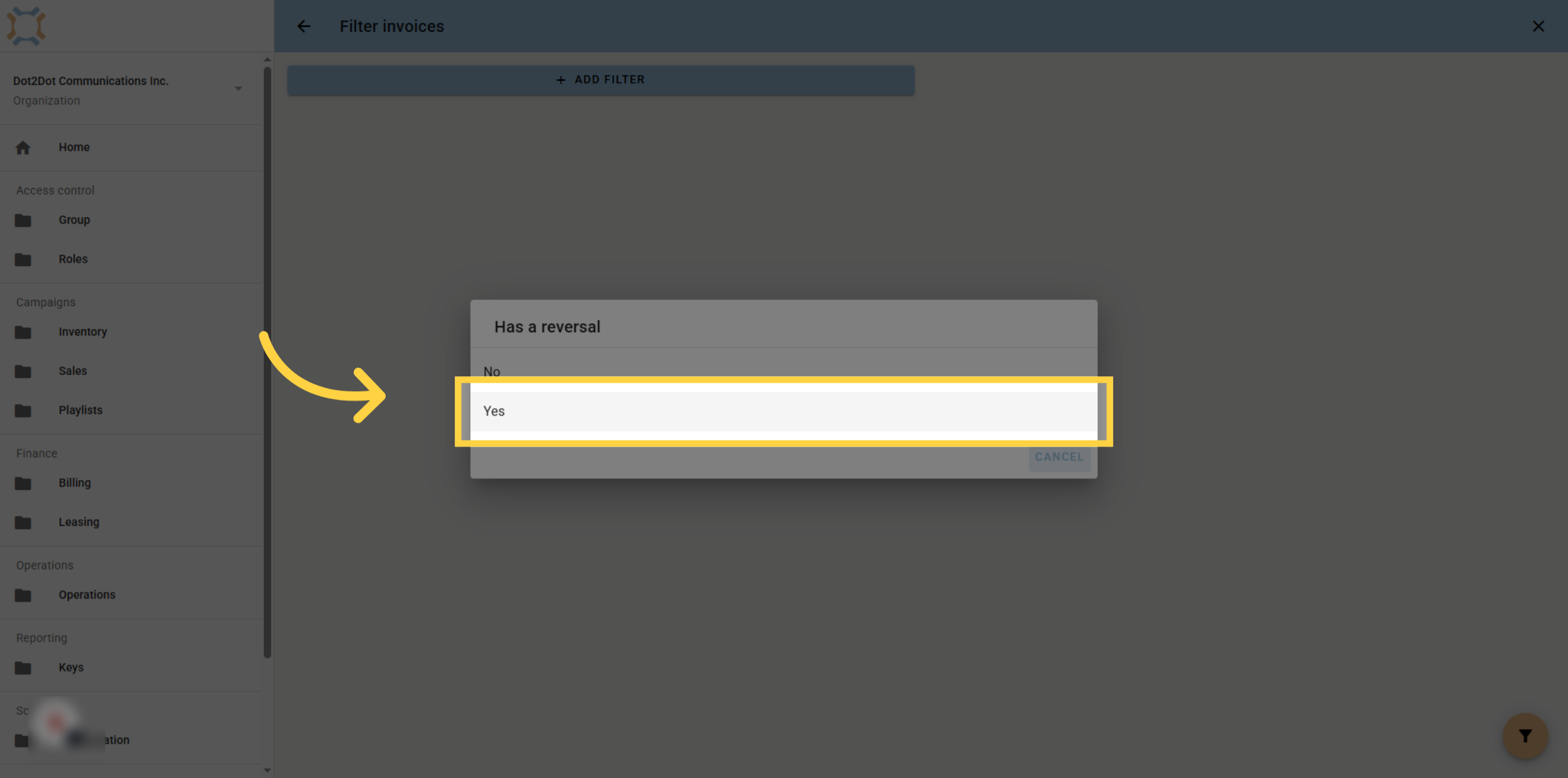
14. Selecting Invoices with Reversals
Click "Yes" to see invoices that have reversals, or click No if you only wish to view invoices that do not have reversals.
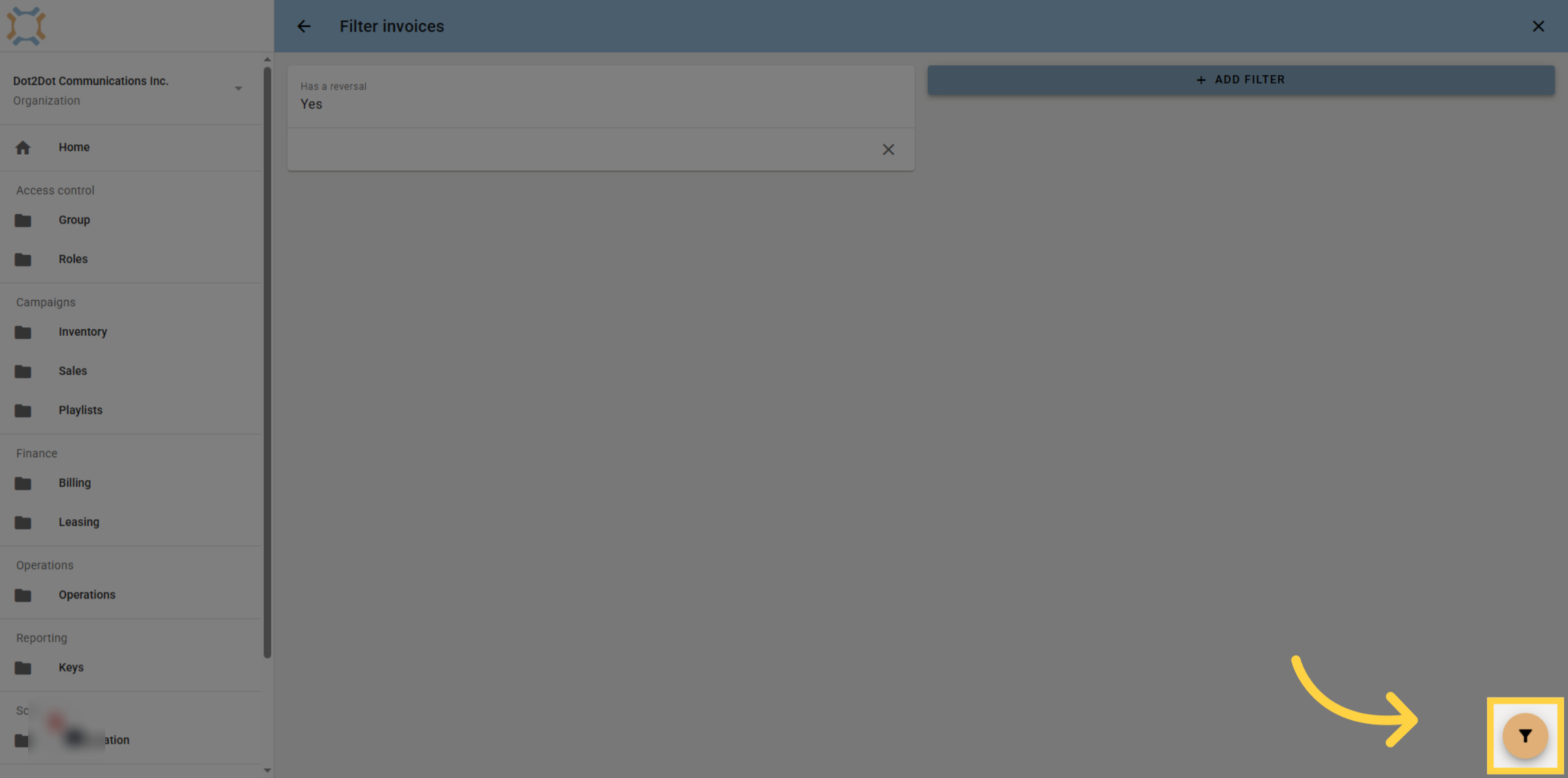
15. Click Filter
Click Filter to see the list of invoices matching your criter.
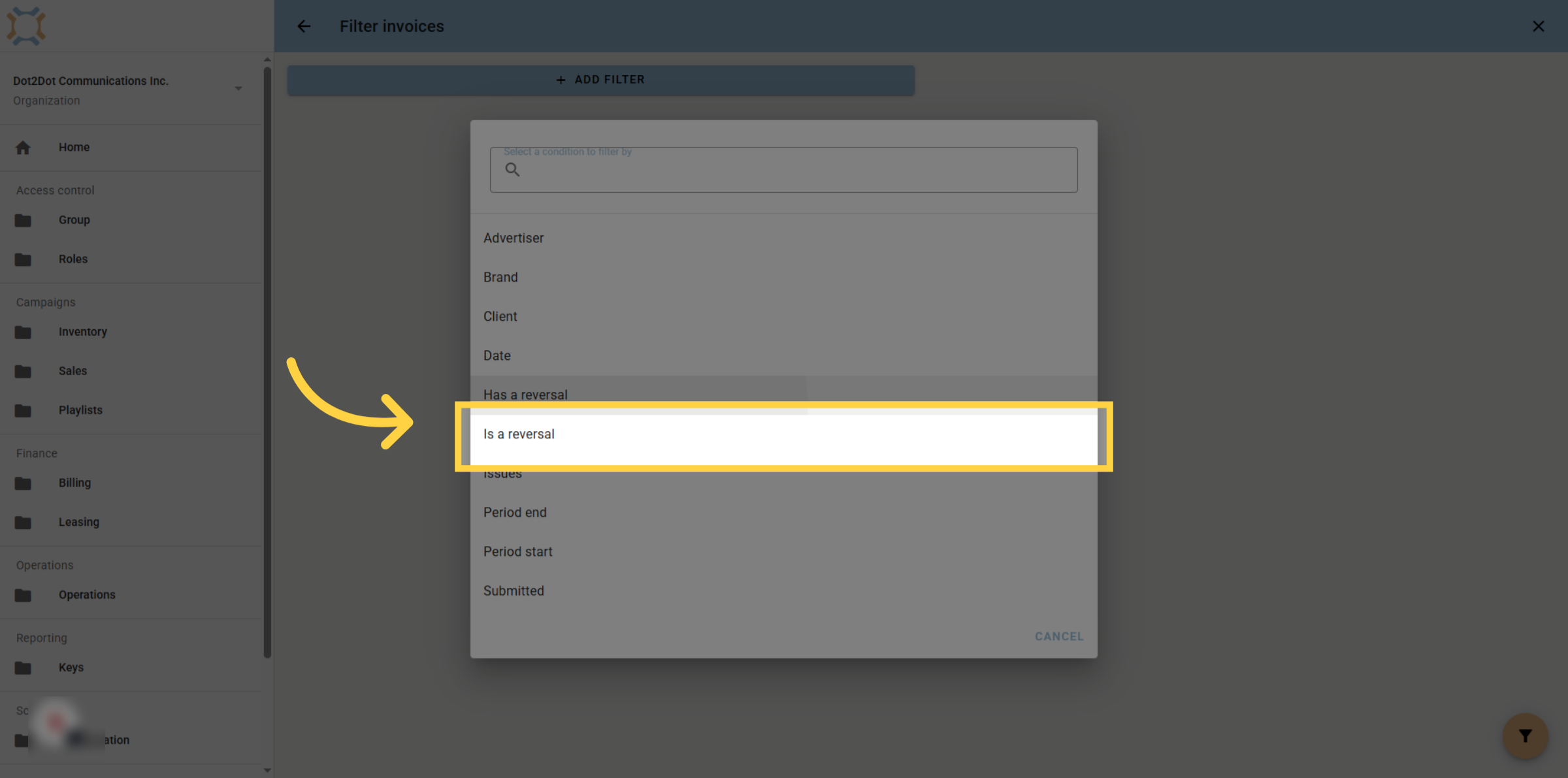
16. Select Is a Reversal Filter
If you wish to filter by whether or not an invoice is a reversal, click "Is a reversal" to filter for invoices based on their reversal status.
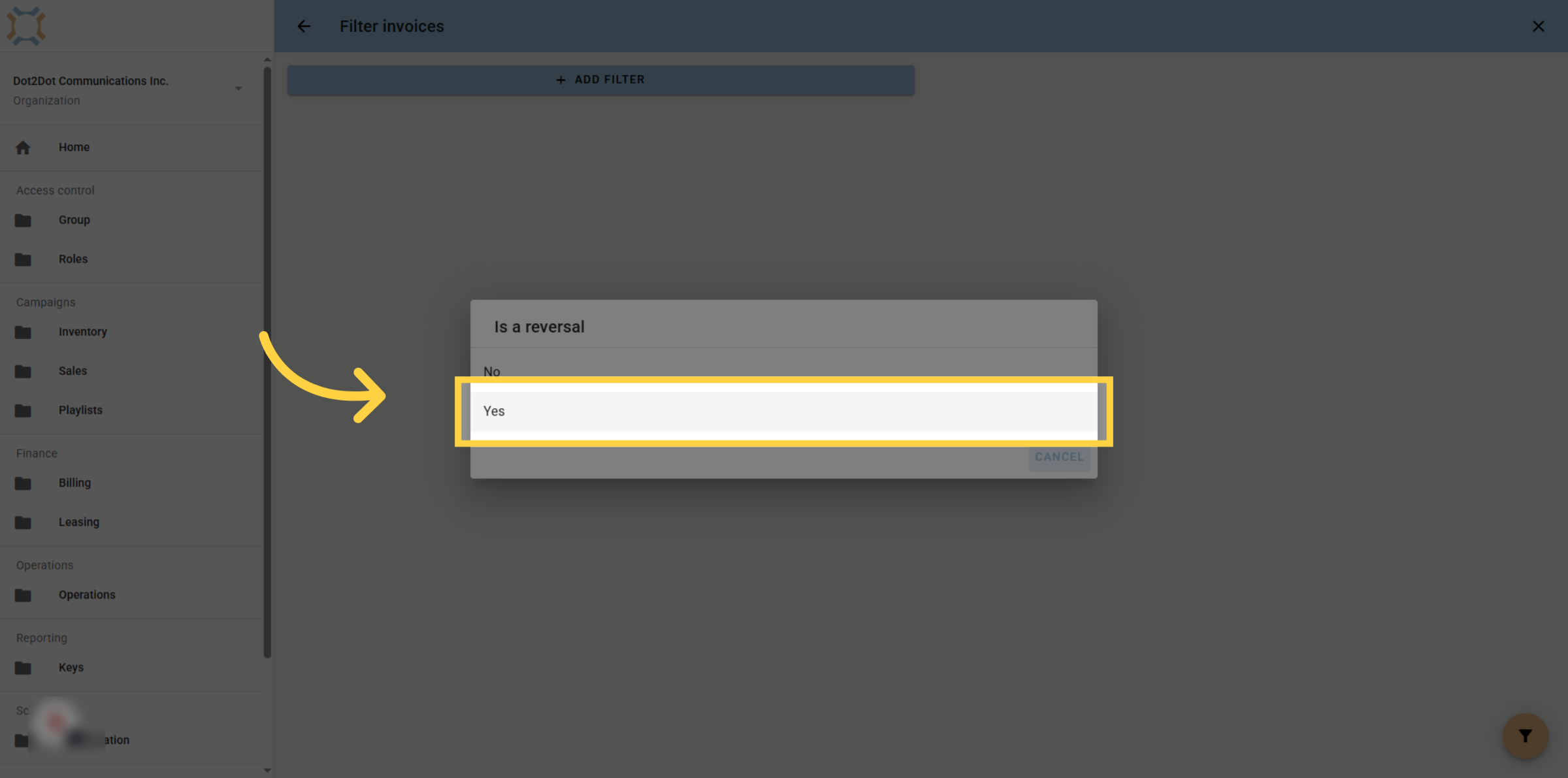
17. Confirm Is Reversal Selection
Click "Yes" to see invoices that are reversals, or click no to see invoices that are not reversals.
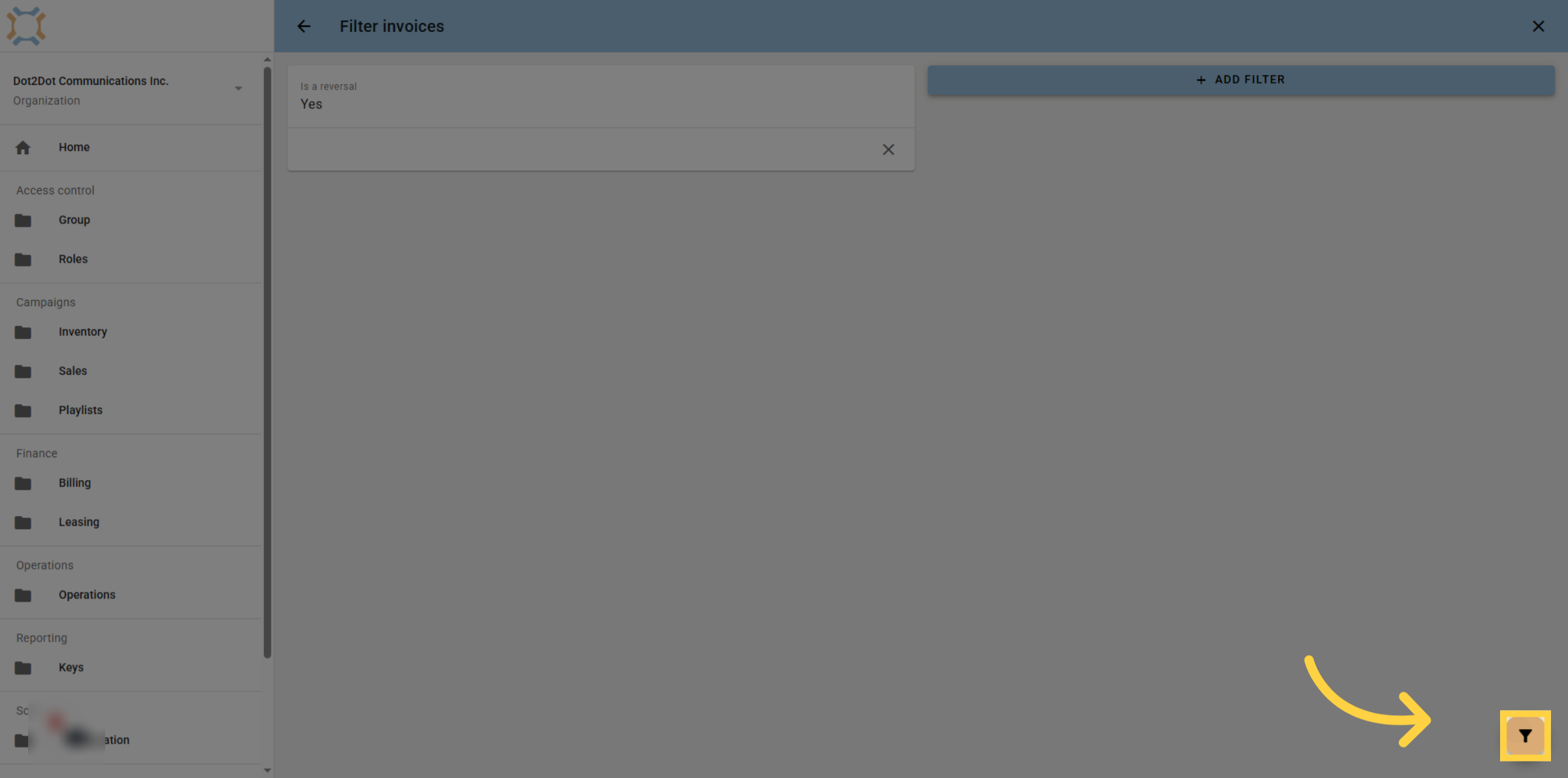
18. Apply Filters
You can choose to add other filter criteria, such as whether the reversal has been submitted or not. Once finished, click the filter button to view the list of reversal invoices
If you have any additional questions, please contact Dot2Dot for assistance.
Comments
0 comments
Please sign in to leave a comment.