
This tutorial guides you through the process of signing a lease using Ad Manager Connect
1. Introduction
Ad Manager allows you to sign leases. Signed leases cannot be edited, but if no payments have been submitted, they can be unsigned and then changes can be made before re-signing the lease.
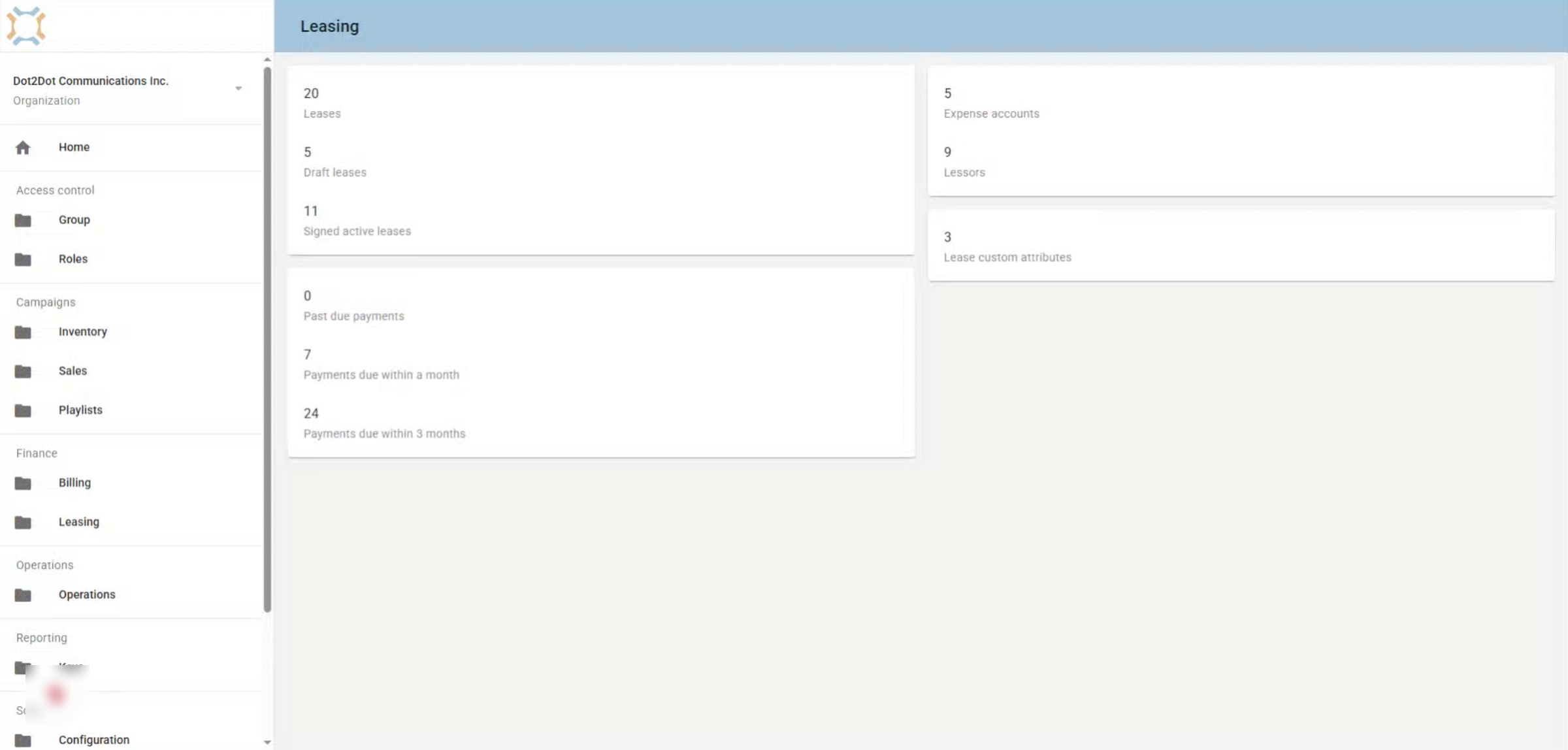
2. Access Draft Leases
Click on draft leases to access the list of leases you have not yet marked as signed.
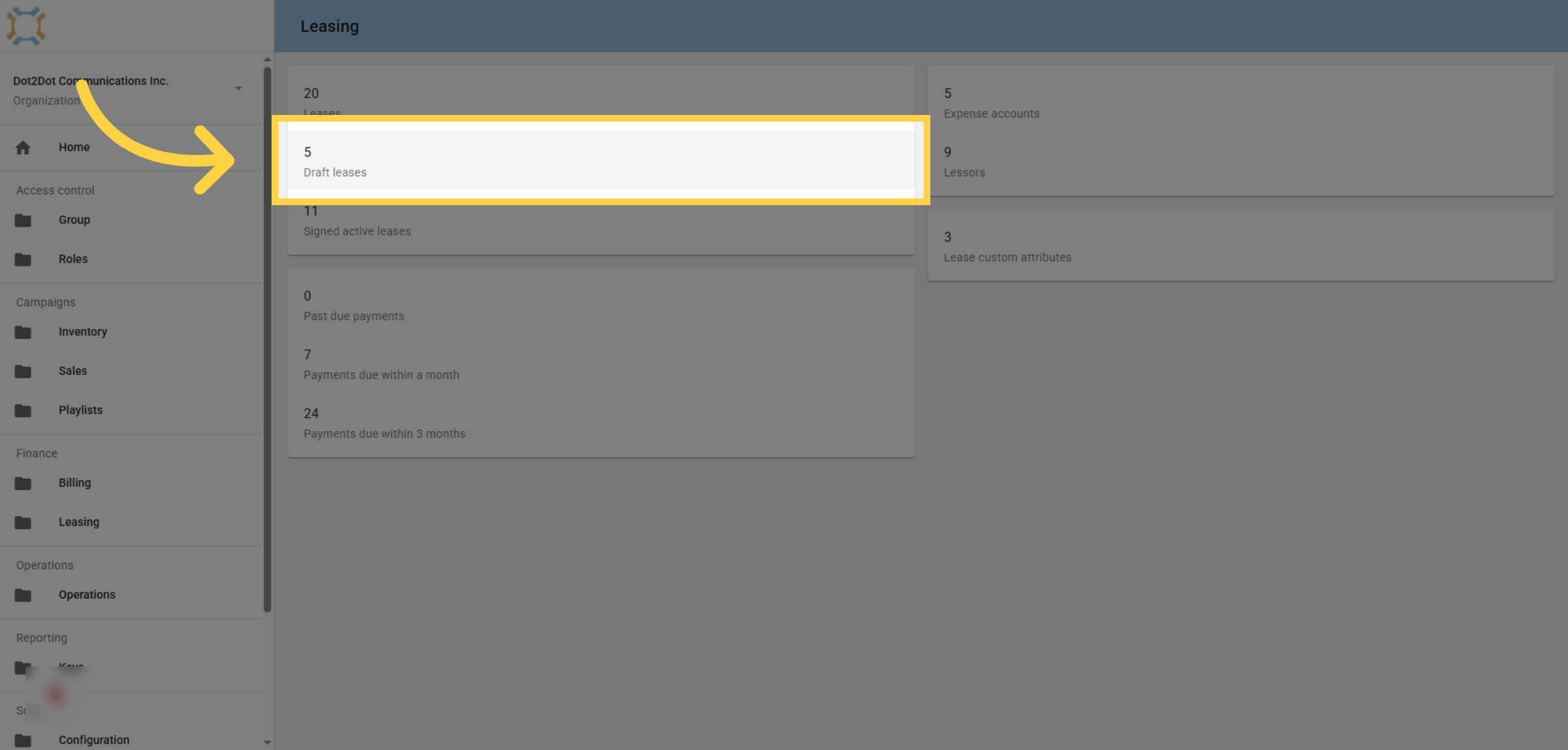
3. Select Specific Draft Lease
Click on the draft lease you wish to sign.
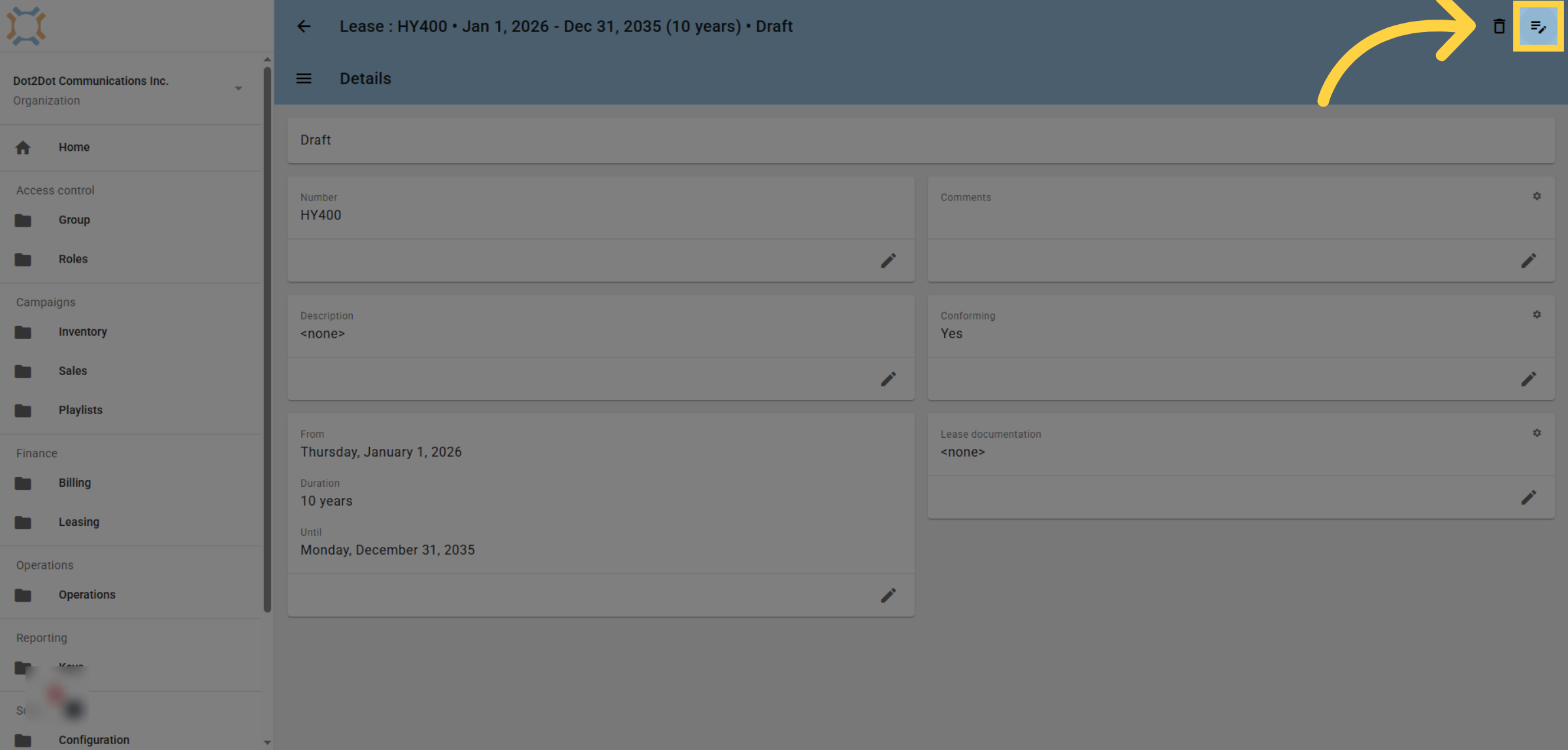
4. Click Sign Lease
You can only sign a lease if it has at least one site and one lessor assigned. Make sure you have added any payments schedules to each lessor, and that you have added any documents you wish to attach to the lease before signing.
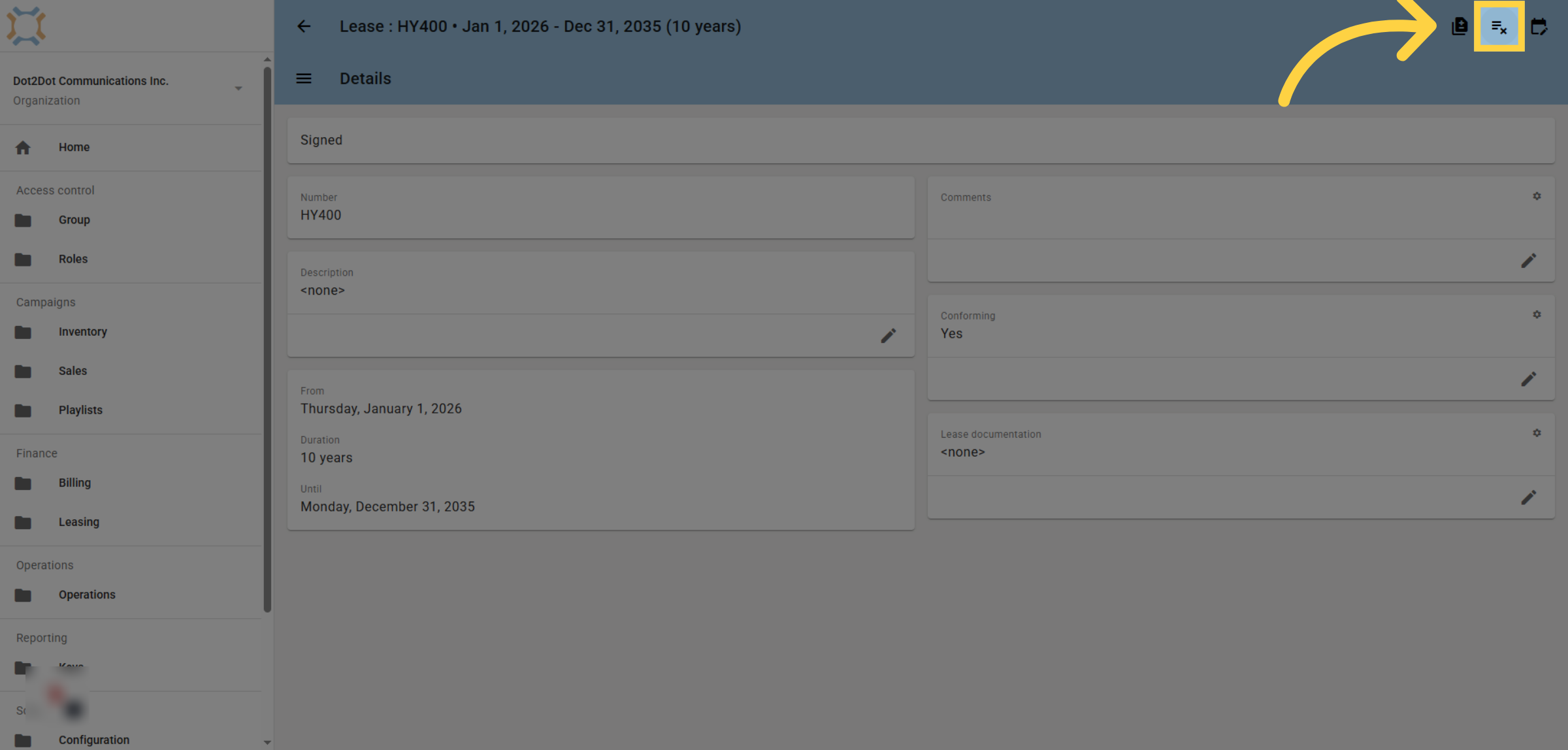
5. Click Unsign Lease
If a lease has not had any payments submitted, you can unsign it by clicking the unsign button. If any lease payments have been made on this lease, this button will not be available, and you will need to end the lease early and create a revision lease, if necessary.
If you have any additional questions, please contact Dot2Dot for assistance.
Comments
0 comments
Please sign in to leave a comment.