
Ad Manager Connect allows you to end a lease prior to the scheduled termination date of the lease. This feature will also automatically update the remaining payments for the lease.
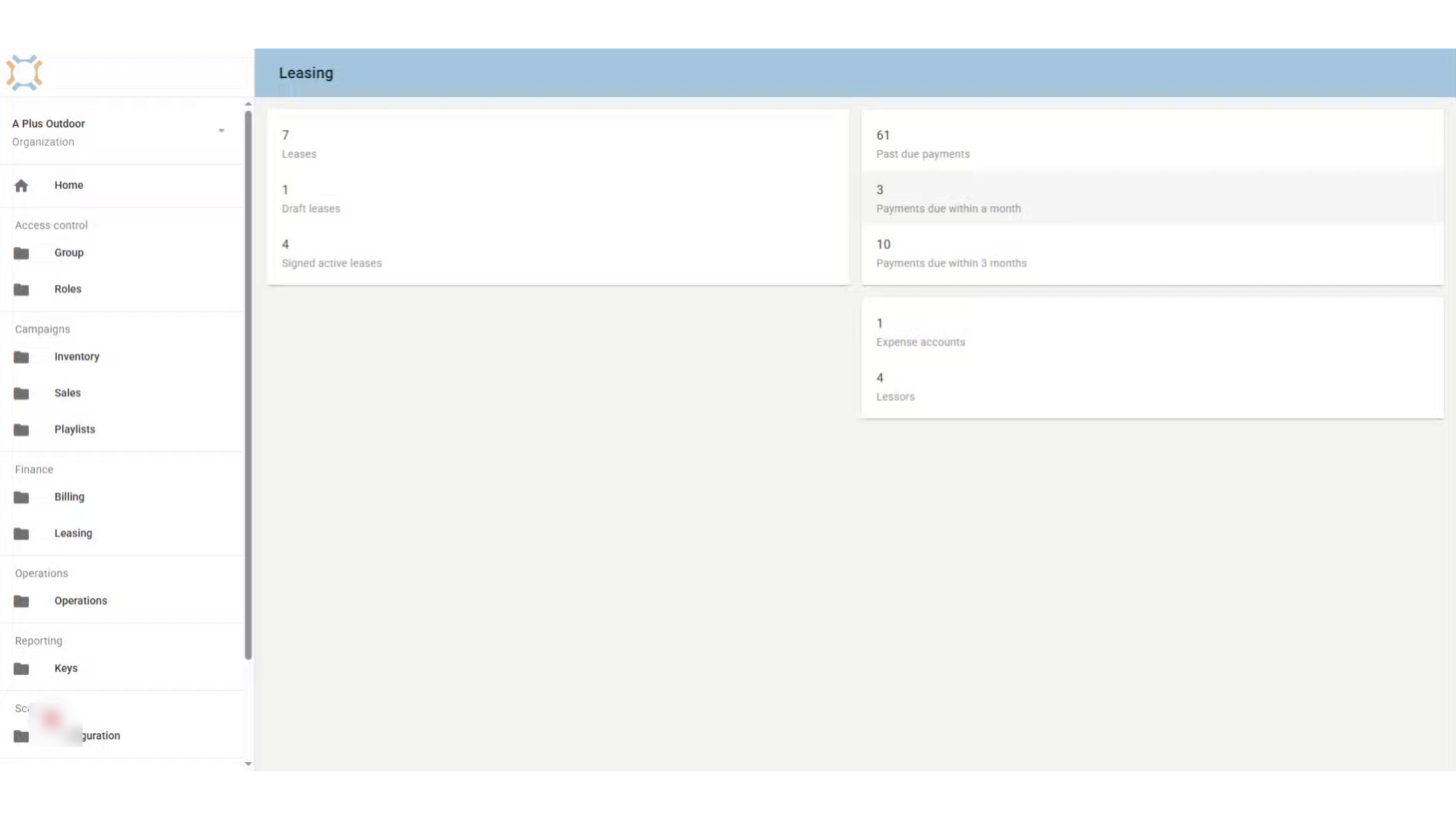
Click Leases
Click on Signed active leases to get a list of all your currently active leases.
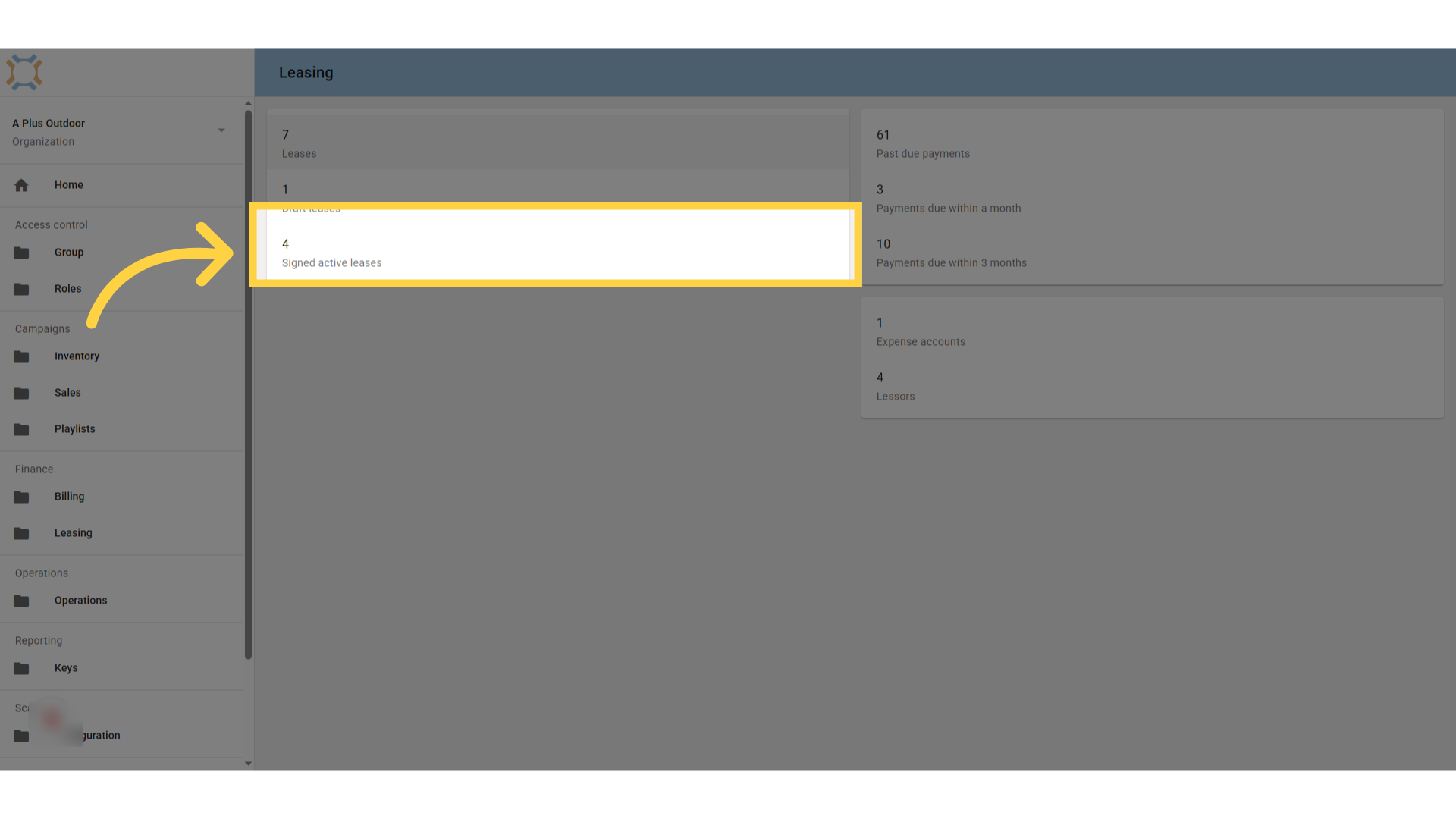
Select Desired lease
Select the specific lease you wish to end early.
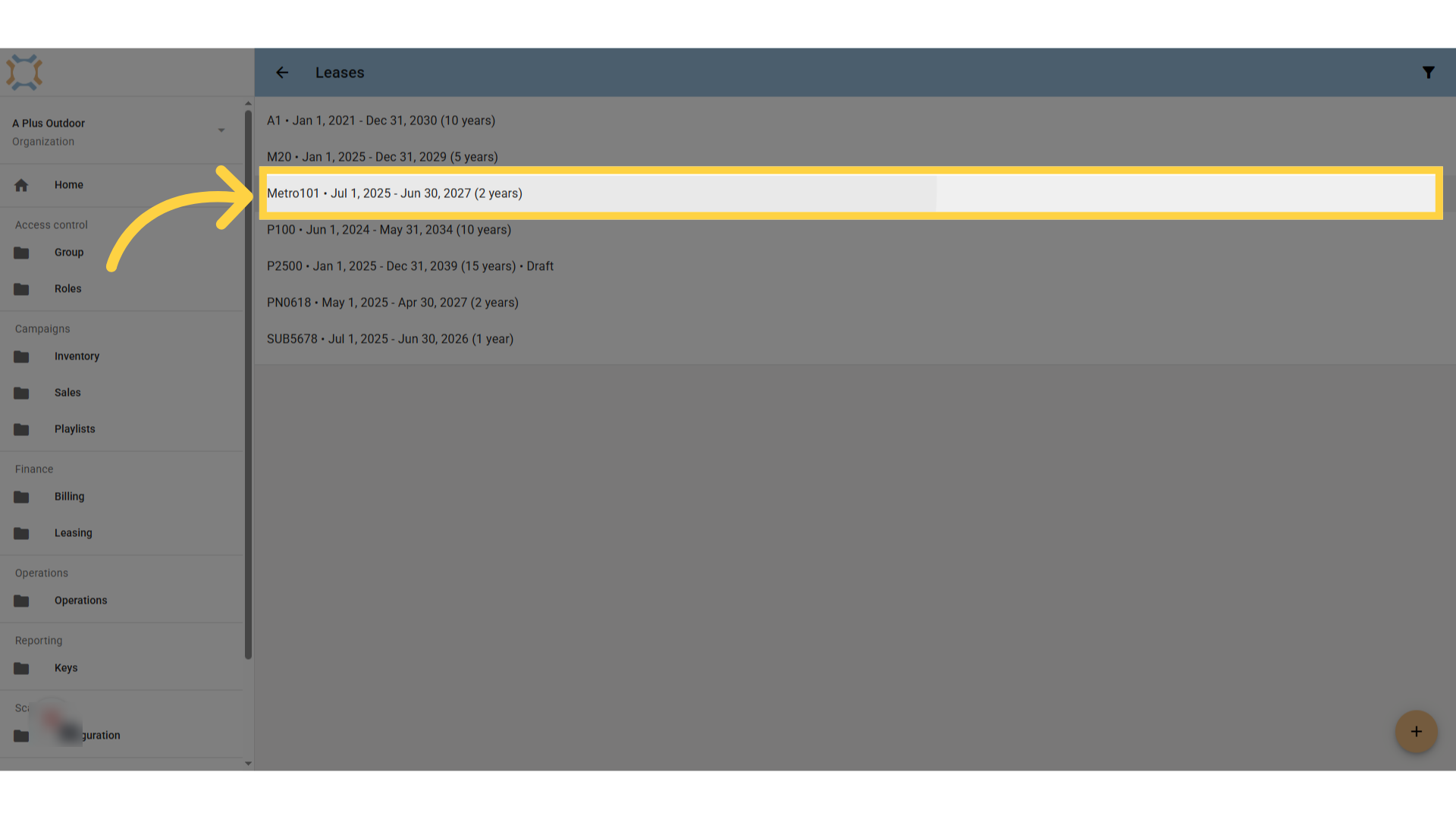
Click "end early"
Click on the end early button.
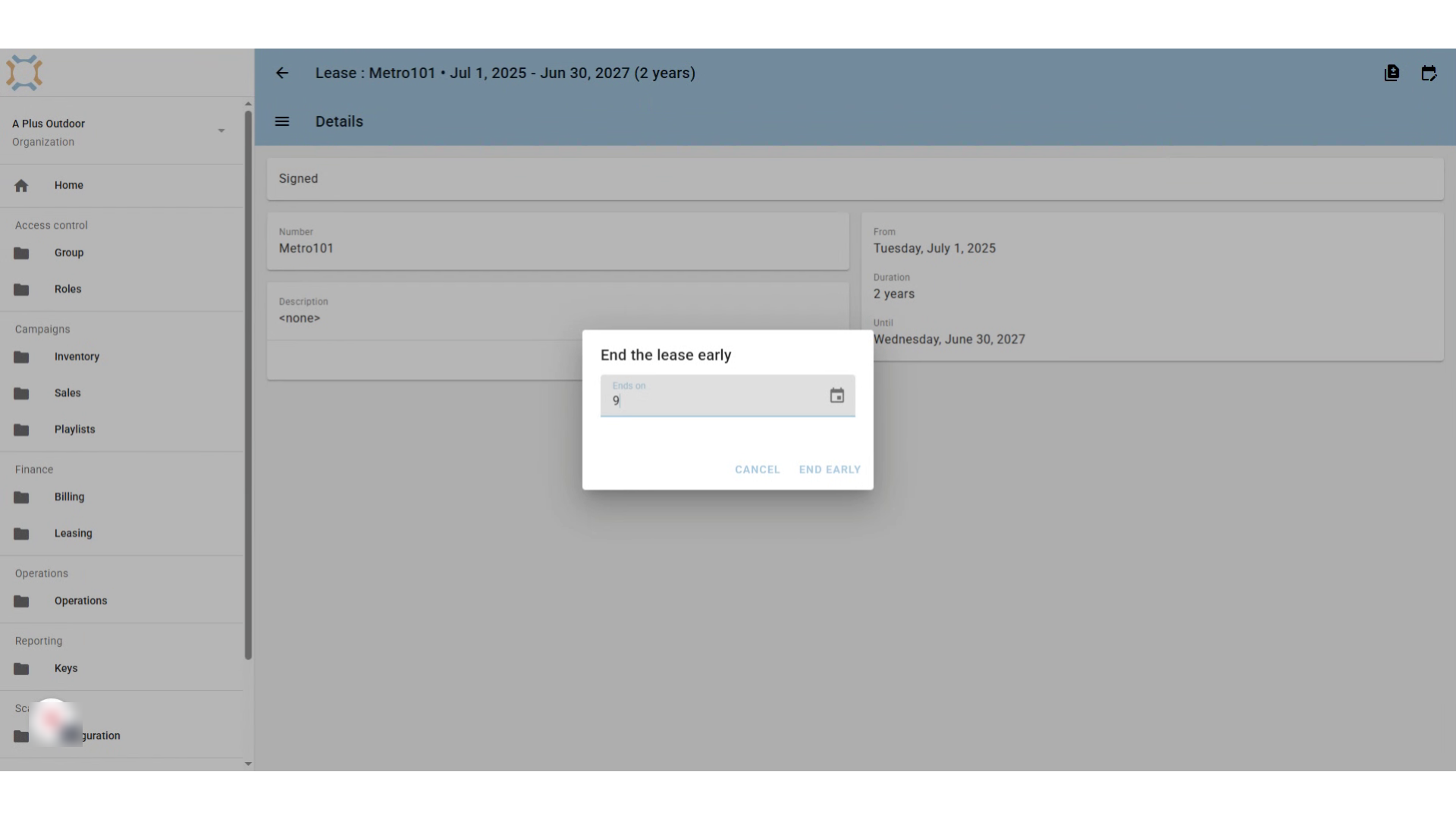
Enter date
Enter the new expiry date for this lease.
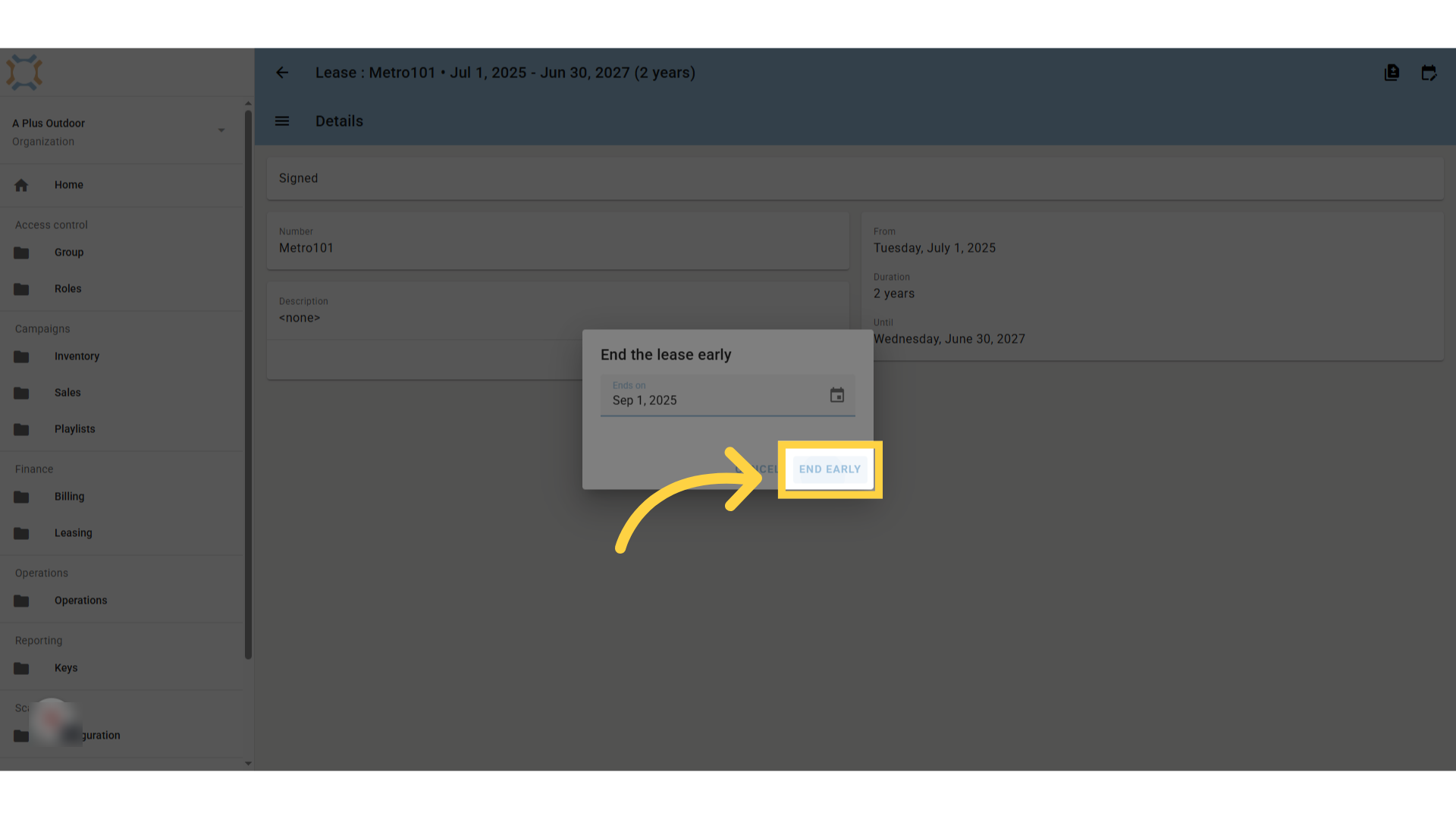
Click End Early
After you have entered the date that the lease is to expire, click End Early to change the lease end date.
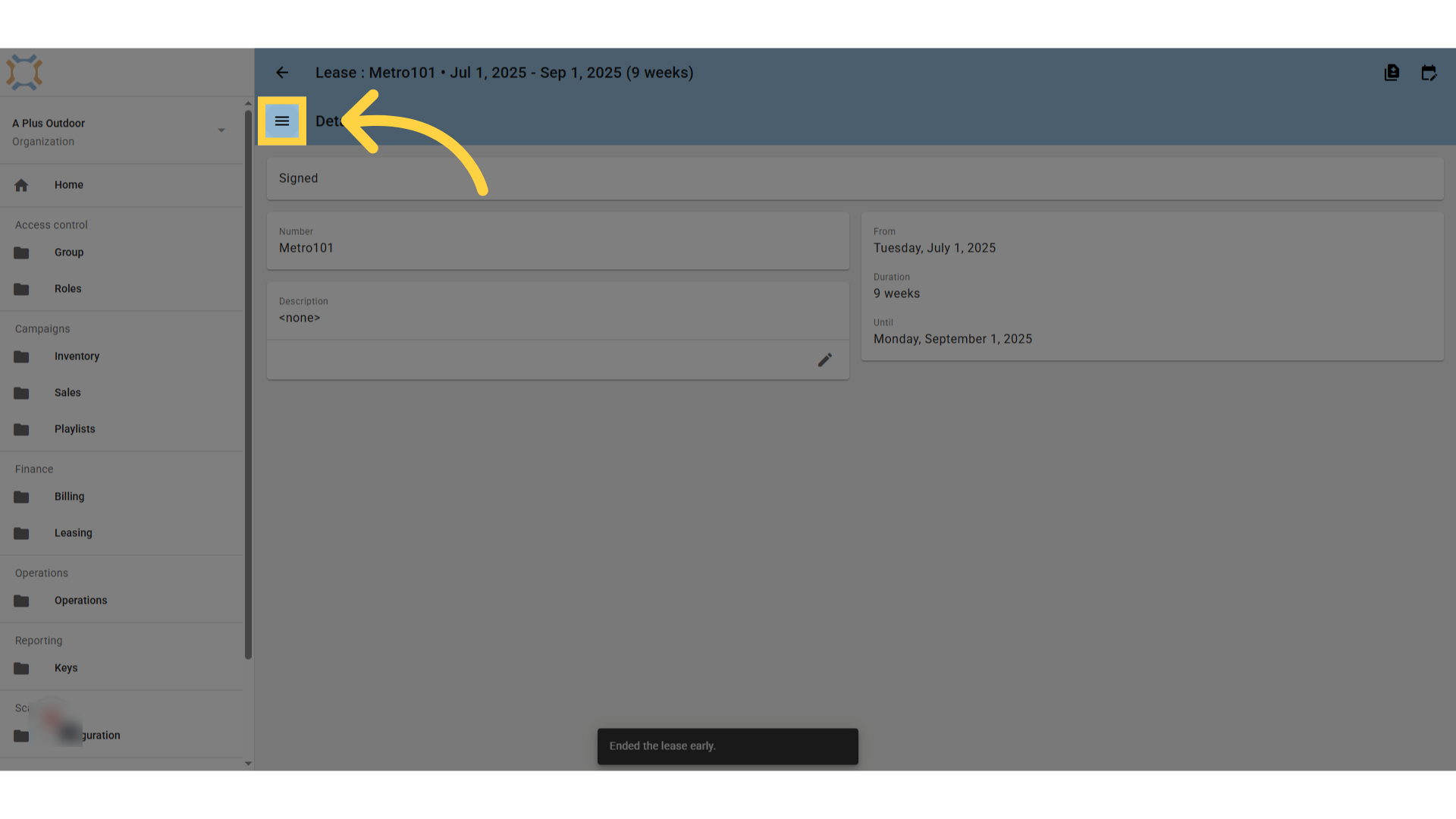
Click "menu"
If you wish to confirm that the list of lease payments has been updated, click on the menu item
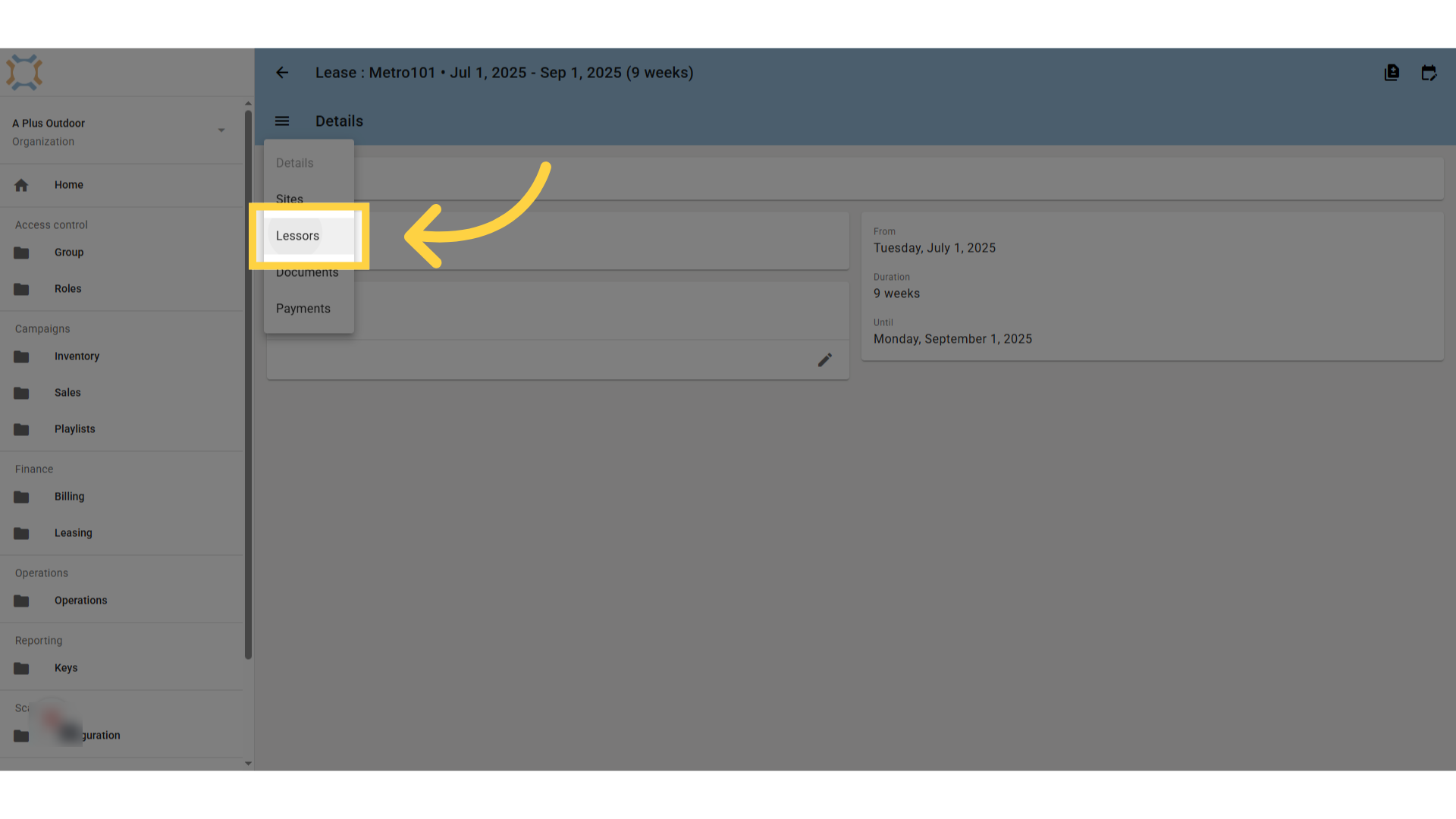
Click "Lessors"
Select Lessors from the menu
Click on the lessor
Click on the lessor that you wish to review.
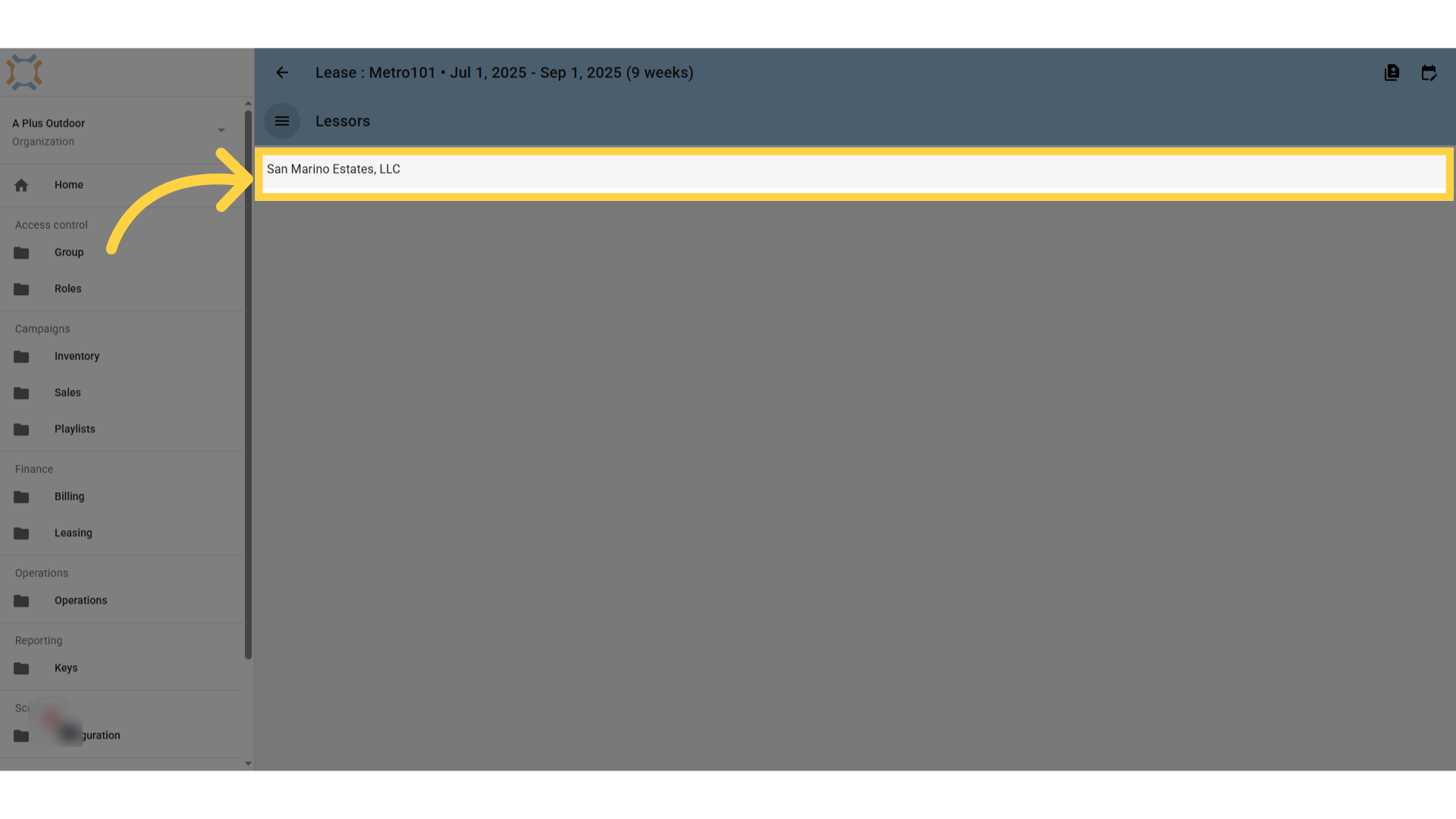
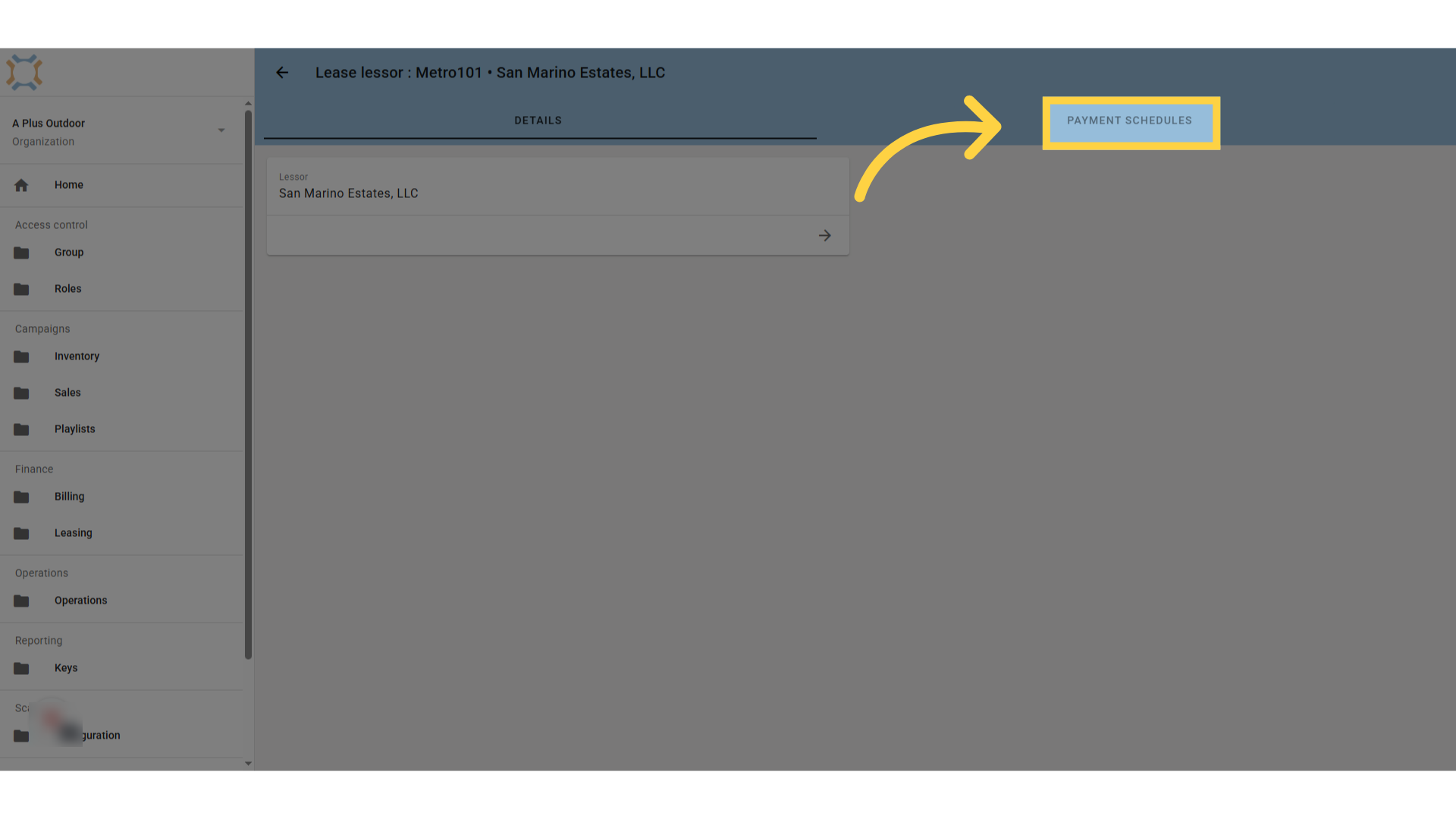
Click "payment schedules
Click on Payment schedules to see a listing of payment schedules for this lessor
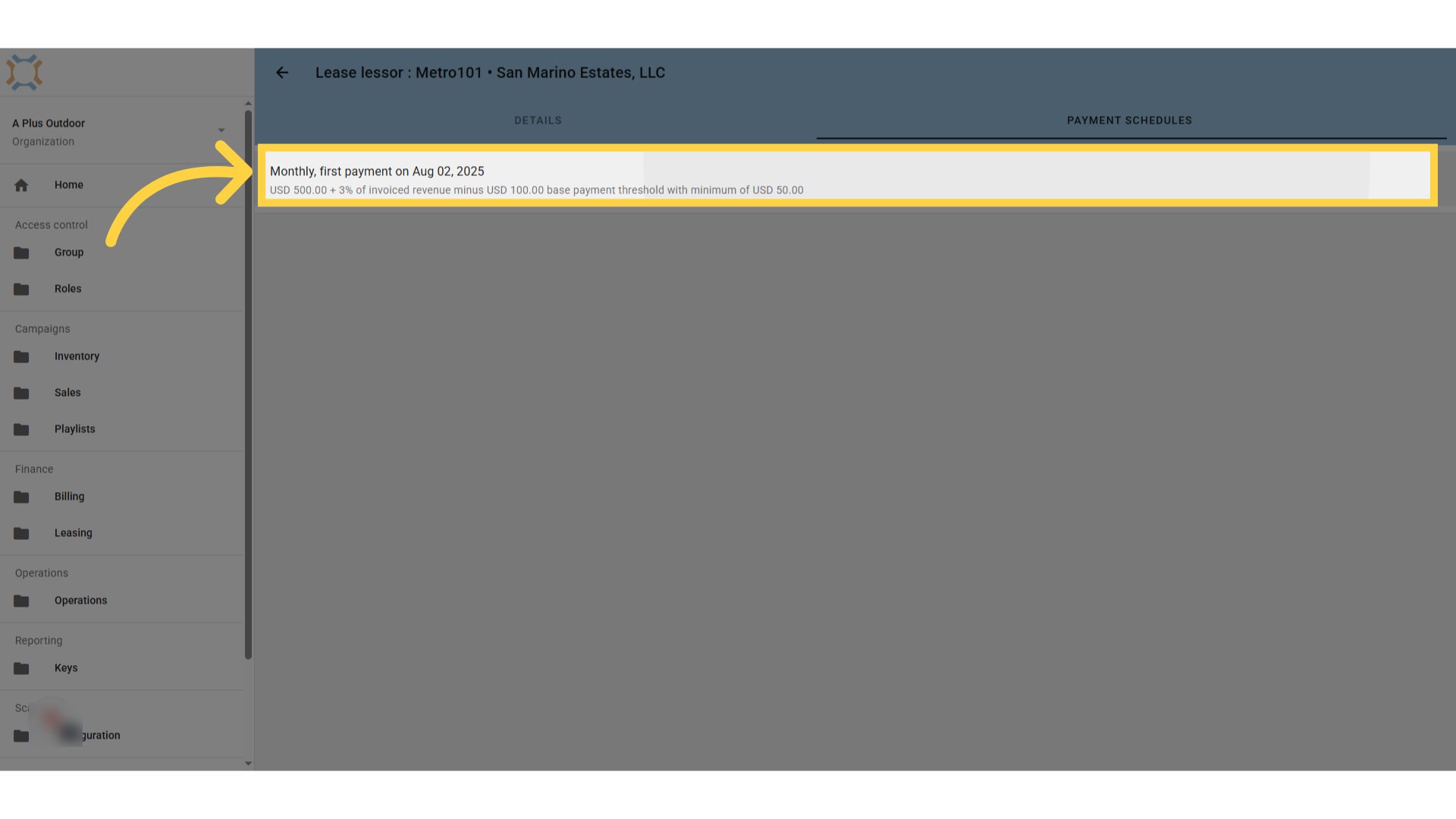
Click schedule
Select the schedule you wish to review the payments for.
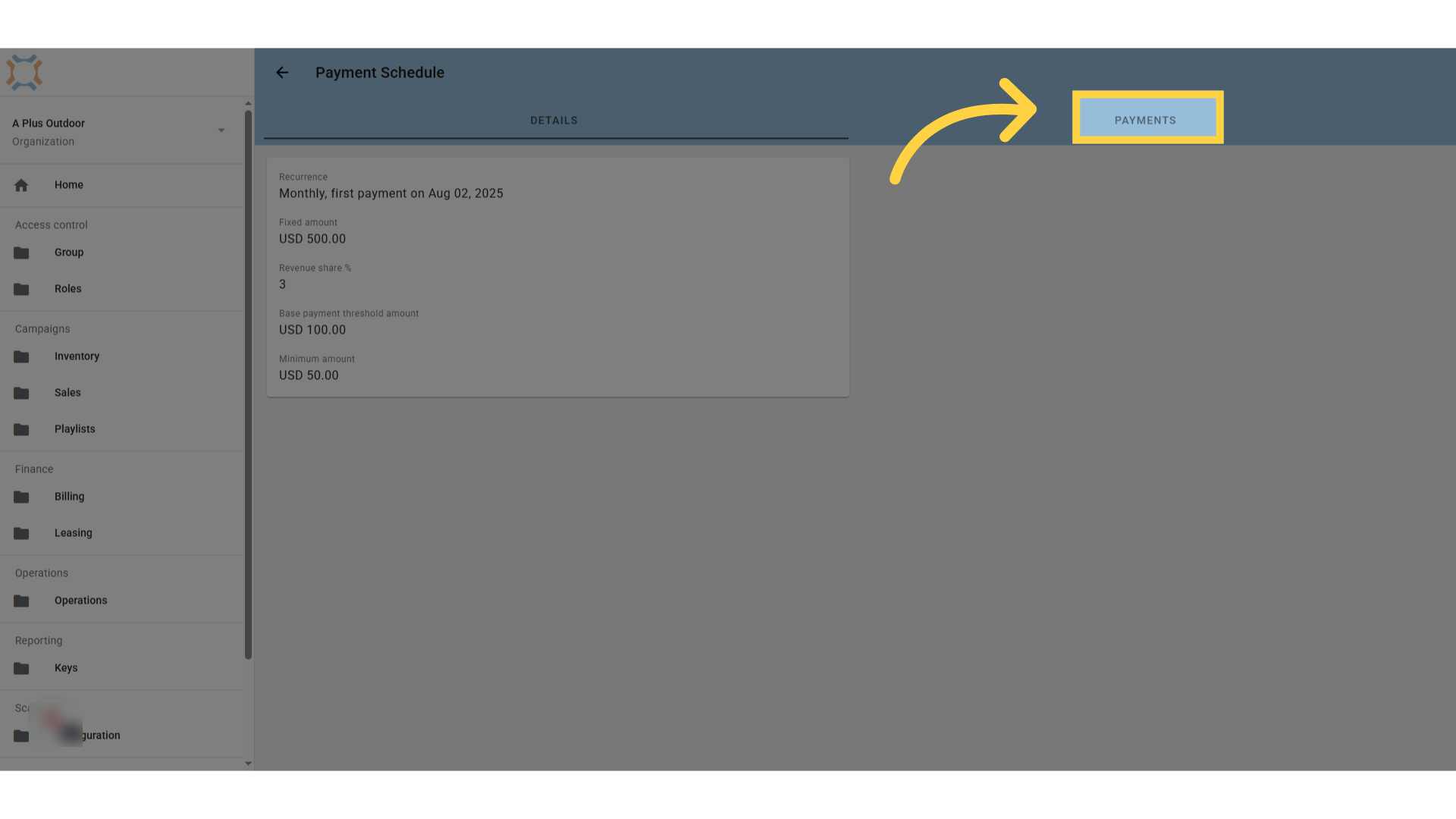
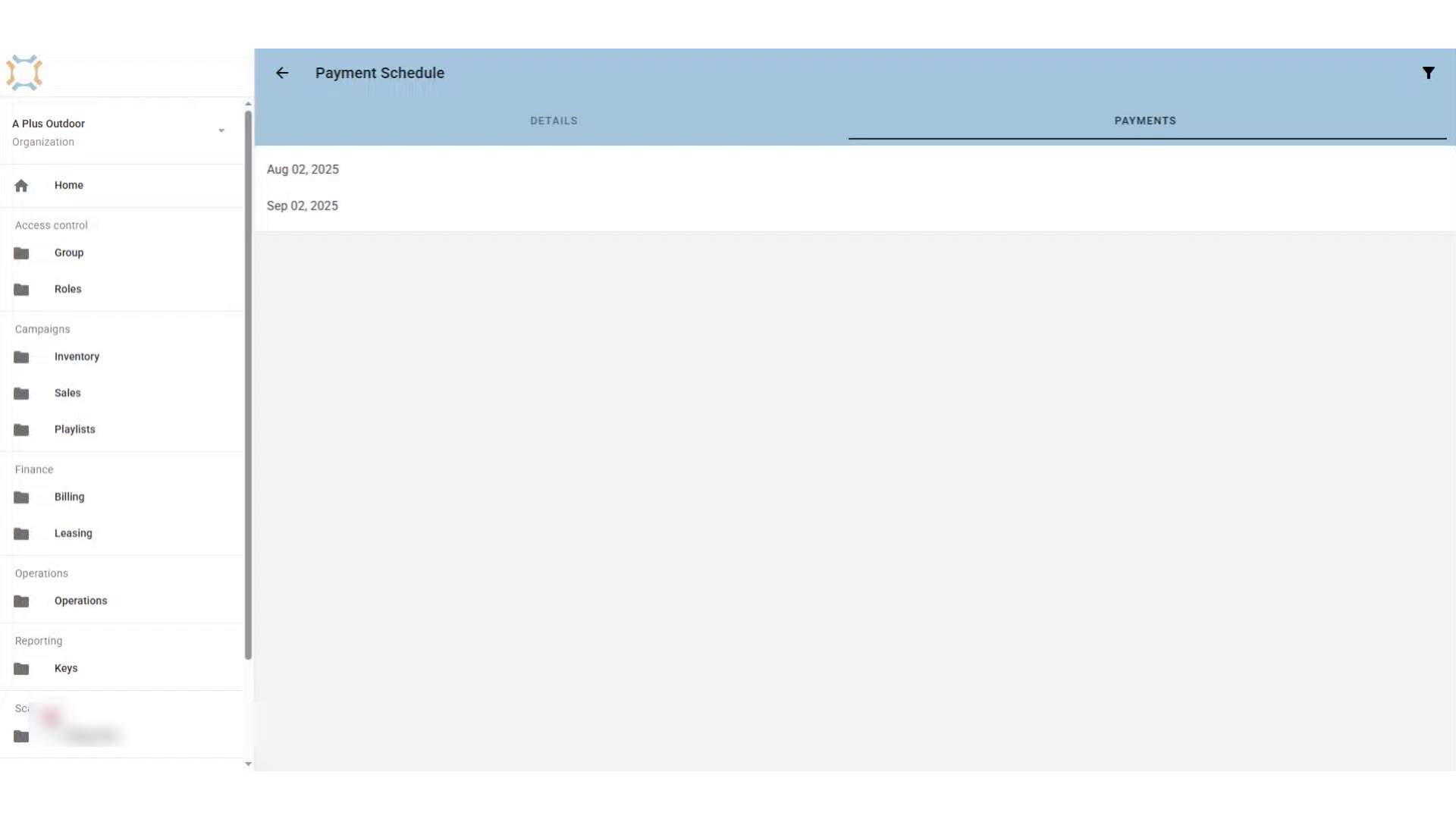
Click Payments
Click on Payments to see the list of payments.
View Payments
Ad Manager Connect will display all remaining payments based on the revised end date for this payment schedule.
Comments
0 comments
Please sign in to leave a comment.