
To add a lease into Ad Manager Connect you need to go to the Leasing section and clicking on the Leases Card to go to a list of Leases. From here you can click on the Add icon ().
When adding a Lease, you can enter a lease number and a date range for the lease. Once you have finished entering this information, click the Create icon ().
Once you have added a lease, if will be in a DRAFT status. This means you can change the information related to the lease at any time. Once you SIGN a lease, you will not be able to change it.
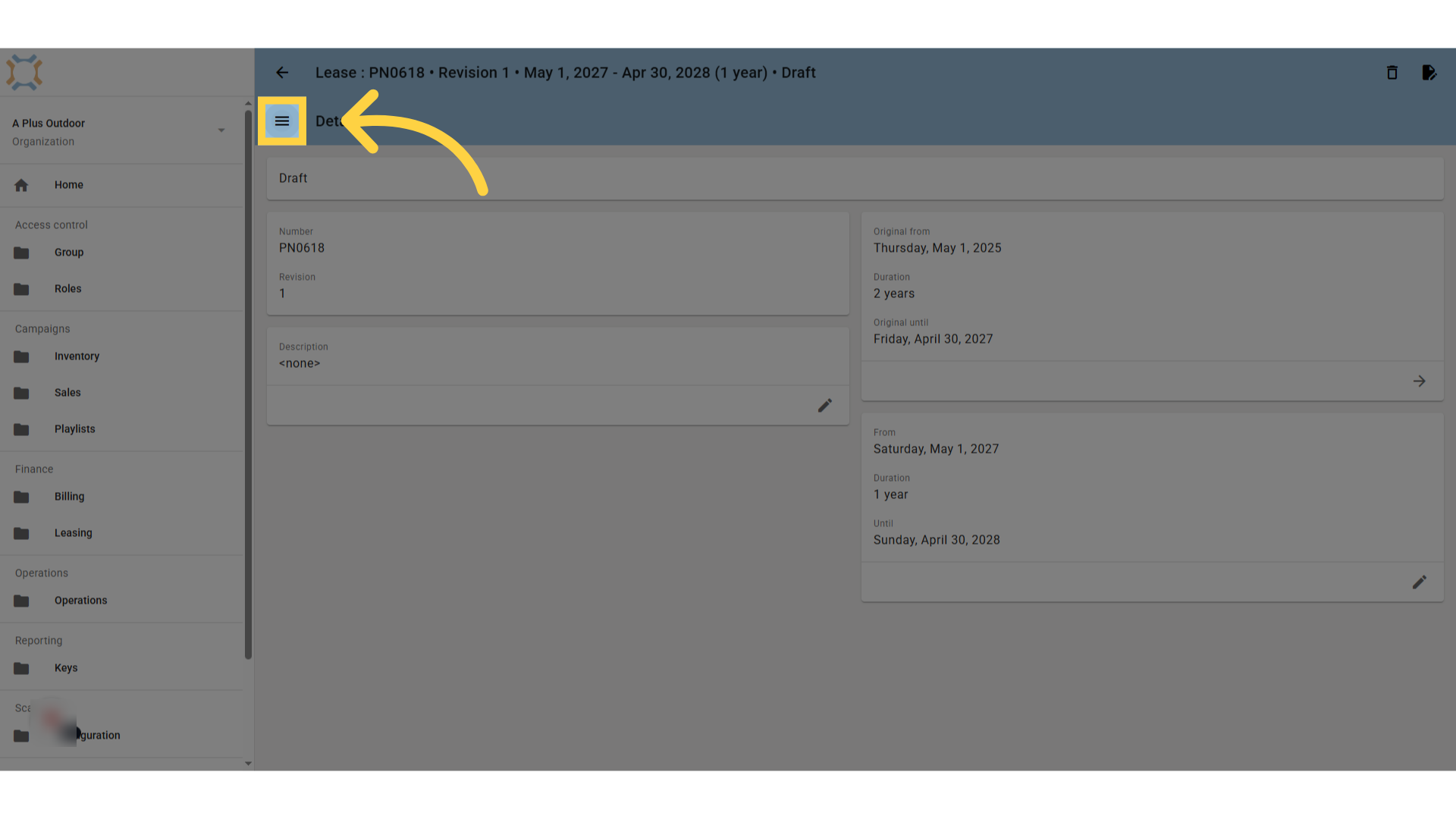
With the Draft lease, you can add a description or change any of the information on the Details page. You can also add Sites to the Lease by clicking on the menu () and going to the Sites page.
Adding a Site to a Lease
To add Sites to a Lease, click on the Add Icon (). Type in part of the Site description and select the appropriate Site from the list. A site must exist before completing this step.
You can add multiple Sites to the list by repeating this process.
Adding Lessors to a Lease
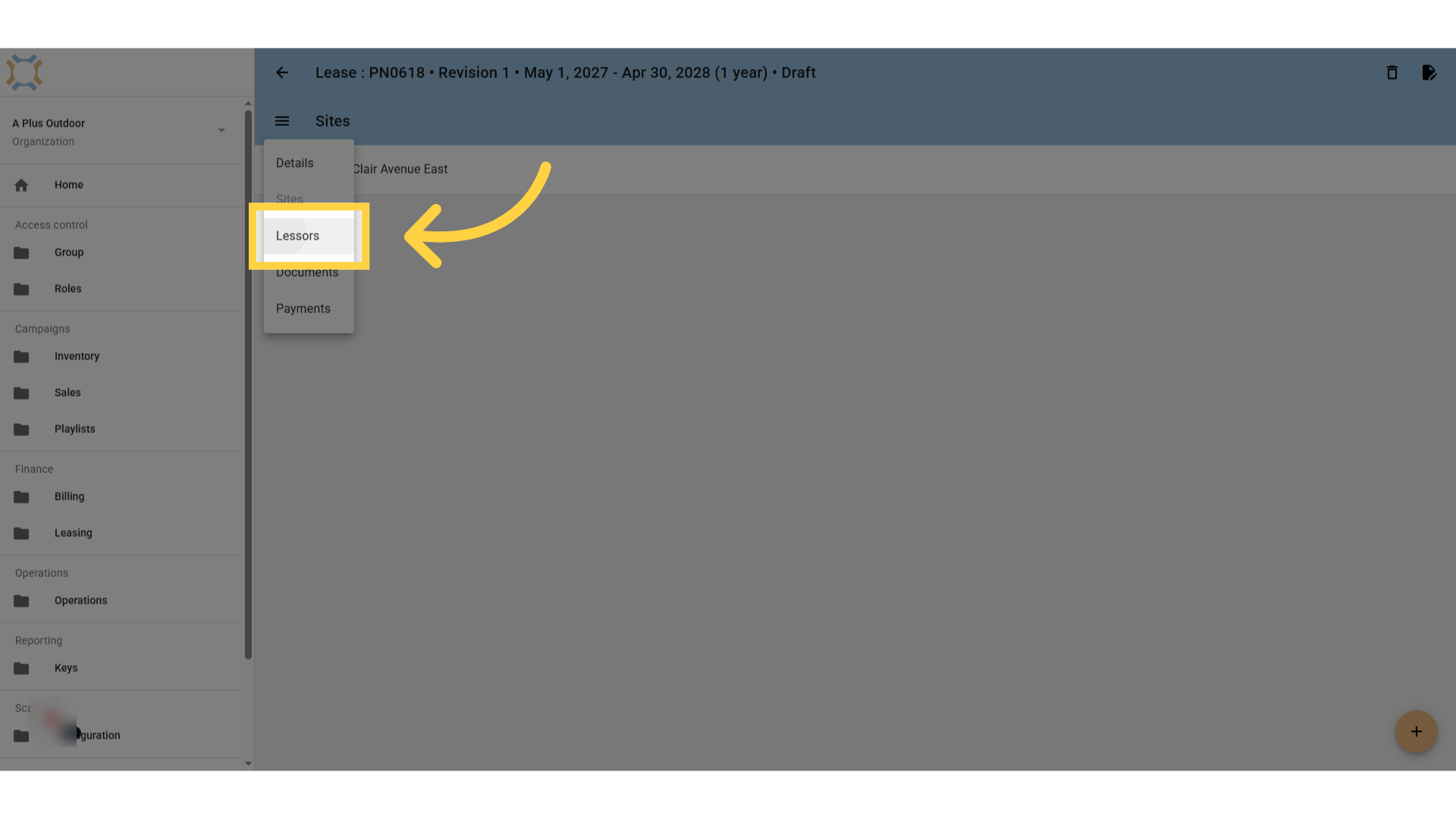
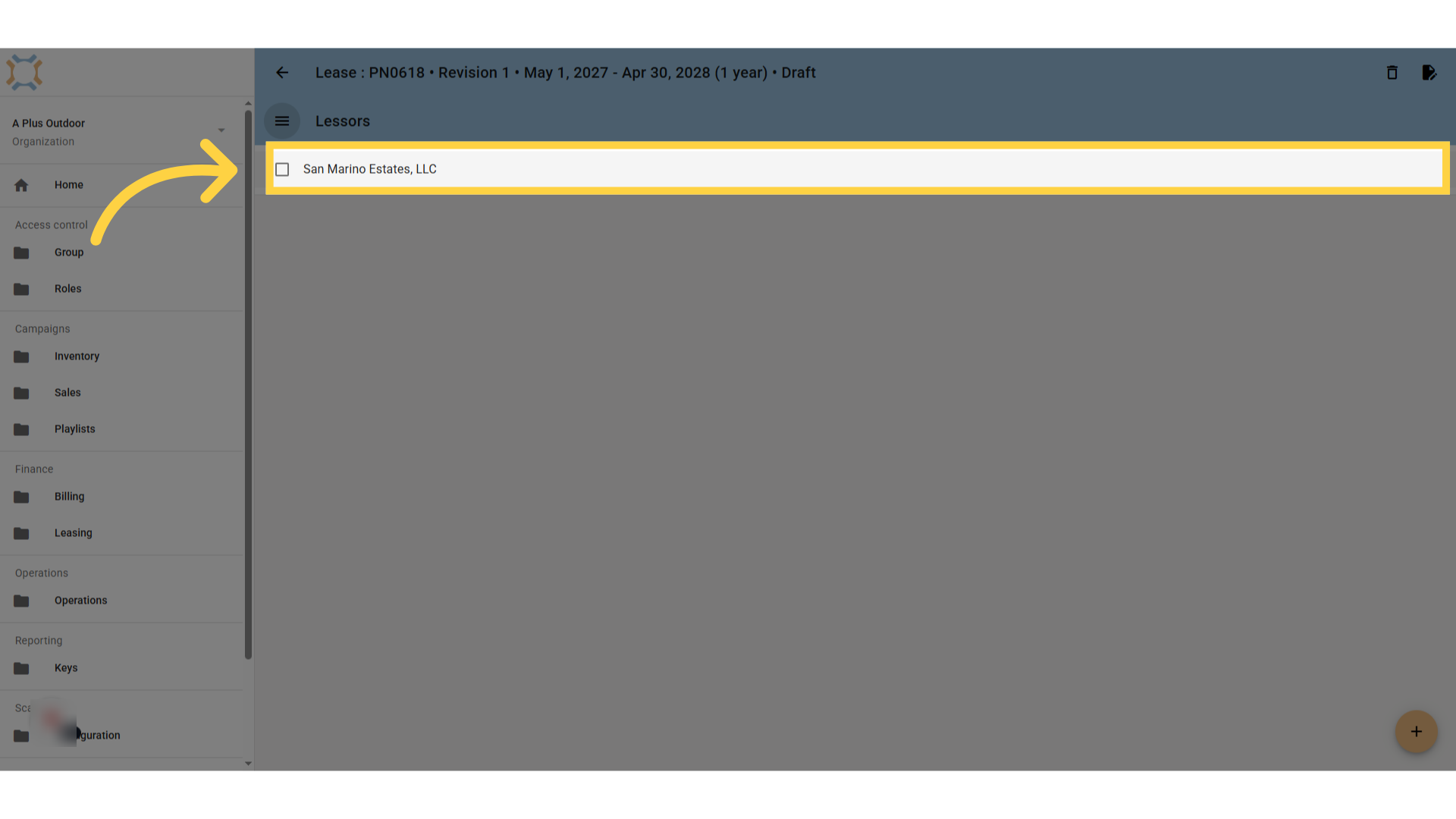
To add one or more Lessors to a Lease, click on the Menu () and select Lessors. Click the Add icon (
) to add a Lessor to the Lease.
You can either select an existing Lessor from the list, or create a new Lessor by clicking New.
If you click New, you will be prompted to add the Payee Name. After you have done this, click "Create". Please note that you still will need to update the Lessor contact and Account information by going to the Lessor and changing this information.
After you have added a Lessor to a Lease, you can add additional Lessors by following the same process.
Creating Payment Schedules
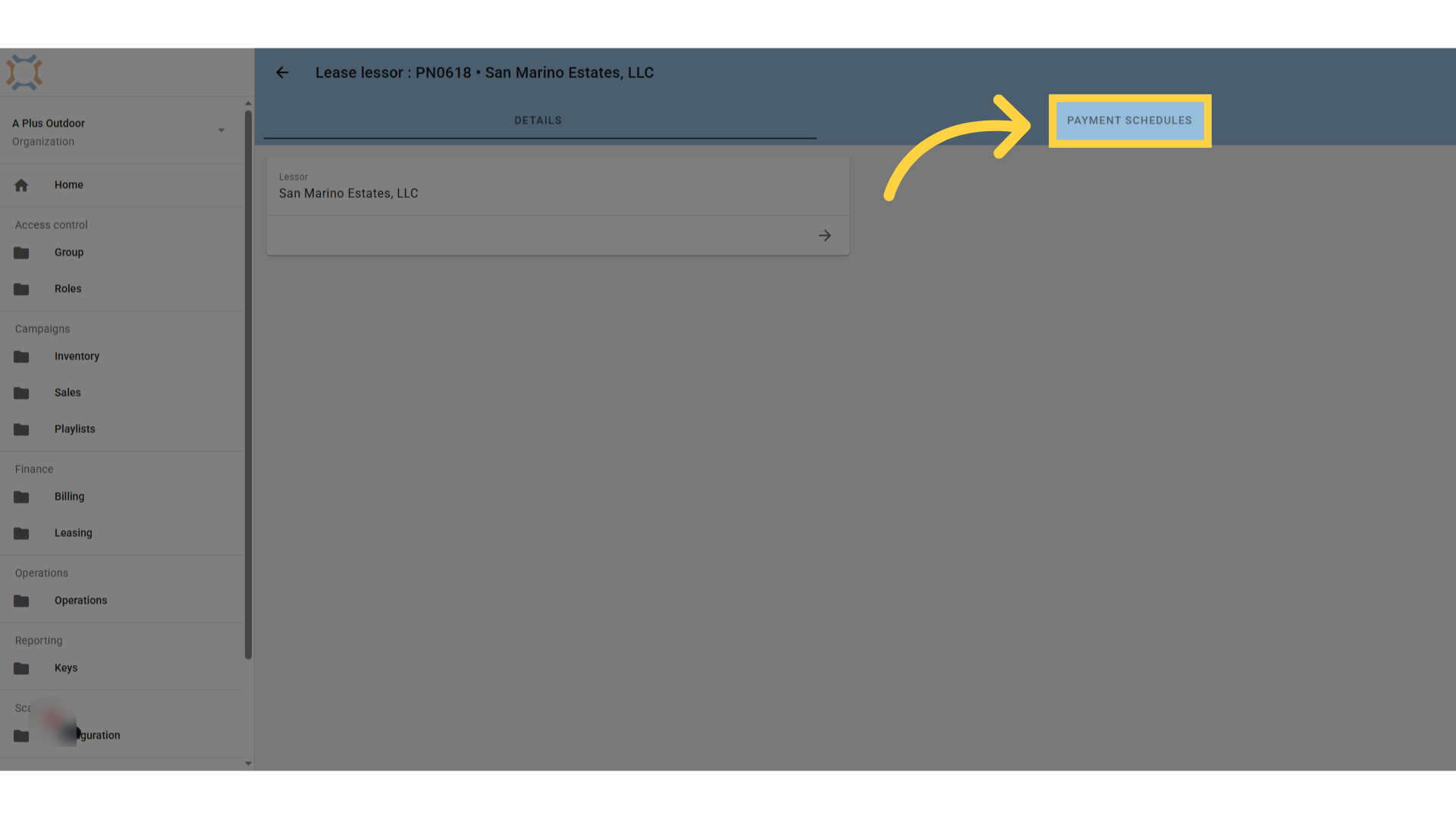
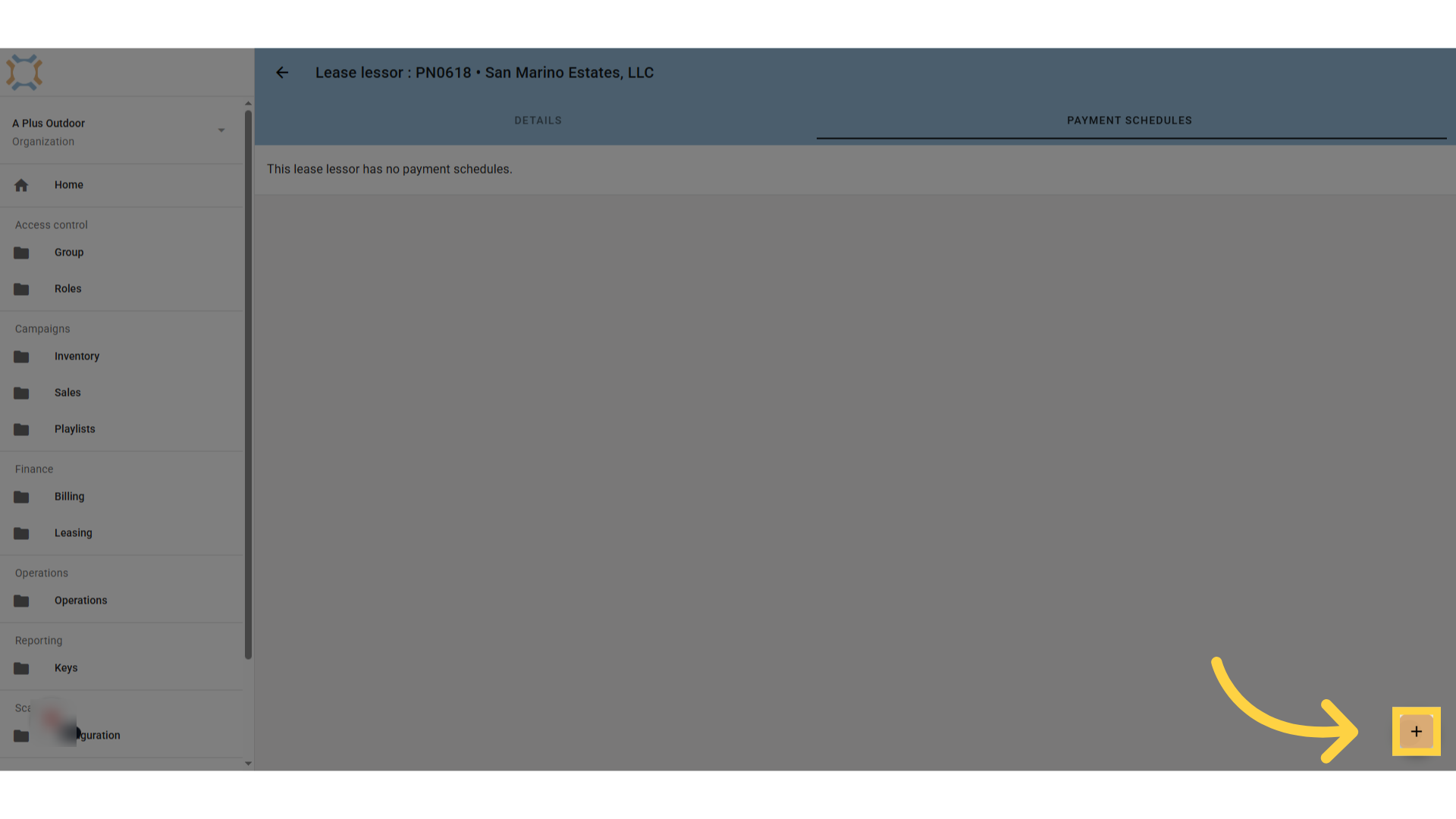
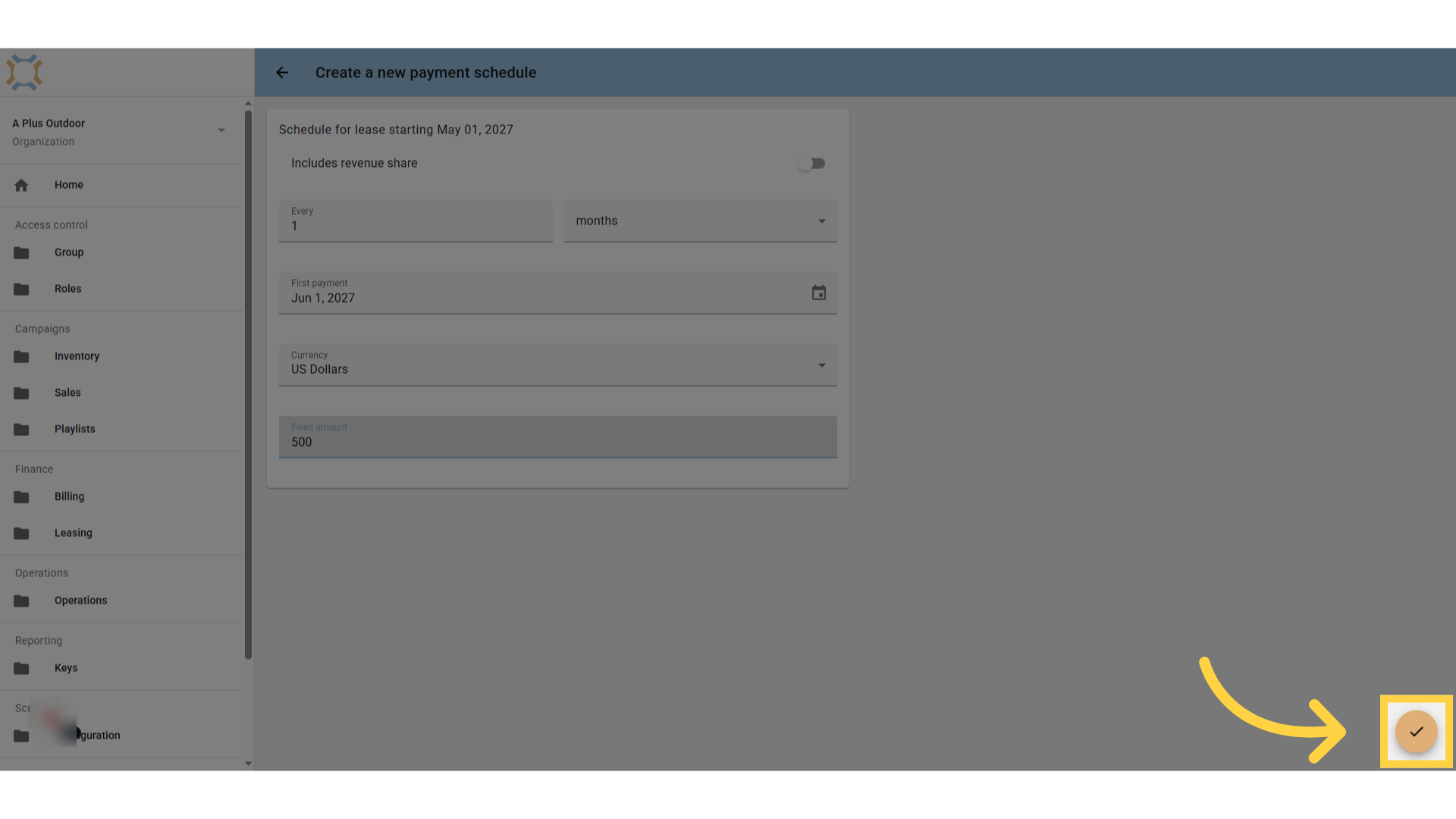
To add one or more Payment Schedules to a Lessor, click on the Payment Schedules tab. To add a new Payment Schedule for this Lessor, click the Add icon ().
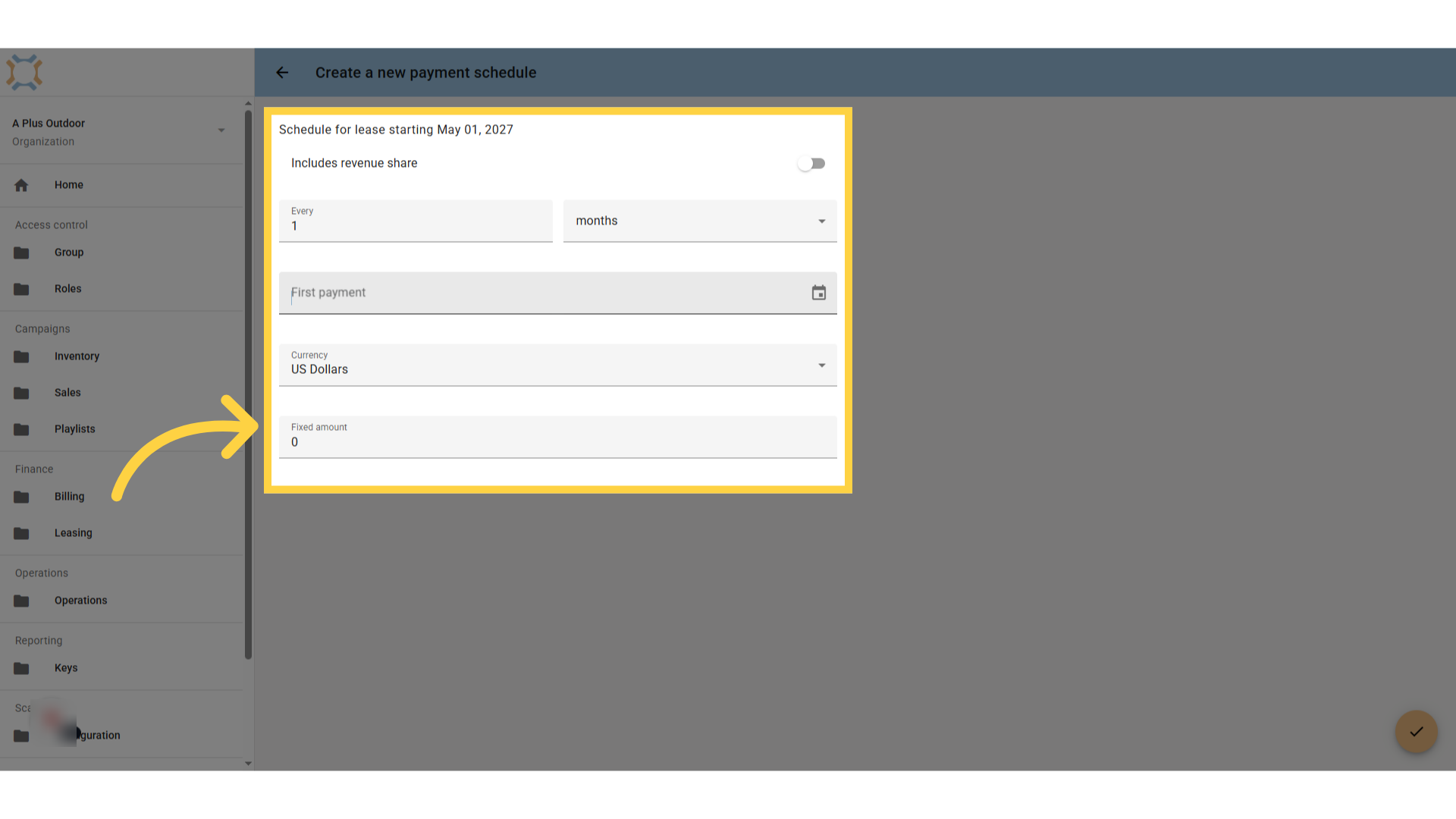
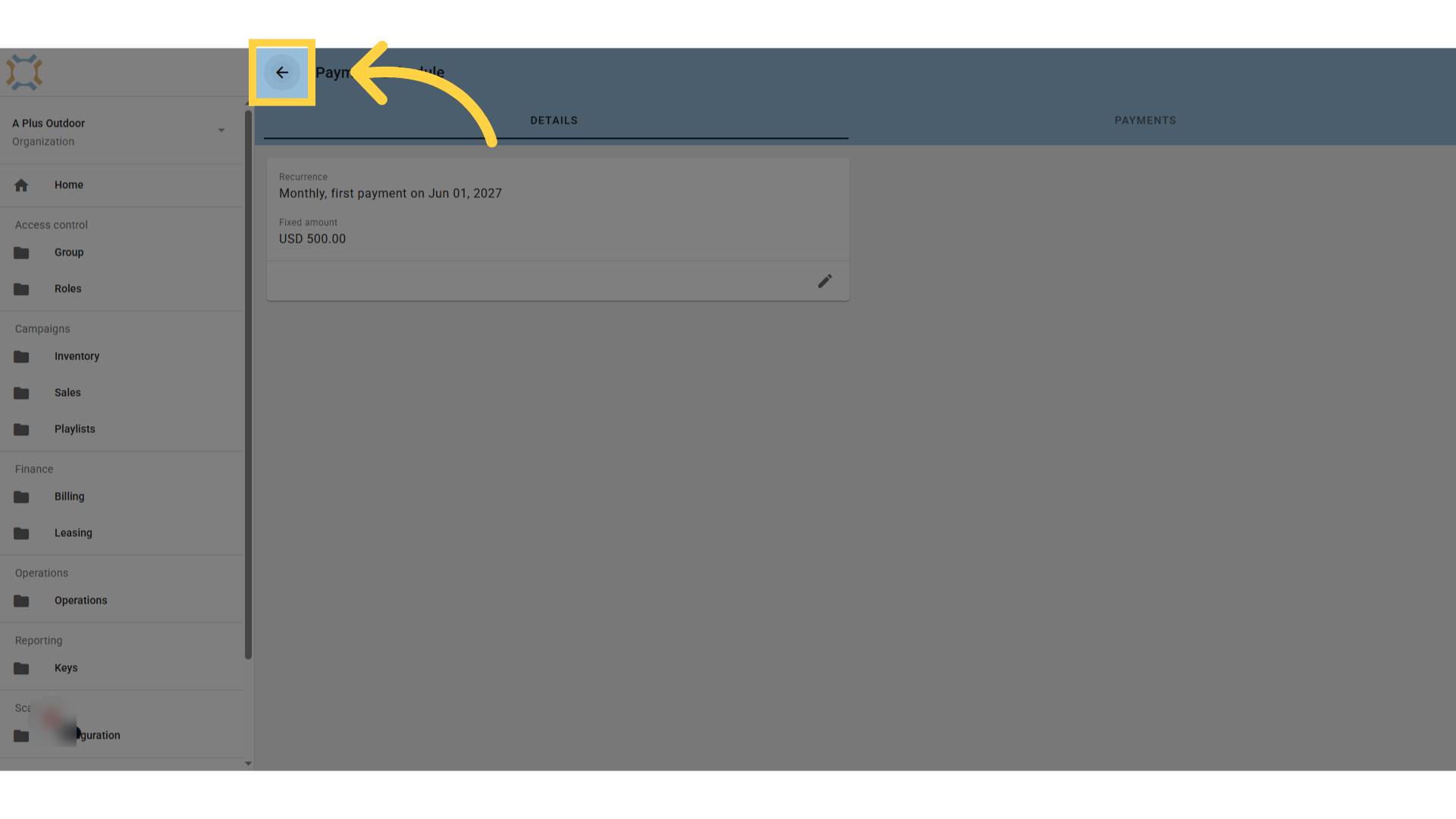
From here you will be able to enter information that will be used to generate a Payment Schedule for the Lessor. You can identify the frequency of payments as well as the first payment date. You can also identify whether this schedule includes a revenue share component, a fixed amount, the revenue share percentage and a minimum amount. Once you have finished entering this information, click the Create icon (). Once you have done this, you can preview a list of the first 5 and last 5 payments on the Lessor's Payment schedule tab to ensure it has been set up properly. These payments will not be created until the lease is signed.
You can edit the Payment Schedule details by clicking the Edit icon (). Please note that you cannot change a Payment Schedule once a Lease has been Signed.
Adding Documents to a Lease
To add one or more Documents to a Lease, click on the Menu () and select Documents.
From here you can drag and drop one or more documents to attach to this Lease, or you can click on the Upload button () to select files from your computer to upload.
Sign a Lease
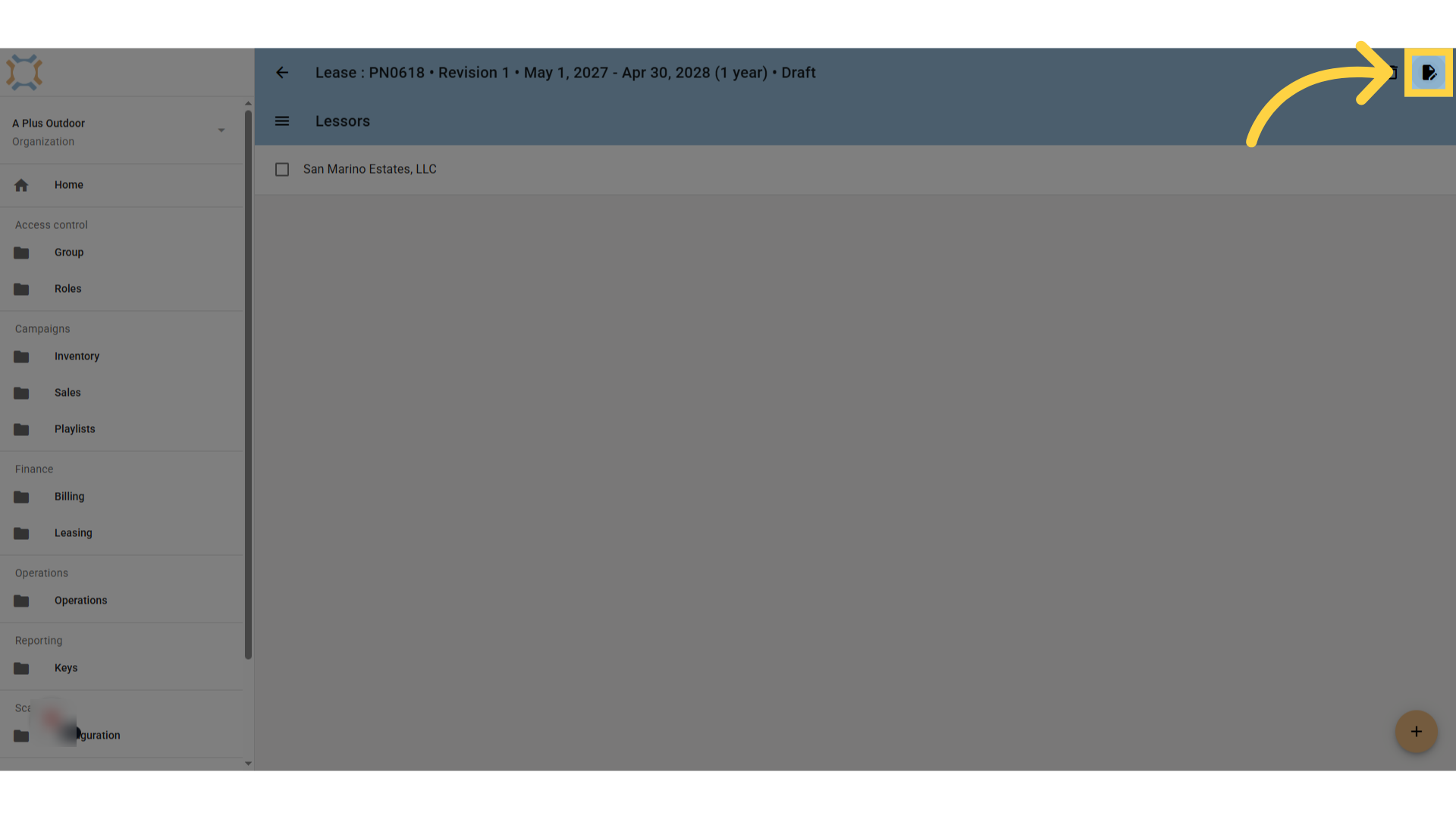
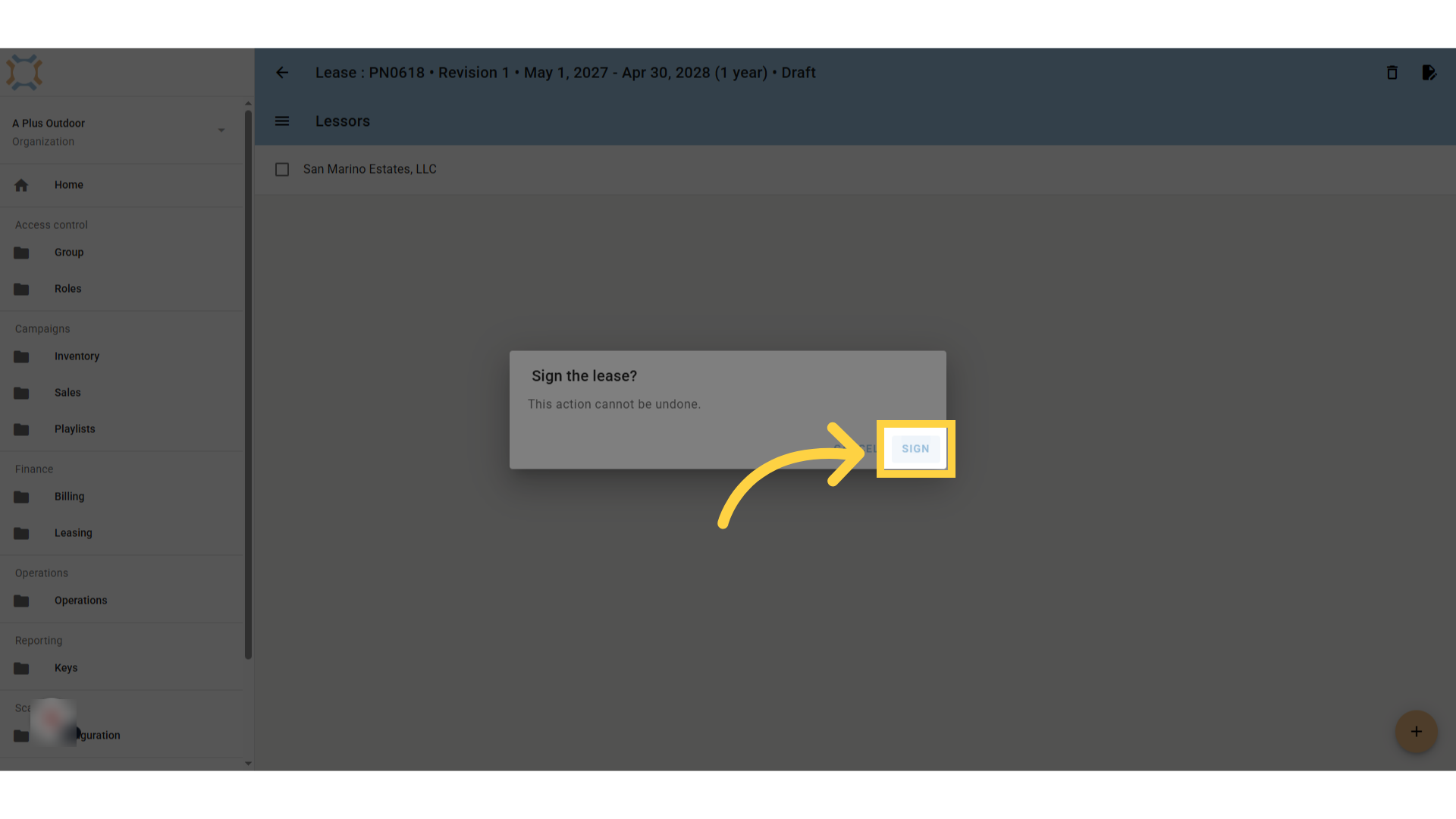
After you have entered all the information related to the Lease, including any Sites, Lessors, Lessor Payment Schedules and Documents you want to add, you can Sign the Lease. To Sign a Lease, go to the Details page from the Menu () and click the Sign icon (
). You will be prompted to confirm that you wish to Sign the Lease. Please note that once a Lease is Signed, you cannot change any information related to the Lease.
Ending a Lease Early
If a Lease is to end earlier than the originally scheduled Lease End Date, you can End it early by clicking the End Early icon ) from the Lease. You will be prompted for a date to end the Lease on, and when you confirm you wish to do so, Ad Manager will update any Payment Schedules to correspond to the new Lease End Date.
Lease Revisions
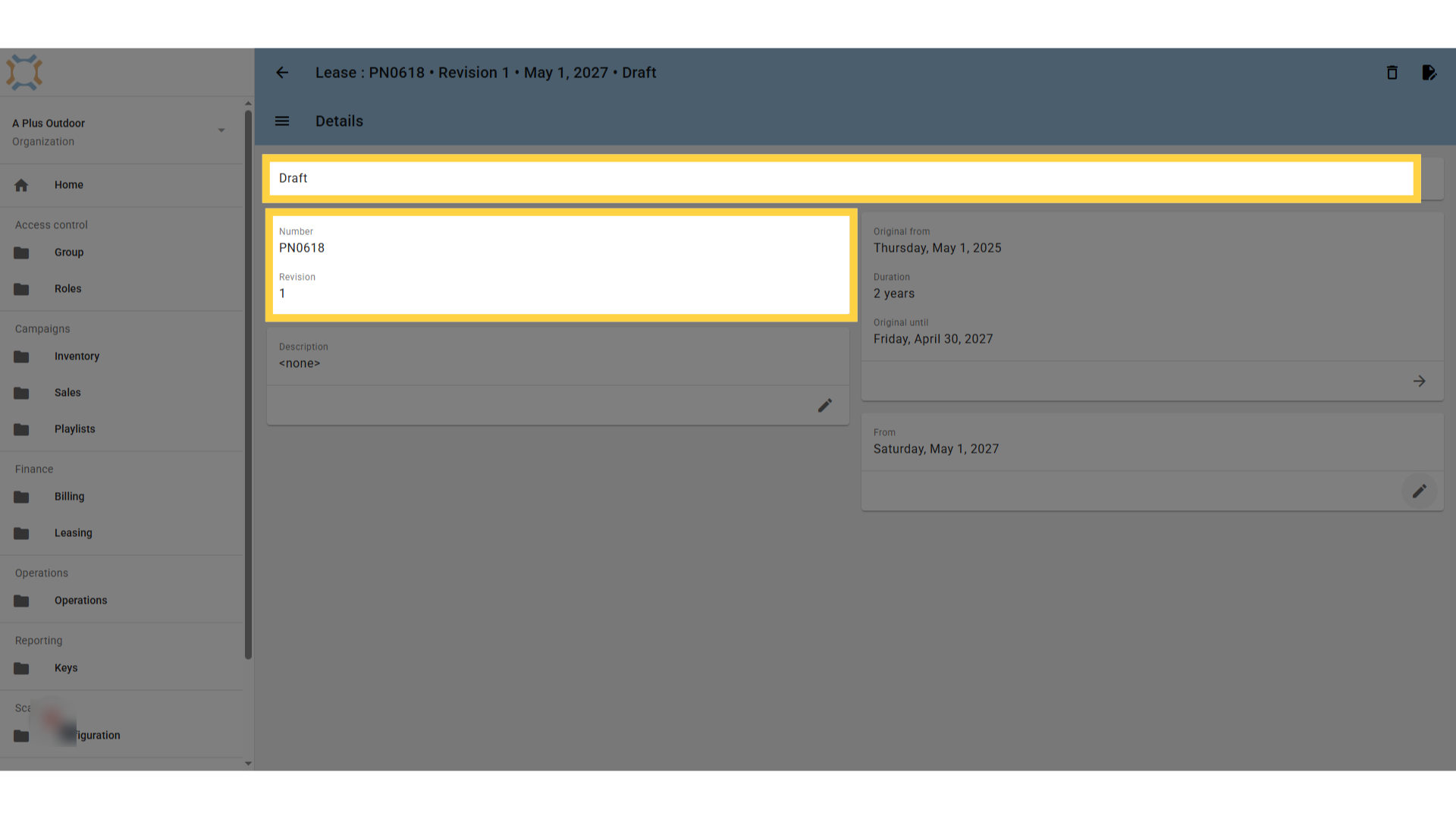
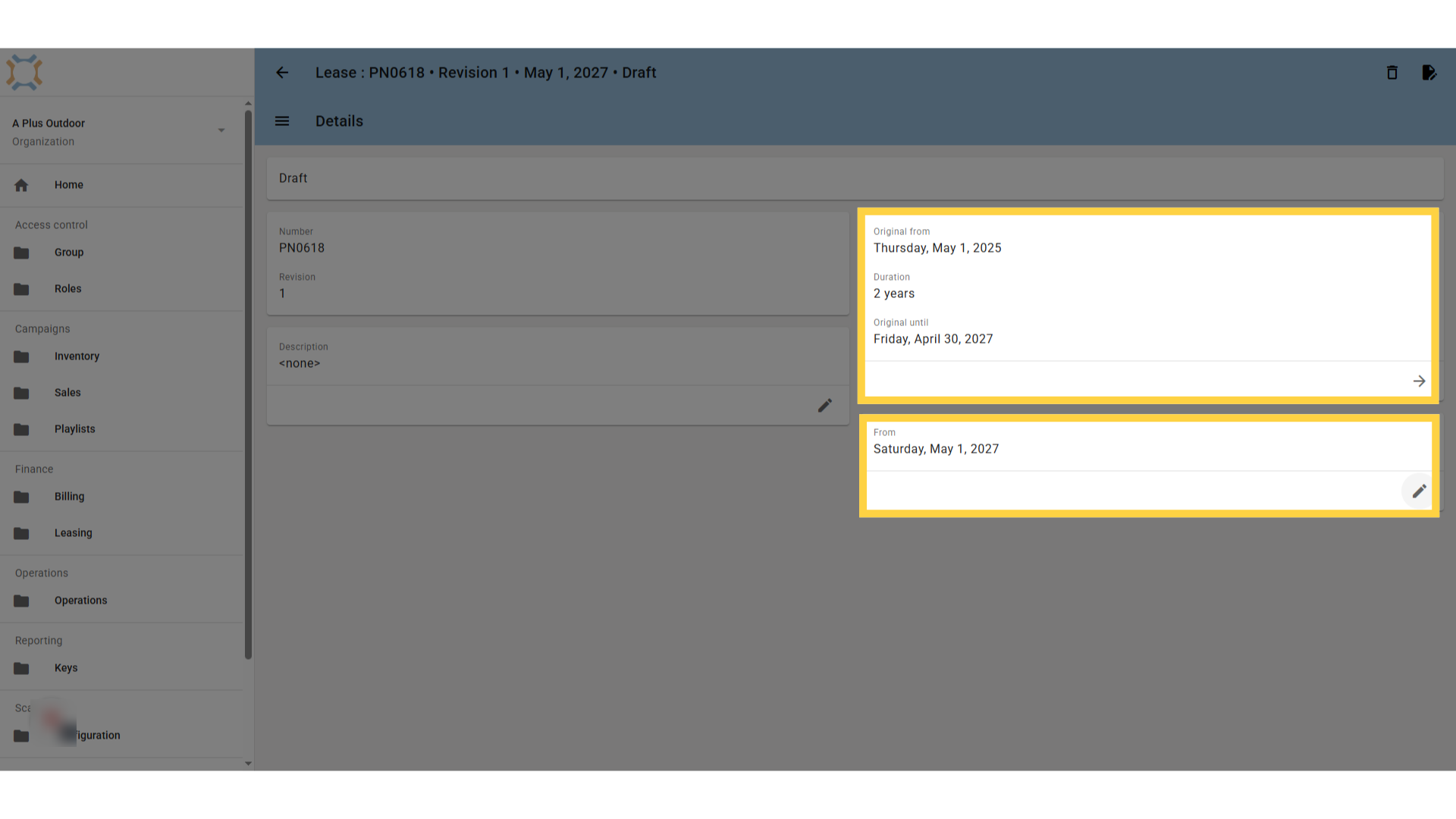
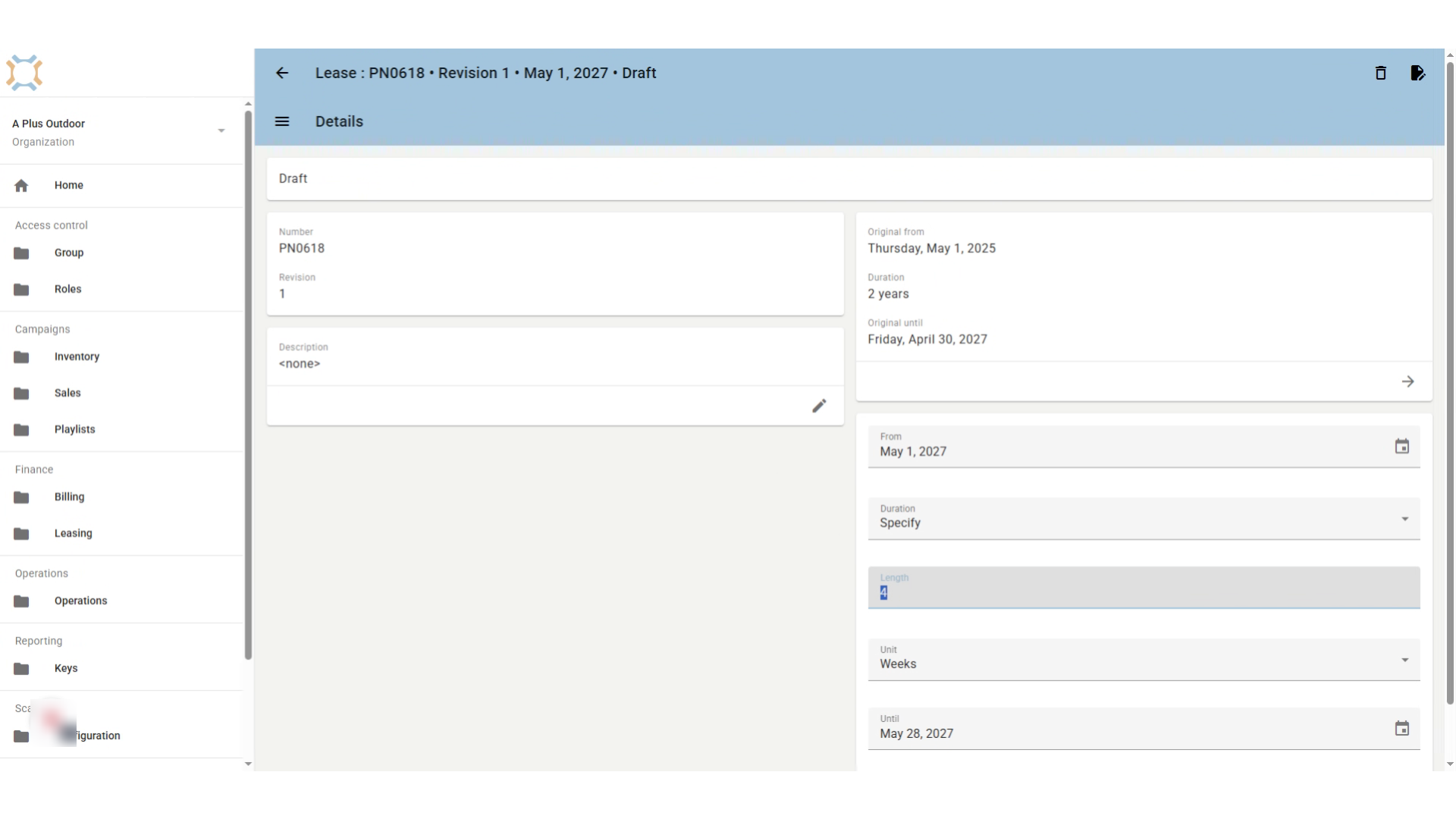
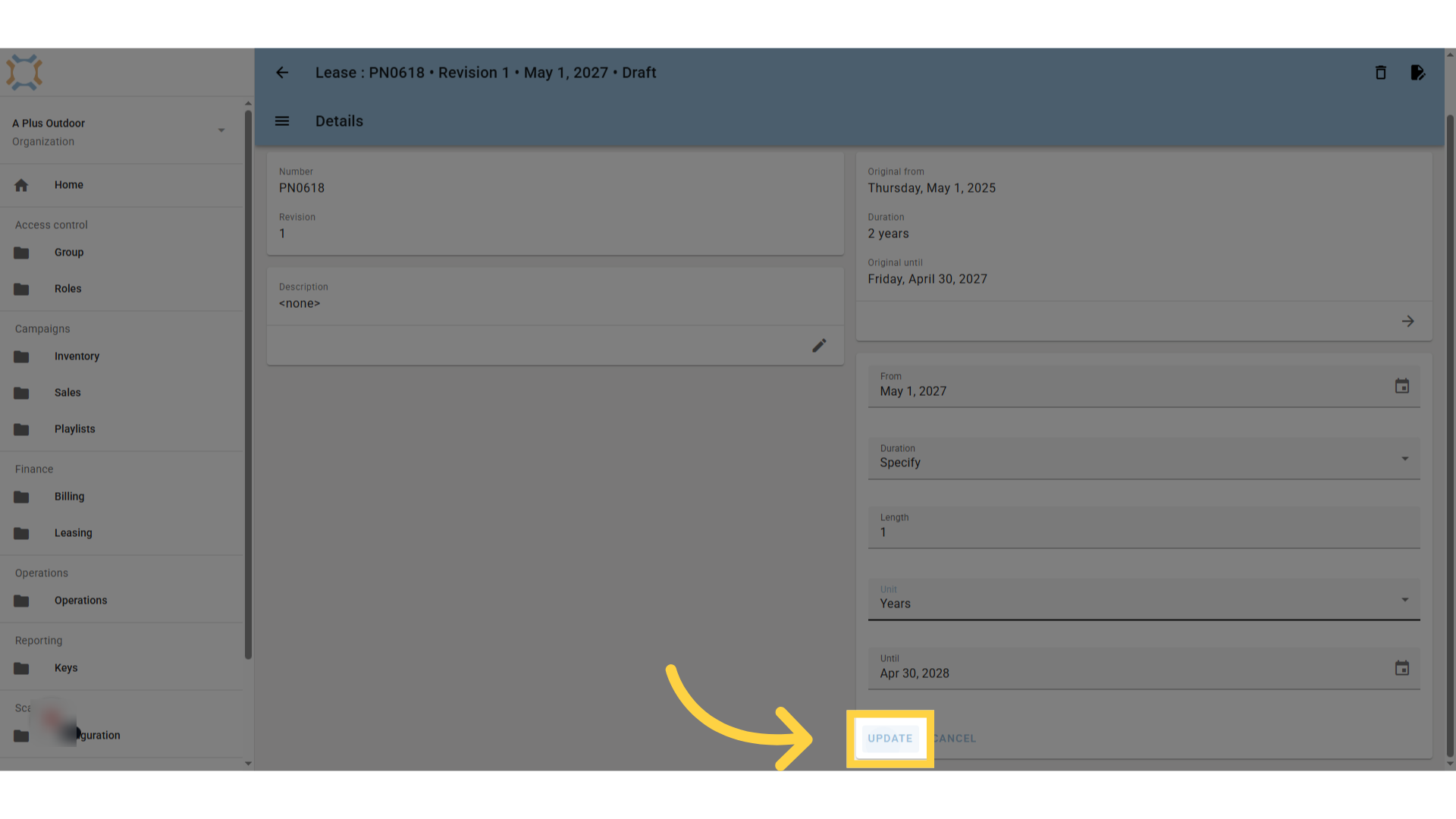
If you wish to Renew a Lease or add an amended version of the Lease (or make any other changes), you will need to create a Lease Revision. To create a revision, click the Create Revision icon (). This will create a Revision of the Lease and will copy the Details, Site, and Lessors from the Lease. It will also start this revised Lease on the first day following the end of the source Lease.
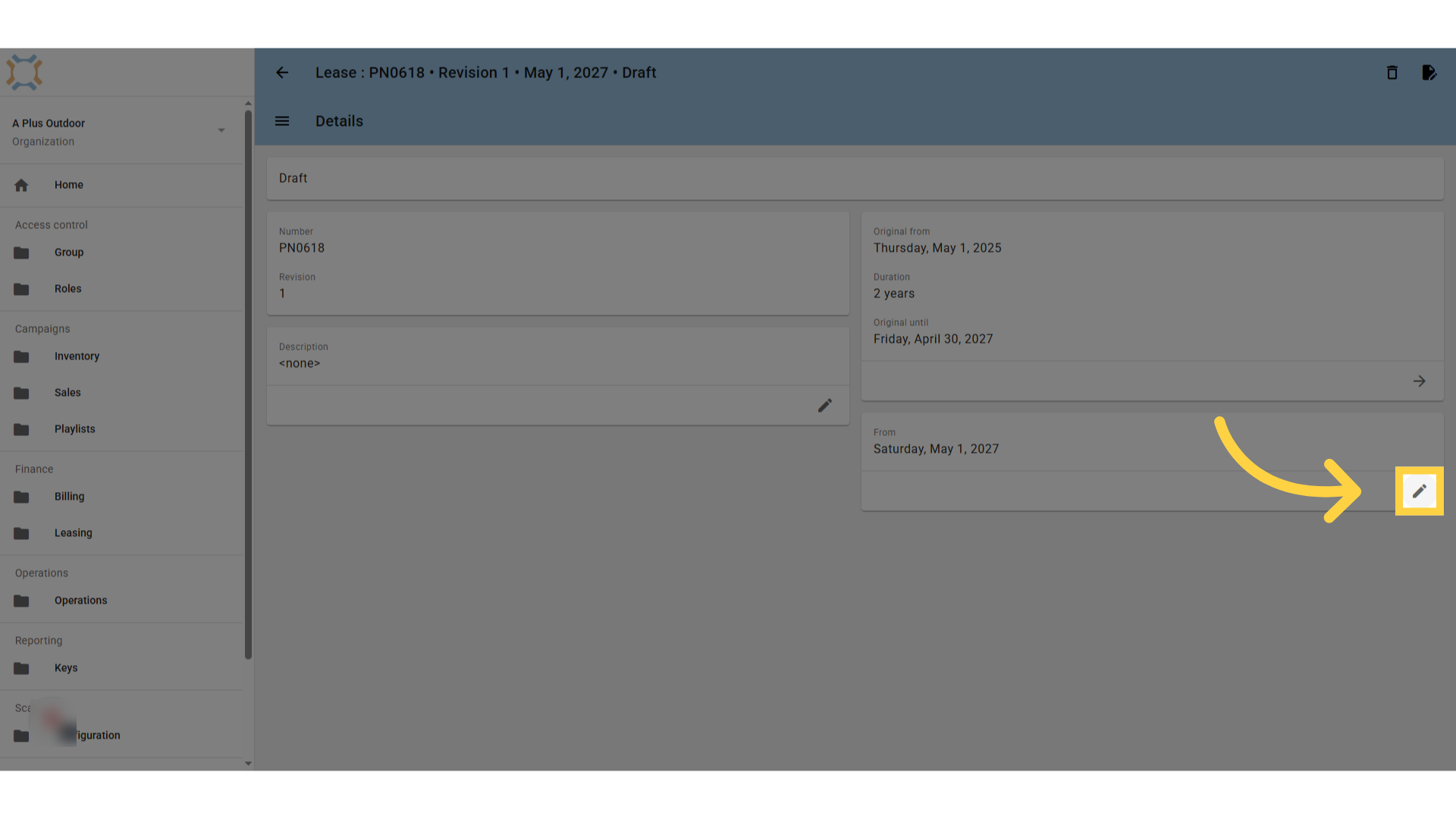
From here you can make the necessary edits to create the Lease Revision. Once you have made the appropriate changes, you can Sign () the Lease Revision.
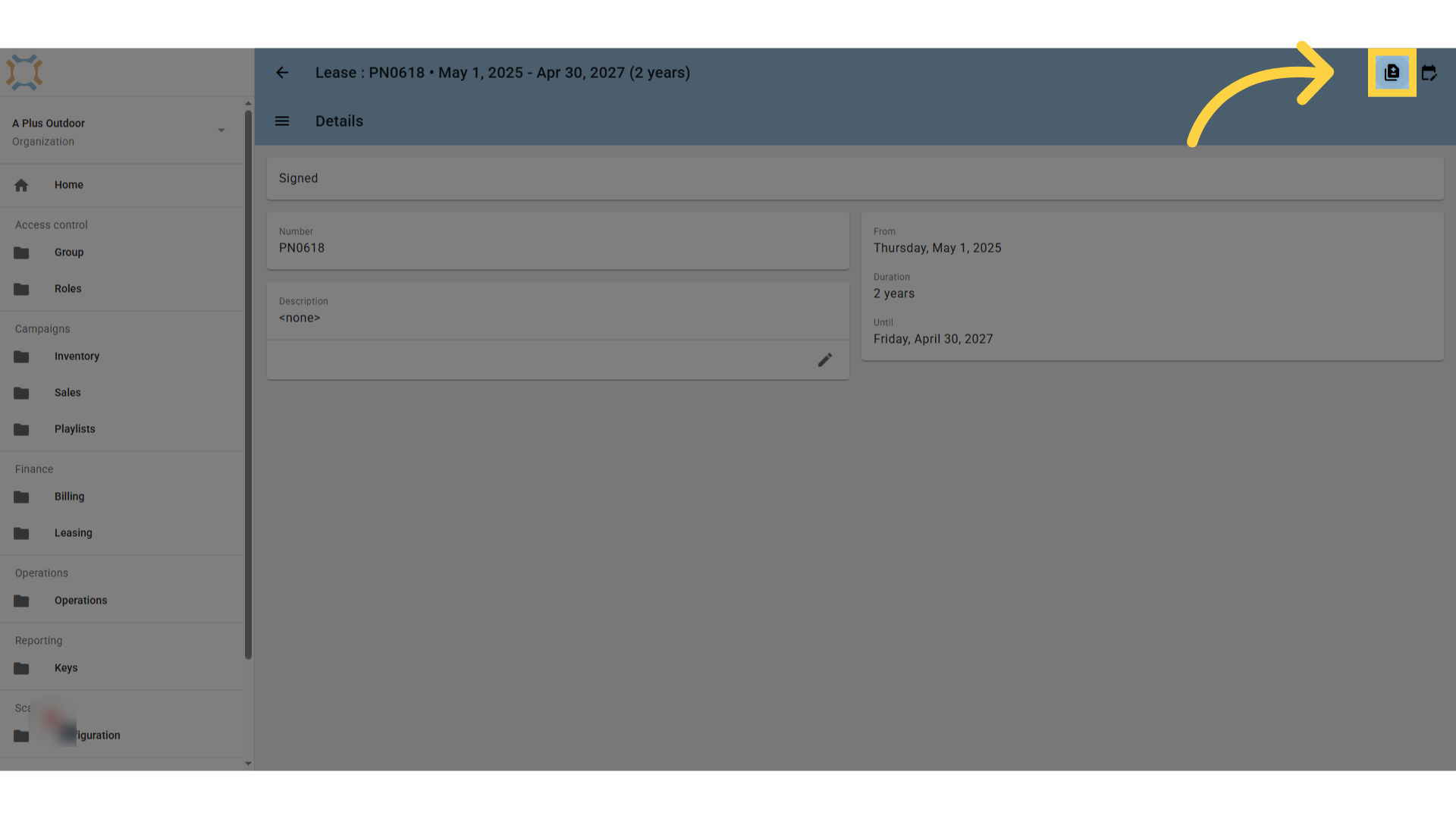
Ad Manager creates a draft of the existing lease and assigns a revision number to it.
Comments
0 comments
Article is closed for comments.