
The Ad Manager Connect Dashboard allows you to select which pieces of information you would like to have quick access to. When you first log in, you will see a default set of dashboard indicators based on your roles within the organization.
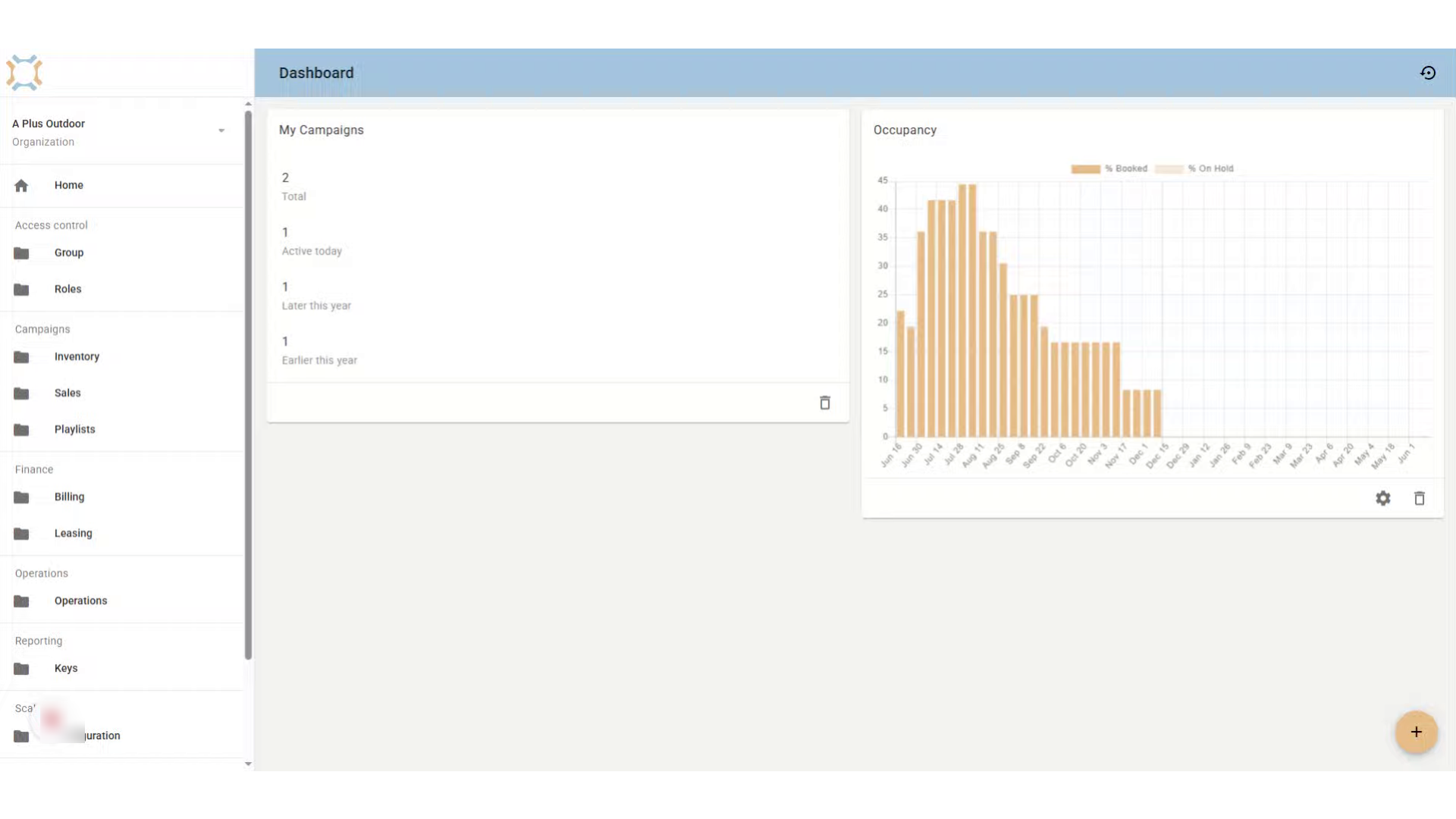
Click "add"
If you want to add a dashboard indicator that you have access to, but is currently not displayed, click the Add button
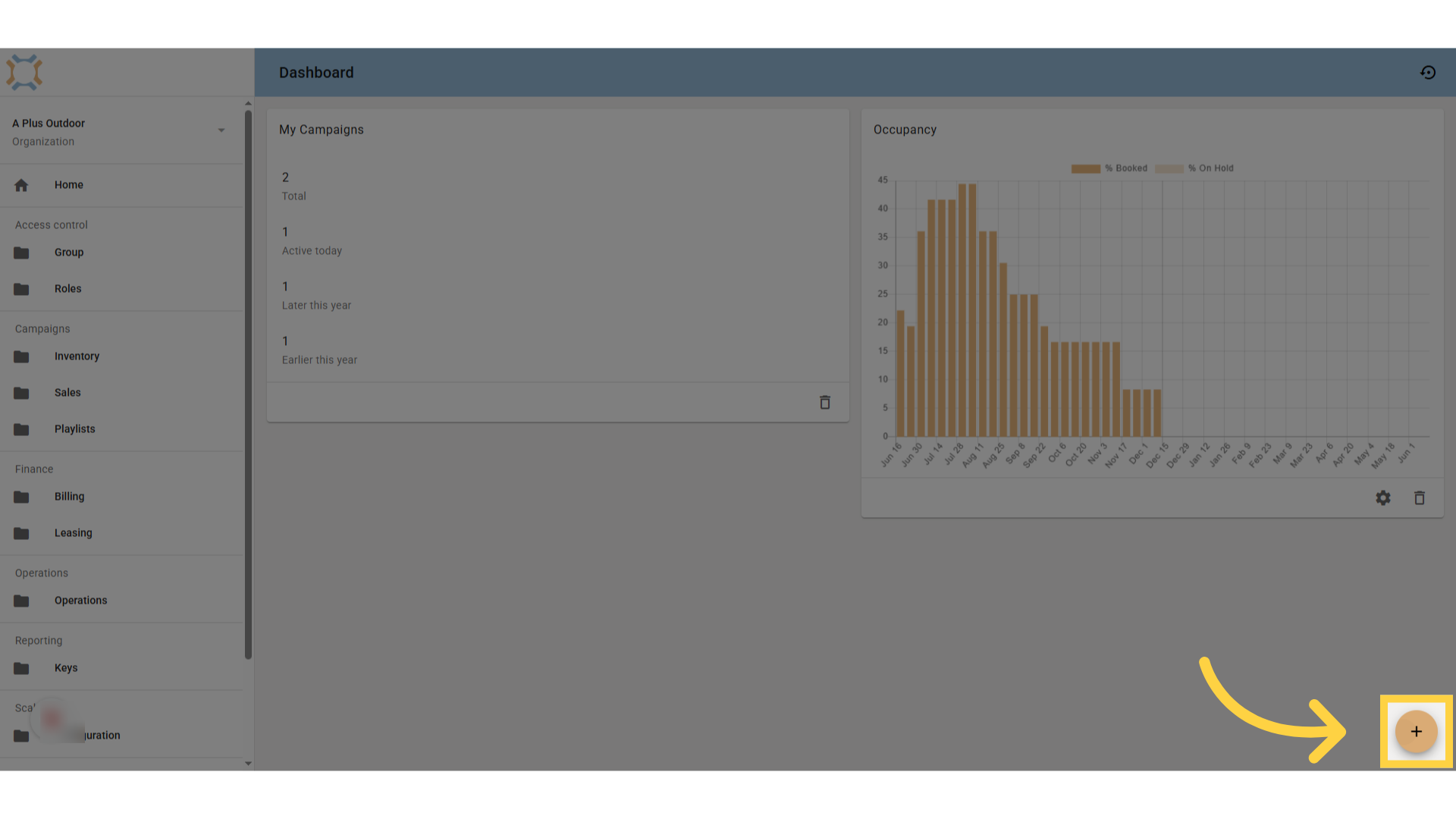
Select indicator to add
You will be shown a list of dashboard indicators that you have access to based on your role within the organization. Select the indicator you wish to add to your dashboard.
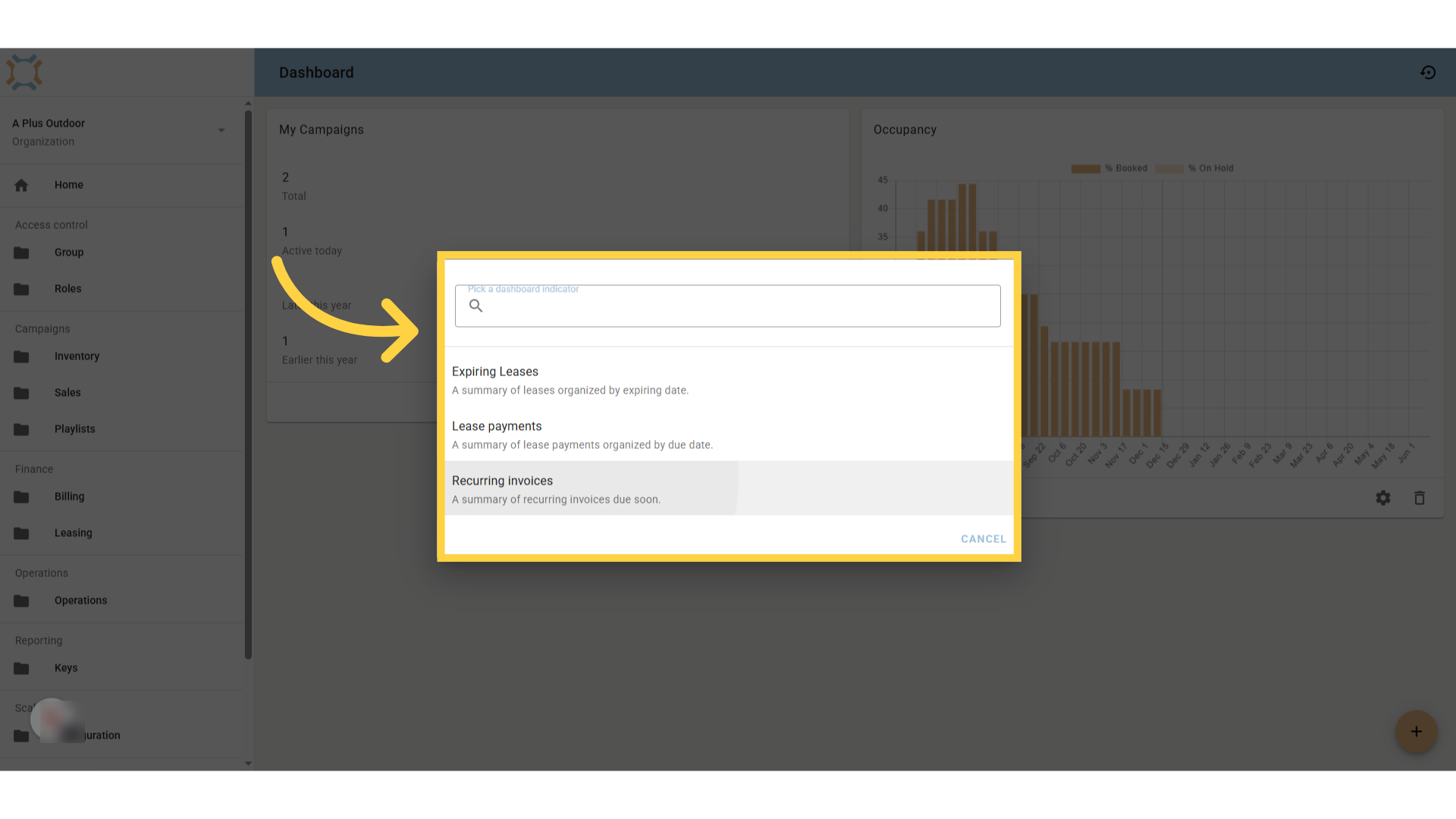
Select shortcut
When looking at a dashboard indicator, you will be shown information. If you wish to view a specific element, click on it to be taken to the appropriate list of information.
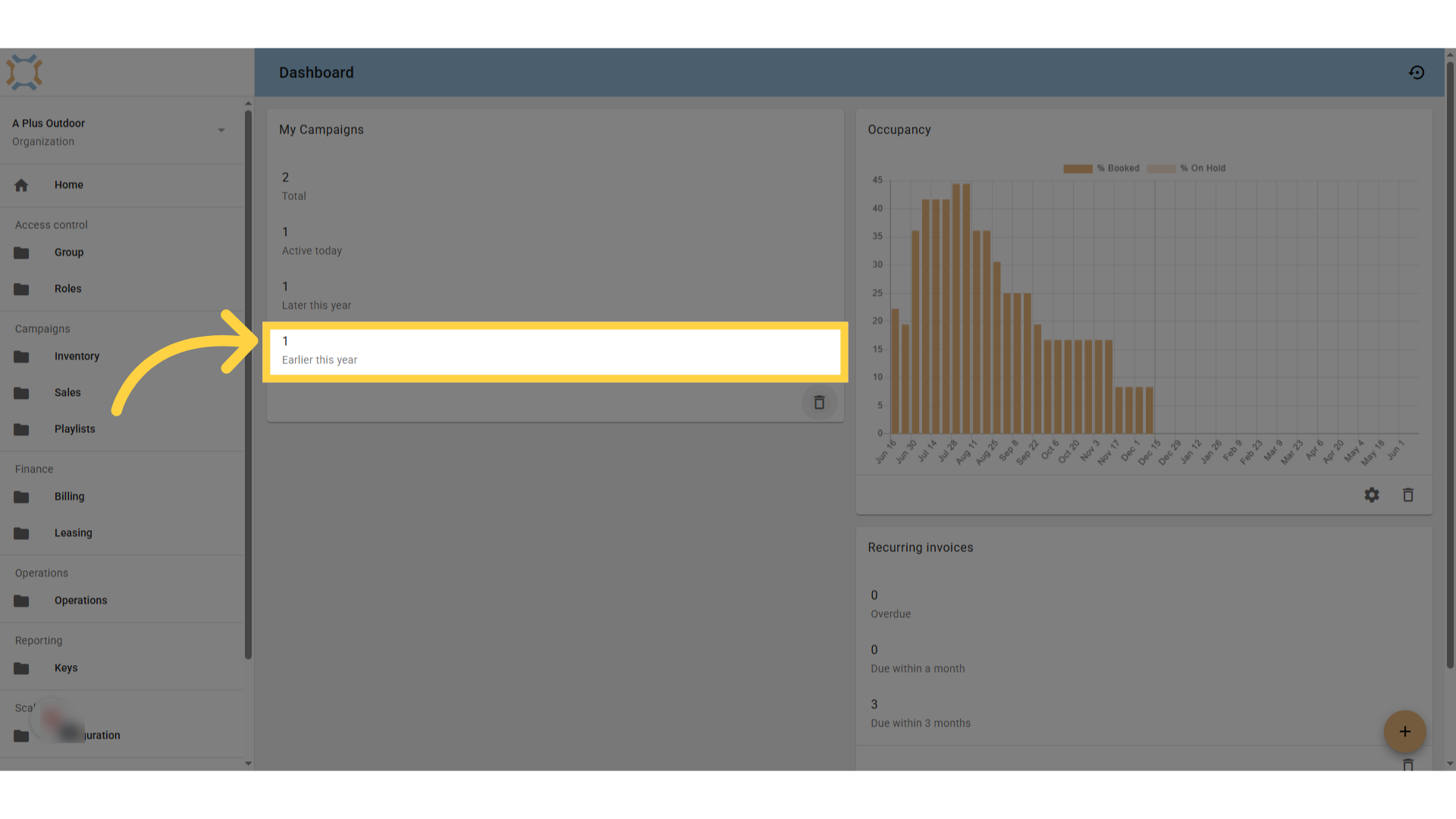
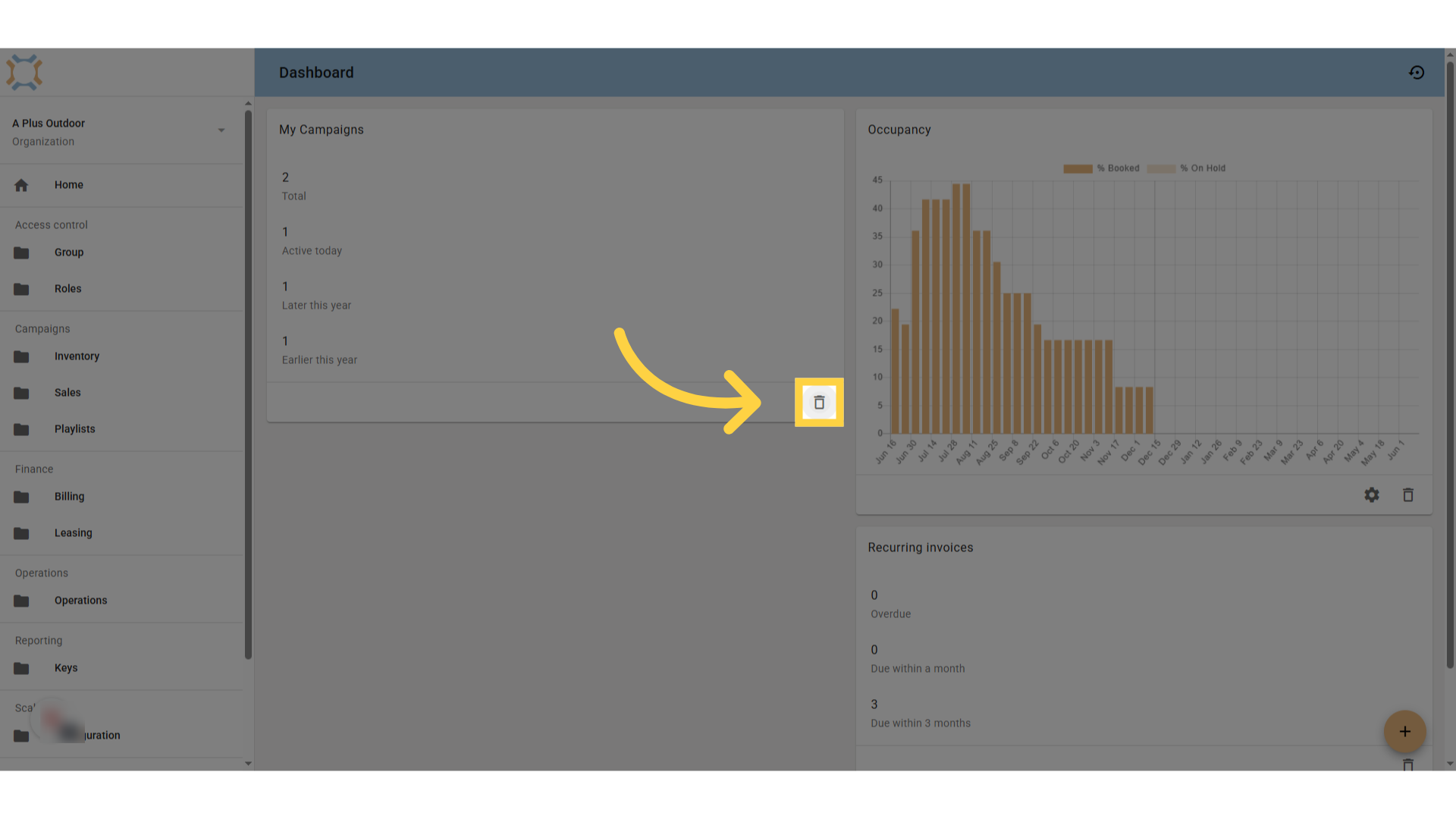
Removing an indicator
If you do not want to see an indicator that is currently on your dashboard, click the appropriate delete button. If you accidentally delete an indicator, you can re-add it via the "add" button
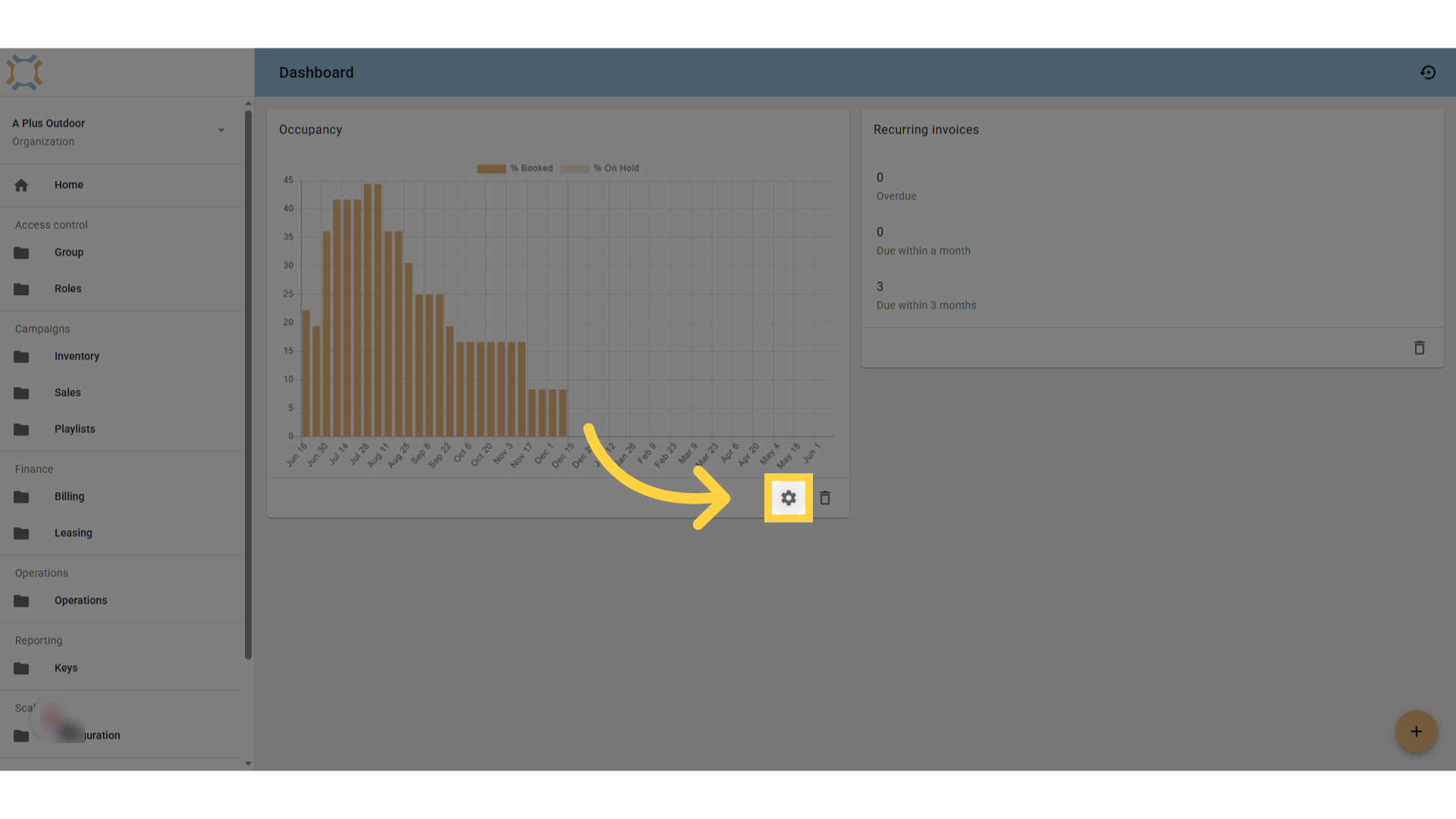
Click "settings"
Some dashboard indicators allow you to customize the information being presented. Click the settings button to customize the information being shown.
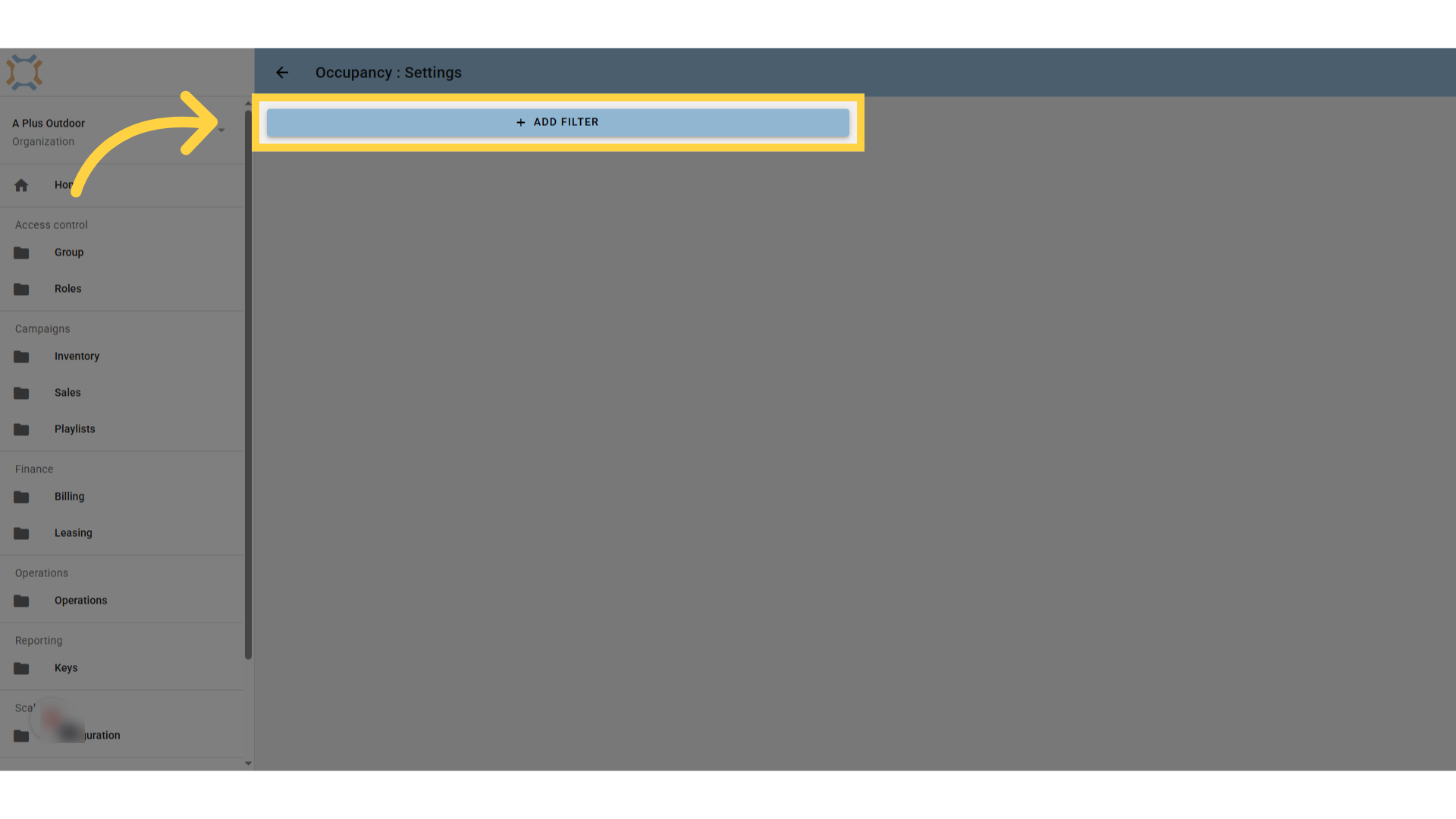
Click here
Click on the appropriate element you wish to use for customizing. For example, you can filter which information is presented.
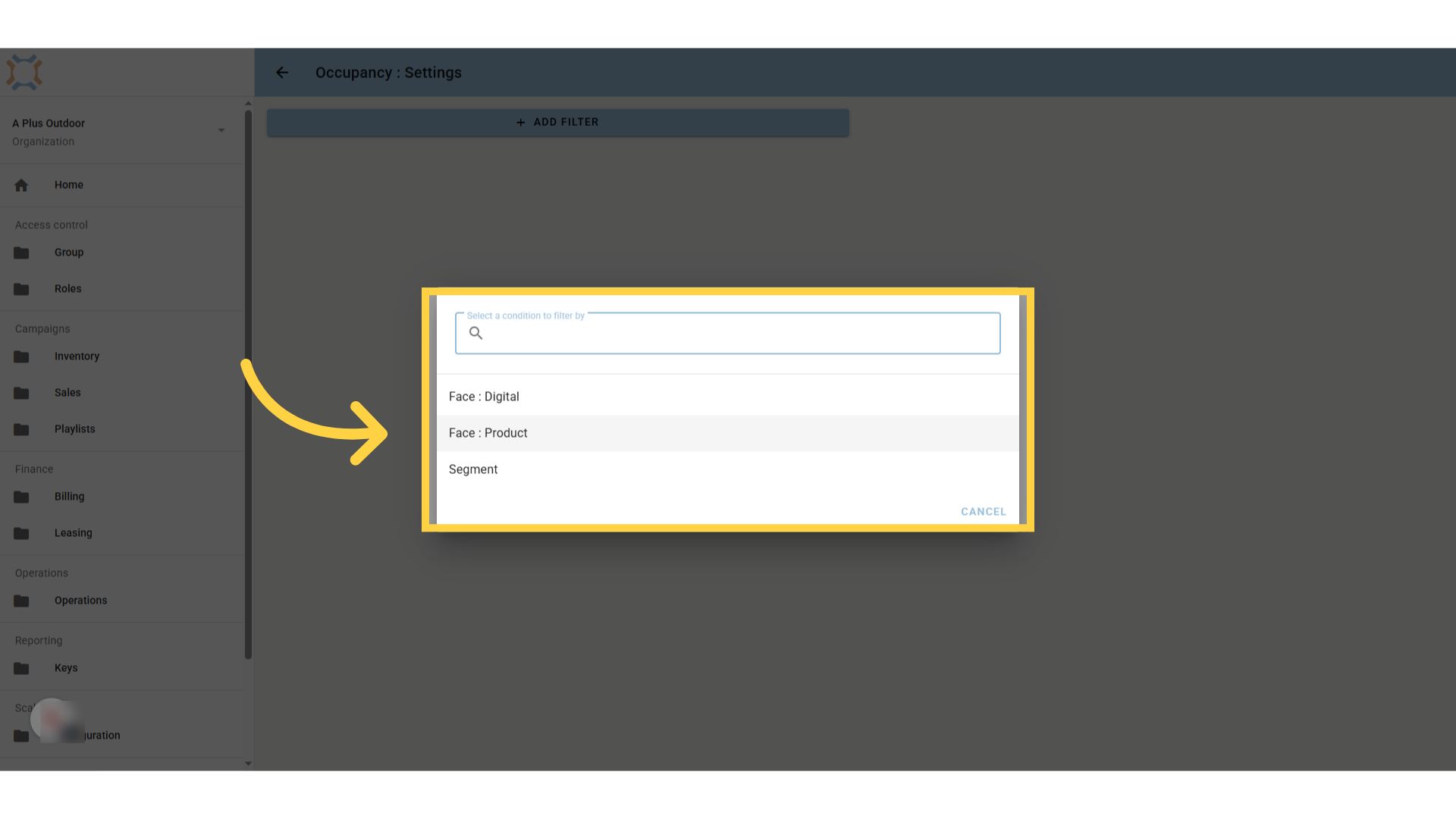
Select criteria
Select the criteria you wish to filter by.
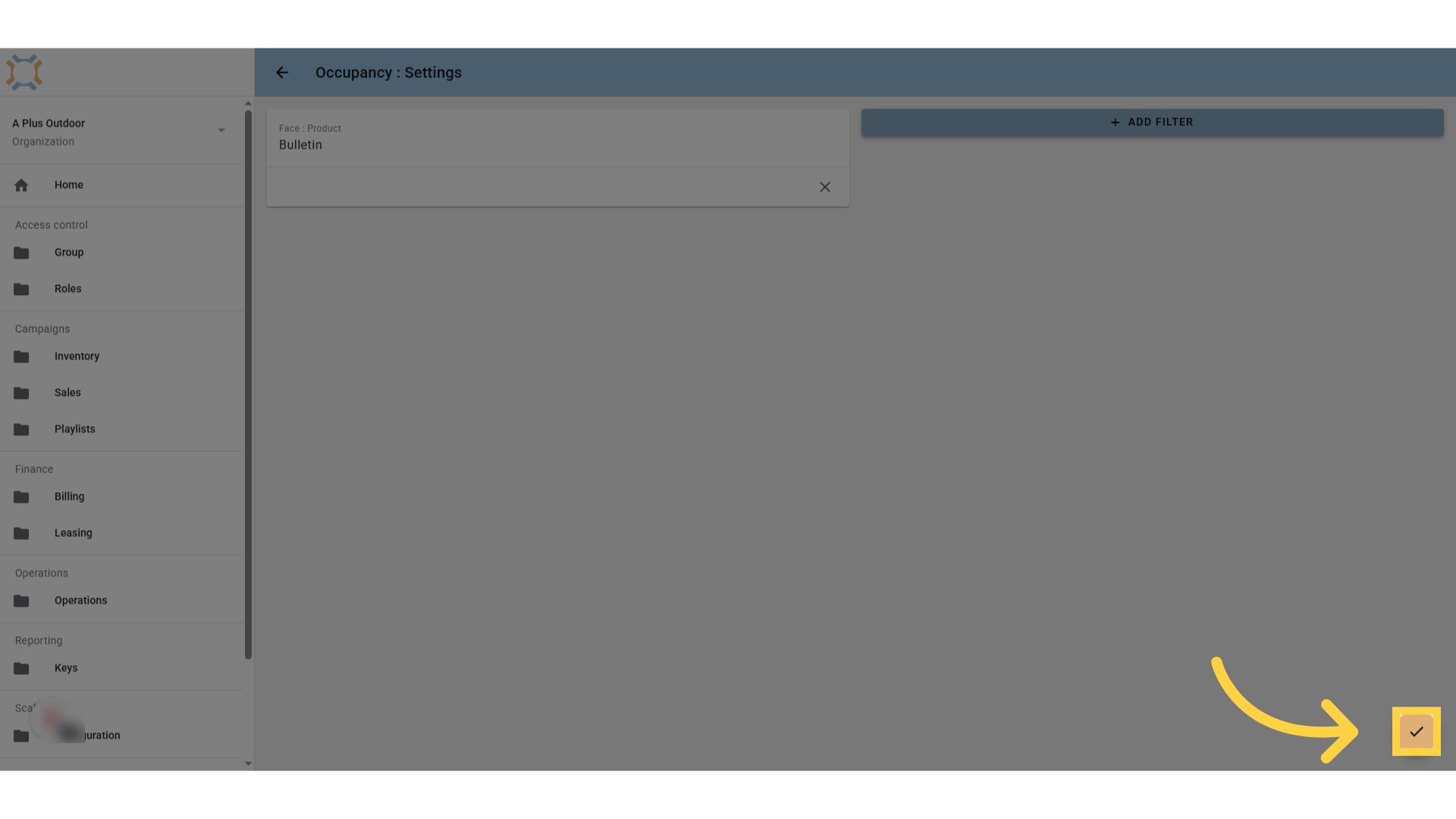
Click "done"
After you have selected your filtering criteria, click done to see the updated dashboard indicator.
Comments
0 comments
Please sign in to leave a comment.