
1. Introduction
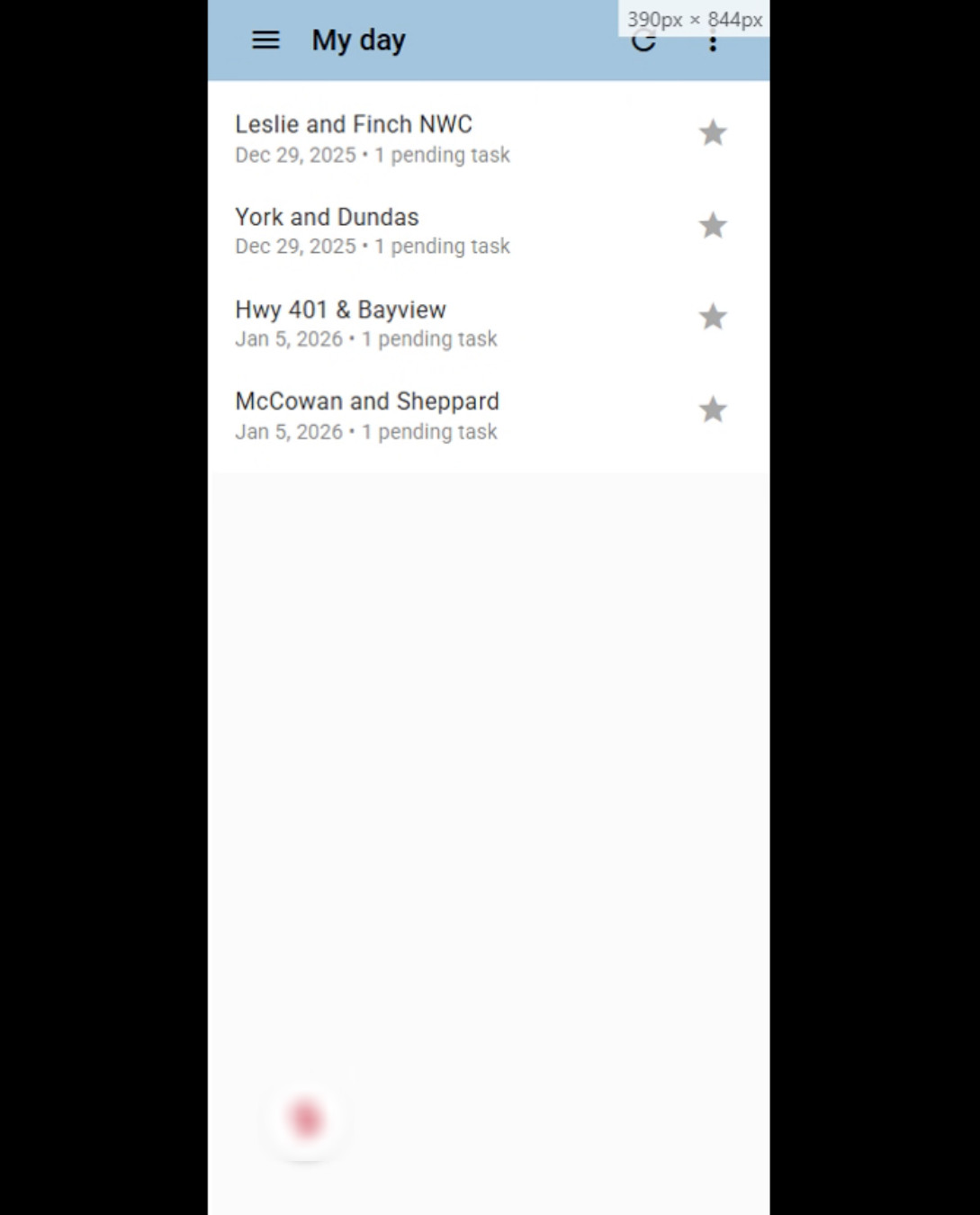
When working from the list of My Site Visits, or My Day, you can select the location you wish to work on. Each site visit will show the location, scheduled date and number of tasks assigned to you
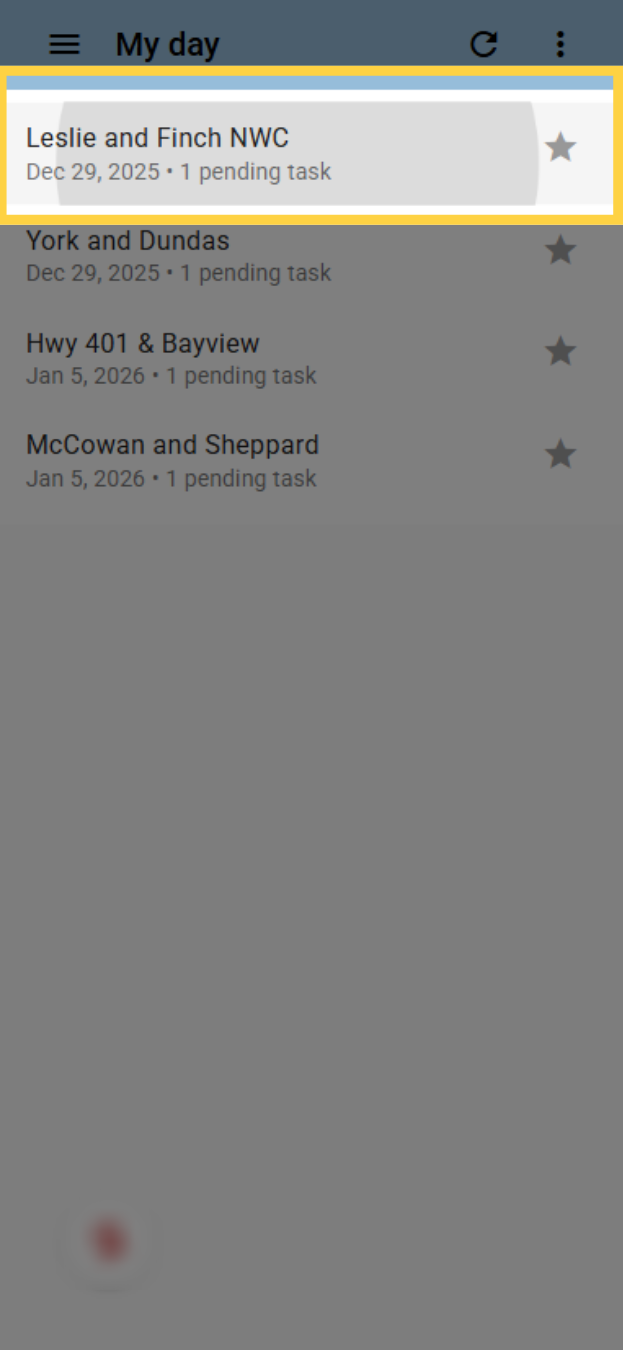
2. Click Site Visit
Click on the site visit you wish to work with.
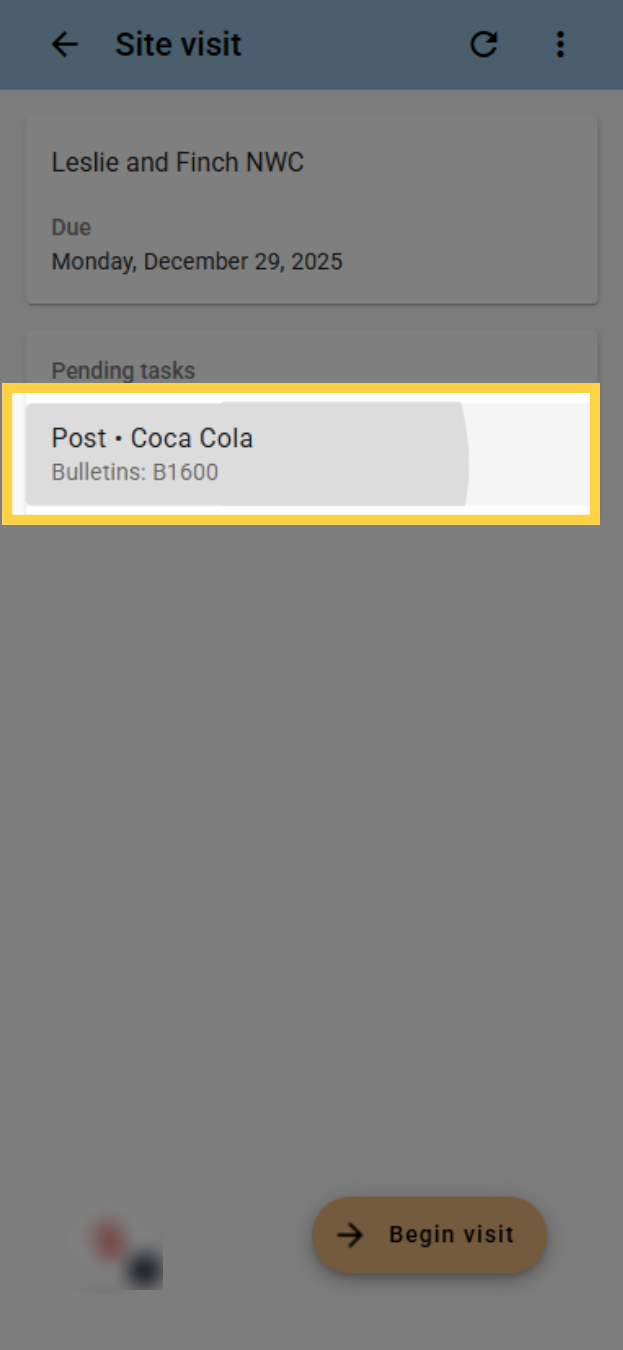
3. Click Task to review
If you wish to see more information about a task prior to starting work on the site visit, you can click on it in the pending tasks section.
4. Review task and return
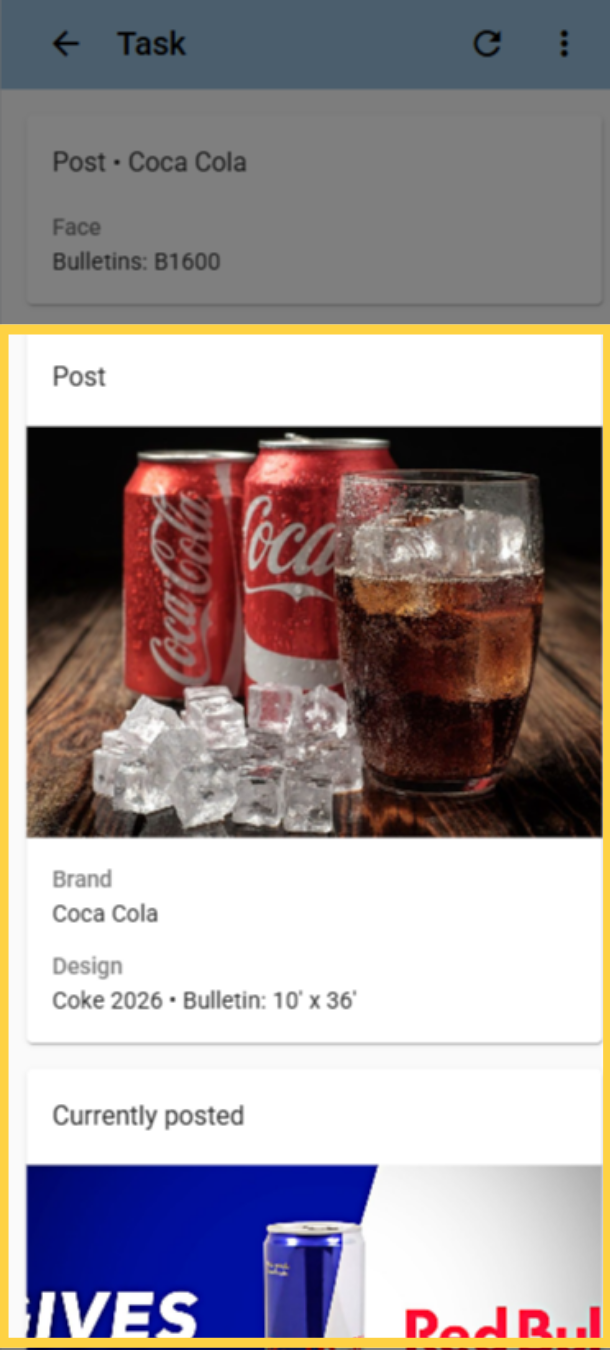
When reviewing a task before starting, you can see the relevant information, including the design to post and the design currently posted.
5. Review task and return
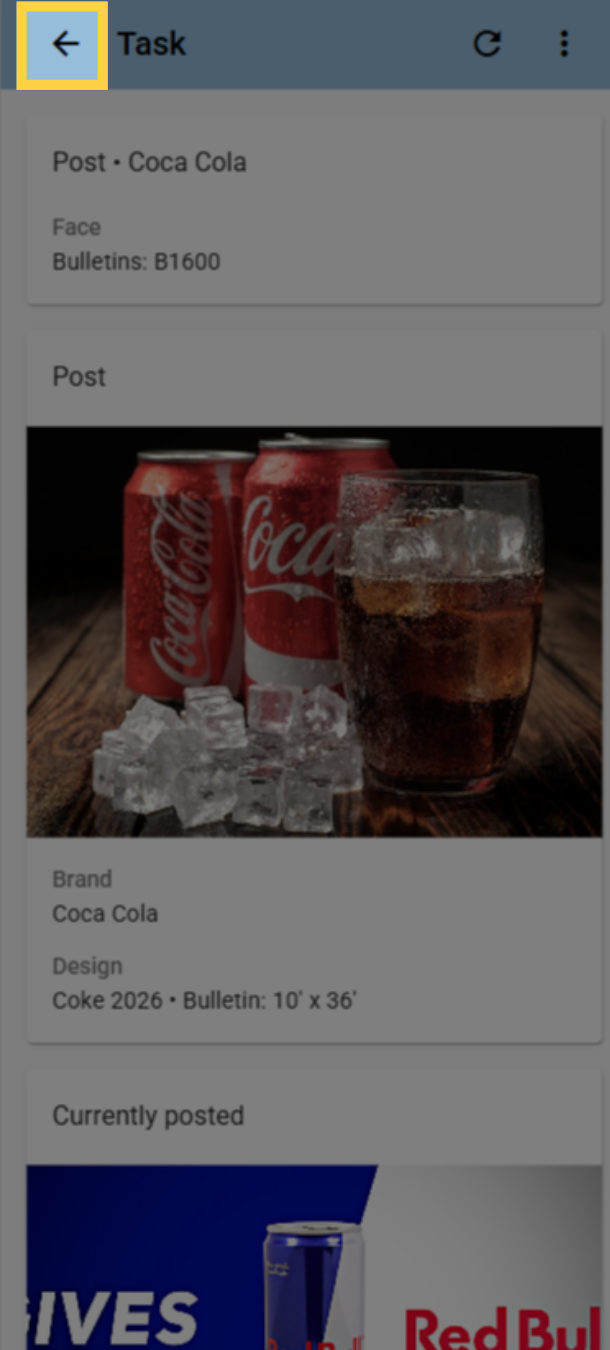
When finished reviewing the task, click the arrow to go back to the site visit.
6. Start the Site Visit
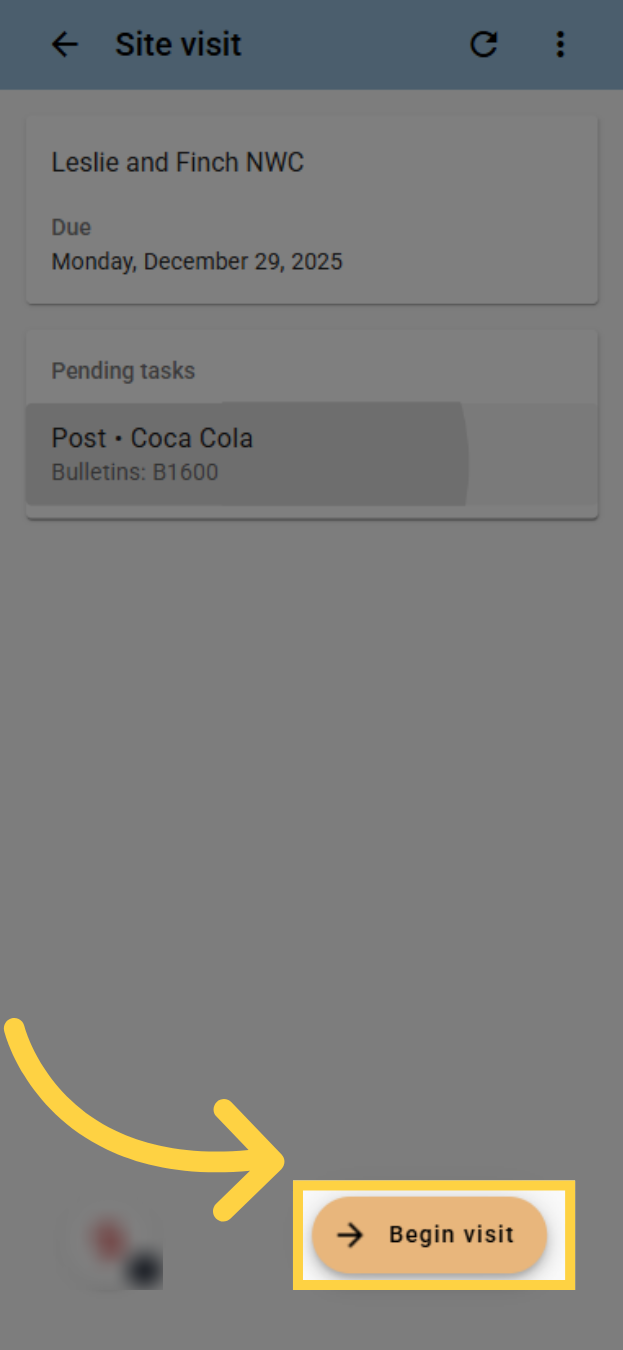
To start the site visit, click the Begin visit button. Please note you can only have one site visit open at a time.
7. Click task
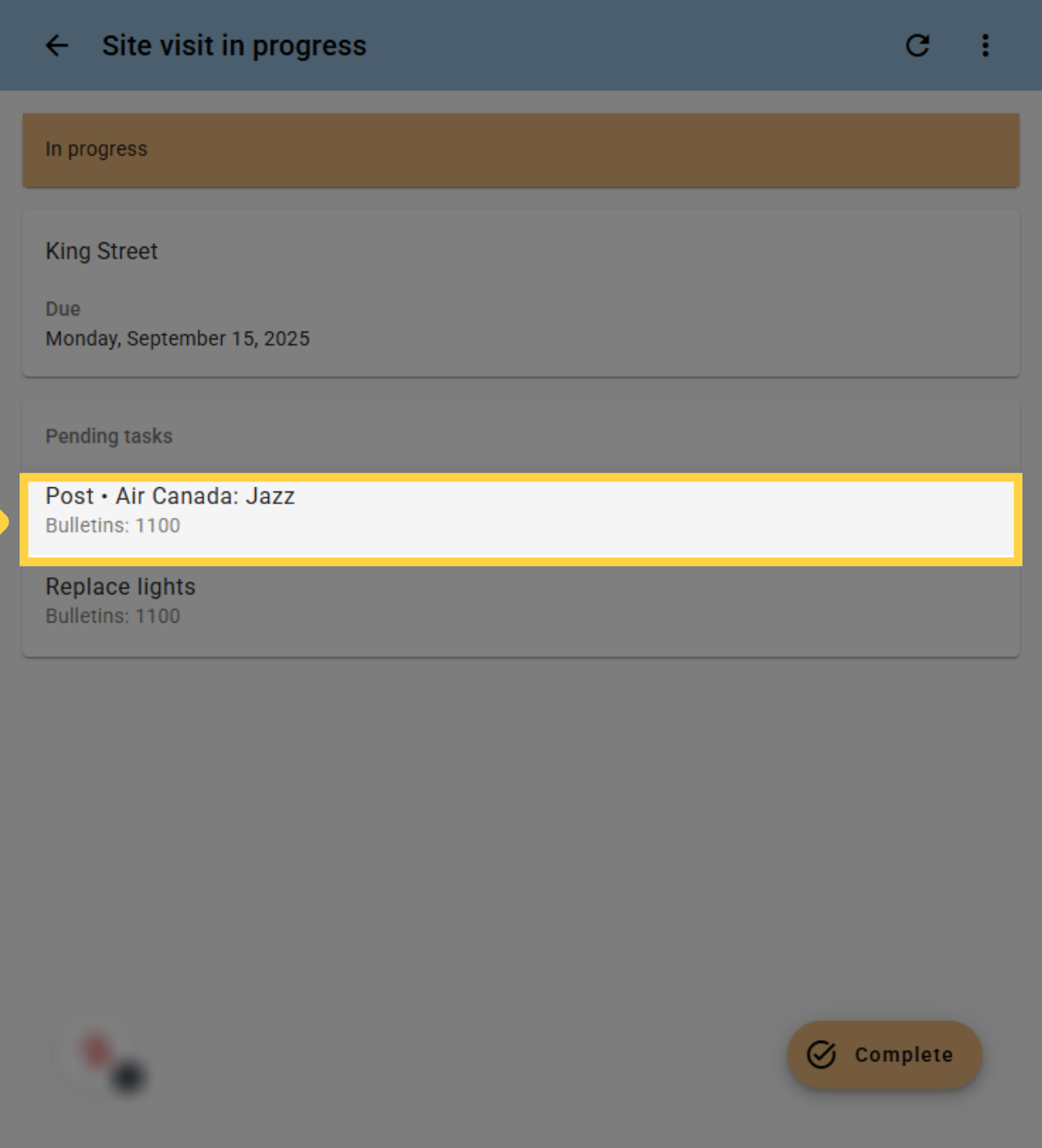
When a site visit is in progress, you can click on the pending task you want to work on.
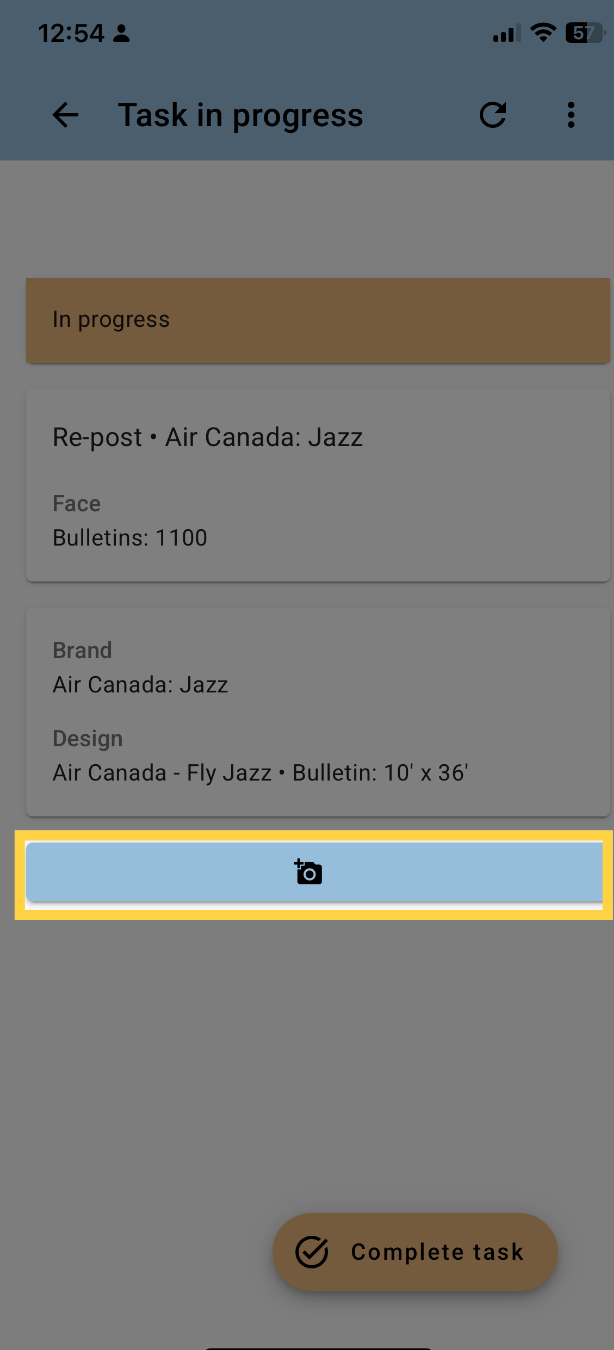
8. Click "Photo"
After work has been finished on a task, click on the Photo button to take a picture. You may be asked by your device to allow the app to access your camera; allow the access if you wish to take one or more photos
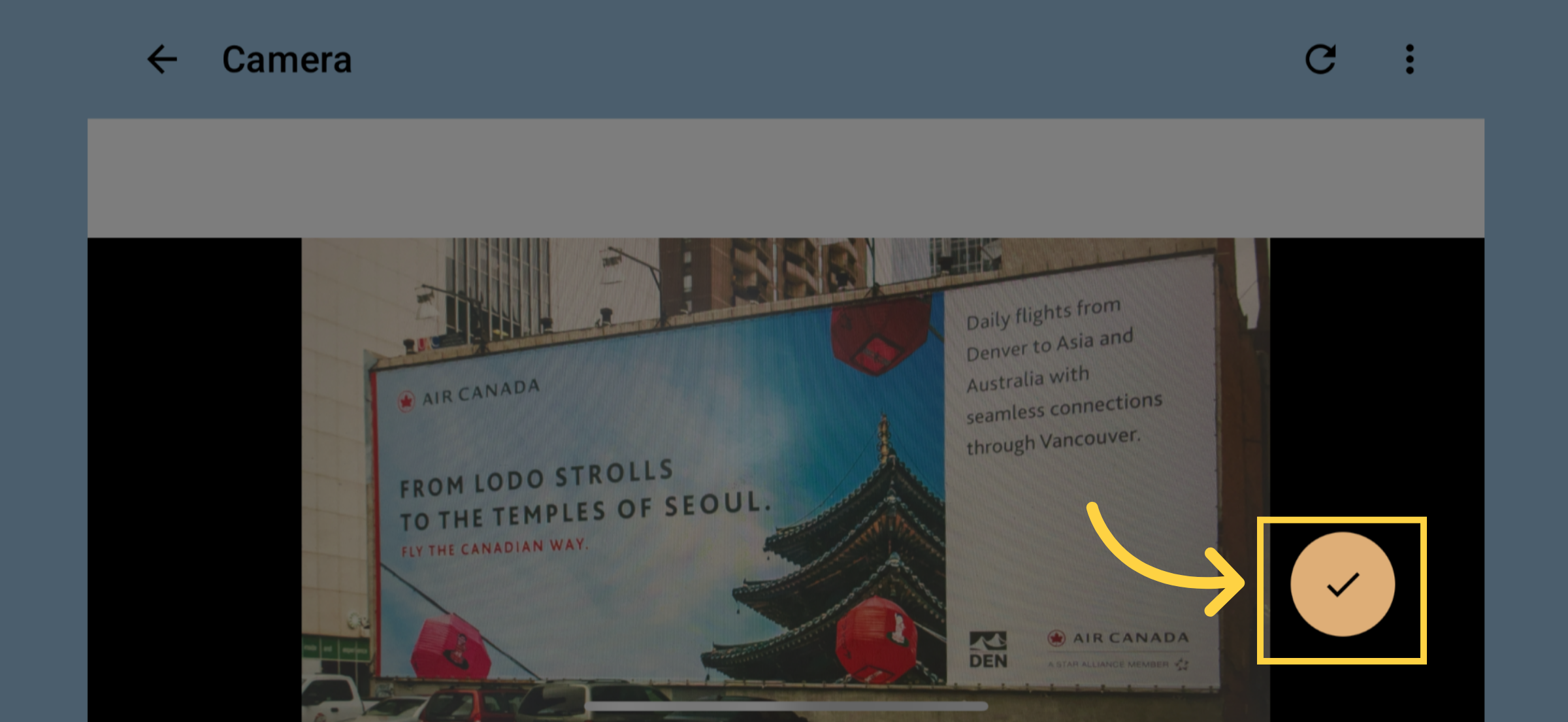
9. Click "Done"
You can take a photo either in portrait or landscape mode. Once you have taken your photo, click Done.
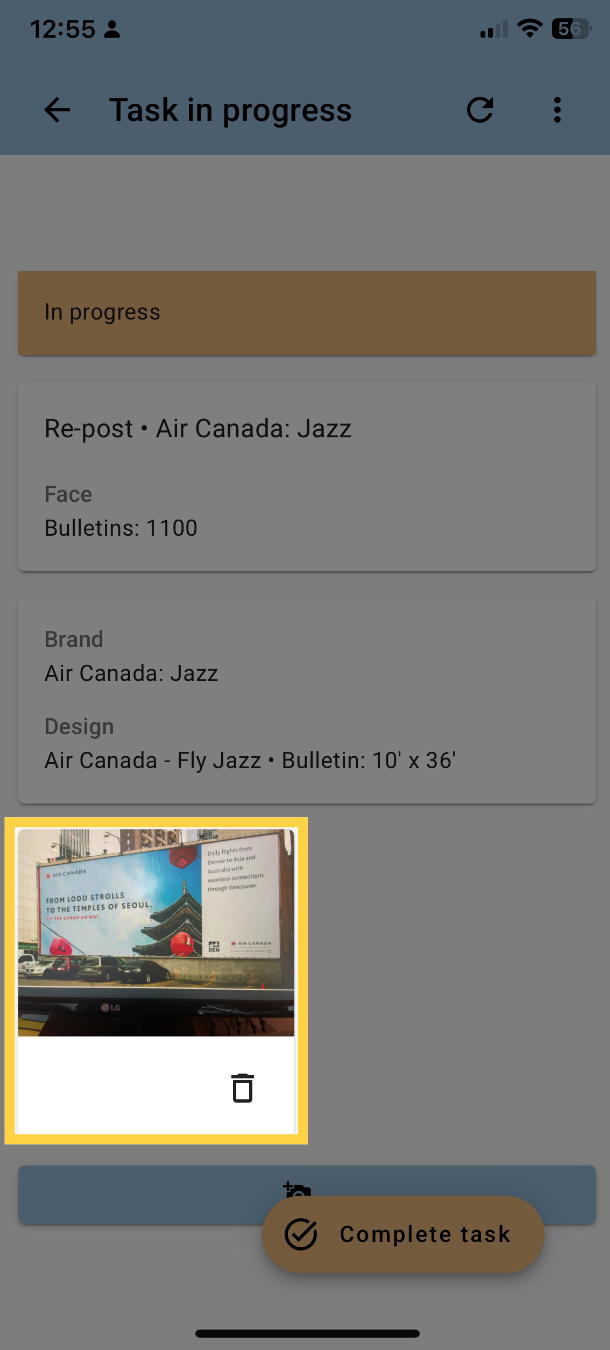
10. View Photo
The app will display the photo that has been taken. You can delete the photo if you are not satisfied with it. You can also take additional photos by clicking the Photo button again
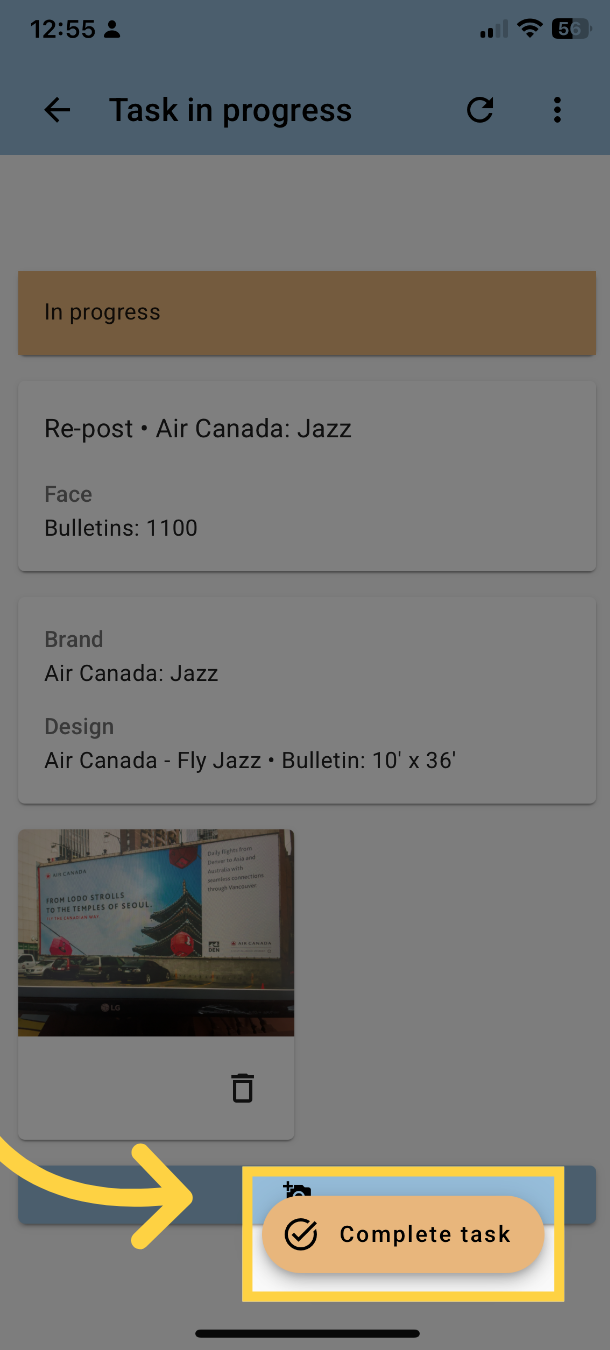
11. Click "Complete task"
After you have completed the task, click "complete task". If you have completed all tasks on the site visit, the site visit will automatically be marked as completed and you will return to the My Day list.
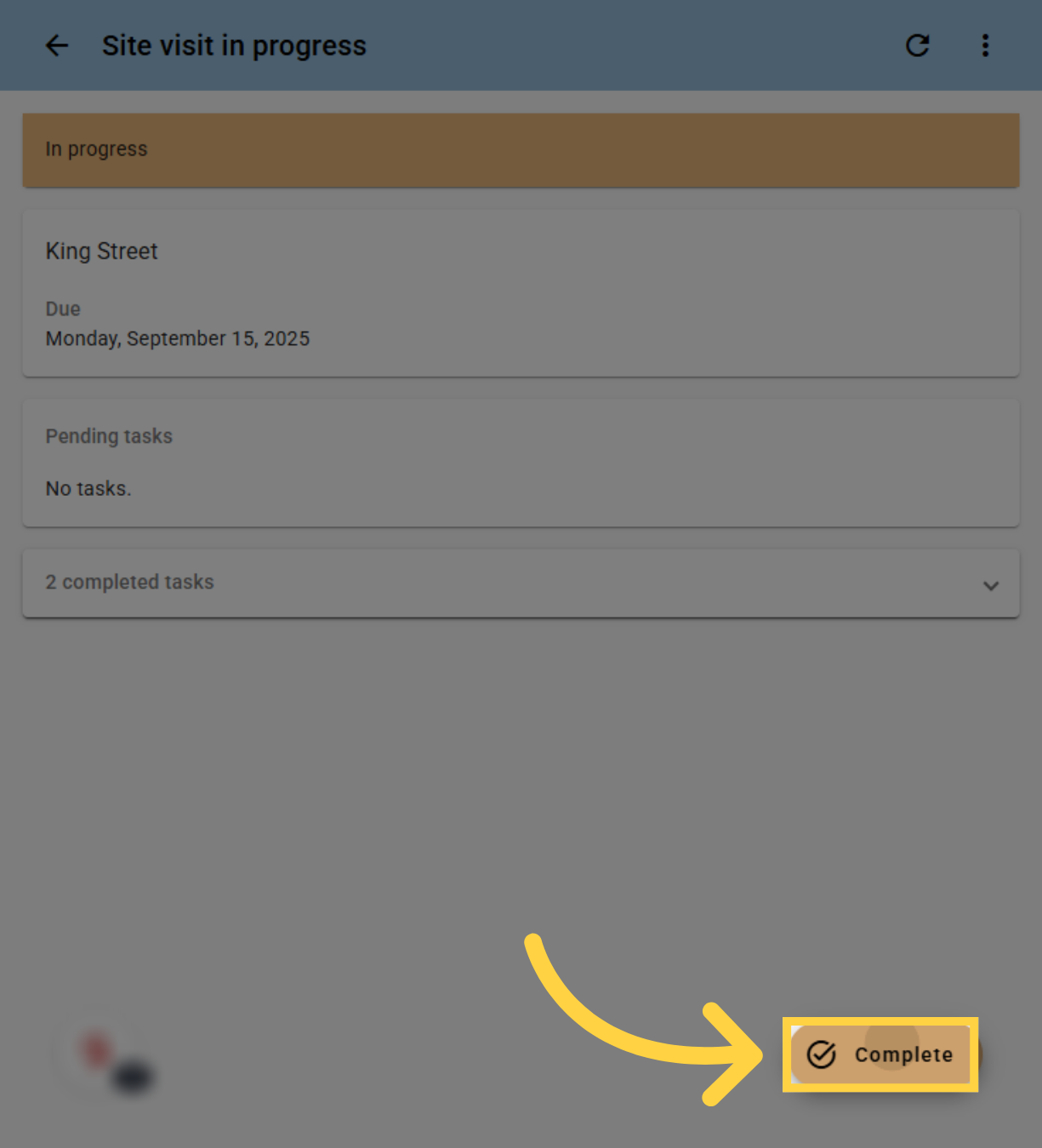
12. Click "Complete"
Click "Complete" to close the site visit after all tasks have been completed.
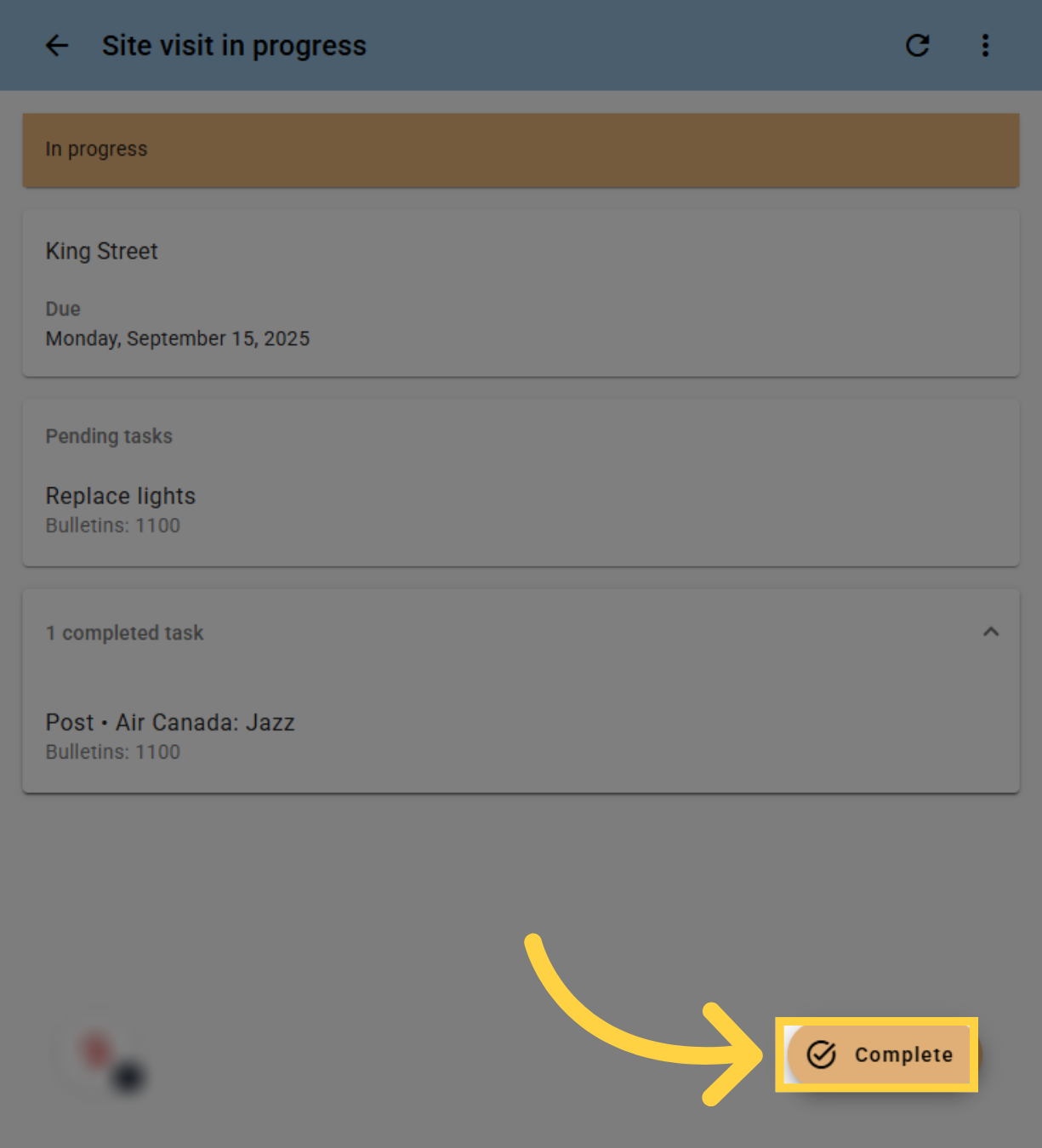
13. Completing a Site Visit without completing all tasks
If you are unable to complete all the tasks on the site visit, you can manually mark the site visit complete with the pending task still open. This site visit can be re-opened and the task completed, or it can be rescheduled to another site visit.
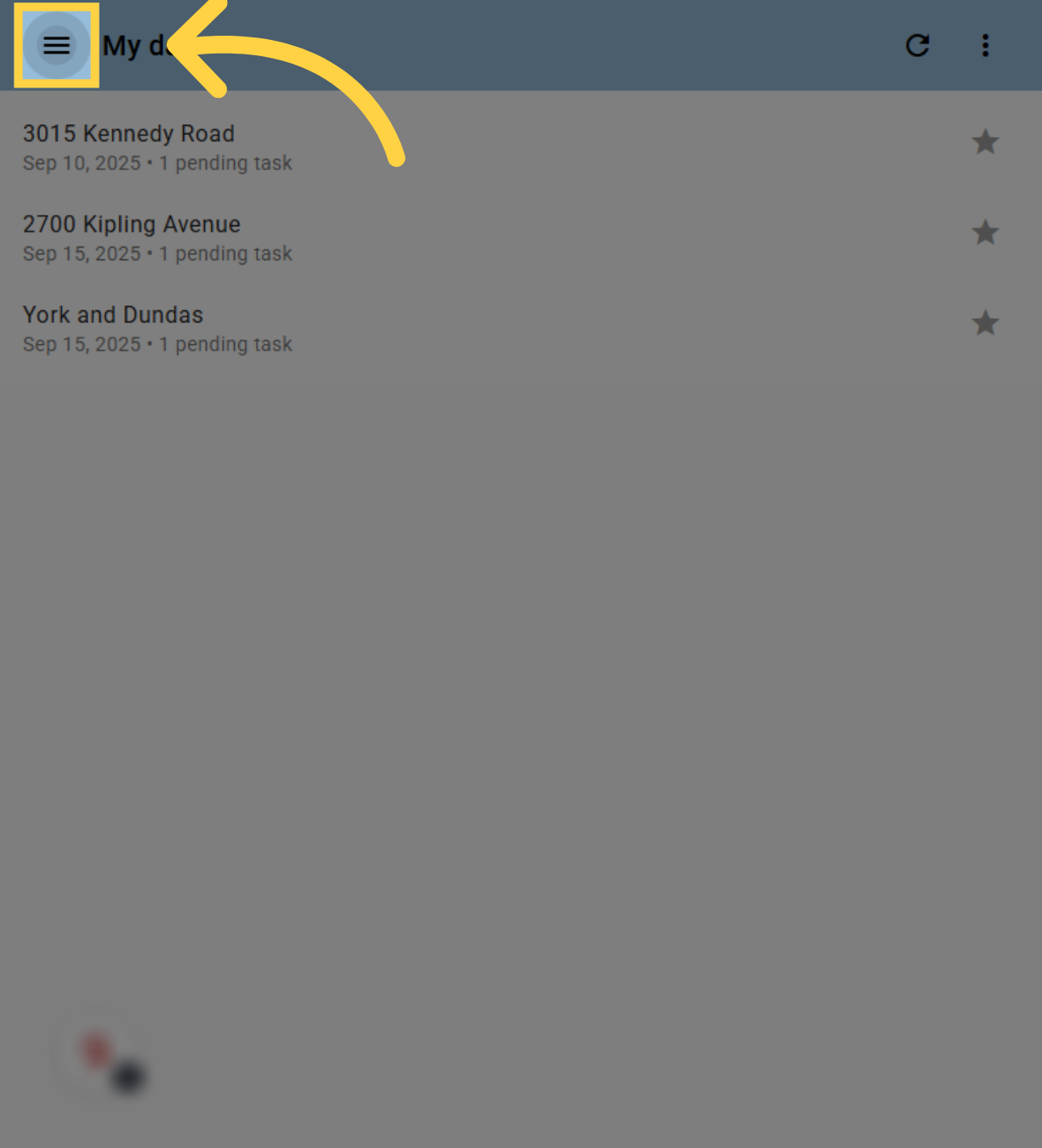
14. Click "menu"
You can see a list of all completed site visits for the week by clicking on the menu
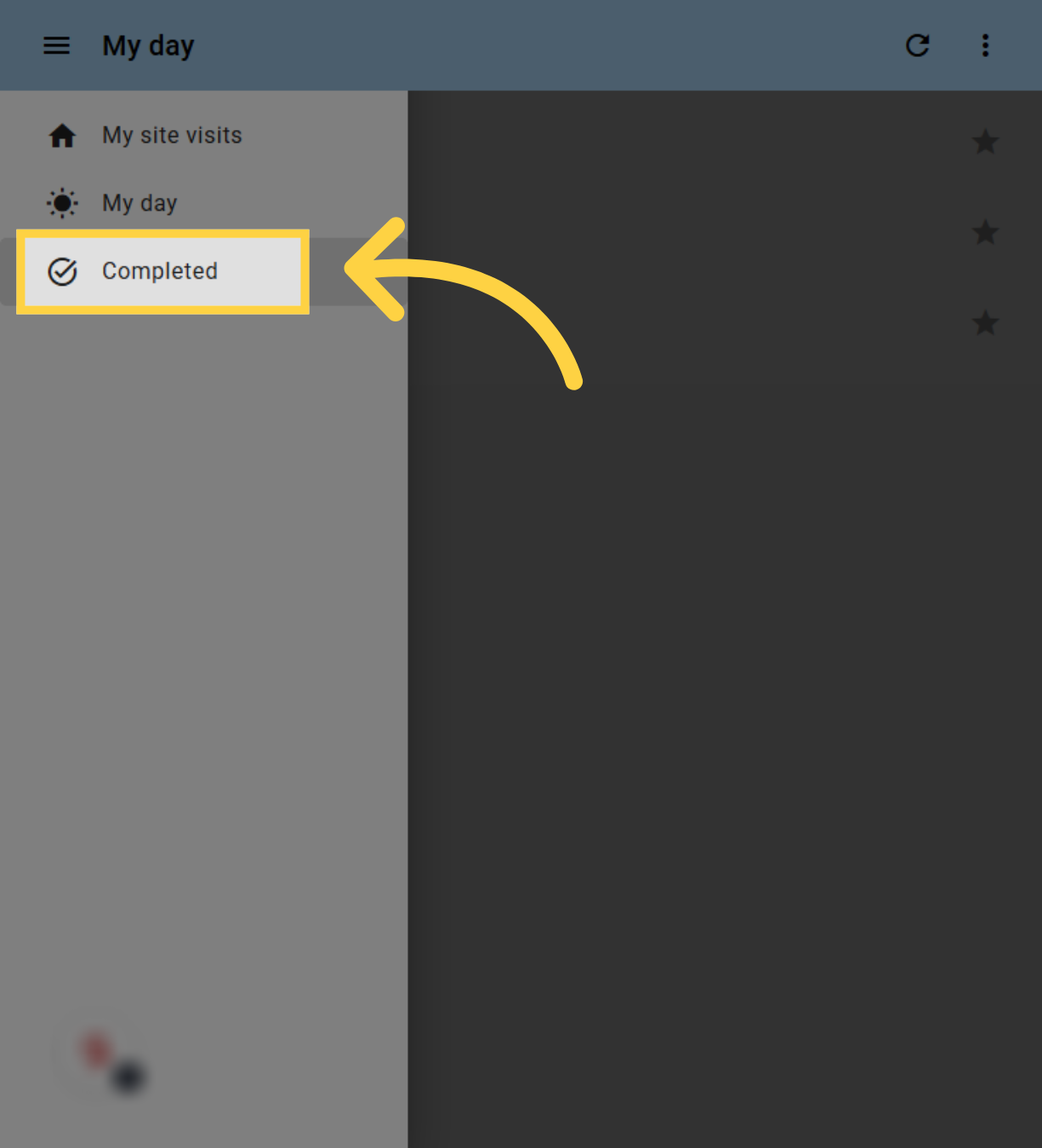
15. Click "Completed"
then click on Completed
16. List of completed site visits
You can see the list of all the completed site visits for this week. This will also show you if a site visit was marked as completed without finishing all the tasks on site.
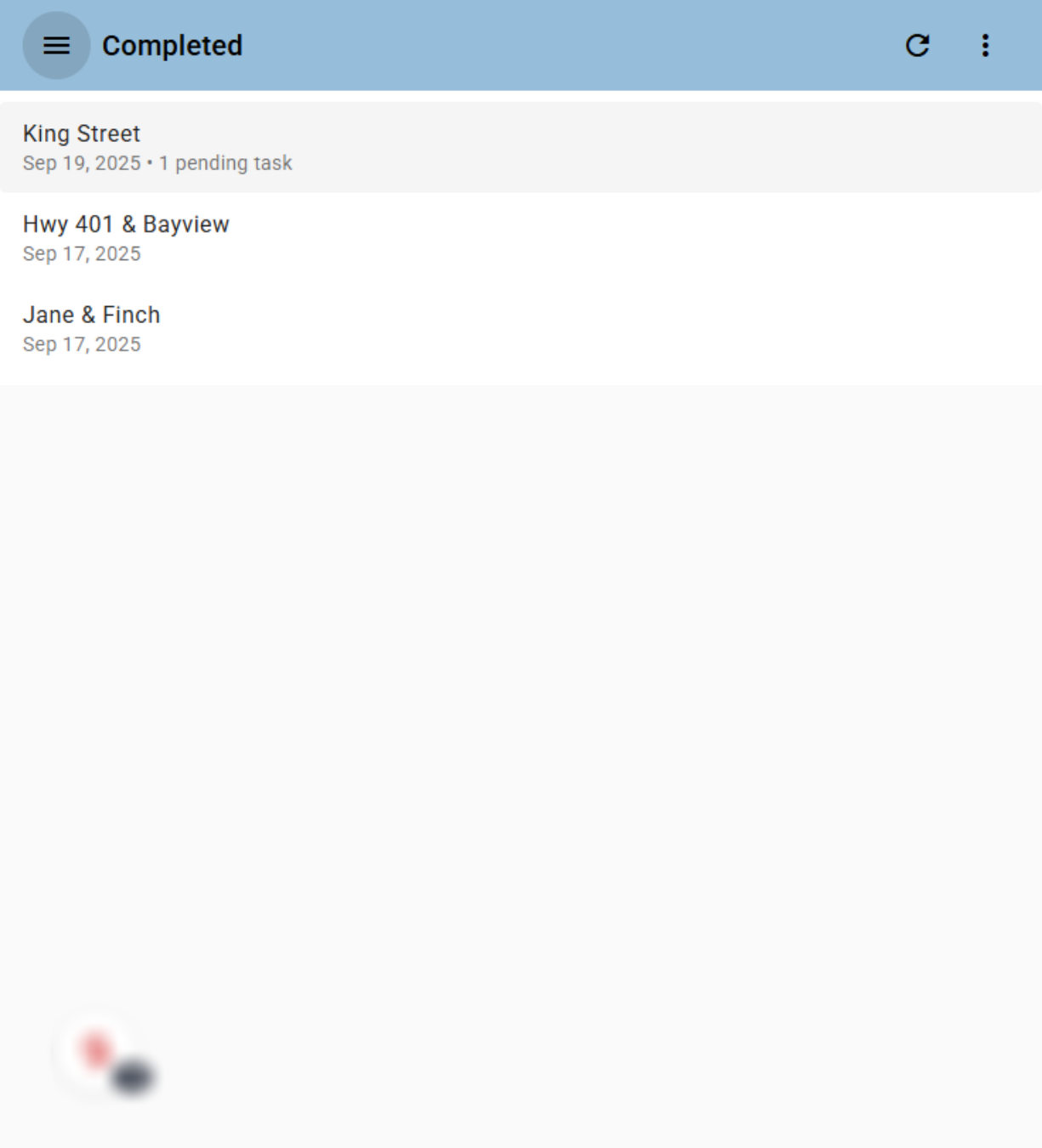
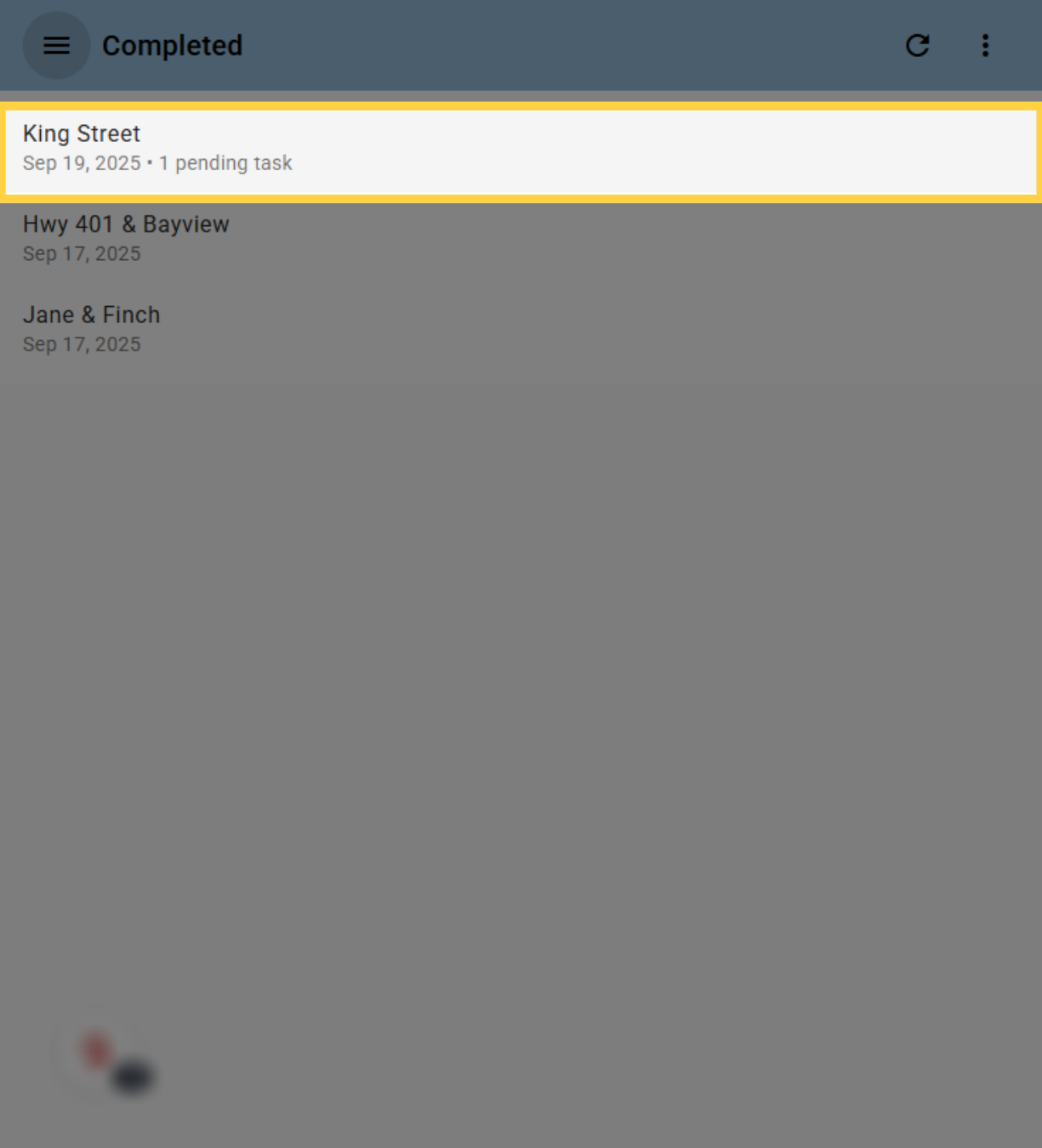
17. Review or re-open a completed site visit.
To review or re-open a site visit, click on the desired visit as appropriate
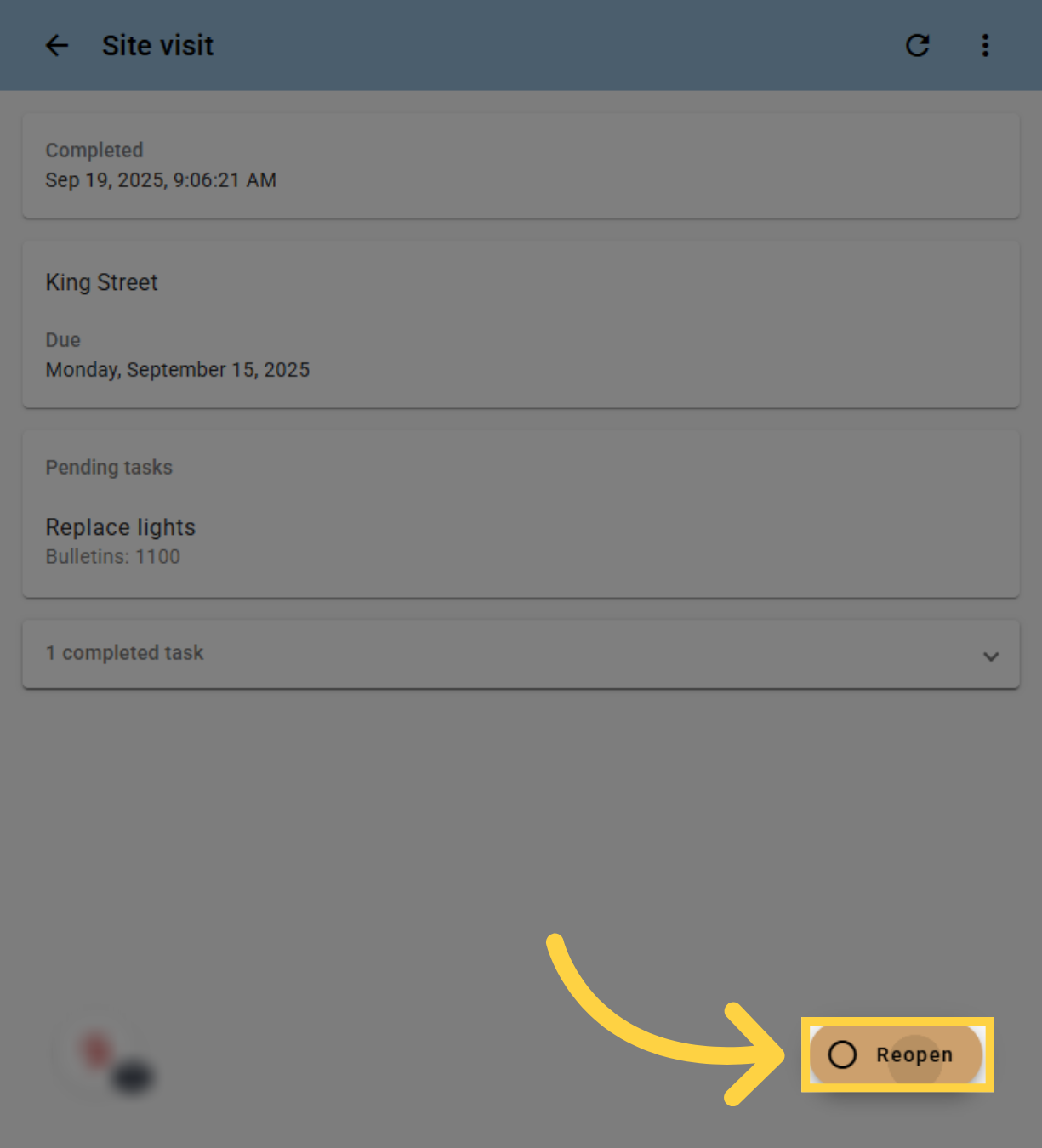
18. Review Site visit
You can look at any of the completed tasks on this site visit by clicking on the completed task section and selecting the task. If you wish to re-open the site visit to update information or to resume the site visit, click Re-open.
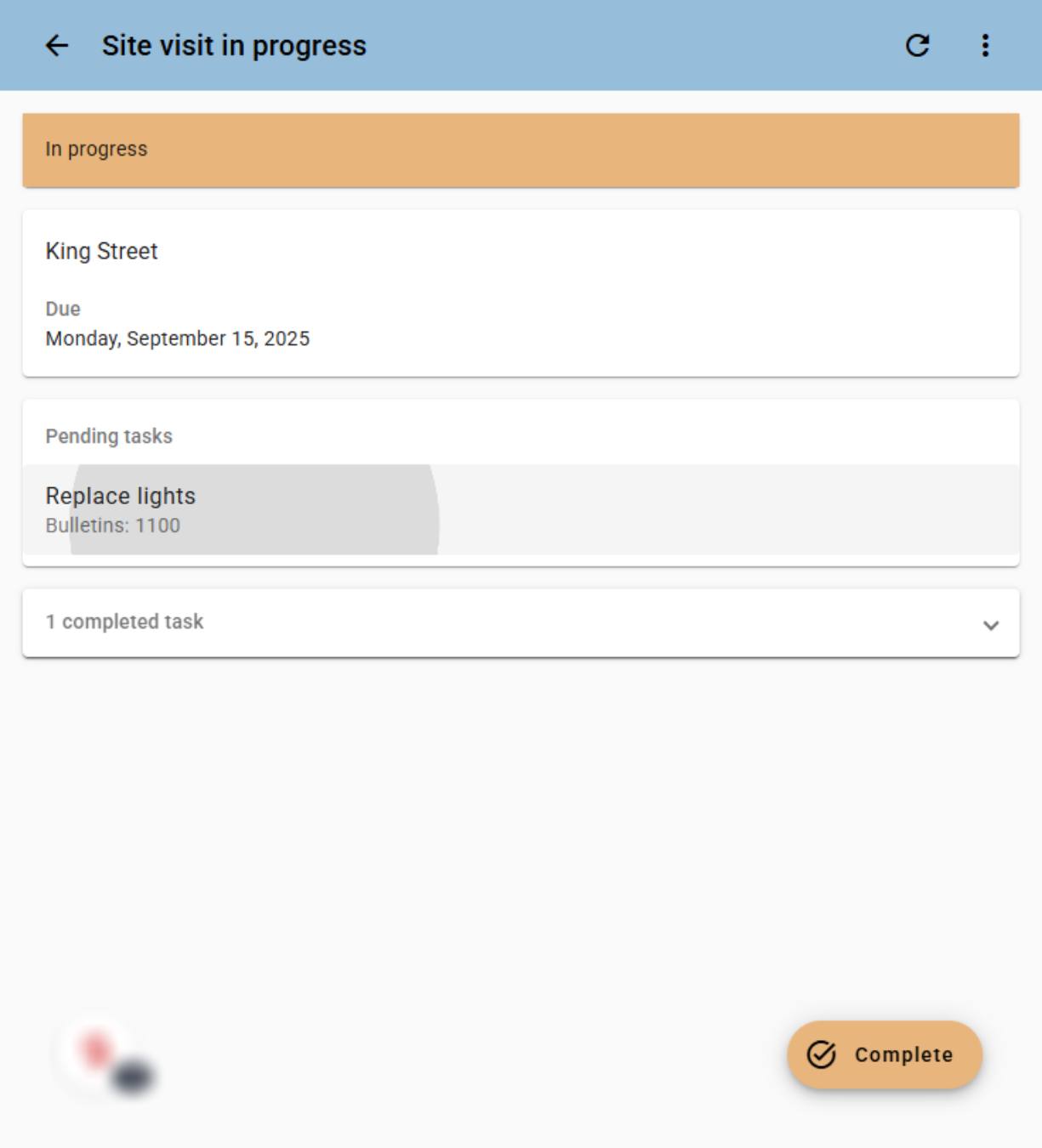
19. Complete the re-opened site visit task
Select the task you wish to complete on the re-opened site visit, and click complete.
20. Thank you
If you have any additional questions, please contact Dot2Dot for assistance.

Comments
0 comments
Please sign in to leave a comment.