
This tutorial guides you through reviewing the delivery details of a campaign within Ad Manager Connect.
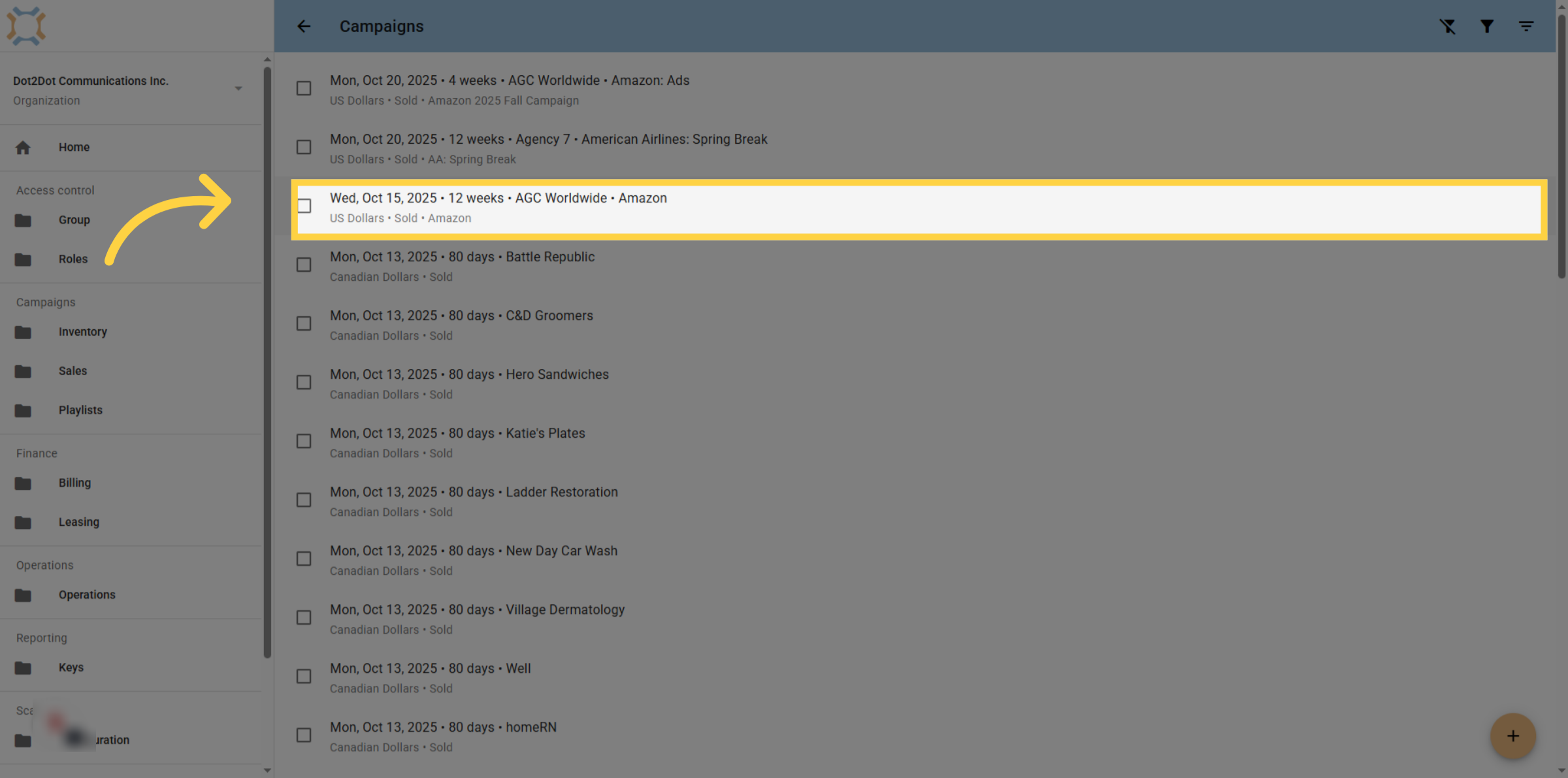
1. Select desired campaign
Click on the campaign you wish to review the delivery information for.
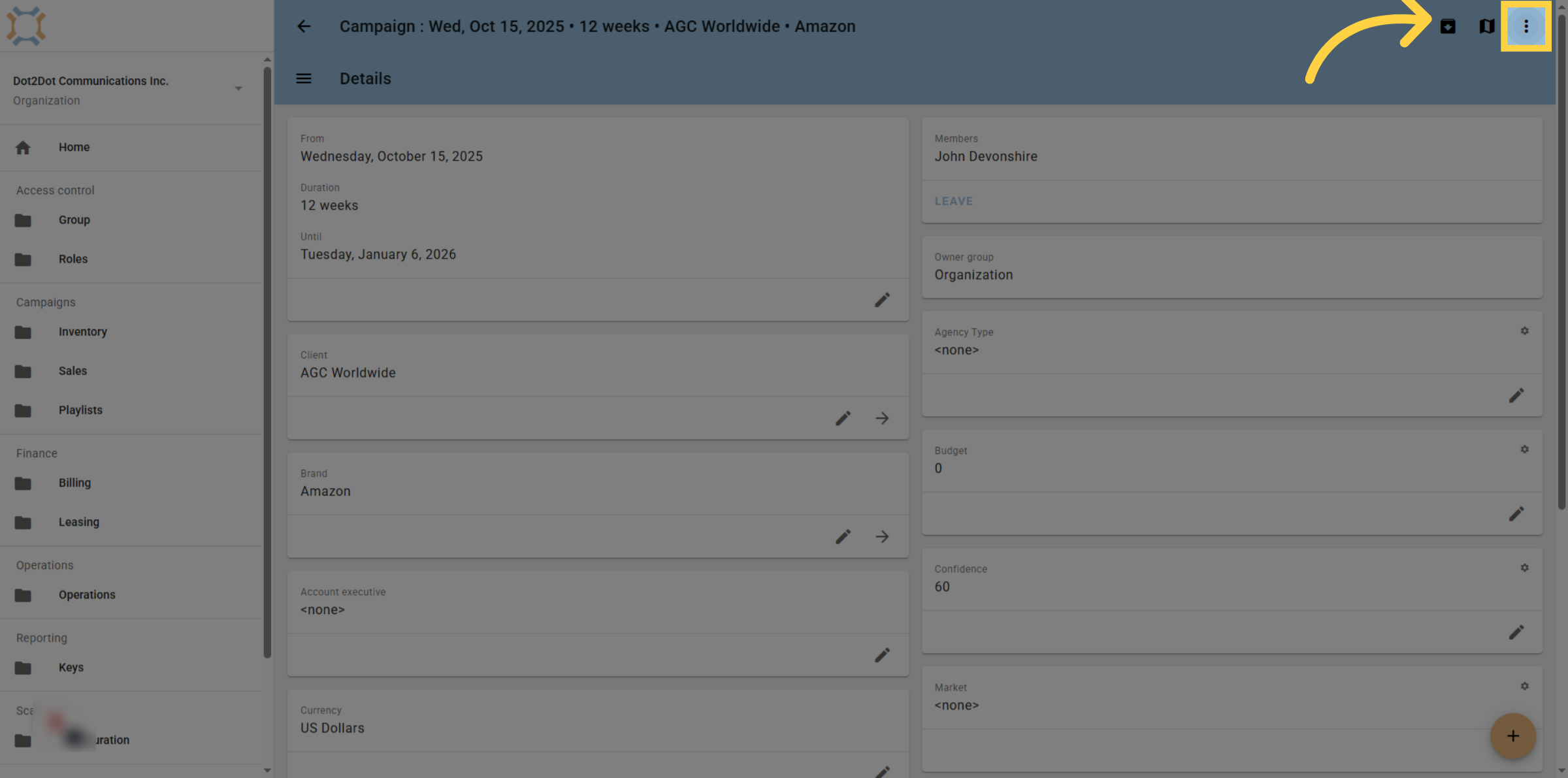
2. Open Options Menu
Click on the Options menu
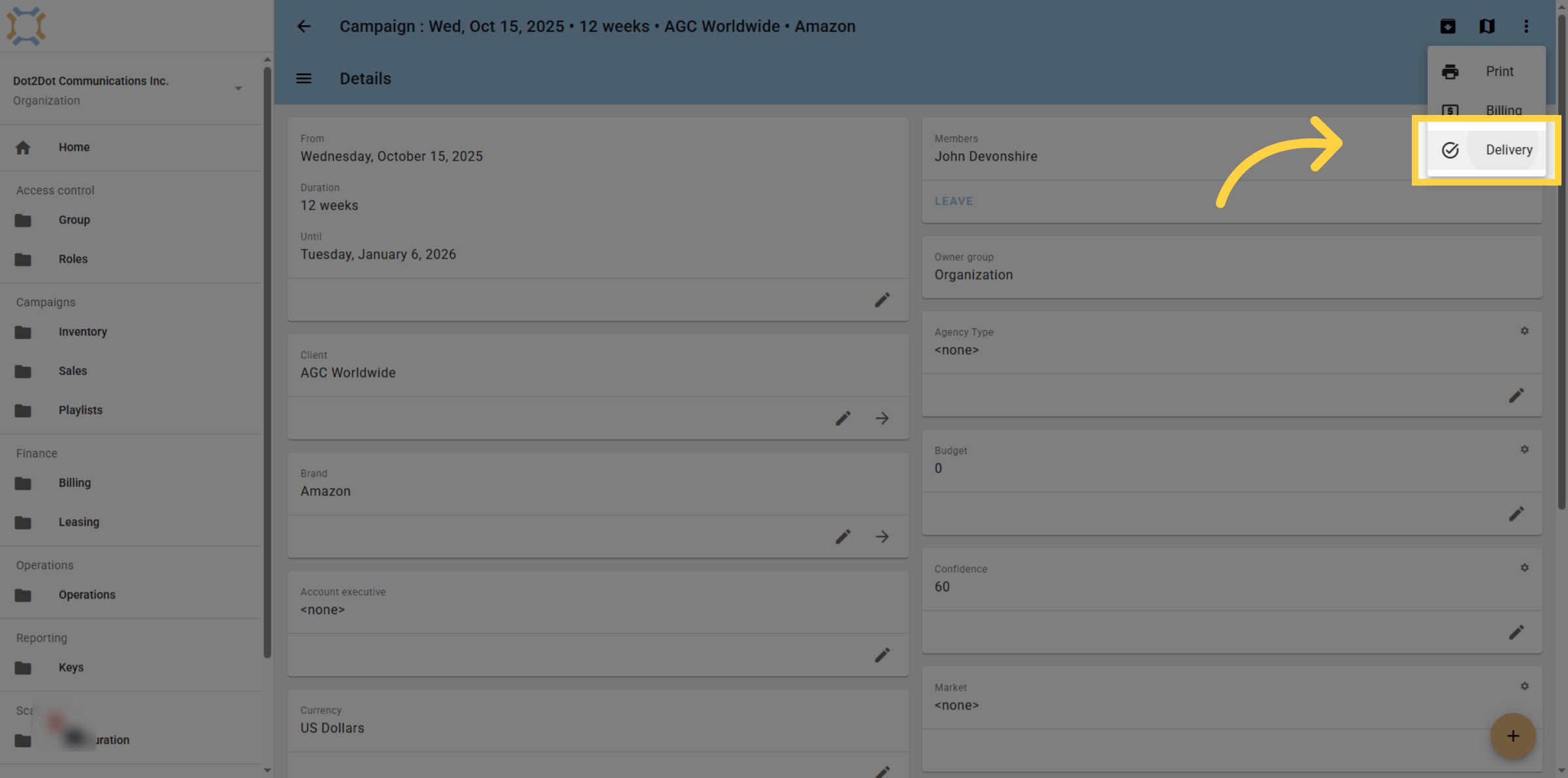
3. Choose Delivery
Then choose delivery.
4. Viewing POP delivery
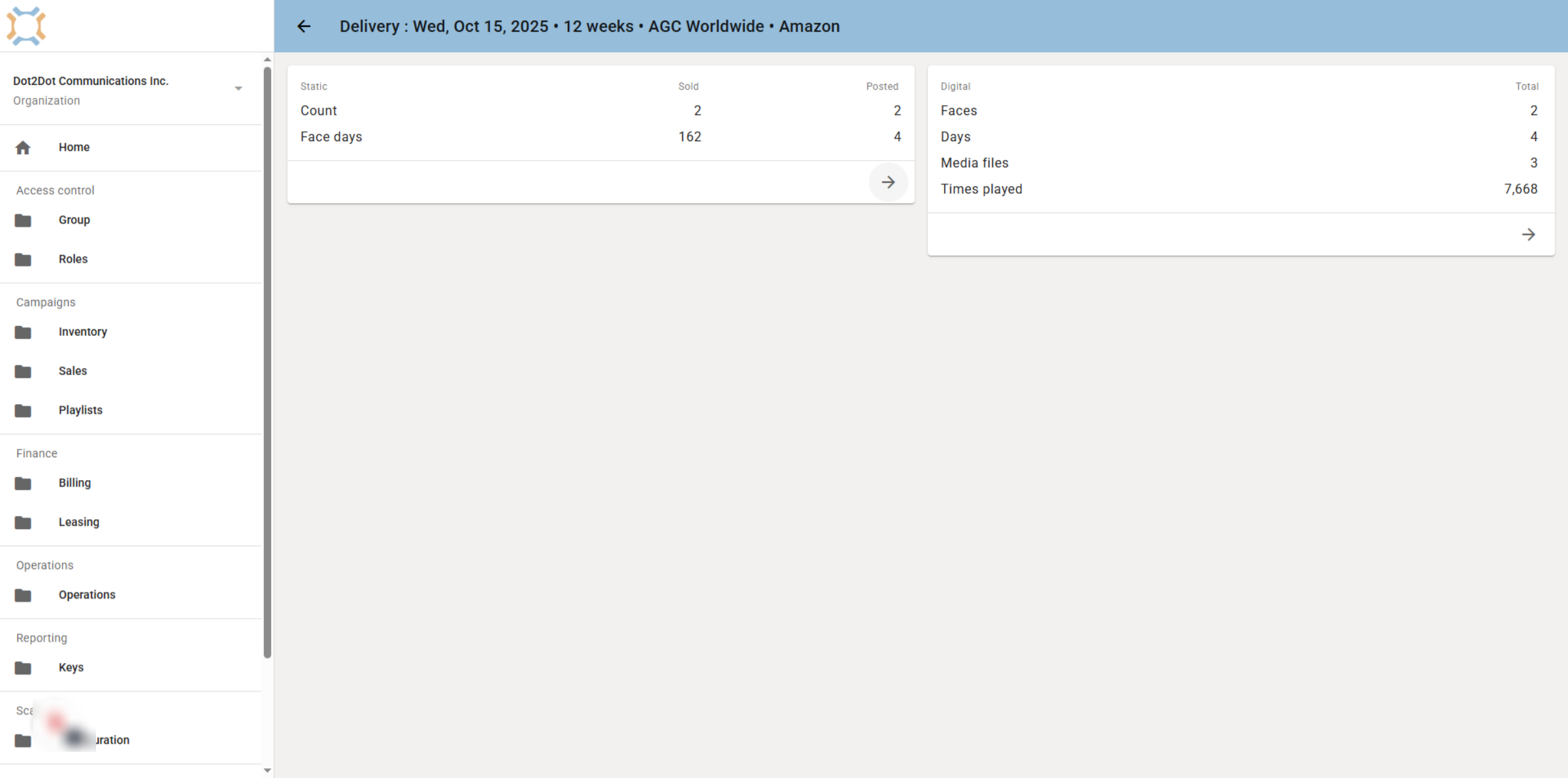
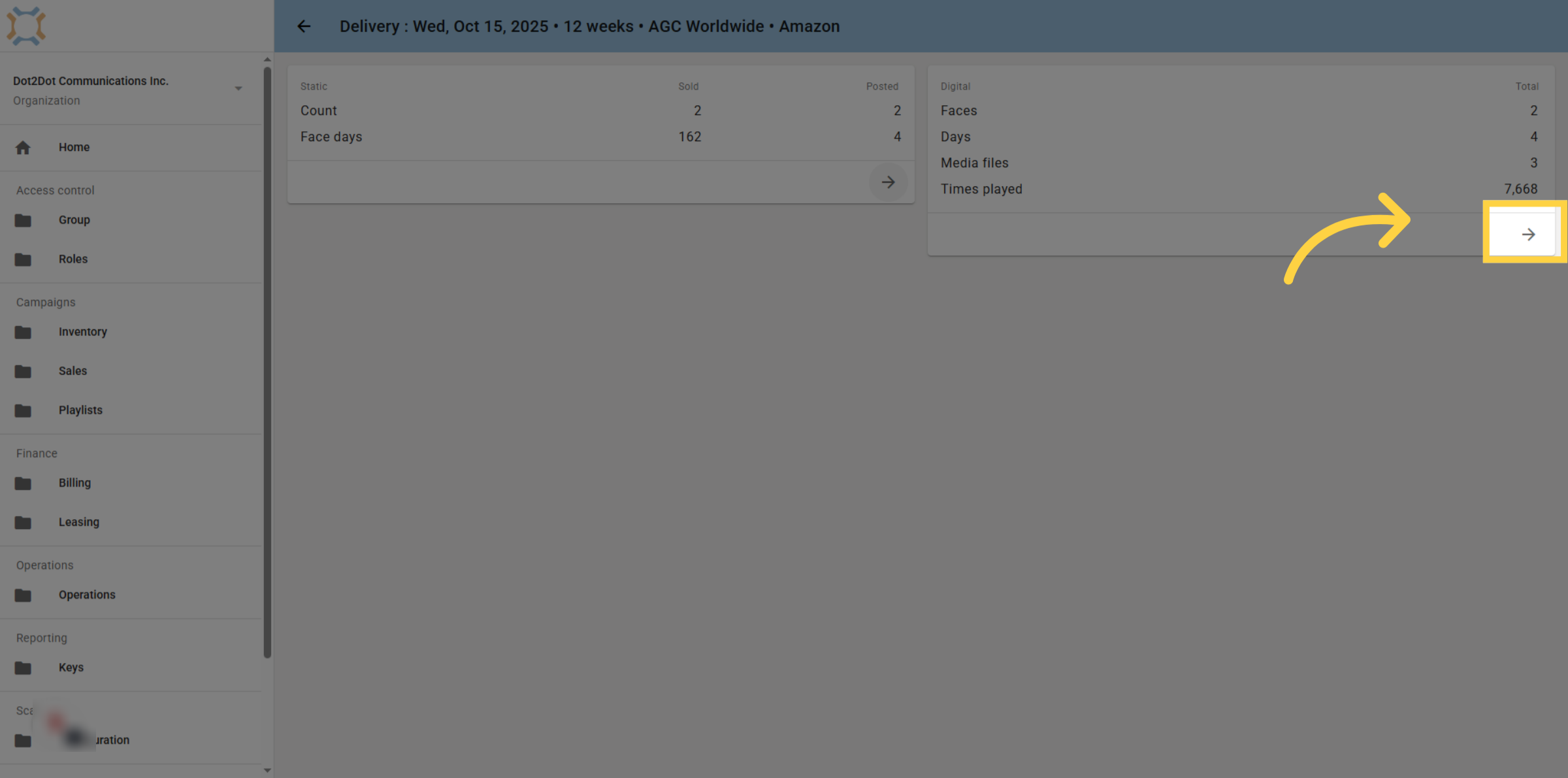
The delivery page provides you with a summary of all static and digital media delivery for this campaign. You can review the details by going to the desired card.
5. Viewing Static POP
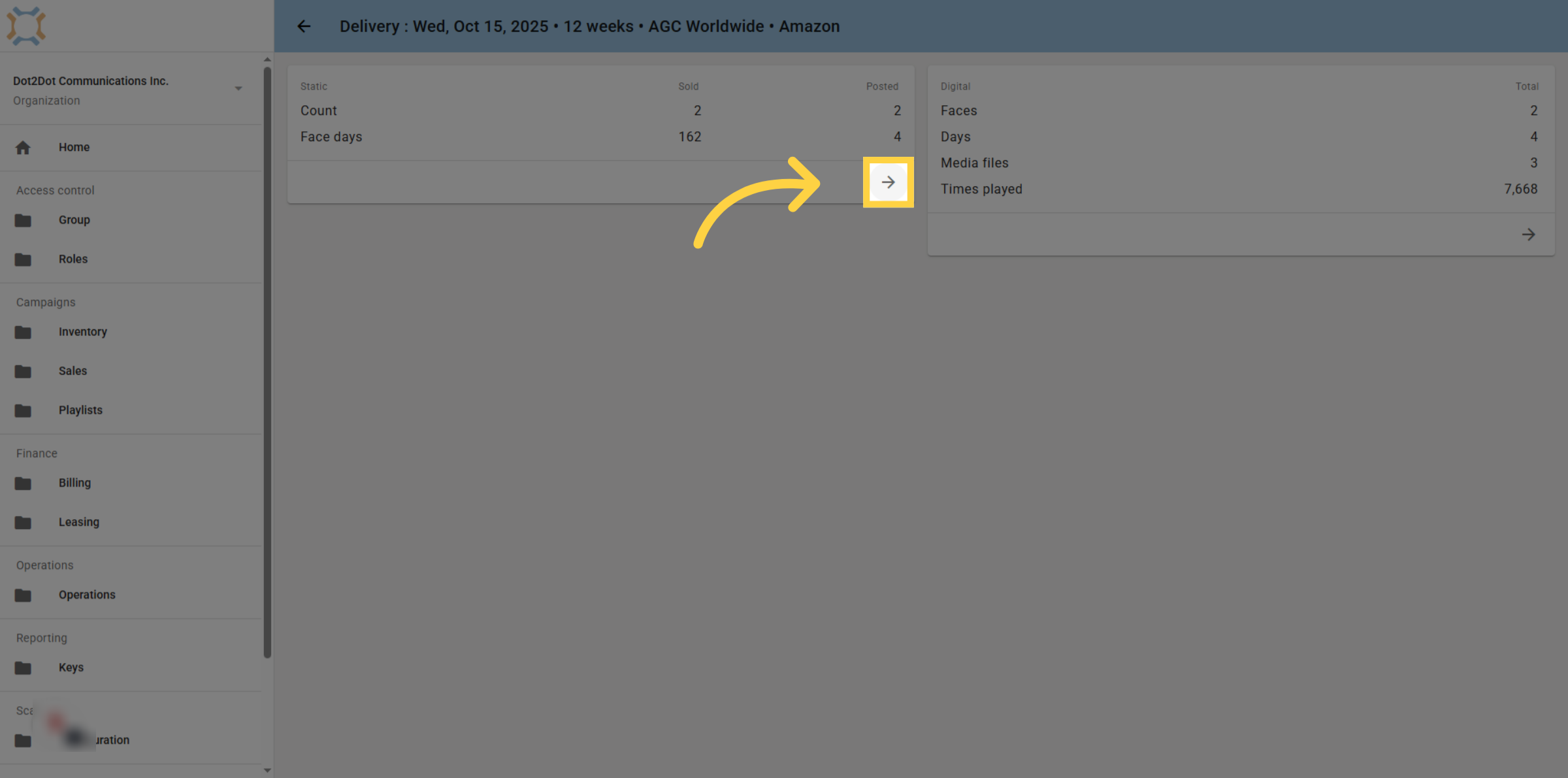
To view static media P.O.P., click on the arrow on the Static card.
6. Click Booking
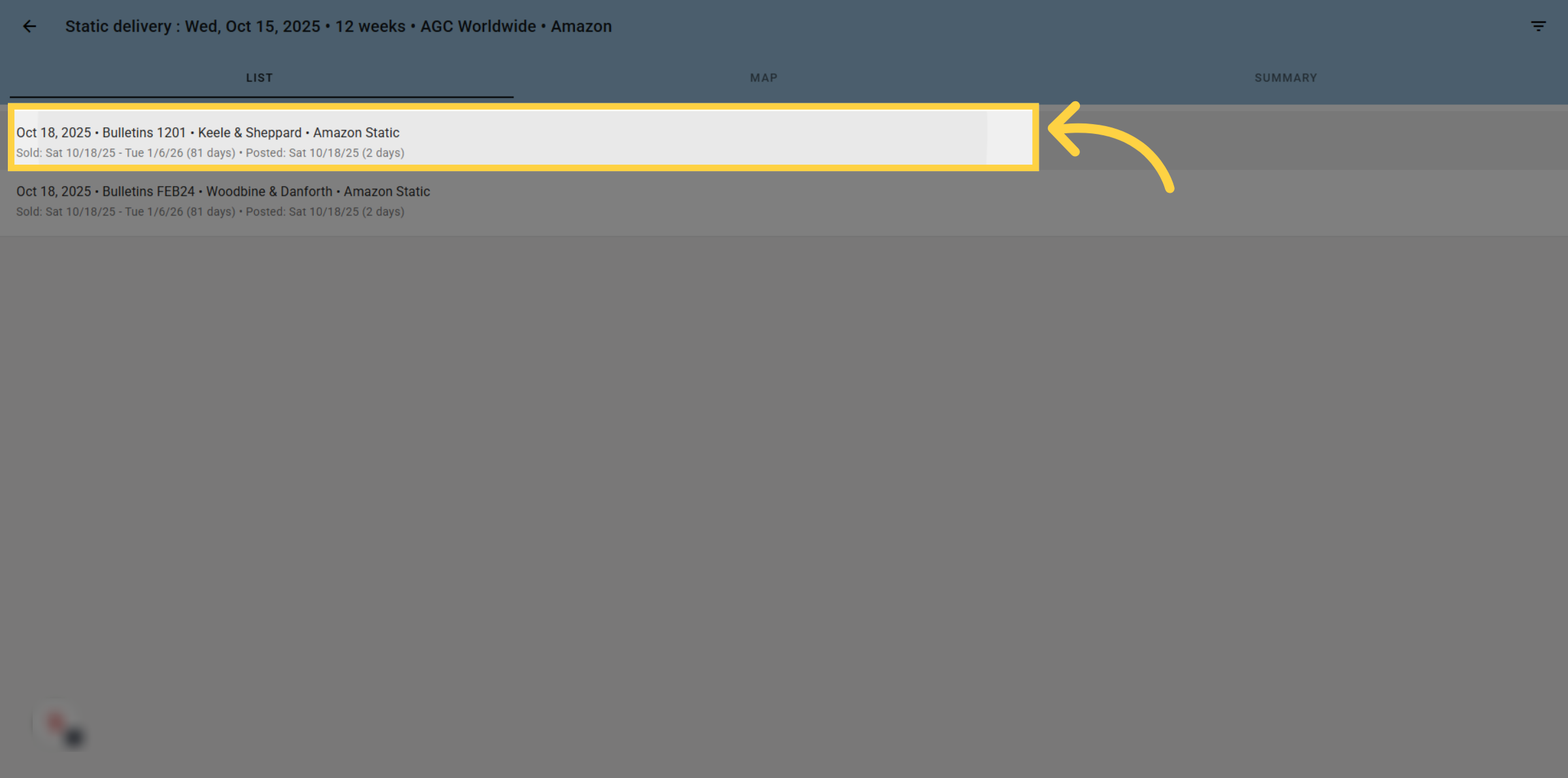
This page lists all static bookings on the campaign. Posting details are available for all bookings. If you wish to see more detail, click on the desired booking.
7. Booking POP details
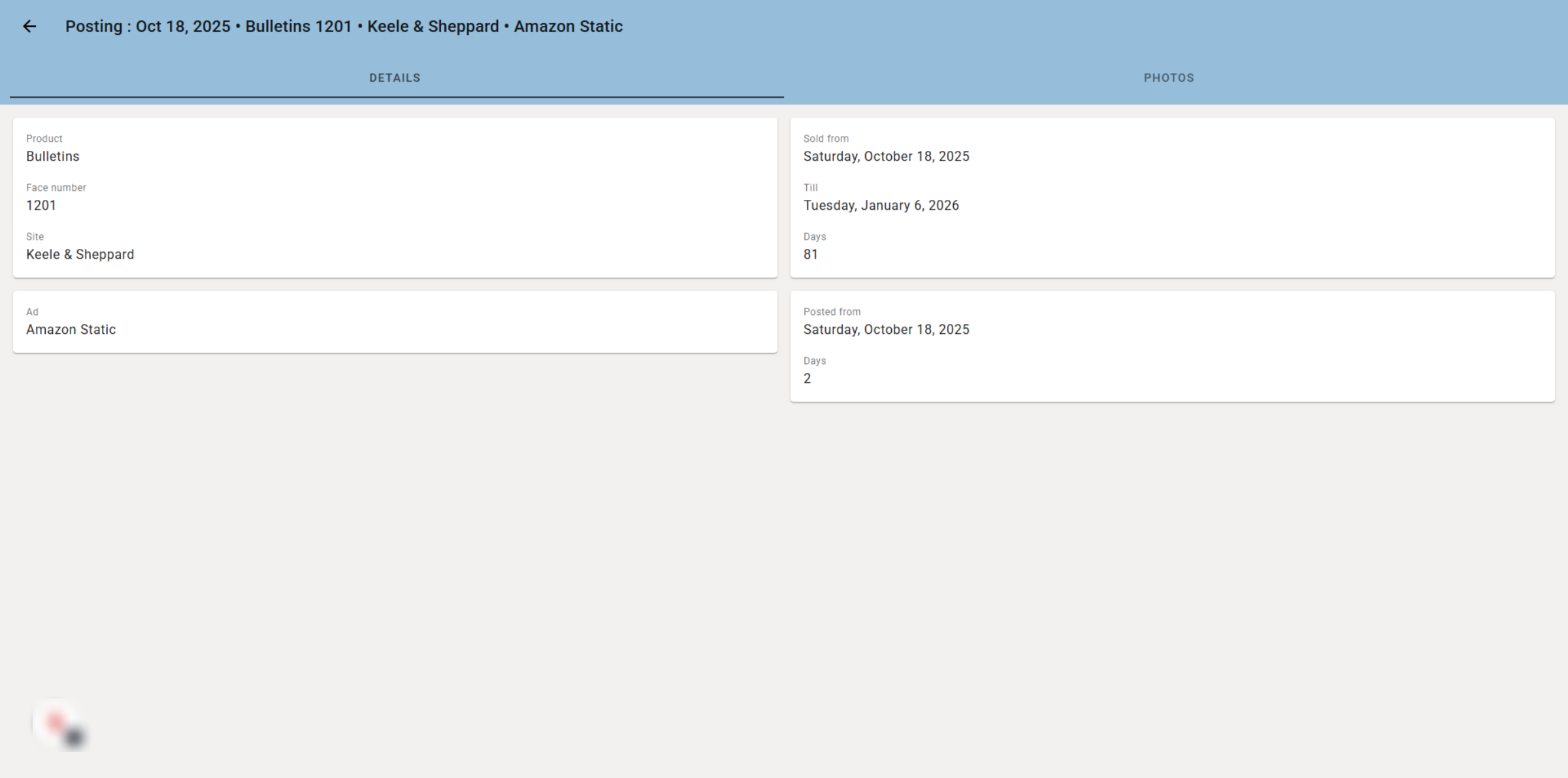
After a face is selected, you will be able to see information about the booking, as well as posting information related to the booking.
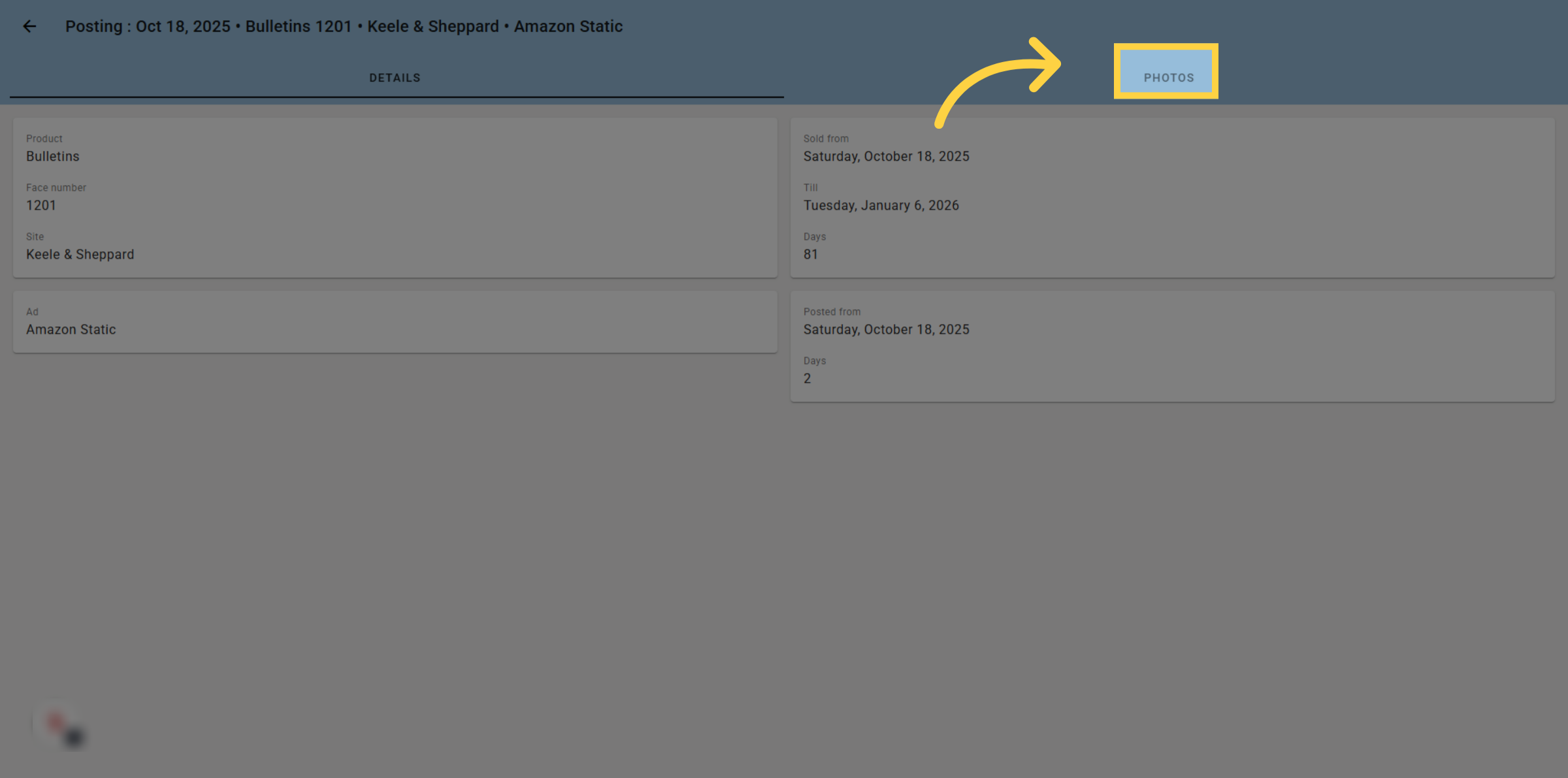
8. Click "Photos"
If you wish to see any P.O.P. photos taken for this posting, click on Photos.
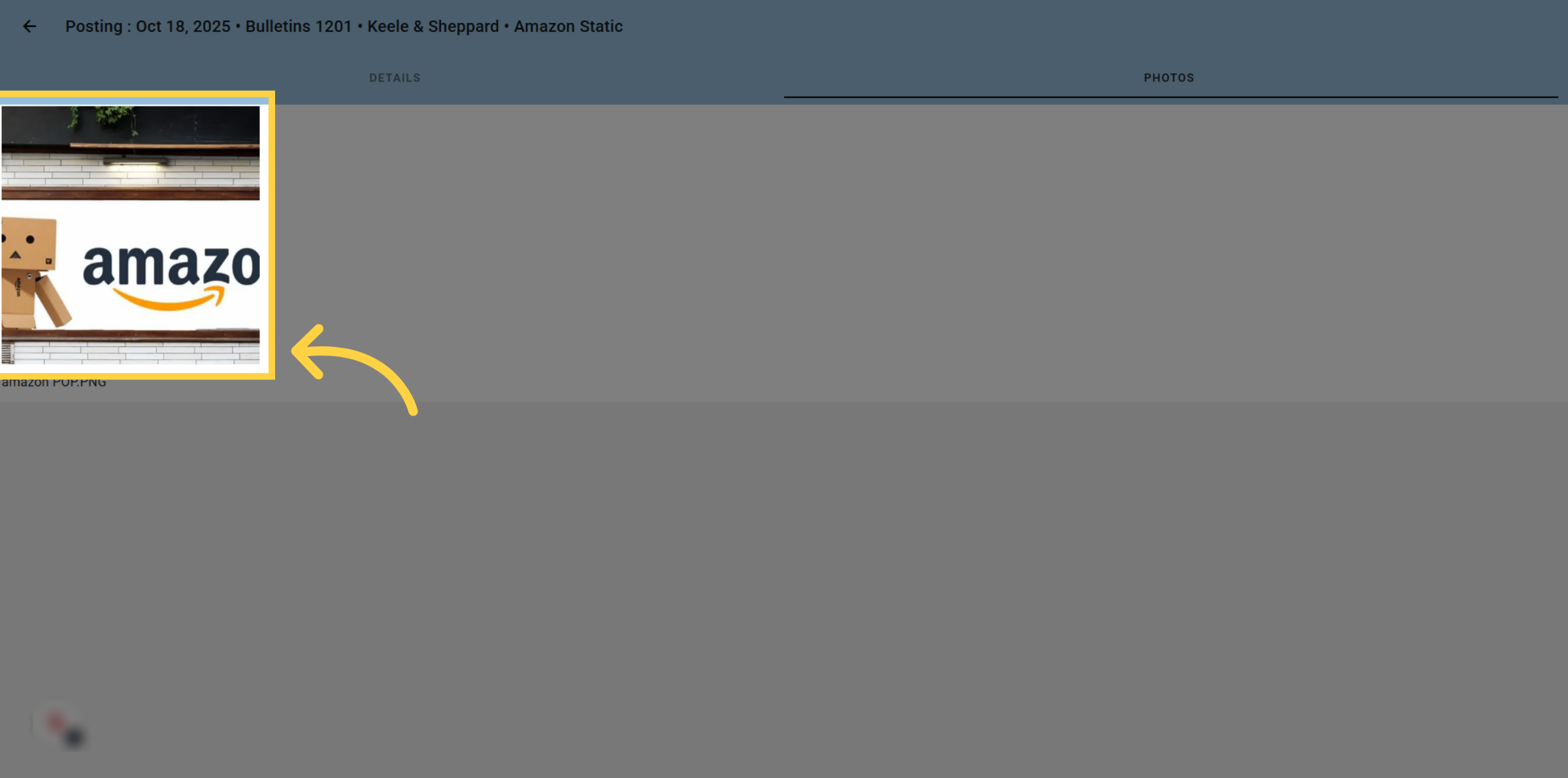
9. Click Thumbnail
Thumbnails of images associated with this posting completion will be displayed. If you wish to view a larger version of a P.O.P. image, click on its thumbnail.
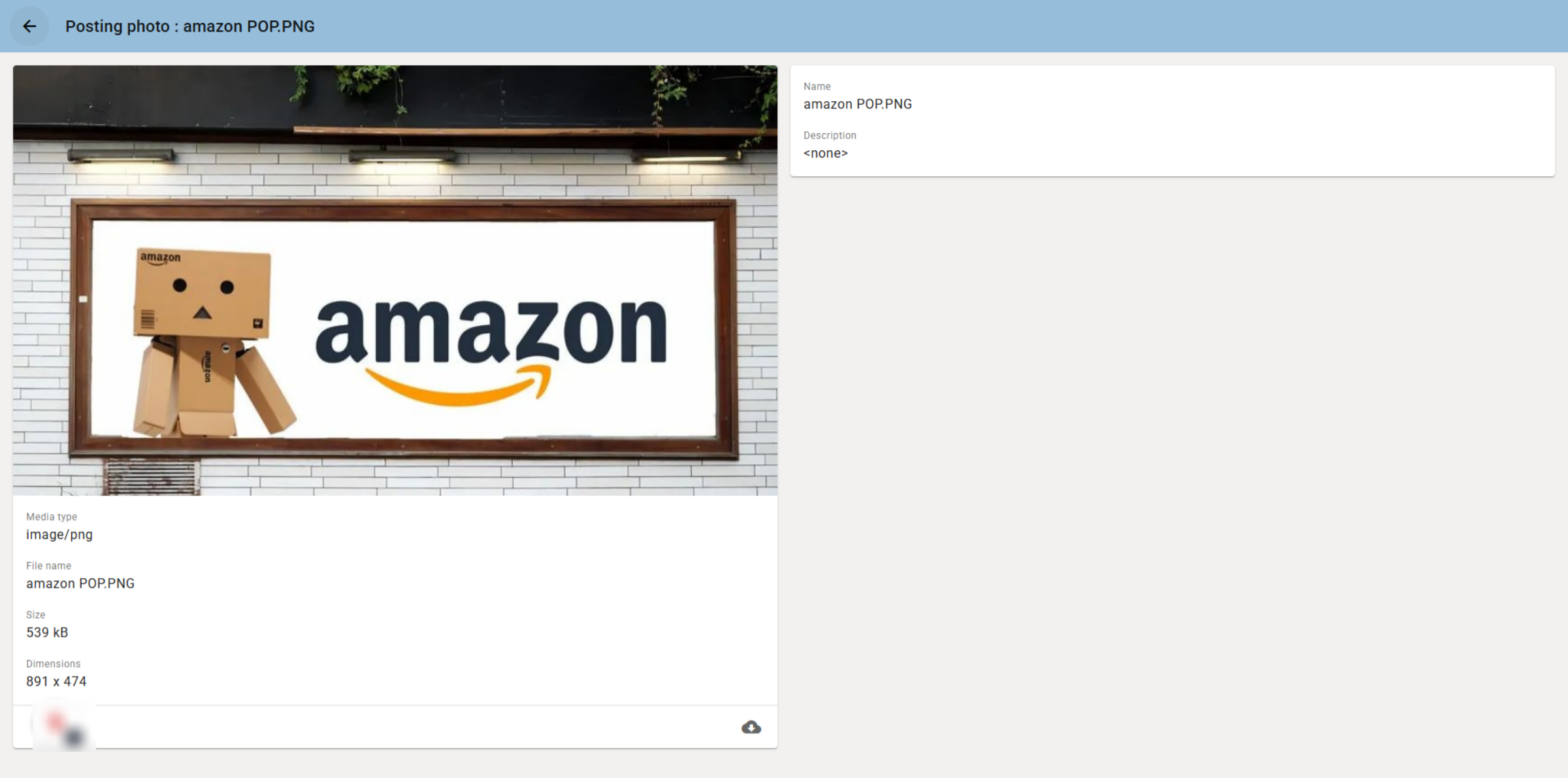
10. POP Image Detail
The P.O.P image, along with its information, will be displayed.
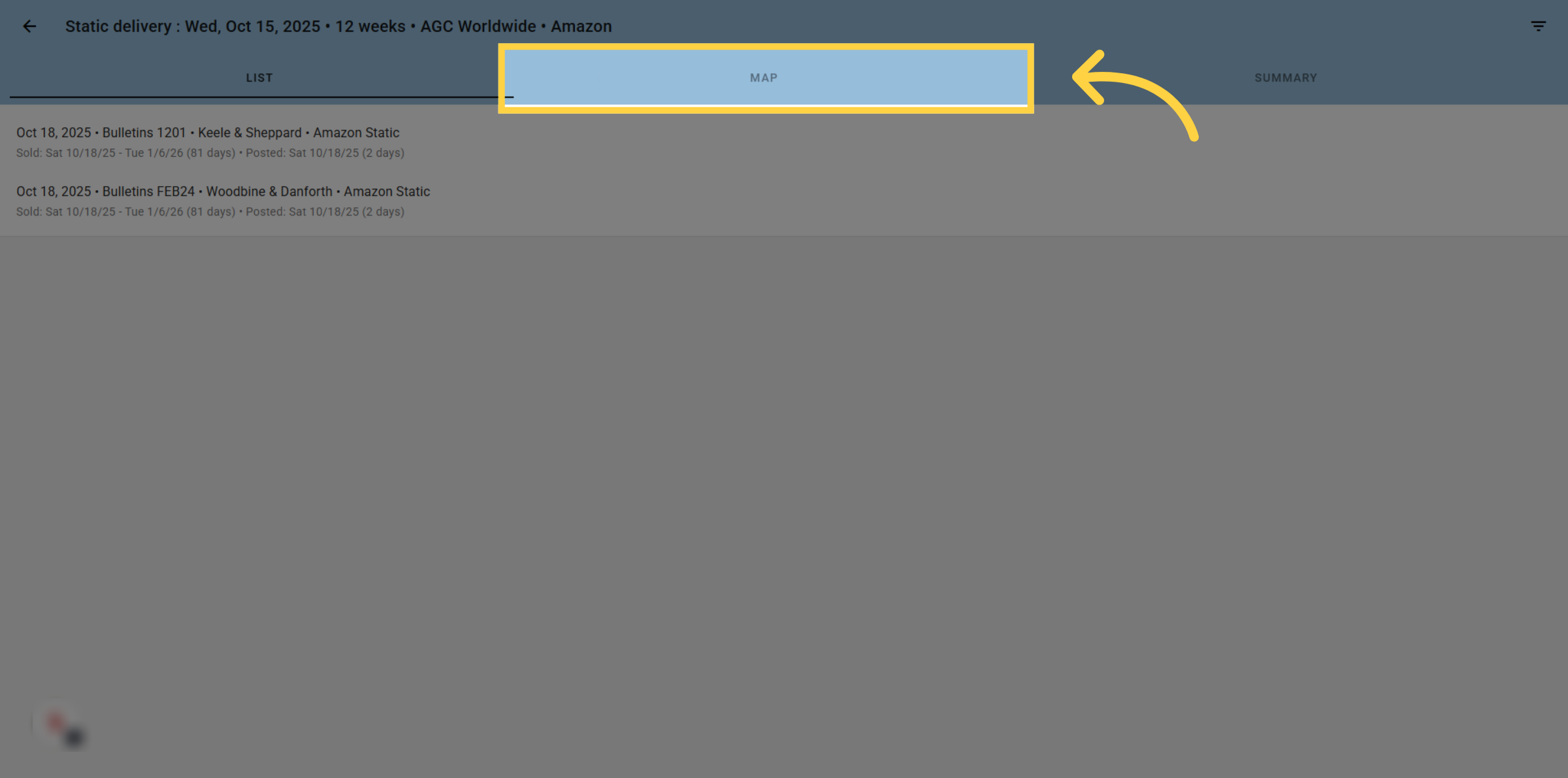
11. Click Map
If you wish to view a map of all bookings on the campaign, click on Map.
12. View Map
The map will show all bookings and whether they have been posted or not. Posted bookings will appear in green, non posted bookings will appear in red.
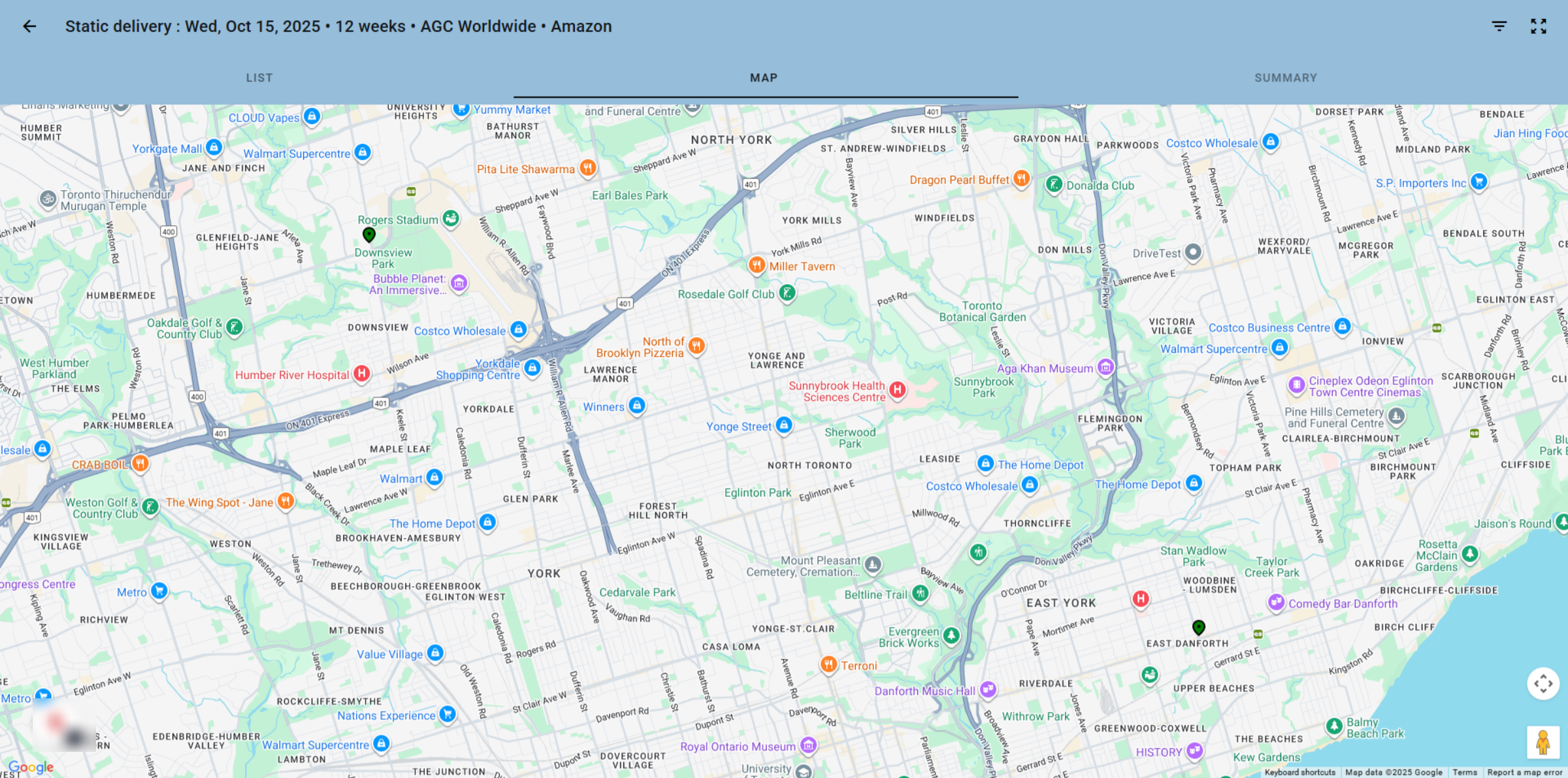
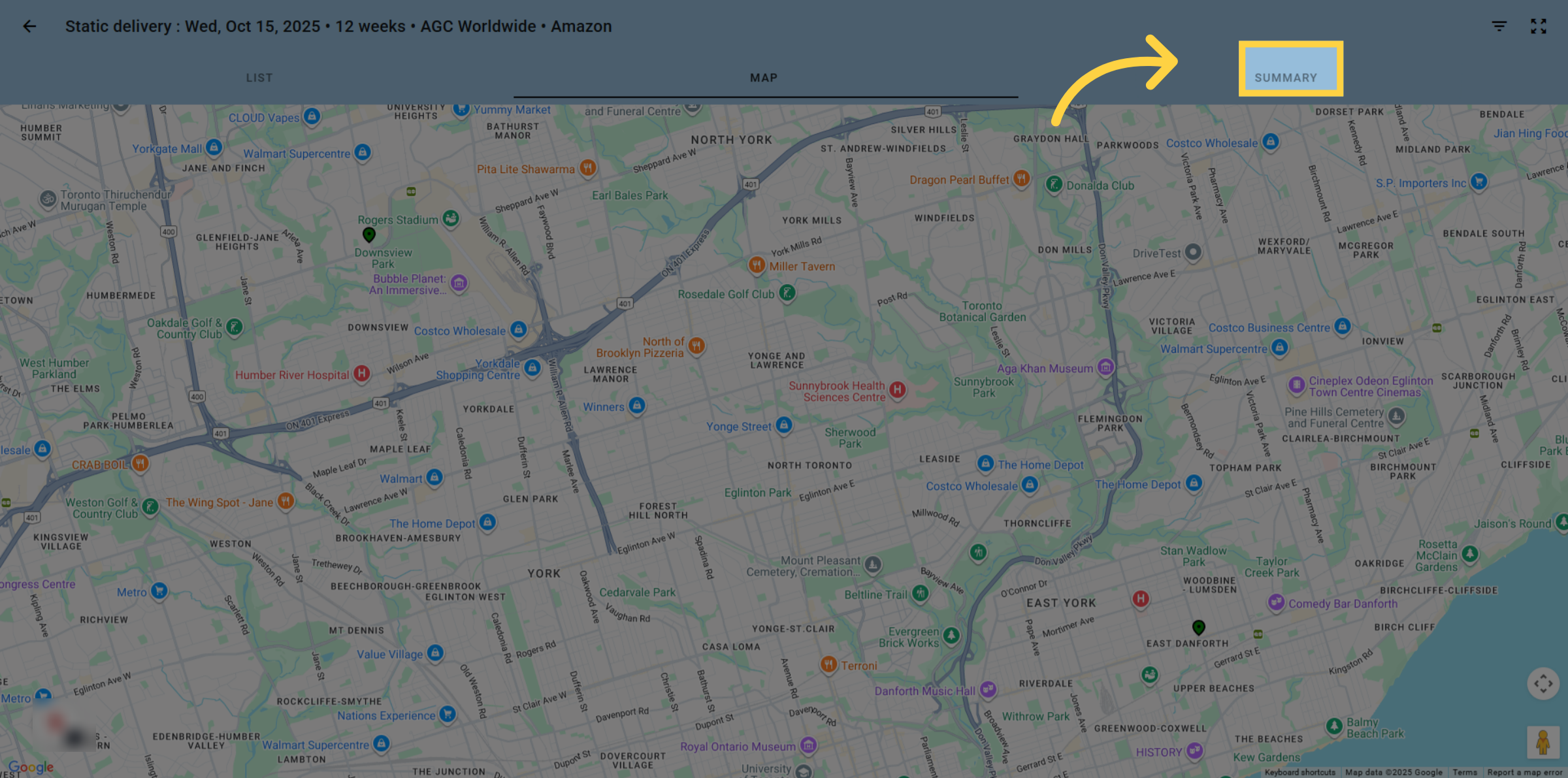
13. Click Summary
If you wish to review a summary of the static items on the campaign, click on Summary
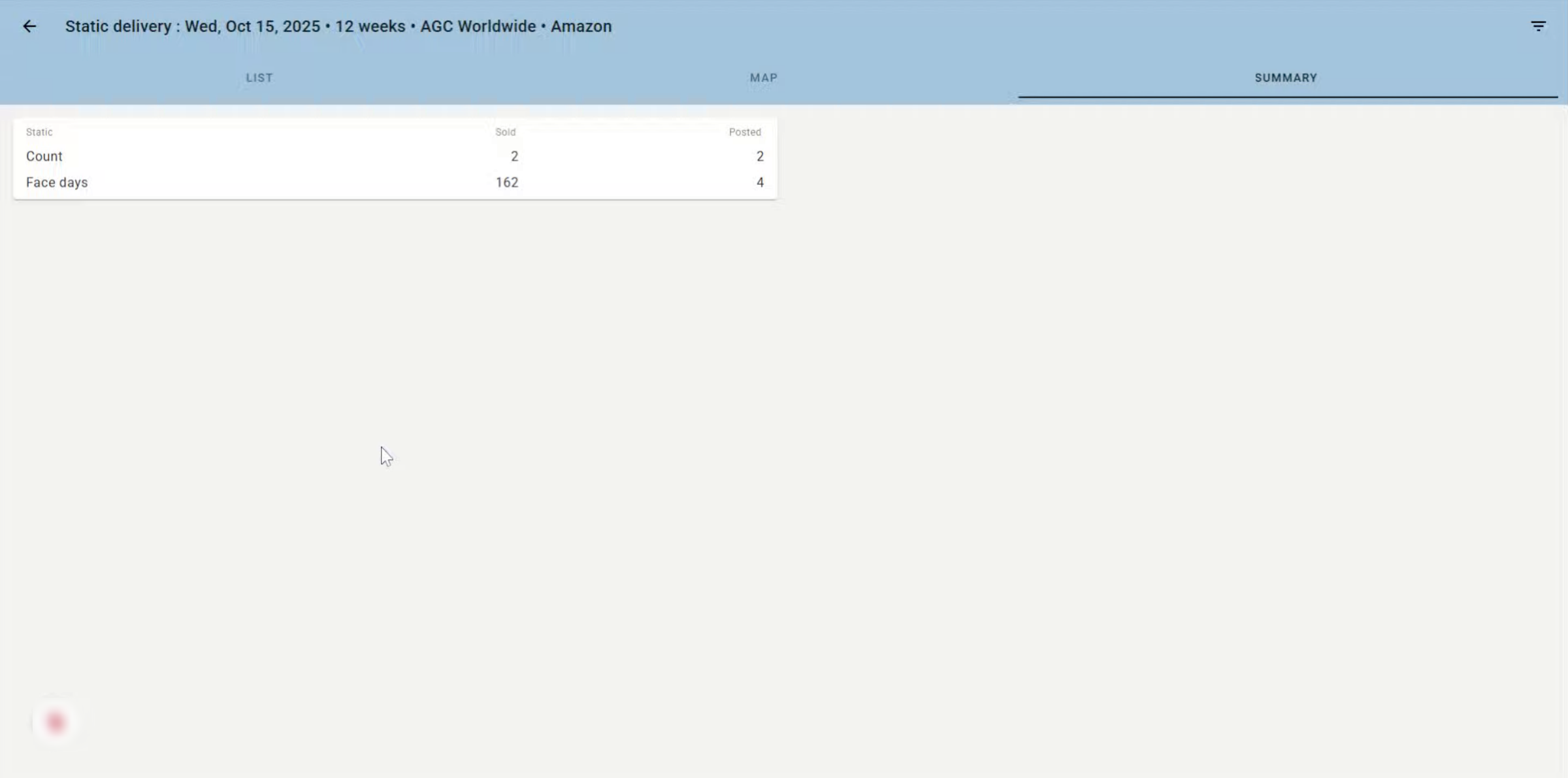
14. Summary page
The Summary page shows you information on what has been delivered on this campaign for static media.
15. Viewing POP delivery
You can also view digital delivery P.O.P. by clicking on the arrow in the digital card
16. Campaign list
This page lists all digital bookings on the campaign. Playback details are available for all bookings. If you wish to see more detail, click on the desired booking.
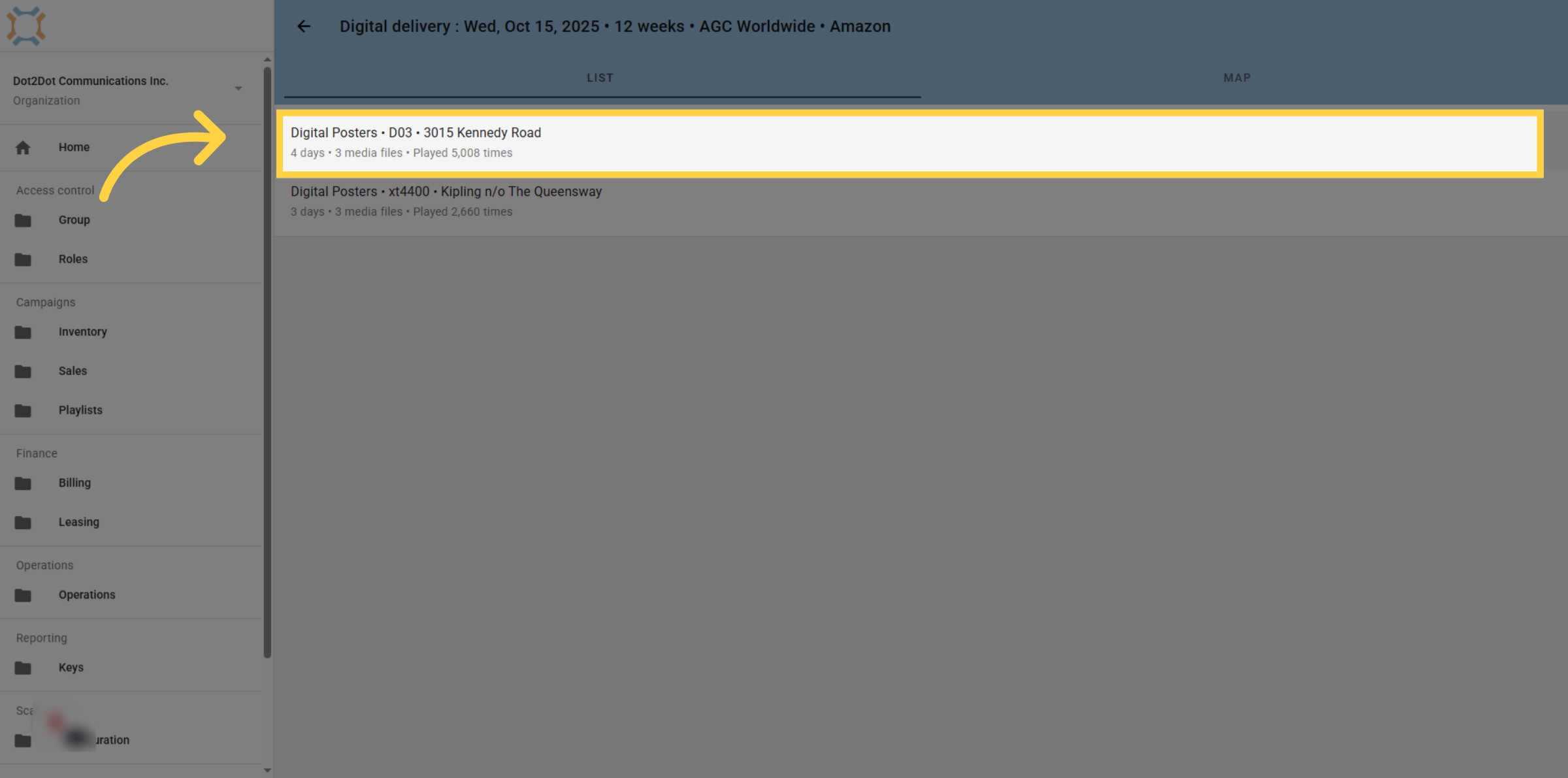
17. Choose Specific Date
The playback information for the booking will appear, showing playback information by date. If you wish to see specifics, click on the date
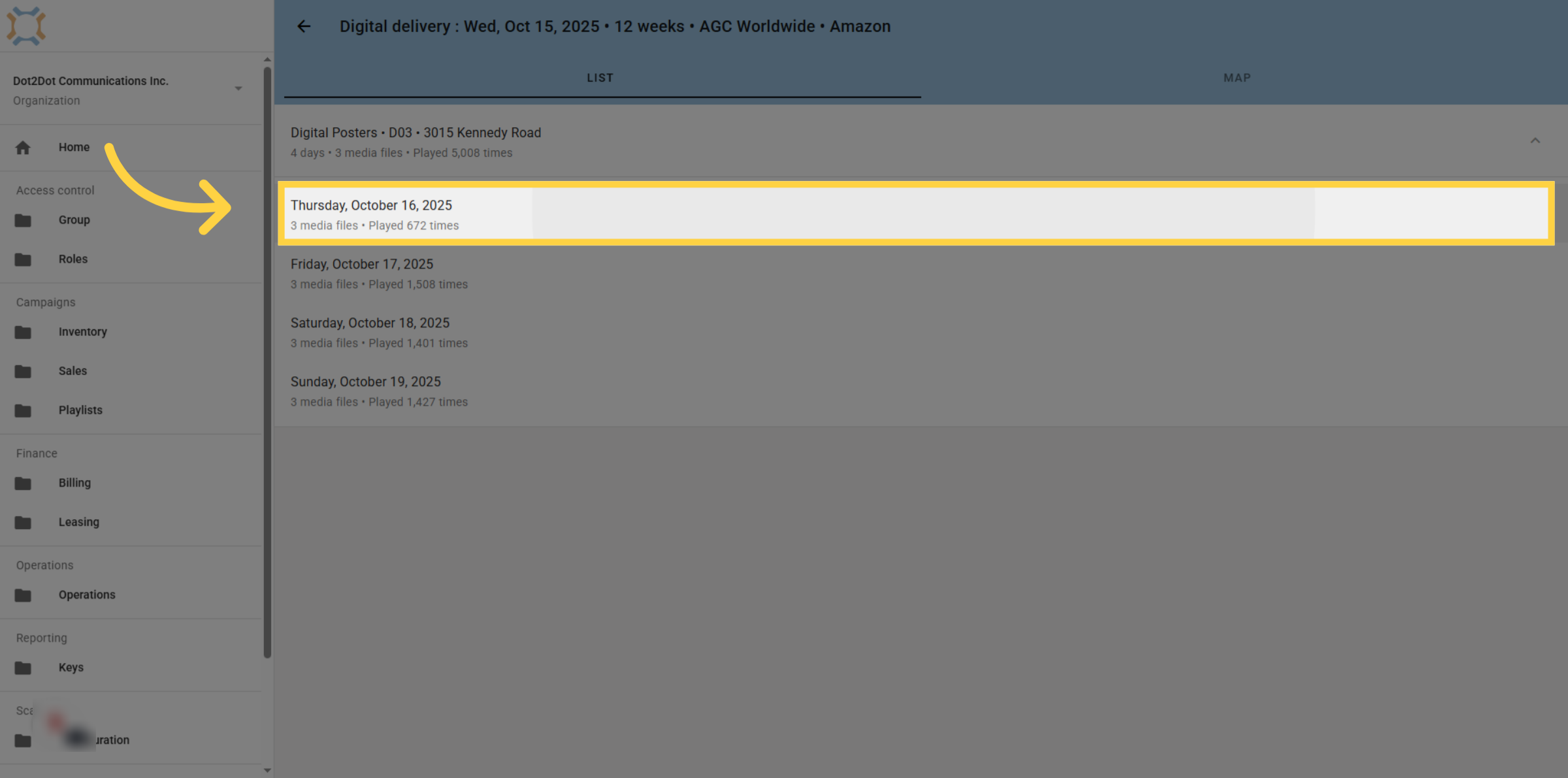
18. Open Media File Details
Each media file that played at the location on the selected date will show a thumbnail and the number of times that item played. You can click on the media item to see a larger image.
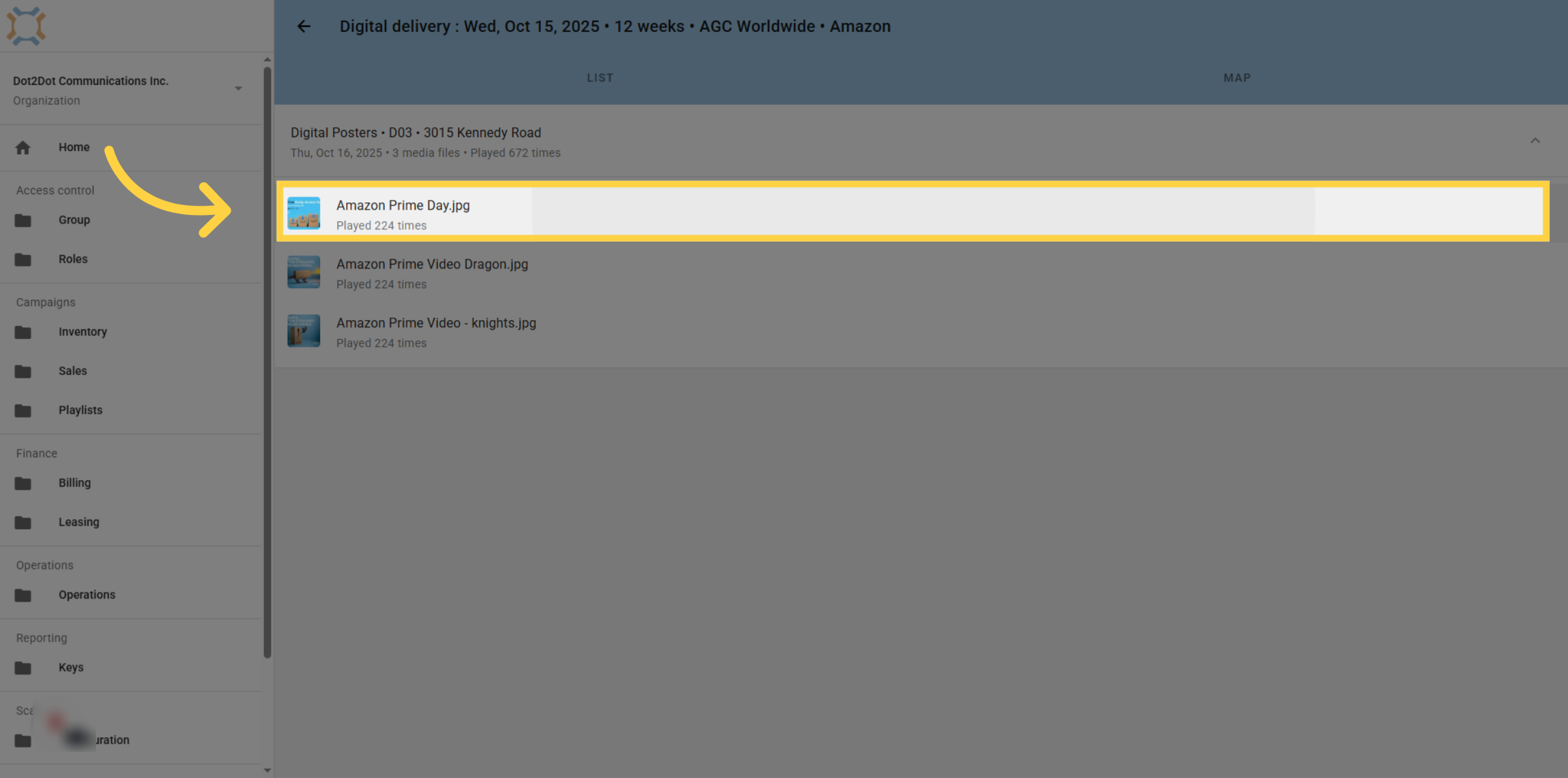
19. Go back to booking list
To return to the list of bookings, click on the location you are viewing. This will take you back to the list so you can review another booking.
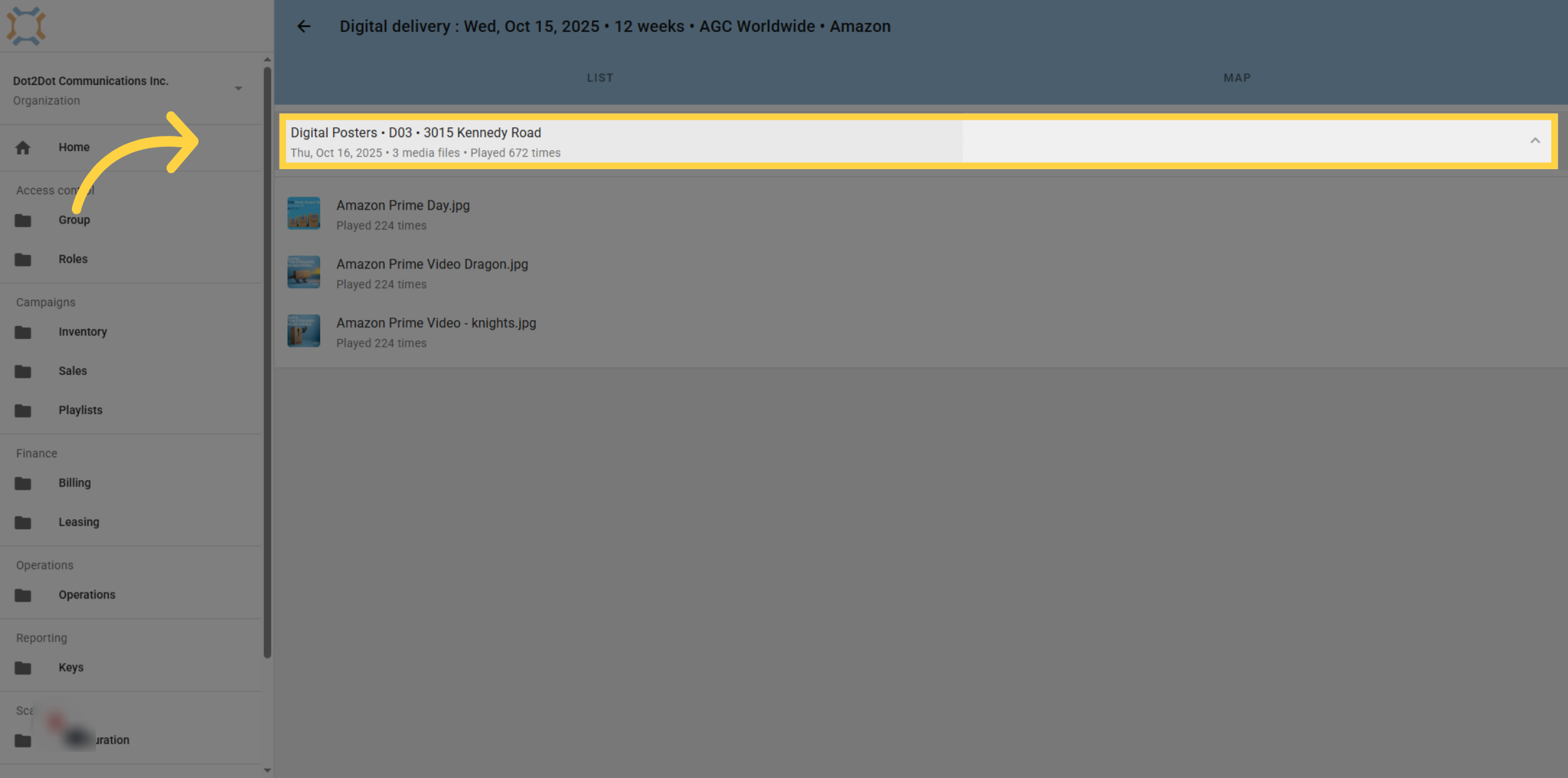
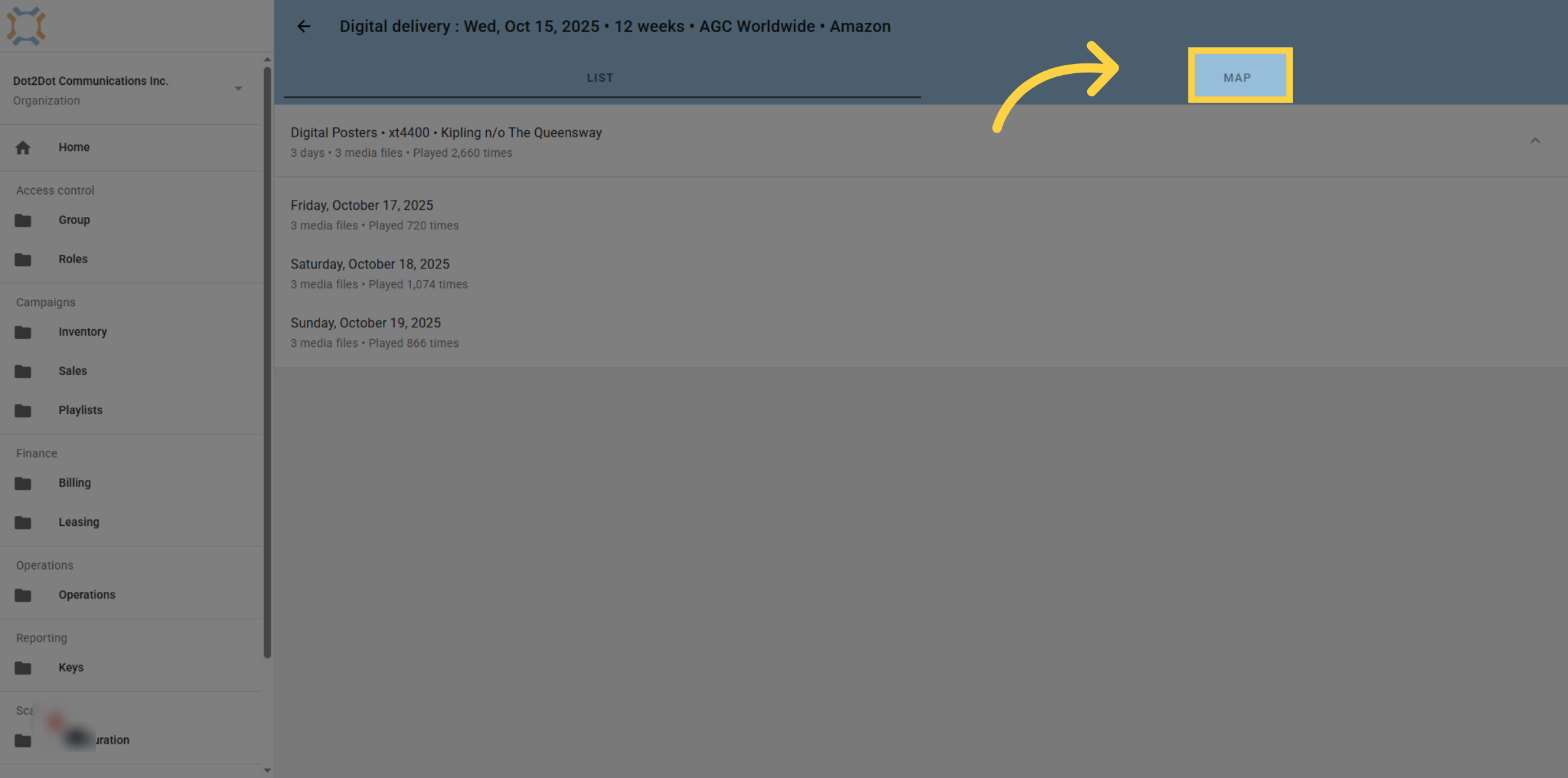
20. Open Map
To view all the digital bookings on a map, click on the Map tab.
If you have any additional questions, please contact Dot2Dot for assistance.
Comments
0 comments
Please sign in to leave a comment.